@needle-tools/engine
Version:
Needle Engine is a web-based runtime for 3D apps. It runs on your machine for development with great integrations into editors like Unity or Blender - and can be deployed onto any device! It is flexible, extensible and networking and XR are built-in.
212 lines (211 loc) • 9.46 kB
TypeScript
import { Behaviour } from "../Component.js";
/**
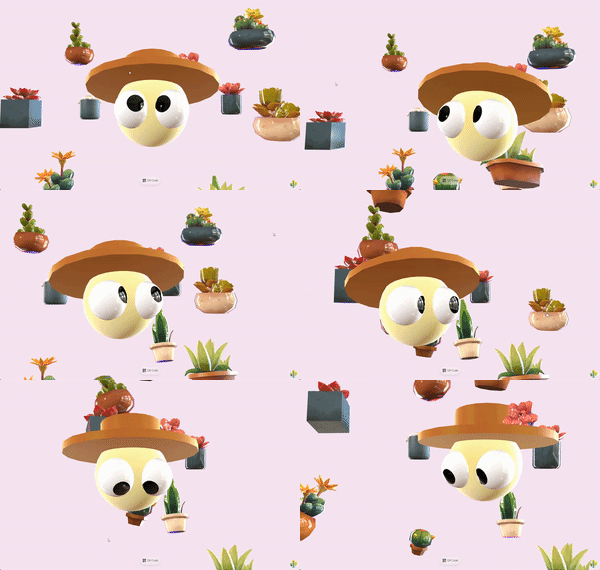
* [CursorFollow](https://engine.needle.tools/docs/api/CursorFollow) makes an object smoothly follow the cursor or touch position in 3D space.
* The component tracks pointer movement and updates the object's position to follow it, with optional damping for smooth motion.
*
* 
*
* **How It Works:**
* The component creates a ray from the camera through the cursor position and places the object along that ray.
* By default, it maintains the object's initial distance from the camera, creating a natural cursor-following effect
* that works consistently regardless of camera movement.
*
* **Key Features:**
* - Smooth cursor following with configurable damping
* - Works with both mouse and touch input
* - Can follow cursor across the entire page or just within the canvas
* - Maintains consistent distance from camera by default
* - Optional surface snapping using raycasts
* - Responds to camera movement automatically
*
* **Common Use Cases:**
* - Interactive 3D cursors or pointers
* - Look-at effects combined with {@link LookAtConstraint}
* - Floating UI elements that track cursor
* - Interactive product showcases
* - 3D header effects and hero sections
* - Virtual laser pointers in XR experiences
*
* @example Basic cursor follow with smooth damping
* ```ts
* const follower = new Object3D();
* follower.position.set(0, 0, -5); // Initial position 5 units from camera
* follower.addComponent(CursorFollow, {
* damping: 0.2, // Smooth following with 200ms damping
* keepDistance: true, // Maintain initial distance
* useFullPage: true // Track cursor across entire page
* });
* scene.add(follower);
* ```
*
* @example Surface-snapping cursor with raycast
* ```ts
* const cursor = new Object3D();
* cursor.addComponent(CursorFollow, {
* snapToSurface: true, // Snap to surfaces in the scene
* keepDistance: false, // Don't maintain distance when snapping
* damping: 0.1 // Quick, responsive movement
* });
* scene.add(cursor);
* ```
*
* @example Instant cursor following (no damping)
* ```ts
* gameObject.addComponent(CursorFollow, {
* damping: 0, // Instant movement
* useFullPage: false // Only track within canvas
* });
* ```
*
* @example Interactive 3D header that looks at cursor
* ```ts
* const character = loadModel("character.glb");
* const lookTarget = new Object3D();
* lookTarget.addComponent(CursorFollow, { damping: 0.3 });
* character.addComponent(LookAtConstraint, { target: lookTarget });
* scene.add(lookTarget, character);
* ```
*
* - Example: [Look At Cursor sample](https://engine.needle.tools/samples/look-at-cursor-interactive-3d-header/) - Combines CursorFollow with LookAt for an interactive 3D header
*
* @see {@link LookAtConstraint} - Commonly combined with CursorFollow for look-at effects
* @see {@link PointerEvents} - For more complex pointer interaction handling
* @see {@link DragControls} - For dragging objects in 3D space
* @see {@link OrbitControls} - For camera controls that work alongside CursorFollow
* @see {@link Context.input} - The input system that provides cursor position
* @see {@link Context.physics.raycastFromRay} - Used when snapToSurface is enabled
*
* @summary Makes objects follow the cursor/touch position in 3D space
* @category Interactivity
* @category Web
* @group Components
* @component
*/
export declare class CursorFollow extends Behaviour {
static readonly NAME = "CursorFollow";
/**
* Damping factor controlling how smoothly the object follows the cursor (in seconds).
*
* This value determines the "lag" or smoothness of the following motion:
* - `0`: Instant movement, no damping (object snaps directly to cursor position)
* - `0.1-0.2`: Quick, responsive following with slight smoothing
* - `0.3-0.5`: Noticeable smooth trailing effect
* - `1.0+`: Slow, heavily damped movement
*
* The damping uses delta time, so the movement speed is framerate-independent and
* provides consistent behavior across different devices.
*
* **Tip:** For look-at effects, values between 0.2-0.4 typically feel most natural.
* For cursor indicators, 0.1 or less provides better responsiveness.
*
* @default 0
*/
damping: number;
/**
* Whether the object should track the cursor across the entire webpage or only within the canvas.
*
* **When `true` (default):**
* - The object follows the cursor anywhere on the page, even outside the canvas bounds
* - Perfect for look-at effects where you want continuous tracking
* - Great for embedded 3D elements that should feel aware of the whole page
* - Example: A 3D character in a hero section that watches the cursor as you scroll
*
* **When `false`:**
* - The object only follows the cursor when it's inside the Needle Engine canvas
* - Useful for contained experiences where the 3D element shouldn't react to external cursor movement
* - Better for multi-canvas scenarios or when you want isolated 3D interactions
*
* **Note:** When enabled, the component listens to `window.pointermove` events to track the
* full-page cursor position. When disabled, it uses the context's input system which is
* canvas-relative.
*
* @see {@link Context.input.mousePositionRC} for canvas-relative cursor position
* @default true
*/
useFullPage: boolean;
/**
* Whether to maintain the object's initial distance from the camera while following the cursor.
*
* **When `true` (default):**
* - The object stays at a constant distance from the camera, moving in a spherical arc around it
* - Creates a natural "floating at cursor position" effect
* - The object's depth remains consistent as you move the cursor around
* - Perfect for cursors, pointers, or look-at targets
*
* **When `false`:**
* - The object's distance can change based on where the cursor projects in 3D space
* - More useful when combined with {@link snapToSurface} to follow surface geometry
* - Can create unusual depth behavior if not carefully configured
*
* **How it works:**
* On the first update, the component measures the distance from the object to the camera.
* This initial distance is then maintained throughout the object's lifetime (unless {@link updateDistance} is called).
* The object moves along a ray from the camera through the cursor, staying at this fixed distance.
*
* @see {@link updateDistance} to manually recalculate the distance
* @default true
*/
keepDistance: boolean;
/**
* When enabled, the object snaps to the surfaces of other objects in the scene using raycasting.
*
* **How it works:**
* After positioning the object at the cursor location, a raycast is performed backwards toward the camera.
* If the ray hits any surface, the object is moved to that hit point, effectively "snapping" to the surface.
*
* **Use cases:**
* - 3D paint or decal placement tools
* - Surface markers or waypoints
* - Interactive object placement in AR/VR
* - Cursor that follows terrain or mesh surfaces
*
* **Important notes:**
* - Requires objects in the scene to have colliders for raycasting to work
* - Works best with {@link keepDistance} set to `false` to allow depth changes
* - Can be combined with {@link damping} for smooth surface following
* - The raycast uses the physics system's raycast functionality
*
* **Debug mode:**
* Add `?debugcursor` to your URL to visualize the raycast hits with green debug lines.
*
* @see {@link Context.physics.raycastFromRay} for the underlying raycast implementation
* @see {@link keepDistance} should typically be false when using surface snapping
* @default false
*/
snapToSurface: boolean;
private _distance;
/**
* Manually recalculates the distance between the object and the camera.
*
* By default, the distance is calculated once when the component starts and then maintained
* when {@link keepDistance} is enabled. Use this method to update the reference distance
* if the camera or object has moved significantly.
*
* **Use cases:**
* - After teleporting the camera or object
* - When switching between different camera positions
* - After zoom operations that change the desired following distance
* - Dynamically adjusting the cursor's depth in response to user input
*
* @param force - If `true`, forces a recalculation even if {@link keepDistance} is enabled and distance was already set
*
* @example Recalculate distance after camera movement
* ```ts
* const cursorFollow = gameObject.getComponent(CursorFollow);
* camera.position.set(0, 0, 10); // Move camera
* cursorFollow?.updateDistance(true); // Update the reference distance
* ```
*/
updateDistance(force?: boolean): void;
/** @internal */
awake(): void;
/** @internal */
onEnable(): void;
/** @internal */
onDisable(): void;
private _ndc_x;
private _ndc_y;
private _onPointerMove;
/** @internal */
lateUpdate(): void;
}