@nataliapc/mcp-openmsx
Version:
Model context protocol server for openMSX automation and control
996 lines (664 loc) • 117 kB
Markdown
# CHAPTER 3 - MSX-DOS
Large capacity storage devices with high-speed access are necessary for business applications. That is why a disk operating system was added to the MSX machine. The DOS (disk operating system) is also required to handle the large amount of data on the disk effectively. MSX-DOS is derived from MS-DOS which is used widely on 16-bit machines. Thus, it represents the most powerful DOS environment for Z-80 based machines. Chapter 3 describes the basic operations of MSX-DOS and the use of the system calls.
<p> </p>
## Index
- [1. OVERVIEW](#1--overview)
- [1.1 Features of MSX-DOS](#11-features-of-msx-dos)
- [1.2 MSX-DOS Environment](#12-msx-dos-environment)
- [1.3 MSX-DOS System Resources](#13-msx-dos-system-resources)
- [2. OPERATION](#2--operation)
- [2.1 Basic Operations](#21-basic-operations)
- [2.2 Internal commands](#22-internal-commands)
- [2.3 Batch Command Usage](#23--batch-command-usage)
- [2.4 External Commands](#24-external-commands)
- [3. STRUCTURE OF DISK FILES](#3--structure-of-disk-files)
- [3.1 Data units on the disk](#31-data-units-on-the-disk)
- [3.2 File Access](#32-file-access)
- [4. SYSTEM CALL USAGE](#4--system-call-usage)
- [4.1 Peripheral I/O](#41-peripheral-io)
- [4.2 Environment Setting and Readout](#42-environment-setting-and-readout)
- [4.3 Absolute READ/WRITE (direct access to sectors)](#43-absolute-readwrite-direct-access-to-sectors)
- [4.4 File Access Using FCB](#44-file-access-using-fcb)
- [Changes from the original](#changes-from-the-original)
<p> </p>
## 1. OVERVIEW
What kind of software is MSX-DOS? What does it offer to users? The following sections describe and introduce the features, functions, and software configurations of MSX-DOS.
<p> </p>
### 1.1 Features of MSX-DOS
#### Consolidation of disk operating environment
MSX-DOS is the disk operating system for MSX computers. It works with any version of MSX and can be operated on both the MSX1 and MSX2 without any problem. Disk operation on MSX is always done via MSX-DOS. This is also true concerning MSX DISK-BASIC, which uses BDOS calls for disk input/output. MSX-DOS and DISK-BASIC use the same disk format so that file conversion between BASIC and DOS is not necessary. This greatly increases operating efficiency and allows more effective use of file resources when MSX-DOS is used as the software development environment.
#### Compatibility with MS-DOS
MSX-DOS, created on the basis of MSX-DOS (ver 1.25) which is a disk operating system for 16-bit personal computers, uses the same file format as MS-DOS. It is compatible with MS-DOS at the file level so that MSX-DOS can read and write files written on MS-DOS disks. In turn MS-DOS can read and write files created by MSX-DOS. Both disk operating systems use similar commands, so users who are familiar with MSX-DOS can easily use MS-DOS when upgrading to 16-bit machines.
#### Using CP/M applications
MSX-DOS has system call compatibility with CP/M and can execute most programs created on CP/M without any modification. Most CP/M applications can thus be easily used with MSX-DOS. This opens up a large library of existing software which can be run on the MSX machines.
<p> </p>
### 1.2 MSX-DOS Environment
#### System requirements
To use MSX-DOS, a minimum configuration of 64K bytes RAM, a CRT, one disk drive, and a disk interface ROM is required. If less than 64K bytes RAM is installed, MSX-DOS cannot be used. MSX computers can only use MSX-DOS if they have 64K bytes RAM or more. Since MSX2 computers always have 64K bytes or more of RAM, they can always run MSX-DOS. A limited disk basic is used on those machines with less than 64K bytes RAM. Disk interface ROM is always supplied with the disk drive, and, on MSX machines with an internal disk drive, it resides inside the machine. For those machines using disk cartridges, it is in the cartridge.
#### System supported
MSX-DOS supports up to eight disk drives. On a one-drive system, it has a 2-drive simulation feature (it uses one drive as two drives by replacing diskettes temporarily). It supports keyboard input, screen output, and printer output.
#### Media supported
MSX-DOS, which has a flexible file manager that does not depend on the physical structure of the disk, supports various media and uses 3.5 inch double density disks as standard. Either a one-sided disk called 1DD or two-sided disk called 2DD is used. Each of them uses either an 8-sector track format so four kinds of media can be used. The Microsoft formats for these four types are shown below.
##### _Table 3.1 Media supported by MSX-DOS_
```
----------------------------------------------------------------------
| | 1DD, 9 | 2DD, 9 | 1DD, 8 | 2DD, 8 |
| | sectors | sectors | sectors | sectors |
|----------------------------+---------+---------+---------+---------|
| media ID | 0F8H | 0F9H | 0FAH | 0FBH |
| number of sides | 1 | 2 | 1 | 2 |
| tracks per side | 80 | 80 | 80 | 80 |
| sectors per track | 9 | 9 | 8 | 8 |
| bytes per sector | 512 | 512 | 512 | 512 |
| cluster size (in sectors) | 2 | 2 | 2 | 2 |
| FAT size (in sectors) | 2 | 3 | 1 | 2 |
| number of FATs | 2 | 2 | 2 | 2 |
| number of recordable files | 112 | 112 | 112 | 112 |
----------------------------------------------------------------------
```
**Note:** See [Section 3](#3--structure-of-disk-files) for the meanings of the above words.
<p> </p>
### 1.3 MSX-DOS System Resources
#### Memory map
MSX-DOS consists of the following modules: COMMAND.COM, MSXDOS.SYS, and a disk interface ROM. It resides in memory as shown in [Figure 3.1](#figure-31--msx-dos-memory-map) when MSX-DOS is active. COMMAND.COM and MSXDOS.SYS are disk files until MSX-DOS is booted and then read into RAM after that. Disk interface ROM includes a disk driver, DOS kernel, and DISK-BASIC interpreter.
##### _Figure 3.1 MSX-DOS memory map_
```
0000H -----------------------
| system scratch area |
0100H |---------------------| --- 4000H ---------------------
| | ^ | disk driver |
| | | | DOS kernel |
| | | | DISK BASIC |
| | | | interpreter |
| | TPA 7FFFH ---------------------
| | |
| | | disk interface ROM
|---------------------| |
| COMMAND.COM | V
(0006H) |---------------------| ---
| MSXDOS.SYS |
|---------------------|
| work area |
FFFFH -----------------------
```
The area 00H to FFH of RAM is called the system scratch area, which is used by MSX-DOS for exchanging data with other programs. This area is important when using system calls, which are described later. The area which begins at 0100H and ends where the contents of 0006H of RAM indicates is calles the TPA (Transient Program Area). This area is accessible by the user. MSXDOS.SYS always resides at a higher address than TPA (when destroyed, the result is unpredictable), and COMMAND.COM is placed in TPA.
#### COMMAND.COM
The main operation of MSX-DOS is to accept typing commands from the keyboard and execute them. In this case the program COMMAND.COM is responsible for the process from getting a string to interpreting and executing it, or accepting commands from the user interface. Programs executed by COMMAND.COM consists of internal commands, batch commands, and external commands.
Internal commands are inside COMMAND.COM and on RAM. Typing an internal acommand causes COMMAND.COM to call and execute it immediately.
For the external command, COMMAND.COM loads the routine from disk to TPA and executes it (the execution of external commands always begins at 100H). In this case COMMAND.COM frees its own area for the external command. That is, COMMAND.COM might erase itself and writes the external command onto it, when the external command is small enough and does not use the high-end of TPA, COMMAND.COM would not be destroyed. When the external command ends with "RET", MSXDOS.SYS examines whether COMMAND.COM has been destroyed (by using checksum) and, if so, re-loads COMMAND.COM onto RAM and passes the control to COMMAND.COM.
Batch commands are carried out by getting command line input from a batch file instead of from the keyboard. Each step of the batch file can execute any internal command or external command. It is possible that the batch command executes another batch command, but the control will not return to the caller after the called batch command is done.
#### MSXDOS.SYS
MSXDOS.SYS, core of MSX-DOS, controls disk access and communications with peripherals. These MSXDOS.SYS functions are opened as "BDOS (Basic Disk Operating System)" so that the user can use them. Each routine opened is called a "system call", which is useful in developping software for managing the disk (see [section 4](#4--system-call-usage)). Each execution is, however, not done by MSXDOS.SYS itself but DOS kernel. MSXDOS.SYS is an intermediation which arranges input/output requests from COMMAND.COM or external commands and passes them to the DOS kernel.
MSXDOS.SYS includes a portion called BIOS other than BDOS, as shown in [Figure 3.2](#figure-32--msxdossys). BIOS, which has been prepared to be compatible with CP/M, is not normally used.
##### _Figure 3.2 MSXDOS.SYS_
```
-------------- --+
| BDOS | |
|------------| | MSXDOS.SYS
| BIOS | |
-------------- --+
```
#### DOS kernel
The DOS kernel is the fundamental input/output routine which resides in the disk interface ROM and executes BDOS functions of MSXDOS.SYS. Actually, any system call function can be executed using the DOS kernel. DISK-BASIC executes system calls by calling the DOS kernel directly.
#### Procedure for invoking MSX-DOS
MSX-DOS is invoked by the following procedure:
1. Resetting MSX causes all the slots to be examined first, and when two bytes, 41H and 42H, are written in the top of the examined slot, the slot is interpreted as connected to a certain ROM. When connected with ROM, the INIT (initialize) routine whose address is set to the header portion of ROM is carried out. In the case of the INIT routine of the disk interface ROM, the work area for the drive connected to the interface is allocated first.
2. When all slots have been examined, FEDAH (H.STKE) is then referred to. Unless the contents of this address is C9H (unless a certain routine is set to the hook of H.STKE during INIT routine), the environment for DISK-BASIC is prepared and execution jumps to H.STKE.
3. When the contents of H.STKE is C9H in the examination above, the cartridge with TEXT entry is searched in each slot and, if found, the environment for DISK-BASIC is prepared, and then the BASIC program at the cartridge is carried out.
4. Then, the contents of the boot sector (logical sector #0) is transferred to C000H to C0FFH. At this time, when "DRIVE NOT READY" or "READ ERROR" occurs, or when the top of the transferred sector is neither EBH nor E9H, DISK-BASIC is invoked.
5. The routine at C01EH is called with CY flag reset. Normally, since code "RET NC" is written to this address, nothing is carried and the execution returns. Any boot program written here in assembly language is invoked automatically.
6. RAM capacity is examined (contents of RAM will not be destroyed). Less than 64K bytes causes DISK-BASIC to be invoked.
7. The environment for MSX-DOS is prepared and C01EH is called with a CY flag set. MSXDOS.SYS is loaded from 100H, and the execution jumps to 100H. After this, MSX-DOS transfers itself to a high order address. If MSXDOS.SYS does not exist, DISK-BASIC is invoked.
8. MSXDOS.SYS loads COMMAND.COM from 100H and jumps to its start address. COMMAND.COM also transfers itself to a high order address and then begins to execute. If COMMAND.COM does not exist, the message "INSERT A DISKETTE" appears and the execution waits for the correct diskette to be inserted in the drive.
9. At the first boot for MSX-DOS, when a file named "AUTOEXEC.BAT" exists, it is carried out as a batch file. When MSX-DOS is not invoked and DISK-BASIC starts, if a BASIC program named "AUTOEXEC.BAS" exists, it will be carried out.
<p> </p>
## 2. OPERATION
This section describes how to type command line input from the keyboard. This is the basis of MSX-DOS operations. Several examples of actual use and their explanations will be given for the commands used in MSX-DOS.
<p> </p>
### 2.1 Basic Operations
#### Message at startup
When MSX-DOS is invoked, the following message appears on the screen:
##### _Figure 3.3 Screen at atartup_
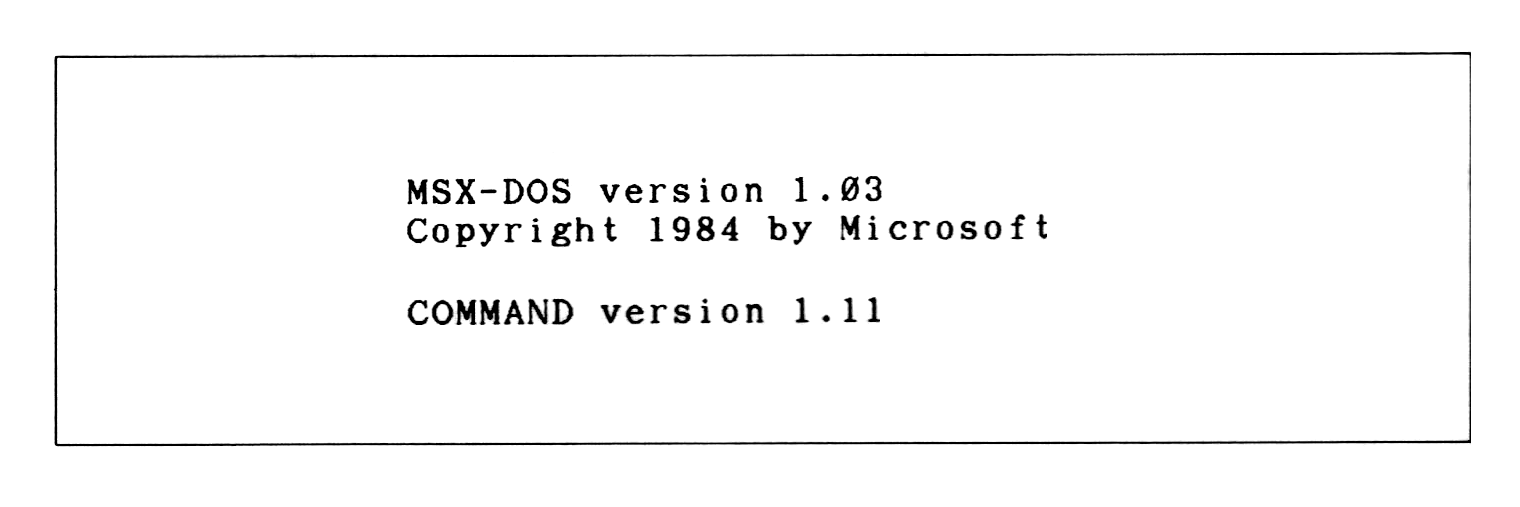
The upper two lines show the version of MSXDOS.SYS and its copyright. The last line shows the version of COMMAND.COM.
#### Prompt
Then, a prompt (input request symbol) appears under the version description. The prompt for MSX-DOS consists of two characters: the default drive name plus ">".
#### Default drive
The term "default drive" as the first character of the prompt is the drive to be accessed automatically when the drive name is omitted. When the default drive is A, for example, referring to a file "BEE" on drive "B" needs to be typed as "B:BEE". A file "ACE" on drive A, however, can be typed simply as "ACE" omitting the drive name.
```
ex.1) A>DIR B:BEE (⟵ referring to "BEE" on drive B)
ex.2) A>DIR ACE (⟵ referring to "ACE" on drive A)
```
#### Changing default drive
When using systems with more than one drive, typing "B" causes the default drive to be changed to B. When changing the default drive to C to H, "C" or the appropiate letter is needed. Specfification of a drive which does not exist causes an error.
```
ex.1) A>B:
B> (⟵ Default drive has been changed to B)
ex.2) A>K:
Invalid Drive Specification
A> (⟵ Drive K does not exist. Default drive is not changed.)
```
#### Command input
When a prompt is displayed it indicates that MSX-DOS requests a command to be input. By typing in a command, MSX-DOS can get an instruction.
Three forms of commands exist as shown in [Table 3.2](#table-32--three-forms-of-commands). The COMMAND.COM program interprets and executes these commands. MSX-DOS operations are repeats of the actions "give a command - make COMMAND.COM execute it".
##### _Table 3.2 Three forms of commands_
```
-------------------------------------------------------------------------
| (1) Internal | Command inside COMMAND.COM. Assembly routine on RAM. |
| command | Thirten commands are prepared as described later. |
|--------------+--------------------------------------------------------|
| (2) External | Assembly routine on disk. It is loaded from disk at |
| command | execution. Its file name has an extension "COM". |
|--------------+--------------------------------------------------------|
| (3) Batch | Text file containing one or more commands. Commands |
| command | are executed orderly (batch operation). File names |
| | have the extension "BAT". |
-------------------------------------------------------------------------
```
#### File name convention
Files handled by MSX-DOS are expressed by a "file spec" which is described below:
(1) File spec is expressed in the form `<drive>:<file name>`.
(2) `<drive>` is a character from A to H. When specifying the default drive, it can be omitted as well as the colon ":" following it.
(3) `<file name>` is expressed in the form of `<filename>.<extension>`.
(4) `<filename>` is a string containing one or more (up to 8) characters. When more than 8 characters are sepcified, the ninth and subsequent characters are ignored.
(5) `<extension>` is a string containing up to 3 (including zero) characters. When more than 3 characters are specified, 4th and subsequent chartacters are ignored.
(6) `<extension>` can be omitted as well a preceding period ".".
(7) Characters which are available in `<filename>` and `<extension>` are shown in [Table 3.3](#table-33--available-characters-for-file-name).
(8) Cases are not sensitive. Capital letters and small letters have the same meaning.
##### _Table 3.3 Available characters for file name_
```
---------------------------------------------------------------------------------------
| Available | A to Z 0 to 9 $ & # % ( ) - @ ^ { } ' ` ! |
| characters | characters corresponding to character codes 80H to FEH |
|-------------+-----------------------------------------------------------------------|
| Unavailable | ~ * + , . / : ; = ? [ ] |
| characters | characters corresponding to character codes 00H to 20H and 7FH, FFH |
---------------------------------------------------------------------------------------
```
#### Wildcards
Using a special character called a "wildcard" in the description of `<filename>` and `<extension>` of the file specification causes files with common characters to be specified. Wildcards are "?" and "\*".
```
(1) "?" is a substitution for one character.
ex) "TEXT", "TEST", "TENT" ⟵ "TE?T"
"F1-2.COM", "F2-6.COM" ⟵ "F?-?.COM"
(2) "*" is a substitution for a string with any length.
ex) "A", "AB", "ABC" ⟵ "A*"
"files with an extension .COM" ⟵ "*.COM"
"all files" ⟵ "*.*"
```
When comparing existing file names and file names with wildcards, the portion less than 8 characters of `<filename>` and the portion less than 3 characters of `<extension>` are considered to be padded with spaces (" "). Thus, a specification "A???.??" is not expanded to "ABCDE.123" but to "AZ.9", as shown in [Figure 3.4](#figure-34--wildcard-expansion).
##### _Figure 3.4 Wildcard expansion_
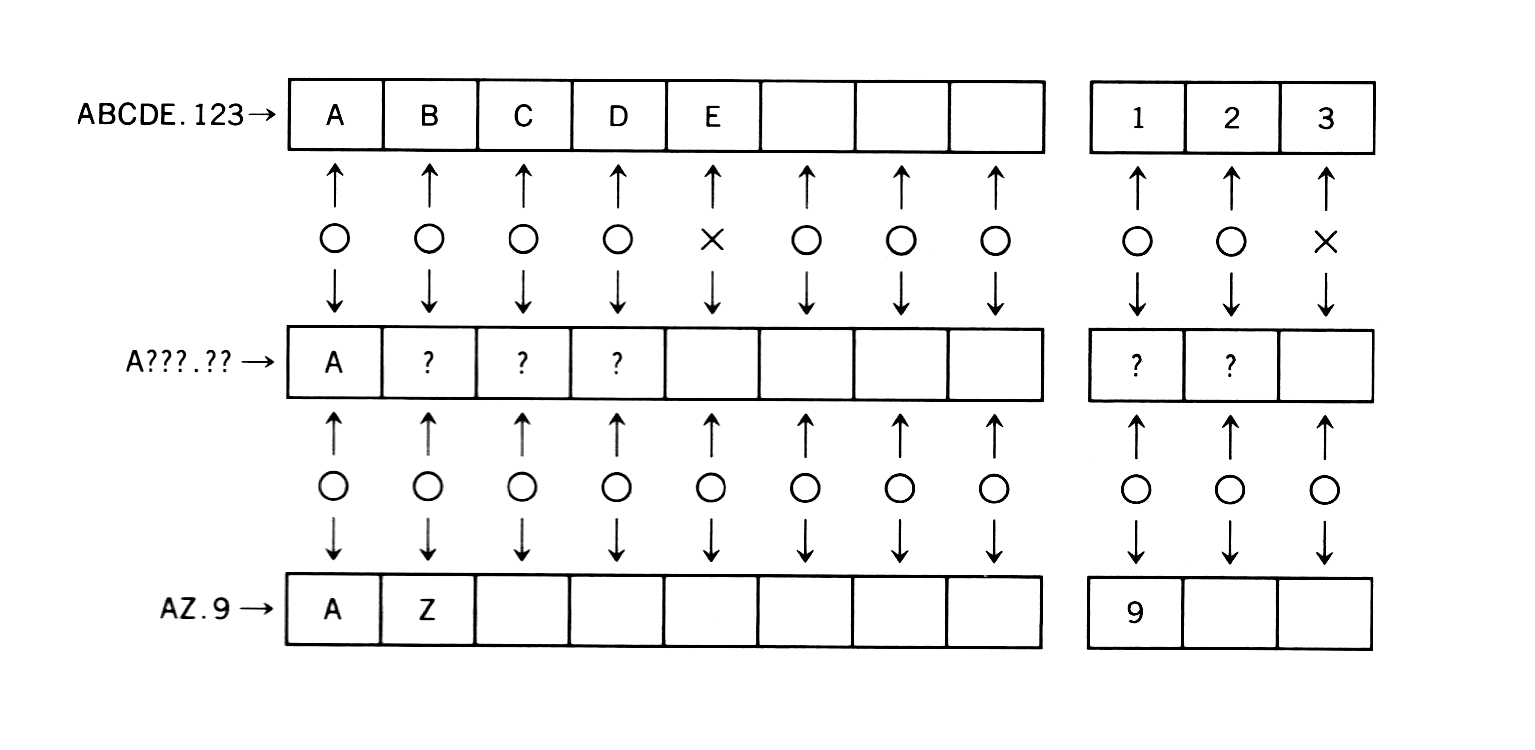
An asterisk (\*) is interpreted as either 8 question marks or 3 question marks (?) depending on if it is in the file name position or file extension position. For example, a file name "A*B" is not interpreted as "any strings which begin with A and end with B". It is interpreted as "any strings which begin with A", as shown below.
```
A*B ("*" is expanded to 8 "?"s)
|
V
A????????B (Characters after 8th are deleted)
|
V
A???????
```
#### Device name
MSX-DOS does not need special commands for data input/output with peripherals. This means that it considers each objective device as a certain file (device file) and input/output actions are done by reading or writing to or from this file. This enables MSX-DOS users to treat input/output devices in the same way as files on a disk. Five devices are supported as standard by MSX-DOS as shown in [Table 3.4](#table-34--device-names) and are specified with proper names. For this reason, these names can not be used to specify disk files. These device names with drive specifications or extensions are also treated as simple device names.
##### _Table 3.4 Device names_
```
--------------------------------------------------------------------------
| Device name | Input/output device to be specified |
|-------------+----------------------------------------------------------|
| | Reserved name for input/output expansion |
| AUX | which normally has the same effect as NUL |
| | |
|-------------+----------------------------------------------------------|
| | |
| CON | Console (keyboard for input, screen for OUTPUT) |
| | |
|-------------+----------------------------------------------------------|
| | |
| LST | Printer (ouput only; cannot be used for input) |
| | |
|-------------+----------------------------------------------------------|
| | |
| PRN | Printer (same as LST) |
| | |
|-------------+----------------------------------------------------------|
| | Special device used as a dummy when the result is not |
| NUL | desired to be displayed on the screen or put in a file. |
| | When used for input, always EOF. |
--------------------------------------------------------------------------
```
#### Input functions using a template
A "template" is a character buffer area and can be used for command input. The template contains the previous command line most recently entered. It is possible to use the template for easier command entry. By taking advantage of this template feature, it is easy to execute previous commands again or to execute the command partially modified. The keys listed in [Table 3.6](#table-36--template-functions) are used for the template operation.
#### Other special keys
In addition to the template operation keys, the following control keys are also available. These special key functions also support some other system calls described later.
##### _Table 3.5 Special key functions_
```
---------------------------------------------------------------
| | Function |
|-------+-----------------------------------------------------|
| ^C | stops command currently executed |
| ^S | pauses screen output until any key is pressed |
| ^P | send characters to the printer at the same time |
| | they appear on the secreen |
| ^N | resets ^P and send characters only to the secreen |
| ^J | feeds a line on the screen and continue input |
---------------------------------------------------------------
```
##### _Table 3.6 Template functions_
```
-------------------------------------------------------------------------
| Name | Keys used | Functions |
|----------+--------------+---------------------------------------------|
| COPY1 | RIGHT, ^\ | Gets one character from the template and |
| | | displays it in the command line |
|----------+--------------+---------------------------------------------|
| | | Gets characters before the character to be |
| COPYUP | SELECT, ^X | typed next (by keyboard) from the template |
| | | and displays them on the command line |
|----------+--------------+---------------------------------------------|
| | | Gets all characters from the location which |
| COPYALL | DOWN, ^_ | the template is currently referring to the |
| | | end of the line and displays them on the |
| | | command line |
|----------+--------------+---------------------------------------------|
| SKIP1 | DEL | Skips one character of the template |
|----------+--------------+---------------------------------------------|
| SKIPUP | CLS, ^L | Skips template characters before the |
| | | character to be typed next (by keyboard) |
|----------+--------------+---------------------------------------------|
| VOID | UP, ESC, ^^, | Discards current line input not changing |
| | ^U, ^[ | the template |
|----------+--------------+---------------------------------------------|
| | | Discards one character input and returns |
| BS | LEFT, BS, | the location referred by the template |
| | ^H, ^] | by one character |
|----------+--------------+---------------------------------------------|
| | | Switches insert mode/normal input mode, |
| INSERT | INS, ^R | in insert mode, displays keyboard input |
| | | on the command line with fixing the |
| | | location referred by the template |
|----------+--------------+---------------------------------------------|
| NEWLINE | HOME, ^K | Transfers the contents of current command |
| | | line to the template |
|-------------------------+---------------------------------------------|
| | Feeds a line on screen but continues |
| Return | getting input. Transfers the contents of |
| key | current command line to the template |
| | and executes it |
|-------------------------+---------------------------------------------|
| Keys other | Displays a character corresponding to the |
| than above | key on the command line and skips one |
| | character of the template |
-------------------------------------------------------------------------
```
##### _Table 3.7 Template operation examples_
```
---------------------------------------------------------------------------
| | | Contents of template ("-" |
| Keyboard input | Command line display | indicates location currently |
| | | referred to) |
|-------------------+----------------------+------------------------------|
| DIR ABCDE | A>DIR ABCDE | --------- |
| | | |
| RETURN | A> | DIR ABCDE |
| | | - |
| DOWN | A>DIR ABCDE | DIR ABCDE |
| | | - |
| LEFT LEFT LEFT | A>DIR AB | DIR ABCDE |
| | | - |
| INS XYZ | A>DIR ABXYZ | DIR ABCDE |
| | | - |
| RIGHT RIGHT RIGHT | A>DIR ABXYZCDE | DIR ABCDE |
| | | - |
| UP | A> | DIR ABCDE |
| | | - |
| DOWN | A>DIR ABCDE | DIR ABCDE |
| | | - |
| UP | A> | DIR ABCDE |
| | | - |
| XXX | A>XXX | DIR ABCDE |
| | | - |
| DOWN | A>XXX ABCDE | DIR ABCDE |
| | | - |
| HOME | A>XXX ABCDE | XXX ABCDE |
| | | - |
---------------------------------------------------------------------------
```
#### Disk errors
When an error occurs during disk access, MSX-DOS retries sometimes. Still more errors cause MSX-DOS to display the following message and inquire what to do with them. Press one of the keys A, R, or I.
##### _Figure 3.5 Error display_
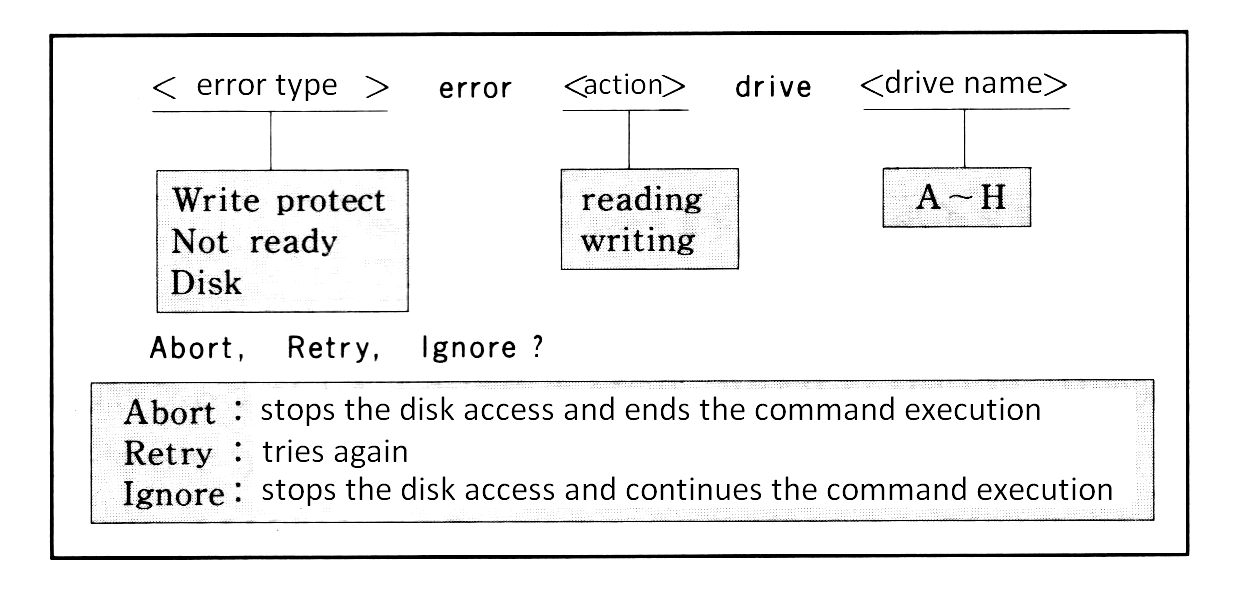
The following error might occur other than listed above. It indicates that the pointer in FAT is pointing to a cluster which does not exist. When this error occurs, the diskette will be unusable.
```
Bad FAT
```
<p> </p>
### 2.2 Internal commands
Internal commands are assembly language programs grouped together in COMMAND.COM. It is not necessary to read them from the disk so they are executed fast. Following are 13 internal commands. This section describes their use.
```
BASIC ........... jumps to MSX DISK-BASIC
COPY ............ copies a file
DATE ............ displays or modifies date
DEL ............. deletes a files
DIR ............. displays a list of files
FORMAT .......... formats a disk
MODE ............ modifies number of characters to be displayed in one line
PAUSE ........... pauses a batch command operation
REM ............. puts a comment line in a batch command
REN ............. renames a file name
TIME ............ displays or modifies time
TYPE ............ prints the contents of a file
VERIFY .......... turns on/off the verify mode
```
#### BASIC
form: `BASIC [<file spec>]`
Starts DISK-BASIC. This is not done by loading BASIC onto RAM but by selecting BASIC-ROM in 0000H to 7FFFH by switching the slot, so it starts immediately. When `<file spec>` is specified, the corresponding BASIC program is automatically read and executed. To return to the MSX-DOS environment from BASIC, execute "CALL SYSTEM".
#### COPY
This command copies the contents of one file to another. Specifying parameters enables various options.
_(1) File duplication_
form: `COPY <file spec 1> <file spec 2>`
Duplicates the file specified by `<file spec 1>` into a file specified by `<file spec 2>`. Files having the same names cannot be created on the same disk. On different disks, specifying the same names is possible.
examples:
```
A>COPY ABC XYZ ⟵ copies file "ABC" and makes a file "XYZ".
A>COPY B:ABC XYZ ⟵ copies a file "ABC" on drive B and makes a file "XYZ".
A>COPY B:ABC C:XYZ ⟵ copies a file "ABC" on drive B and makes a file "XYZ" on drive C.
```
When copying files, either ASCII or binary mode may be selected. The "/A" swith specifies ASCII mode and the "/B" switch specifies binary mode. If no mode is specified, binary mode is selected by default (except when combining files, described in (4) below, when ASCII is the default mode). [Table 3.8](#table-38--ascii-mode-and-binary-mode) shows the differences between the ASCII and the binary modes.
##### _Table 3.8 ASCII mode and binary mode_
```
-----------------------------------------------------------------------------
| | Read from source file | Write to destination file |
|-----------+-----------------------------------+---------------------------|
|ASCII mode | ignore after 1AH (file end mark) | add one byte 1AH to end |
|Binary mode| read as long as physical file size| write without modification|
-----------------------------------------------------------------------------
```
examples:
```
A>COPY/A ABC XYZ ⟵ ABC to XYZ (both files are in ASCII mode)
A>COPY ABC/A XYZ/B ⟵ reads ABC in ASCII mode and writes it to XYZ in binary mode
```
_(2) File duplication to another disk drive_
form: `COPY <file spec> [<destination drive>:]`
Copies a file specified by `<file spec>` to `<destination drive>` under the same file name. When `<destination drive>` is omitted, it is copied to the default drive. The drive name included in the `<file spec>` must not be the same as the `<destination drive>`.
More than one file can be copied by using wildcards in the `<file spec>`. In this case, the file name is displayed on the screen each time the file is copied.
examples:
```
A>COPY *.COM B: ⟵ copies any files with extension "COM" on default drive to drive B
A>COPY B:ABC ⟵ copies a file ABC to default drive
```
_(3) Simultaneous duplication of many files_
form:
```
COPY <file spec 1> <file spec 2>
------------- -------------
| |
wildcard description wildcard description
```
When `<file spec 2>`, the destination, is described using wildcards, the portions corresponding to wildcards are replaced with corresponding characters in `<file spec 1>`. For example, when
```
COPY AB-07.021 FL?X*.V??
```
is executed, it is interpreted as shown in figure 3.6 and a file "FL-X7.V21" is created.
##### _Figure 3.6 Wildcard specification of destination file_
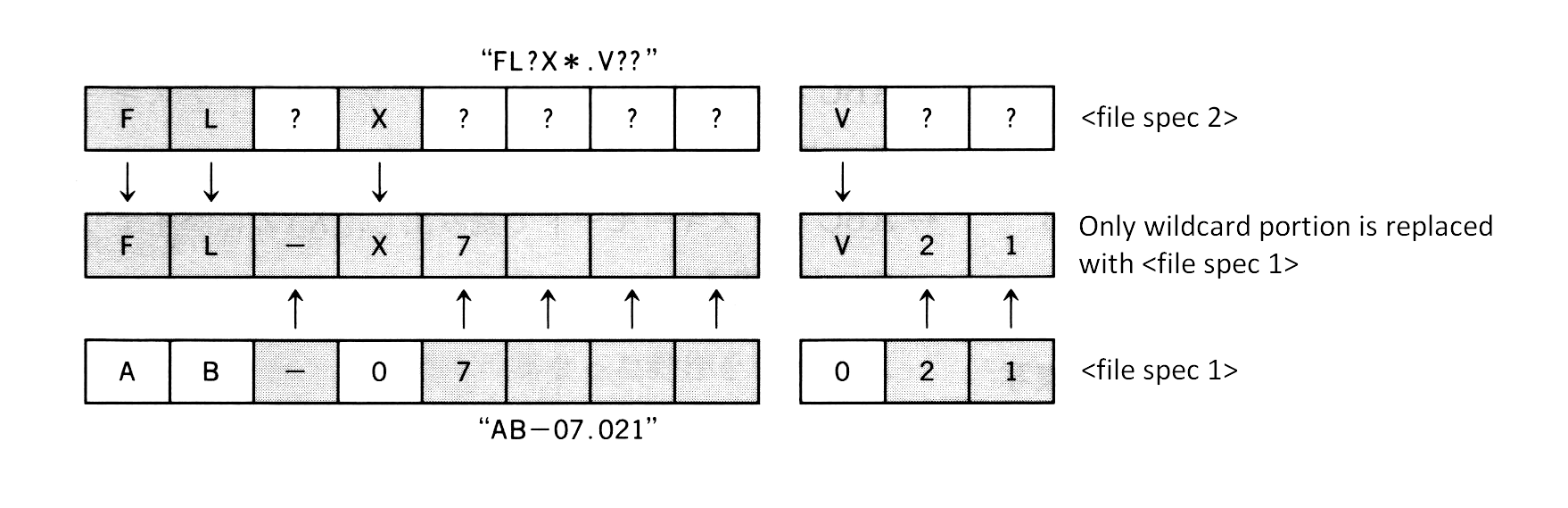
Using wildcards in the specification of `<file spec 1>` enables the duplication of many files at the same time.
examples:
```
A>COPY *.ASM *.MAC ⟵ makes files with extension "MAC" from any files with extension "ASM"
A>COPY A*.* B:Z*.* ⟵ Any files beginning with the character A are copied to files beginning with
the character Z on drive B
```
_(4) File concatenation_
form:
```
COPY <multiple file spec> <file name>
--------------------
|
wildcard specification, or
multiple file spec connected by "+"
```
When one destination file receives more than one source file, the contents of all source files are concatenated and stored to the specified destination file. When specifying more than one source file, wildcards are available, and file specs can also be copied by using the plus sign.
When files are concatenated, ASCII mode is selected by default and 1AH is considered the file end mark. Thus, concatenating binary files including data 1AH by the COPY command causes data after 1AH to be discarded. To prevent this, specify /B switch and use COPY command in binary mode.
If more than one wildcard appears in the specification of source files, the second wildcard and after are expanded referring to original file names, as in paragraph (3) above. This permits concatenation of similar files at the same time.
examples:
```
A>COPY X+Y+Z XYZ ⟵ concatenates X, Y, AND Z and stores in a file XYZ
A>COPY *.LST ALL ⟵ concatenates any files with extension "LST" and stores in a file ALL
A>COPY /B *.DAT ALL ⟵ concatenates any ".DAT" files in binary mode
A>COPY ASC/A+BIN/B AB/B ⟵ concatenates an ASCII file ASC and a binary file BIN and stores in a file AB
A>COPY *.LST+*.REF *.PRN ⟵ concatenates files named same with extension "LST" and extension "REF"
and makes a file with extension "PRN"
```
#### DATE
form:
```
DATE [<month>-<day>-<year>]
- -
| |
-------
|
"/" and "." are also allowed.
```
Sets the date in the internal CLOCK-IC. For MSX machines without a CLOCK-IC, it is written to the specific work area. Creations or modifications of files on MSX-DOS cause this date information to be recorded for each file.
When the DATE command is executed without specifying `<month>/<day>/<year>`, the date currently set is displayed with a request for a new date as shown below. Pressing only the RETURN key here leaves the date unchanged.
```
Current date is <day of week> <month>-<day>-<year>
Enter new date:
```
The format of the date to be set by the DATE command has three fields: `<year>`, `<month>`, and `<day>`. Each field is separated by "-", "/", or ".". Each field can have the following numerical values:
```
<year>: 1980 to 2079
0 to 79 (considered as 2000 to 2079)
80 to 99 (considered as 1980 to 1999)
<month>: 1 to 12
<day>: 1 to 31
```
Foreign versions of MSX-DOS have different date formats: `<month>-<day>-<year>` or `<day>-<month>-<year>`.
#### DEL
form: `DEL <file spec>`, `ERASE` is also allowed
Deletes the specified file. Wildcards can be used to specify more than one files.
Since `DEL *.*` causes all files on the diskette to be deleted, in this case, an acknowledgement is required.
```
A>DEL *.*
Are you sure (Y/N)?
```
Pressing "Y" or "y" causes all files to be deleted.
`ERASE` may be used the same way as the DEL command.
#### DIR
form: `DIR [<file spec>] [/W] [/P]`
The following information about the specified at `<file spec>` is listed from the left side in one line.
```
<file name> <file size> <date> <time>
```
The fields `<date>` and `<time>` show when the file was created or last modified. When this information is longer than one line, items displayed near the right side are omitted.
In addition to the usual wildcards, the following abbreviations for `file spec` can be used.
```
Abbreviation Formal notation
DIR = DIR *.*
DIR <drive>: = DIR <drive>:*.*
DIR <filename> = DIR <filename>.*
DIR .<extension> = DIR *.<extension>
```
When the /W switch is specified, only `<filename>`s are padded to one line. When the /P switch is specified, the listing is stopped after each display page to wait for any key input.
examples:
```
A>DIR ⟵ displays information for all files on drive A
A>DIR B: ⟵ displays information for all files on drive B
A>DIR TEST ⟵ displays information for all files having <filename> "TEST"
A>DIR /W ⟵ displays all file names of drive A
```
#### FORMAT
form: `FORMAT`
Formats a diskette in MSX-DOS format. In other words, directories and FAT are initialised and any files are erased. Since MSX-DOS has the same disk format as MS-DOS, the formatted diskette is also read or written by MS-DOS.
When executing the FORMAT command, an inquiry
```
Drive name? (A,B) (⟵ Depends on number of drives)
```
is made for the name of the drive containing a disk to be formatted. Answering "A" or "B" causes the menu to be displayed when a drive that can select one-sided and two-sided formats is being used. After specifying the type of format,
```
Strike a key when ready
```
is displayed to wait for a key input. Pressing any key starts formatting. See the disk drive manual for the format menu.
#### MODE
form: `MODE <characters per line>`
Sets the number of characters to be displayed in one line on the screen. `<characters per line>` can have a value from 1 to 80 and the screen mode depends on that value:
````
<characters per line> Screen mode
1 to 32 GRAPHIC 1 (SCREEN 1)
33 to 40 TEXT 1 (SCREEN 0:WIDTH 40)
41 to 80 TEXT 2 (SCREEN 0:WIDTH 80)
````
#### PAUSE
form: `PAUSE [<comment>]`
MSX-DOS has a "batch operation" feature which automatically executes a series of commands written in a text file. During the batch operation, you may want to stop command execution temporarily. One example would be for the user to exchange disks. PAUSE can be used in such cases.
When this command is executed,
```
Strike a key when ready...
```
is displayed and a key input is expected. Pressing any key other than Ctrl-C here ends the PAUSE command and proceeds to the next one. Pressing CTRL-C abandons the batch operation. Any kind of comments can follow "PAUSE". This makes it possible to display the purpose of the request for the key input.
#### REM
form: `REM [<comment>]`
REM is used to write a comment in the batch command. It does nothing as a command. A space between "REM" and `<comment>` is required.
#### REN
form: `REN <file spec> <file name>`, `RENAME` is also allowed
REN changes the file name specified by `<file spec>`. Wildcards can be used in both `<file spec>` and `<file name>`. Specifying wildcards for `<file name>` causes these wildcards to be replaced with corresponding characters of the `<file spec>` (see COPY command).
Any attempt to change a file name to a name already in use will cause an error.
examples:
```
A>REN ABC XYZ ⟵ changes the file name "ABC" to "XYZ"
A>REN B:ABC XYZ ⟵ changes the file name "ABC" on drive B to "XYZ"
A>REN *.BIN *.COM ⟵ changes any files with the extension "BIN" to "COM"
```
#### TIME
form: `TIME [<hour>[:<minute>[:<second>]]]`
TIME sets the time for the internal CLOCK-IC. Nothing happens to machines that do not have a CLOCK-IC. When a file is created on MSX-DOS, time information set here is recorded for each file.
Executing the TIME command without specifying the time causes the current time setting to be displayed as shown below. Then there is an input request for a new time. Pressing only the RETURN key does not change the time.
```
Current time is <hour>:<minute>:<second>:<second/100><p or a>
Enter new time:
```
The punctuation mark ":" separates the three TIME command fields of `<hour>`, `<minute>`, and `<second>`. Fields after `<minute>` or `<second>` may be omitted or considered to be 0. Each field can have the following values:
```
<hour>: 0 to 23
12A (represents midnight)
0A to 11A (represents midnight to 11 o'clock in the morning)
12P (represents noon)
1P to 11P (represents 1 o'clock to 11 o'clock in the evening)
<minute>: 0 to 59
<second>: 0 to 59
```
examples:
```
A>TIME 12 ⟵ sets time to 12:00:00
A>TIME 1:16P ⟵ sets time to 13:16:00
```
#### TYPE
form: `TYPE <file spec>`
The command TYPE displays the contents of a file specified by `<file spec>`. Using wildcards in <file spec> causes the first of the corresponding files to be displayed. This command is for ASCII files, and displaying binary files causes unreadable control characters to be sent to the screen.
#### VERIFY
form: `VERIFY [ON|OFF]`
VERIFY sets/resets the verify mode. When the verify mode is turned ON, after data is written to the disk, it is always read to ensure that it was written correctly. This is why disk access takes longer. "VERIFY OFF" is set by default.
<p> </p>
### 2.3 Batch Command Usage
MSX-DOS has a batch feature that allows a series of commands listed in the order of operation to be executed automatically. The file containing this procedureis called a "batch file" and the series of operations defined by a batch file is called a "batch command".
A batch file uses the extension ".BAT". Typing only the file name (the extension ".bat" is not typed) at the command line prompt causes MSX-DOS to execute the commands in the file line by line.
For example, let us consider the following operation:
1. Copy all files on drive A with the extension ".COM" onto drive B.
2. List all "COM" files on drive B.
3. Delete all "COM" files on drive A.
This operation could be achieved by issuing the following commands to MSX-DOS:
```
A>COPY A:*.COM B:
A>DIR B:*.COM /W
A>DEL A:*.COM
```
If these three lines are combined into a batch file called "MV.BAT", the command line input "MV" will automatically execute the operation shown above. The following list illustrates this.
```
A>COPY CON MV.BAT -+
COPY A:*.COM B: | creates "MV.BAT"
DIR B:*.COM /W |
DEL A:*.COM -+
^Z Ctrl-Z + RETURN key input
A>TYPE MV.BAT -+
COPY A:*.COM B: | to confirm the contents of "MV.BAT"
DIR B:*.COM /W |
DEL A:*.COM -+
A>MV invokes the batch command "MV"
A>COPY A:*.COM B: reads the first line automatically and executes it
.
.
.
A>DIR B:*.COM /W reads the second line automatically and executes it
.
.
.
A>DEL A:*.COM reads the third line automatically and executes it
.
.
.
```
A batch operation may be interrupted by pressing Ctrl-C. When Ctrl-C is entered during batch operations, the request shown in [Figure 3.7](#figure-37--interrupt-of-the-batch-operation) is displayed on the screen.
##### _Figure 3.7 Interrupt of the batch operation_
```
-----------------------------------
| |
| Terminate batch file (Y/N)? |
| |
-----------------------------------
```
Selecting "Y" here terminates the batch command and returns to MSX-DOS. Selecting "N" reads the next line of the batch file and continues the execution of the batch command.
#### Batch variables
For more flexible use of the batch command, any string can be passed as parameters from the command line to the batch command. Parameters passed are referred to with the symbols "%n" where n is any number from 0 to 9. These "%n" symbols are called batch variables.
Batch variables %1, %2, ... correspond to parameters specified in the command line from left to right, and %0 is for the name of the batch command itself.
##### _Figure 3.8 Examples for batch variables usage_
```
-----------------------------------------------------------------
| |
| A>COPY CON TEST.BAT ......... creates a batch command |
| REM %0 %1 %2 %3 |
| ^Z |
| 1 file copied |
| A>TYPE TEST.BAT |
| REM %0 %1 %2 %3 ...... a batch command to display 3 arguments |
| |
| A>TEST ONE TWO THREE FOUR ...... executes the batch command, |
| A>REM TEST ONE TWO THREE giving arguments to it |
| A> |
| |
-----------------------------------------------------------------
```
#### AUTOEXEC.BAT
The batch file named "AUTOEXEC.BAT" is used as a special autostart program at MSX-DOS startup. When MSX-DOS is invoked, COMMAND.COM examines whether AUTOEXEC.BAT exists and, if so, executes it.
<p> </p>
### 2.4 External Commands
External commands exist on the diskette as files with the extension ".COM", and typing the external command name (except for the extension) causes the command to be executed in the following manner.
1. loads an external command after 100H
2. calls 100H
#### Developing external commands
Assembly language routines created to work in memory at location 100H and saved under file names with the extension ".COM" are called external commands and can be executed from MSX-DOS.
For example, consider a program to produce a control code "0CH" by using one-character output routine (see system calls) and clear the screen. This is an 8-byte program as shown below.
##### List 3.1 Contents of CLS.COM
```
1E 0C LD E,0CH ; E := control-code of CLS
0F 02 LD C,02H ; C := function No. of CONSOLE OUTPUT
CD 05 00 CALL 0005H ; call BDOS
C9 RET
```
Writing these 8 bytes to a file named CLS.COM produces the external command "CLS" to clear the screen. The following sample program uses the sequential file access feature of BASIC to make this command. After this program is run, the CLS command is created on the diskette. Confirm that the command actually works after returning to MSX-DOS.
##### List 3.2 Creating CLS.COM
```
100 '***** This program makes "CLS.COM" *****
110 '
120 OPEN "CLS.COM" FOR OUTPUT AS #1
130 '
140 FOR I=1 TO 8
150 READ D$
160 PRINT #1,CHR$(VAL("&H"+D$));
170 NEXT
180 '
190 DATA 1E,0C,0E,02,CD,05,00,C9
```
#### Passing arguments to an external command
When creating an external command, there are two ways to pass arguments from the command line to the external command. First, when passing the file names to the command line as arguments, use 5CH and 6CH in the system scratch area. COMMAND.COM, which always considers the first and second parame