@monceeef/expo-images-picker
Version:
Expo images picker, Selecting Multiple images and videos from user device
284 lines (213 loc) • 7.73 kB
Markdown
# expo-images-picker
Multiple Asset Photos | Videos selecting package for Expo SDK 42+.
For users who use React native and managed workflow + Styled Components.
[MediaLibrary](https://docs.expo.io/versions/latest/sdk/media-library).
[Image-manipulator](https://docs.expo.io/versions/v40.0.0/sdk/imagemanipulator/).
[styled-components](https://github.com/styled-components)
### Best Practice just watch the video or Copy the snack :)
#### How to Video => https://youtu.be/xcMcVZTw6xA
#### Copy & Paste => https://snack.expo.dev/@natysoz/expo-images-picker
## Features
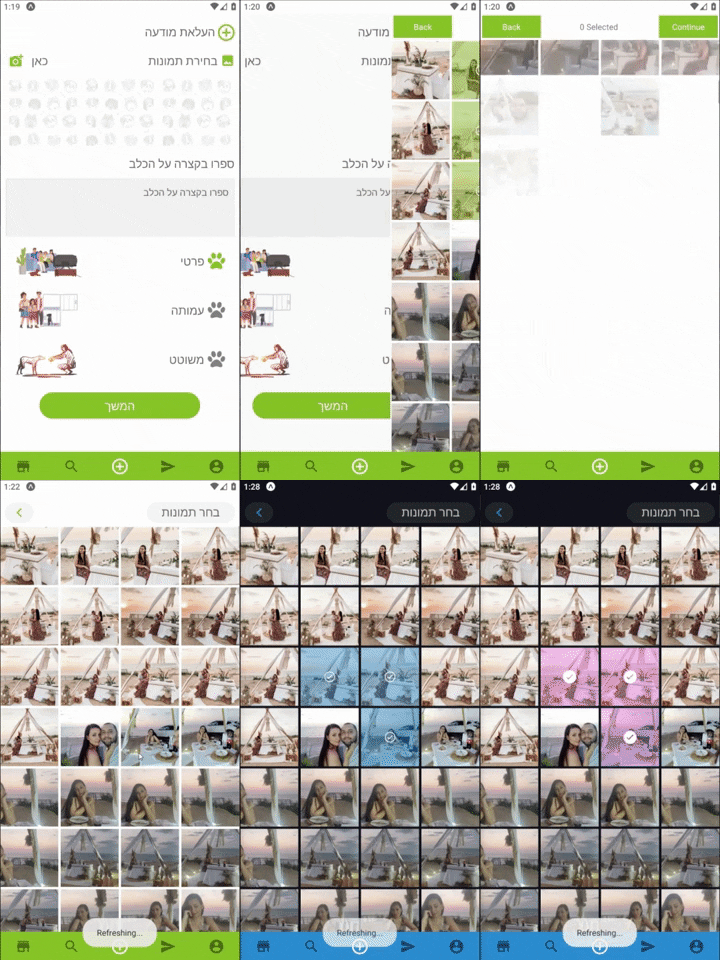
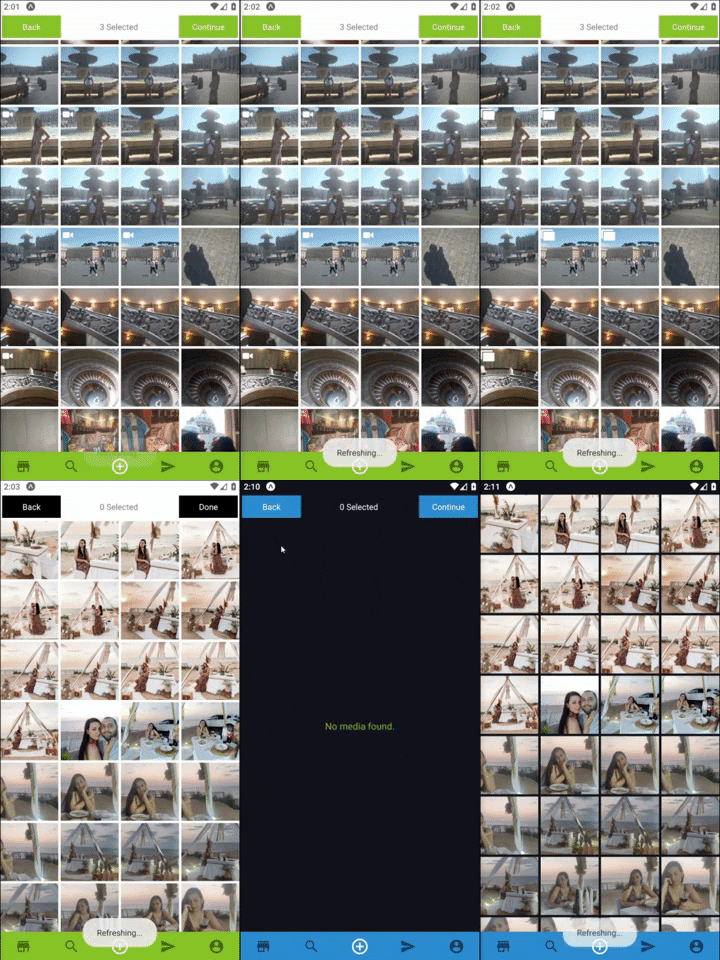
- expo multiple image selector
- Allow selecting multiple Photos or Videos.
- Allow getting extra metadata.
- Allow resizing and get base64 images.
- Permission requests built in.
- Support Both landscape and portrait.
- Simple Indicator for the selected Assets.
- Custom Indicator for the selected Assets.
- Allow using custom navbar component.
- Optimized for speed.
## Usage
1. Install with
```bash
$ npm install expo-images-picker
```
or
```bash
$ yarn add expo-images-picker
```
2. import to the top of your file like
```js
import { AssetsSelector } from 'expo-images-picker'
```
3. install @expo-vectors package and send icons as props to the widget
```js
import { Ionicons } from '@expo/vector-icons'
```
4. Use the imported as Following =>
```js
<AssetsSelector
Settings={widgetSettings}
Errors={widgetErrors}
Styles={widgetStyles}
Resize={widgetResize} // optional
Navigator={widgetNavigator} // optional
CustomNavigator={{ // optional
Component: CustomNavigator,
props: {
backFunction: true,
onSuccess,
text: T.ACTIONS.SELECT,
},
}}
/>
```
##[📚 Params]
### Settings :
you better create this const out of your component ,
if you do need it inside your component ,
use useMemo from react.
```js
const widgetSettings = useMemo(
() => ({
getImageMetaData: false,
initialLoad: 100,
assetsType: [MediaType.photo, MediaType.video],
minSelection: 1,
maxSelection: 3,
portraitCols: 4,
landscapeCols: 4,
}),
[]
)
```
- `getImageMetaData` - return an asset with extra metadata fields * may cause slower results .
### but on some ios versions its a must , because u need the absolute file path `file://` and not `asset-library://`
- `initialLoad` - initial amount of assets to load first time.
- `assetsType` - array that includes `[MediaType.photo, MediaType.video]`.
[`photo` , `video` ].
- `minSelection` - min amount of images user need to select.
- `maxSelection` - max amount of images user need to select.
- `portraitCols` - Number of columns in portrait Mode.
- `landscapeCols` - Number of columns in landscape Mode.
### Errors :
```js
const widgetErrors = useMemo(
() => ({
errorTextColor: polar_text_2,
errorMessages: {
hasErrorWithPermissions: translator(
T.ERROR.HAS_PERMISSIONS_ERROR
),
hasErrorWithLoading: translator(T.ERROR.HAS_INTERNAL_ERROR),
hasErrorWithResizing: translator(T.ERROR.HAS_INTERNAL_ERROR),
hasNoAssets: translator(T.ERROR.HAS_NO_ASSETS),
},
}),
[]
)
```
- `onError` - callback function that you can pass and will fire whenever there is an error.
- `errorTextColor` - set the text color of an error message.
- `errorMessages`
`hasErrorWithPermissions`- error text when there are no permissions.
`hasErrorWithLoading` - error text for issue with loading assets.
`hasErrorWithResizing` - error text for issue with resizing.
`hasNoAssets` - text shows when there are no assets to show.
### Styles :
```js
const widgetStyles = useMemo(
() => ({
margin: 2,
bgColor: bg,
spinnerColor: main,
widgetWidth: 99,
videoIcon: {
Component: Ionicons,
iconName: 'ios-videocam',
color: polar_text_1,
size: 20,
},
selectedIcon: {
Component: Ionicons,
iconName: 'ios-checkmark-circle-outline',
color: 'white',
bg: mainWithOpacity,
size: 26,
},
}),
[polar_text_1, mainWithOpacity]
)
```
- `margin` - set margin between the images.
- `bgColor` - set the widget background color.
- `spinnerColor` - set the color of the spinner (loading indicator).
- `widgetWidth` - the widget width in percentages .
- `videoIcon`
`Component` - the icon component.(from @expo/vector-icons).
`iconName` - the icon name.
`Component` - the icon color.
`Component` - the icon size.
- `selectedIcon` - the widget width in percentages .
`Component` - the icon component.(from @expo/vector-icons).
`iconName` - the icon name.
`color` - the icon color.
`bg` - set the cover color when an asset is select.
`size` - the icon size.
### Navigator :
```js
const widgetNavigator = useMemo(
() => ({
Texts: {
finish: 'finish',
back: 'back',
selected: 'selected',
},
midTextColor: polar_text_2,
minSelection: 3,
buttonTextStyle: _textStyle,
buttonStyle: _buttonStyle,
onBack: () => navigation.goBack(),
onSuccess: (data: Asset[]) => onSuccess(data),
}),
[]
)
```
- `Texts` - send in `finish` `back` `selected` texts.
- `midTextColor` - set the color of the middle text aka "selected" .
- `minSelection` - set the min selection , `continue` button will be unavailable until user select this amount of images.
- `buttonTextStyle` - Text Style Object , design the text inside the buttons.
- `buttonStyle` - View Style Object, design the button itself.
- `onBack` - Send in a function to go back to your screen.
- `onSuccess` - Send in a function to go back and send the returned data.
### Resize :
```js
const widgetResize = useMemo(
() => ({
width: 512,
compress: 0.7,
base64: false,
saveTo: SaveType.JPG,
}),
[]
)
```
**Note that using manipulate might result with crash or slow loading times on older phones.
* All fields are optional , in order to resize and keep images Ratio its recommend sending only width or height, and it will resize using this axis only.
- `width` - Manipulate image width `optional`
- `height` - Manipulate image width `optional`
- `compress` - compress 0.1 Super low quality 1.0 leave as is (high quality).
- `base64` - will add extra result , image as a base64 string.
- `saveTo` - can be `png` or `jpeg` .
### CustomNavigator :
Make sure your CustomTopNavigator can receive onSuccess function.
And bind this onFinish function on the correct button.
- `Component` - Send in your Custom nav bar.
- `props` Send any props your Custom Component needs.
```js
<AssetsSelector
options={{
...otherProps,
CustomTopNavigator: {
Component: CustomNavImageSelection,
props: {
onSuccess: (data: Asset[]) => onDone(data),
backFunction: true,
text: T.ACTIONS.SELECT
},
},
}}
/>
```