@mimov/powerbi-report-component
Version:
It's a minimalistic react component to embed a Microsoft PowerBI report or dashboard into your react application.
380 lines (278 loc) • 8.27 kB
Markdown
# Powerbi Report Component



It's a minimalistic React component for embedding a Microsoft PowerBI report or dashboard into your React application.
This fork allows you to define a filter right in the Embed configuration before its creation. Check how to use below.
## Installation
`npm i powerbi-report-component`
## Usuage
```
import React, {Component} from 'react';
import Report from 'powerbi-report-component';
class MyComponent extends Component {
constructor(props) {
super(props);
this.report = null; // to store the loaded report's object to perform operations like print, fullscreen etc..
}
...
handleDataSelected = (data) => {
// will be called when some chart or data element in your report clicked
}
handleReportLoad = (report) => {
// will be called when report loads:
// - scripts and data received from server, visuals are rendered on the browser
// - flickering Power BI logo stops appearing but report is not fully ready to be consumed
this.report = report; // get the object from callback and store it.(optional)
}
handleReportRender = (report) => {
// will be called when report renders:
// - visuals finish rendering
// - report is fully visible and ready for consumption
this.report = report; // get the object from callback and store it.(optional)
}
handlePageChange = (data) => {
// will be called when pages in your report changes
}
handleTileClicked = (data) => {
console.log('Data from tile', data);
}
render() {
const reportStyle = {
// style object for report component
};
const extraSettings = {
filterPaneEnabled: false, //true
navContentPaneEnabled: false, //true
// ... more custom settings
};
return (
<div className="root">
<Report
embedType="report" // "dashboard"
tokenType="Embed" // "Aad"
accessToken="" // accessToken goes here
embedUrl="" // embedUrl goes here
embedId="" // report or dashboard Id goes here
pageName="" // set as current page of the report
extraSettings={extraSettings}
permissions="All" // View
style={reportStyle}
onLoad={this.handleReportLoad}
onRender={this.handleReportRender}
onSelectData={this.handleDataSelected}
onPageChange={this.handlePageChange}
onTileClicked={this.handleTileClicked}
/>
</div>
);
}
}
```
> this.report can be used to perform operations like 'Fullscreen' or 'Print the report'
### To use the report object returned by onLoad/onRender
Inside your compoent where you're using { Report } component.
_Constructor:_
```
...
constructor(props) {
super(props);
this.report = null; //used to store value of returned report object
}
....
```
_Callback passed to the onLoad or onRender prop_
```
handleReportLoad = (report) => {
this.report = report; // get the report object from callback and store it.
}
handleReportRender = (report) => {
this.report = report; // get the report object from callback and store it.
}
...
```
_Use initialFilter attribute to add a filter in the configuration object_
```
...
// In render
<Report
embedType = 'report'
tokenType = 'Embed'
extraSettings = {extraSettings}
accessToken = {embedTokenReport}
embedUrl = {this.embedUrl}
embedId = {this.reportId}
onLoad = {this.handleReportLoad}
initialFilter = {this.powerBIData.filter}
permissions = 'All'
/>
...
```
_using the_ this.report _to perform operations_
```
...
setFullscreen = () => {
if(this.report) this.report.fullscreen();
}
printReport = () => {
if(this.report) this.report.print();
}
...
//Inside render
<button onClick={this.setFullscreen}>Fullscreen</button>
<button onClick={this.printReport}>Print</button>
...
```
For Report Level Filters:
```
/*
Example filter object used in microsoft's demo page:
const filter = {
$schema: "http://powerbi.com/product/schema#basic",
target: {
table: "Store",
column: "Chain"
},
operator: "In",
values: ["Lindseys"]
};
*/
...
setFilter = (filter) => this.report.setFilters([filter]).catch(function (errors) {
console.log(errors);
});
getFilter = () => this.report.getFilters().then(function (filters) {
console.log(filters);
}).catch(function (errors) {
console.log(errors);
});
removeFilters = () => this.report.removeFilters()
.catch(function (errors) {
console.log(errors);
});
...
```
## Dashboard events: (When embedType === "dashboard")
```
handleTileClicked = (data) => {
console.log('Data from tile', data);
}
```
### Features
Currently supported features:
1. Custom styling by passing style to your embedded report component.
2. The component also lets you pass callbacks to trigger on events like:
Page Change
```
onPageChange={(data) =>
console.log(`Page name :{data.newPage.displayName}`)
}
```
Load
```
onLoad={(report) => {
console.log('Report Loaded!');
this.report = report;
}
}
```
Render
```
onRender={(report) => {
console.log('Report Rendered!');
this.report = report;
}
}
```
Data Element Clicked
```
onSelectData={(data) =>
console.log(`You clicked on chart: {data.visual.title}`)
}
```
3. Use ‘report’ object returned to parent component for:
# Change Report Mode to View or Edit:
```
//mode can be "view" or "edit"
changeMode = (mode) => this.report.switchMode(mode);
```
# Fullscreen
```
setFullscreen = () => this.report.fullscreen();
```
# Print Report
```
printReport = () => this.report.print();
```
# Set Filters
```
//example filter from microsoft's demo page
const filter = {
$schema: "http://powerbi.com/product/schema#basic",
target: {
table: "Store",
column: "Chain"
},
operator: "In",
values: ["Lindseys"]
};
// using event handlers
setFilter = (filter) => this.report.setFilters([filter]).catch(function (errors) {
console.log(errors);
});
// during onload
onLoad = (report) => {
report.setFilters([filter]).catch(function (errors) {
console.log(errors);
});
this.report = report;
}
}
```
# Get Filters
```
getFilter = () => this.report.getFilters().then(function (filters) {
console.log(filters);
}).catch(function (errors) {
console.log(errors);
});
```
# Remove Filters
```
removeFilters = () => this.report.removeFilters()
.catch(function (errors) {
console.log(errors);
});
```
# Show / Hide all visual headers:
```
toggleAllVisualHeaders = (bool) =>
{
const newSettings = {
visualSettings: {
visualHeaders: [
{
settings: {
visible: bool, // boolean variable
}
}
]
}
}
this.report.updateSettings(newSettings)
.then(function () {
console.log("Visual header toggle successful.");
})
.catch(function (errors) {
console.log(errors);
});
}
```
For playgroud visit:
> http://akshay5995.github.io/powerbi-report-component
You can find out how to generate token for your report using Powershell from [this video](https://www.youtube.com/watch?v=4KuyPNtVijo).
_Don't have a Report?_
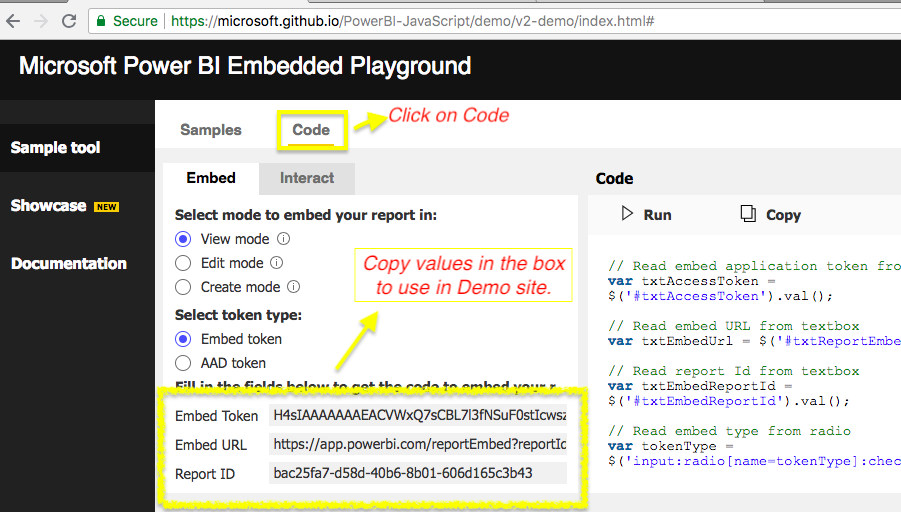
You can get the Token, URL and Report ID from Microsoft JS playground:
> https://microsoft.github.io/PowerBI-JavaScript/demo/v2-demo/index.html#
Follow the instructions below in image: