@j9t/imagemin-guard
Version:
Ensure losslessly compressed PNG, JPG, GIF, WebP, and AVIF images (suitable for manual and automatic compression)
178 lines (111 loc) • 9.98 kB
Markdown
# Imagemin Guard
[](https://www.npmjs.com/package/@j9t/imagemin-guard) [](https://github.com/j9t/imagemin-guard/actions) [](https://socket.dev/npm/package/@j9t/imagemin-guard)
(This project was based on [sum.cumo’s imagemin-merlin](https://github.com/sumcumo/imagemin-merlin). [Changes are documented](https://github.com/sumcumo/imagemin-merlin/compare/master...j9t:master), and include this README. Imagemin Guard supports two additional file formats—WebP and AVIF—, comes with improved code and documentation, and is being maintained. For this reason, it’s [not based on any Imagemin packages](https://meiert.com/blog/imagemin-guard-4/) anymore.)
Imagemin Guard takes care of near-lossless compression of your images, to help you avoid bloat in your repositories. It makes it convenient and as safe as possible to automatically compress PNG, JPG, GIF, WebP, and AVIF images.
It’s convenient because setup is simple. Run it right away—done. Or install, run, add hook—done.
It’s as safe as possible because compression happens losslessly (near-lossless for JPG and GIF images). That allows you to stop worrying about forgetting to compress images, but also about sacrificing too much quality. (You can take care of additional optimizations manually or through other tooling.)
## Installation and Use
(Note available parameters below.)
### Ways to Use Imagemin Guard
#### Option 1: Immediate Manual Use
You can use Imagemin Guard right away, without installation, by running
```console
npx @j9t/imagemin-guard
```
#### Option 2: Project-Linked Manual Use
Install Imagemin Guard in your project:
```console
npm i -D @j9t/imagemin-guard
```
Run Imagemin Guard by calling
```console
npx imagemin-guard
```
To make sure that _all_ images are being compressed, it’s recommended to run Imagemin Guard like this at least once, after installation.
#### Option 3: Automated Use
Install Imagemin Guard in your project:
```console
npm i -D @j9t/imagemin-guard
```
To compress images already in the code base, run Imagemin Guard once by calling
```console
npx imagemin-guard
```
For automated use, Imagemin Guard should be triggered through a [Git hook](https://git-scm.com/book/en/v2/Customizing-Git-Git-Hooks) on `pre-commit`. You can choose between native Git hooks (recommended for simple projects) or [Husky](https://github.com/typicode/husky).
##### Native Git Hooks
Native Git hooks are simpler to set up and don’t require additional dependencies. Run these commands from your project root:
```console
mkdir -p .githooks;\
cat > .githooks/pre-commit << 'EOF'
#!/bin/sh
npx imagemin-guard --staged
EOF
chmod +x .githooks/pre-commit;\
git config core.hooksPath .githooks;\
git add .githooks/pre-commit;\
git commit -m "feat: add Git pre-commit hook for Imagemin Guard";\
npm pkg set scripts.postprepare="mkdir -p .githooks && cat > .githooks/pre-commit << 'EOF'
#\!/bin/sh
npx imagemin-guard --staged
EOF
chmod +x .githooks/pre-commit && git config core.hooksPath .githooks"
```
##### Husky
If you already use [Husky](https://typicode.github.io/husky/), run the following commands in your project root (you can copy and execute them at once):
```console
grep -qxF "npx imagemin-guard --staged" .husky/pre-commit || echo "\nnpx imagemin-guard --staged" >> .husky/pre-commit;\
git add .husky/pre-commit;\
git commit -m "feat: add Husky pre-commit hook for Imagemin Guard";\
npm pkg set scripts.postprepare="grep -qxF 'npx imagemin-guard --staged' .husky/pre-commit || echo '\nnpx imagemin-guard --staged' >> .husky/pre-commit"
```
If you don’t use Husky yet, run the following commands from your project root:
```console
npm i -D husky;\
npx husky init;\
echo "npx imagemin-guard --staged" > .husky/pre-commit;\
git add .husky/pre-commit;\
git commit -m "feat: add Husky pre-commit hook for Imagemin Guard";\
npm pkg set scripts.postprepare="grep -qxF 'npx imagemin-guard --staged' .husky/pre-commit || echo '\nnpx imagemin-guard --staged' >> .husky/pre-commit"
```
(The `postprepare` script ensures that the hook is added to the repository whenever someone installs the package.)
**Important:** When you commit images that have not yet been compressed, the automated compression process (triggered by the pre-commit hook) will modify those image files to reduce their size. As a result, after your initial commit attempt, you will see these images appear as changed files in Git. To include the optimized images in your repository, you need to stage and commit them again. In rare cases, if further compression is possible, you may need to repeat this process until no further changes are detected. This workflow is intentional and ensures that only optimally compressed images are committed. Many editors can display diffs for images, helping you review these changes.
### Parameters
* `--dry` allows you to run Imagemin Guard in “dry mode.” All changes are shown in the terminal.
* `--ignore` allows you to specify paths to be ignored (as in `--ignore=example,test`). Multiple paths must be separated by commas. The option supports glob patterns (e.g., `assets/**`, `**/*.png`); matching is case‑insensitive and honors `.gitignore`.
* `--staged` (recommended with automated use) triggers a mode that watches PNG, JPG, GIF, WebP, and AVIF files in `git diff` and only compresses those files—that approach makes Imagemin Guard more efficient in operation.
* `--quiet` suppresses per‑file logs and prints only the final summary (plus errors). This reduces console noise and speeds up runs in CI and Git hooks.
### Troubleshooting
#### “npx: command not found”
If Git hooks fail with “npx: command not found,” make sure to install (`npm i -D @j9t/imagemin-guard`) and to refer to the binary directly in the `pre-commit` hook (and, not detailed here, also in the `postprepare` script):
```console
#!/bin/sh
export PATH="$PWD/node_modules/.bin:$PATH"
./node_modules/.bin/imagemin-guard --staged
```
This issue can arise in GUI Git clients (VS Code, GitHub Desktop, etc.) or with Node version managers, as these environments may not inherit your shell's `PATH`/Node environment. This affects any tool using npx in hooks.
## What Does the Output Look Like?
Roughly like this:
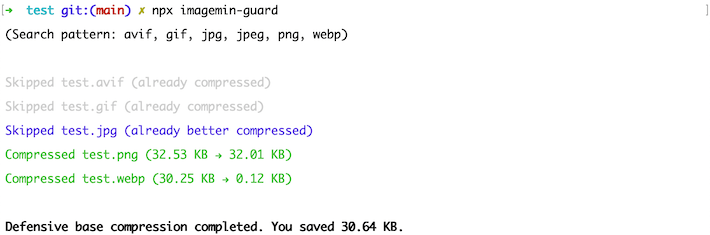
* Green: The image file has been compressed.
* White (light gray): The image file has not been changed.
* Blue: The image file had already been compressed more aggressively than the new result, and was therefore skipped, too.
Tip: Use `--quiet` to suppress these per‑file lines and keep only the final summary.
## How Does Imagemin Guard Work?
Imagemin Guard is a Node script that uses [sharp](https://www.npmjs.com/package/sharp) under the hood.
Automated compression works by monitoring whether a given [change list](https://webglossary.info/terms/change-list/) includes any PNGs, JPGs, GIFs, WebPs, or AVIFs. It’s initiated by a Git hook. Only those images are compressed where there is an improvement. The compressed images can then be committed to the underlying repository.
Through this approach, though glossed over here, Imagemin Guard makes up for what’s missing or complicated in other packages, namely easy, near-riskless, automatable, resource-friendly in-repo optimization.
## Why Use Imagemin Guard?
You _can_ use Imagemin Guard if you need a simple, automatable, robust solution to compress images in a way that limits unnecessary image payload right from the start, in your repositories, and that reduces the risk that entirely uncompressed images go into production.
As Imagemin Guard compresses near-losslessly, there’s little risk of quality issues from compression. (Lossless compression is not possible for every image format, however, so there’s a risk when excessively iterating over the same images. Doing so may eventually degrade quality.)
## What Does Imagemin Guard _Not_ Do?
Imagemin Guard is no substitute for image fine-tuning and micro-optimization. That’s difficult to do in an automated fashion, because this type of compression requires [balancing quality and performance](https://meiert.com/blog/understanding-image-compression/) and is context-dependent. In its most extreme form, when maximum quality at maximum performance is required from each graphic, micro-optimization is even challenging to do manually.
That is, micro-optimization still needs to be taken care of through other means, whether manually or through tools. Imagemin Guard just solves the problem that images are checked in or go live that are not compressed _at all_.
## What’s Next?
There are a few ideas, like adding light SVG support, or ensuring compatibility with projects in which the project’s .git folder is not at the same level as its package.json (currently, automatic mode doesn’t work in these cases).
Feedback is appreciated: Please [file an issue](https://github.com/j9t/imagemin-guard/issues/new) or send a pull request. Thank you!
## License
Copyright 2019 [sum.cumo GmbH](https://web.archive.org/web/20191208211414/https://www.sumcumo.com/)
Copyright 2022 [Jens Oliver Meiert](https://meiert.com/)
Licensed under the Apache License, Version 2.0 (the “License”); you may not use this file except in compliance with the License. You may obtain a copy of the License at
http://www.apache.org/licenses/LICENSE-2.0
Unless required by applicable law or agreed to in writing, software distributed under the License is distributed on an “AS IS” BASIS, WITHOUT WARRANTIES OR CONDITIONS OF ANY KIND, either express or implied. See the License for the specific language governing permissions and limitations under the License.