@inlang/cli
Version:
--- title: inlang CLI - Localization Automation for CI/CD description: Automate translation workflows with machine translation, validation, and CI/CD integration. Supports JSON, i18next, next-intl, and more. og:image: https://cdn.jsdelivr.net/gh/opral/inl
226 lines (150 loc) • 8.31 kB
Markdown
---
title: inlang CLI - Localization Automation for CI/CD
description: Automate translation workflows with machine translation, validation, and CI/CD integration. Supports JSON, i18next, next-intl, and more.
og:image: https://cdn.jsdelivr.net/gh/opral/inlang@latest/packages/cli/assets/cli-banner.svg
---
# @inlang/cli
Automate localization tasks in your CI/CD pipeline.
```bash
npx @inlang/cli [command]
```
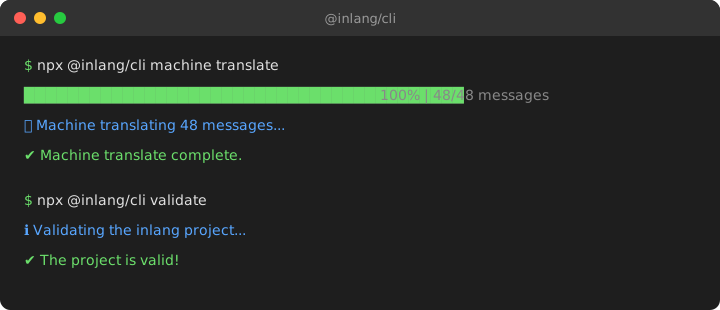
## Features
- **Machine Translation** — Translate missing messages automatically via Google Cloud Translation or the free inlang translation service
- **Validation** — Verify your project config is correct before committing
- **CI/CD Ready** — Run non-interactively with `--force` for pipelines
- **Plugin System** — Supports JSON, i18next, next-intl, ICU message format, and more
# Getting Started
The CLI requires an **inlang project** — a folder containing a `settings.json` that defines your locales and translation file paths.
```
my-app/
├── project.inlang/
│ └── settings.json # CLI reads this config
├── messages/
│ ├── en.json # Source language
│ └── de.json # Translations
└── src/
```
## Setup in 2 minutes
**1. Create the project folder and settings file**
```bash
mkdir project.inlang
```
Create `project.inlang/settings.json`:
```json
{
"$schema": "https://inlang.com/schema/project-settings",
"baseLocale": "en",
"locales": ["en", "de", "fr"],
"modules": [
"https://cdn.jsdelivr.net/npm/@inlang/plugin-json@latest/dist/index.js"
],
"plugin.inlang.json": {
"pathPattern": "./messages/{locale}.json"
}
}
```
**2. Create your base translation file**
Create `messages/en.json`:
```json
{
"greeting": "Hello {name}!",
"welcome": "Welcome to our app"
}
```
**3. Machine translate to other languages**
```bash
npx @inlang/cli machine translate --project ./project.inlang
```
This creates `messages/de.json` and `messages/fr.json` with translations.
**4. Validate your setup**
```bash
npx @inlang/cli validate --project ./project.inlang
```
# Installation
## Install with package manager
You can install the [@inlang/cli](https://www.npmjs.com/package/@inlang/cli) with this command:
```sh
npm install -D @inlang/cli
```
or
```sh
yarn add --dev @inlang/cli
```
best
```sh
npx @inlang/cli [command]
```
## Minimum requirements
Minimum node version: `v18.0.0`
If one of the commands can't be found, you probably use an outdated CLI version. You can always get the **latest version** by running `npx @inlang/cli@latest [command]`.
# Commands
| Name | Command | Description |
| --------------- | --------------------------------------------- | ------------------------------------------------------------------------------------------------------------------------------------------------------------------- |
| **CLI Version** | `npx @inlang/cli@latest [command]` | Get the latest version of the inlang CLI. |
| **Validate** | `npx @inlang/cli validate [options]` | Validate if the project is working correctly. |
| **Machine** | `npx @inlang/cli machine translate [options]` | Automate translation processes. Options include `-f, --force`, `--project <path>`, `--locale <source>` and `--targetLocales <targets...>` |
| **Plugin** | `npx @inlang/cli plugin [command]` | Interact with Inlang plugins, including initialization and building. `build [options]` build an inlang module. Options include `--type`, `--entry`, and `--outdir`. |
---
# Usage
We recommend using the CLI with `npx` to avoid installing the CLI globally. Not installing the CLI globally has the following advantages:
- the installed CLI version is scoped to the project, ensuring it always works.
- the CLI gets installed for team members, avoiding "why is this command not working for me" questions.
`npx` is auto-installed with Node and NPM.
If one of the commands can't be found, you probably use an outdated CLI version. You can always get the **latest version** by running `npx @inlang/cli@latest [command]`.
```sh
CLI for inlang.
Options:
-V, --version Output the version number
-h, --help Display help for command
Commands:
project [command] Commands for managing your inlang project
lint [options] Commands for linting translations.
machine [command] Commands for automating translations.
open [command] Commands for open parts of the inlang ecosystem.
module [command] Commands for build inlang modules.
help [command] Display help for command
```
The following commands are available with the inlang CLI:
## `machine`
The machine command is used to automate localization processes.
### `machine translate`
The translate command machine translates all resources.
By default, the CLI uses inlang's free translation service. For higher reliability and control, you can [bring your own Google Translate API key](https://inlang.com/m/2qj2w8pu/app-inlang-cli/byok).
To initiate machine translation, run the following command:
```sh
npx @inlang/cli machine translate
```
**Options**
The translate command has the following options:
- `-f, --force`: If this option is set, the command will not prompt confirmation. This is useful for CI/CD build pipelines. **We advise you to only use `machine translate` in build pipelines to avoid out-of-context/wrong translations.**
- `--project <path>`: Specifies the path to the project root. The default project root is the current working directory.
- `--locale <source>`: Specifies the base locale.
- `--targetLocales <targets...>`: Specifies the target locales as comma seperated list (e.g. sk,zh,pt-BR).
The translations are performed using machine translation services. The translated messages are added to the respective language resources. Finally, the updated resources are written back to the file system.
## `validate`
Validates a project.
```sh
npx @inlang/cli validate --project ./path/to/{project-name}.inlang
```
**Options**
The validate command has the following options:
- `--project <path>`: Specifies the path to the project root. The default project root is the current working directory.
This will launch an interactive prompt that will guide you through the process of migrating the inlang configuration file.
## `plugin`
The plugin command is used to interact with the Inlang module. It allows to initialize a new module or run the modules build commands.
### `plugin build`
If you are developing an inlang module, the `plugin build` command builds your Inlang module for development & in production.
To build a plugin, run the following command:
```sh
npx @inlang/cli plugin build --entry ./path/to/index.ts --outdir ./path/to/dist
```
**Options**
`--entry <entry>`: Specifies the path to the module's entry point, typically src/index.js or src/index.ts.
`--outdir <path>`: Specifies the output directory for the build files. The default output directory is "./dist."
`--watch`: An optional flag that, when provided, enables a watch mode to monitor for changes and automatically rebuild the module when changes are detected.
See how there is also a `--watch` flag, which enables a watch mode to monitor for changes and automatically rebuild the module when changes are detected. This command runs with `esbuild` under the hood. -->
## Troubleshoot
If something isn't working as expected or you are getting errors, make sure to run on the latest version of the CLI.
You can always get the latest version by executing `npx @inlang/cli@latest`.
If the error persists, [please create an issue](https://github.com/opral/inlang/issues/new/choose) – we're happy to help.