@filerobot-strapi/content-plugin
Version:
Scaleflex DAM plugin for Strapi v4
129 lines (73 loc) • 3.67 kB
Markdown
# Scaleflex DAM plugin for Strapi v4
## Intro
Strapi v4.x.x
To know which versions of Node goes with which versions of Strapi, refer to here: https://github.com/strapi/strapi/releases
If you are not familiar with using the Strapi CMS, here are some quick tutorials:
Strapi v4: https://docs.strapi.io/developer-docs/latest/getting-started/quick-start.html
## Install Strapi CMS
You can run, for example: `npx create-strapi-app@4.3.0`
## Plugin
https://www.npmjs.com/package/@filerobot-strapi/content-plugin
At this point, assuming that you already have a Strapi CMS installed and set up, and that you already have a super-admin user configured. It's time to install the Scaleflex DAM plugin for Strapi v4:
`npm install @filerobot-strapi/content-plugin`
(Use `npm install @filerobot-strapi/content-plugin --legacy-peer-deps` if you need to)
## Run
`yarn build`
`yarn start`
## Configure
Click "Scaleflex DAM" on the left vertical menu (under the plugins section)

- **CNAME** should be without `https://`
- **Folder** can have a preceding `/` , but it's not necessary. So both `/folder_name` and `folder_name` are ok
## Usage
Now you can make use of the "Synchronization Status" and "Trigger Synchronization" buttons.
### Media Tab

The **Media Tab** keeps a "log" of all your media assets.
Indeed, there are 3 local images that are yet to be synchronized to the **Scaleflex DAM**.
And there are indeed 4 remote images on the **Scaleflex DAM** that are yet to be synchronized down to the Strapi CMS.
### Trigger Synchronization

Afterwards, the logs will be updated:

## FMAW Tab
When you **Upload**, the image will be uploaded to the **Scaleflex DAM**. Also, the same image (with Filerobot's URL) will go into the Strapi CMS:

If you know that `city.jpg` only exists on the **Scaleflex DAM** (ie: haven't yet been synchronized down to the Strapi CMS), then you can check it and press "**Add to Strapi**":

## REST API
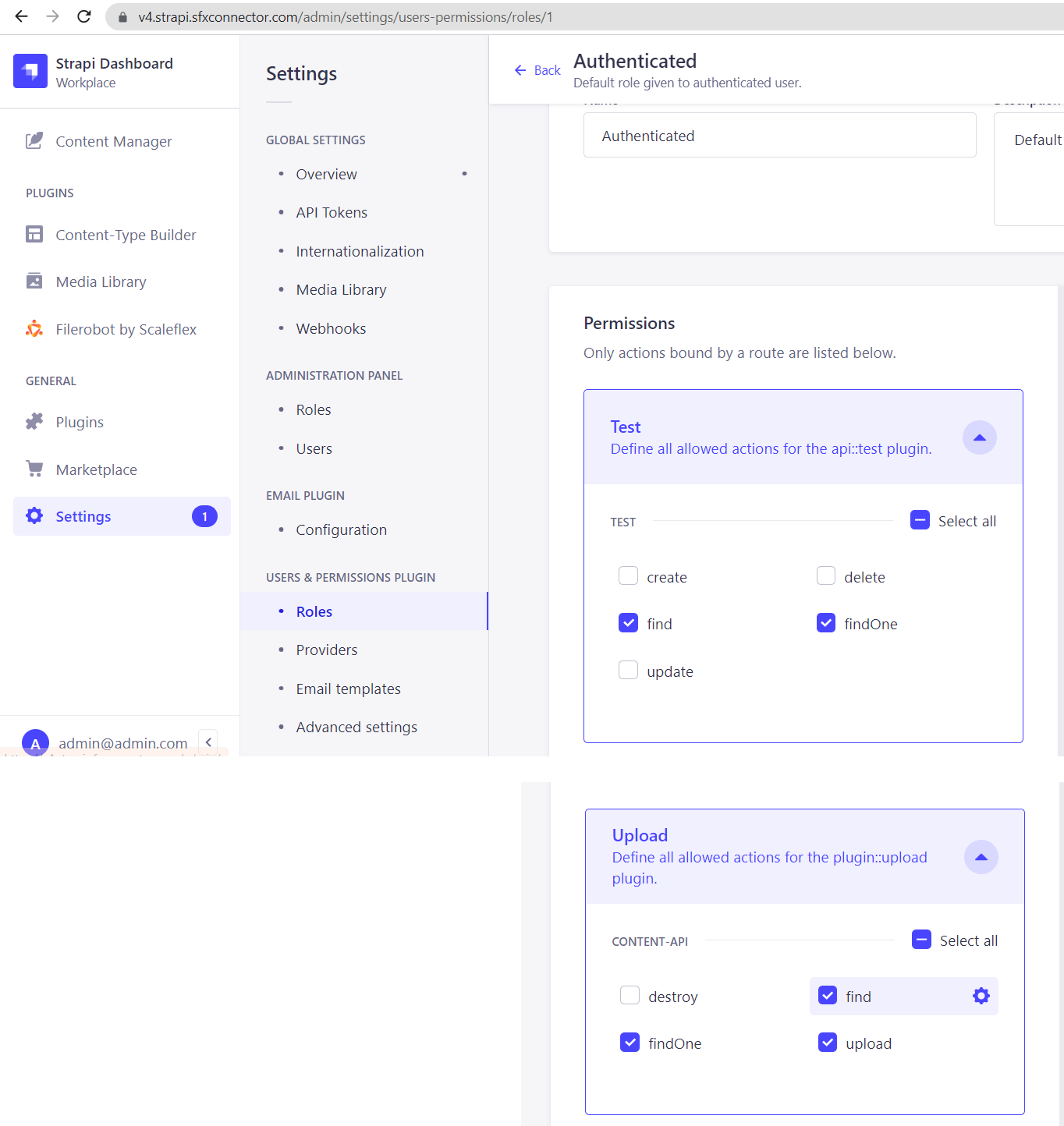
**Give the appropriate permissions to the authenticated user**
**Get the auth token**
https://www.youtube.com/watch?v=TIK9CYDgs5k&list=PL2dKqfImstaROBMu304aaEfIVTGodkdHh&index=3 (even though this tutorial is for Strapi v3, it's still applicable to Strapi v4)
```
curl --location --request POST '{domain}/api/auth/local'
--form 'identifier="{an authenticated user's email}"' \
--form 'password="{an authenticated user's password'}"'
```
**Retrieve Media**
https://docs.strapi.io/developer-docs/latest/plugins/upload.html#endpoints
GET all media
```
curl --location --request GET '{domain}/api/upload/files' \
--header 'Authorization: Bearer {token}'
```
GET one media
```
curl --location --request GET '{domain}/api/upload/files/3' \
--header 'Authorization: Bearer {token}'
```
**Retrieve custom content-types**
https://docs.strapi.io/developer-docs/latest/developer-resources/database-apis-reference/rest-api.html
GET collection-type contents
```
curl --location --request GET '{domain}/api/tests' \
--header 'Authorization: Bearer {token}'
```
GET one collection-type content
```
curl --location --request GET '{domain}/api/tests/1' \
--header 'Authorization: Bearer {token}'
```
Note: If your content-type contains Media fields, then you have to append this query parameter for media info to show `?populate=%2A`
https://docs.strapi.io/developer-docs/latest/developer-resources/database-apis-reference/rest/populating-fields.html#population