@dynatrace/cordova-plugin
Version:
This plugin gives you the ability to use the Dynatrace instrumentation in your hybrid application (Cordova, Ionic, ..). It uses the Mobile Agent, the JavaScript Agent. The Mobile Agent will give you all device specific values containing lifecycle informat
1,057 lines (769 loc) • 55.4 kB
Markdown
[](https://dynatrace.com)
# Dynatrace Cordova Plugin
This plugin gives you the ability to use the Dynatrace instrumentation in your hybrid application (Cordova, Ionic, Capacitor ..). It uses the Mobile Agent and the JavaScript Agent. The Mobile Agent will give you all device specific values containing lifecycle information and the JavaScript Agent will allow you to manually instrument your JavaScript/TypeScript code out of the box (TypeScript definitions included). The JavaScript Agent will cover the network calls (depending on your used libraries) and will automatically detect them.
## Upgrading major versions
If you are upgrading from version 1.xxx.x of the plugin to the new major version 2.xxx.x, please follow the instructions below:
* Uninstall the version 1.xxx.x of the plugin from the root directory of your project:
* `cordova plugin remove dynatrace-cordova-plugin`
* Install the latest version of the plugin:
* `cordova plugin add @dynatrace/cordova-plugin@latest --save`
For information as to why this is necessary, read more [here](#migration-from-major-version-1-to-2).
## Requirements
* For Linux users: Bash (Only a requirement if you are using Linux)
* For Android users:
* SDK version 21+
* Gradle version 7.x+ ([How to update?](#updating-to-gradle-7))
* Android Gradle Plugin version 7.0+
* Java 11
* Jetpack Compose 1.4 - 1.10 - see [Compose Compatibility Note](#compose-compatibility-note)
* For iOS users: Minimum iOS 12
* For JavaScript Agent: access to API of cluster
* Node: >= 20.x
* Cordova: 10+
* Capacitor: 6+
## Agent Versions
These agent versions are configured in this plugin:
* Android Agent: 8.333.1.1006
* iOS Agent: 8.333.1.1005
## Quick Setup
1. [Installation of the plugin](#1-installation-of-the-plugin)
2. [Configuration with Dynatrace](#2-configuration-with-dynatrace)
3. [Make a build](#3-make-a-build)
4. [Validate instrumentation](#4-validate-instrumentation)
## Advanced Topics
* [Capacitor instrumentation](#capacitor-instrumentation)
* [Opt out](#opt-out)
* [Cordova configuration](#cordova-configuration)
* [Debug property](#debug-property)
* [Content Security Policy url](#content-security-policy-url)
* [Cookie Proxy](#cookie-proxy)
* [Capacitor Cookie Proxy](#capacitor-cookie-proxy)
* [JS Agent Path](#js-agent-path)
* [Gradle Path](#gradle-path)
* [Plist Path](#plist-path)
* [Mobile Agent configuration](#mobile-agent-configuration)
* [Hybrid related configuration](#hybrid-related-configuration)
* [iOS only configuration](#ios-only-configuration)
* [JavaScript Agent configuration](#javascript-agent-configuration)
* [JavaScript Agent Snippet Mode](#javascript-agent-snippet-mode)
* [HTML Instrumentation Requirements](#html-instrumentation-requirements)
* [Allow any certificate](#allow-any-certificate)
* [Manual instrumentation](#manual-instrumentation)
* [Create custom action](#create-custom-action)
* [Report error](#report-error)
* [Identify user](#identify-user)
* [More examples](#more-examples)
* [Typings file for JavaScript Agent API](#typings-file-for-javascript-agent-api)
* [Manual instrumentation - Mobile Agent](#manual-instrumentation-mobile-agent)
* [End session](#end-session)
* [User Privacy Options](#user-privacy-options)
* [Typings file for Mobile Agent API](#typings-file-for-mobile-agent-api)
* [Native Webrequests](#native-webrequests)
* [IBM Mobile First](#ibm-mobile-first)
* [Ionic WebView for Cordova](#ionic-webview-for-cordova)
* [Download older plugin version](#download-older-plugin-version)
* [Custom arguments for instrumentation script](#custom-arguments-for-instrumentation-script)
* [Migration from major version 1 to 2](#migration-from-major-version-1-to-2)
* [Updating to Gradle 7](#updating-to-gradle-7)
* [MavenCentral in top level gradle file](#mavencentral-in-top-level-gradle-file)
* [Native OneAgent debug logs](#native-oneagent-debug-logs)
* [Android](#android)
* [iOS](#ios)
* [Compose Compatibility Note](#compose-compatibility-note)
* [Official documentation](#official-documentation)
* [Doctor Dynatrace](#doctor-dynatrace)
* [Instrumentation Overhead](#instrumentation-overhead)
* [Troubleshooting and current restrictions](#troubleshooting-and-current-restrictions)
* [iOS Session Correlation issues](#ios-session-correlation-issues)
* [Changelog](#changelog)
# Quick Setup
## 1. Installation of the plugin
To install the plugin in your project you must enter the following command in the root directory of your project.
Cordova:
```
cordova plugin add @dynatrace/cordova-plugin --save
```
Ionic and Cordova:
```
ionic cordova plugin add @dynatrace/cordova-plugin --save
```
Capacitor:
```
npm install @dynatrace/cordova-plugin --save
```
Be aware for Capacitor after installation some [extra configuration steps](#capacitor-instrumentation) are needed.
## 2. Configuration with Dynatrace
If you want to instrument your Cordova application just go to your Dynatrace WebUI and select the menu point "Deploy Dynatrace". Choose to setup mobile monitoring and select Cordova. Afterwards it is possible for you to add the Web part (JavaScript Agent) automatically and download the `dynatrace.config.js` file.
This file should be placed in the `root of your project` (same place where the *package.json* is stored). If the file is not available the instrumentation will not work.
> Ionic Webview for Cordova: If you are using the Ionic WebView for Cordova (cordova-plugin-ionic-webview) you need to make sure you [set correct cookie domain](#ionic-webview-for-cordova).
## 3. Make a build
After starting the Cordova or Ionic build, with `ionic cordova build android` or `cordova build android` the instrumentation will be handled by the plugin. Of course `android` can be substituted with `ios` platform. If you have trouble with not finding the .gradle, .plist or dynatrace.config.js file you can specify those via [custom arguments](#custom-arguments-for-instrumentation-script). E.g. `cordova build android --config=C:\config\dynatrace.config.js` is a valid command and will try to use the configuration stored in the `\config` folder.
## 4. Validate instrumentation
This section should explain what data should be visible after applying the plugin. The most important aspect is that there should be a `combined` session. We talk about a `combined` session when there are `Mobile` and `Web` actions within one session.
[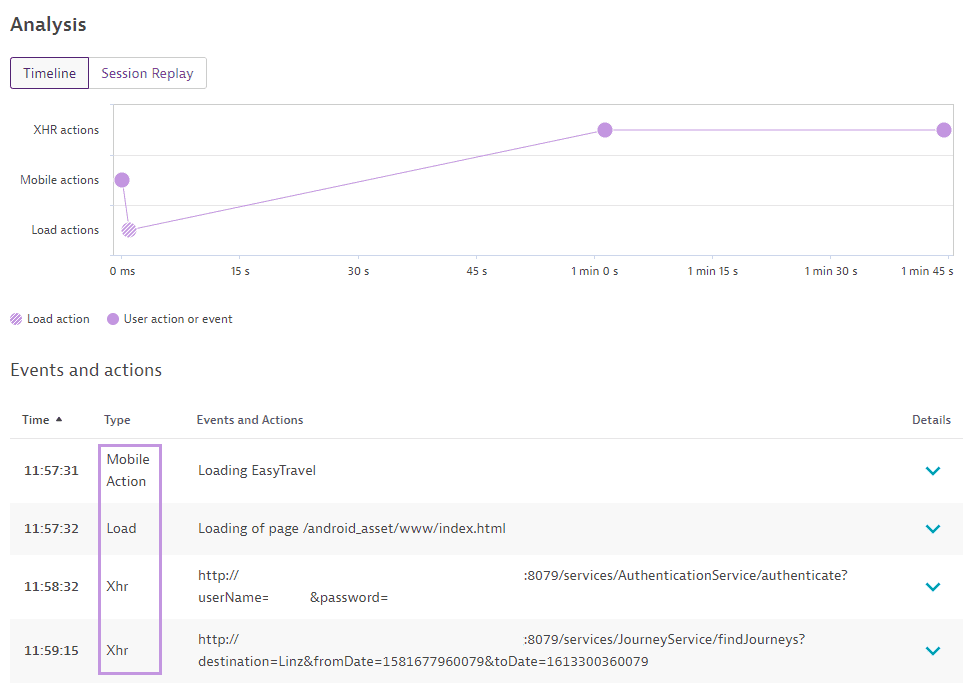]()
This screen shows what a `combined` sample user session should roughly look like. The session contains a `Mobile` action and some `Web(Load, XHR)` actions. Those first two actions should always be visible in your application session. The first one defines the native application startup ("Loading EasyTravel"). The second one defines the first load of the index.html of your hybrid application ("Loading of page ..").
# Advanced Topics
## Capacitor Instrumentation
To instrument your Ionic Capacitor app, you will need to follow the steps below:
**Note for Capacitor iOS:** Starting with Capacitor 8, new iOS projects by default use Swift Package Manager (SPM) instead of CocoaPods. The Dynatrace Cordova Plugin supports SPM based Cordova/Ionic + Capacitor projects. The steps are the same for both CocoaPods and SPM to setup/install the plugin.
1. Install the Dynatrace Cordova Plugin via the following command:
* `npm install @dynatrace/cordova-plugin`
** **Note:** If you do not want our plugin to modify your `package.json`, you can choose to opt-out of that process. See [opt-out](#opt-out) for more details.
2. Go to your Dynatrace WebUI and select the menu point "Deploy Dynatrace". Choose to setup mobile monitoring and select Cordova. Click the *Monitor the web view* button if you have not already.
3. Click the *Download dynatrace.config.js* button and move the downloaded file to the root of your capacitor project.
4. Make sure you add "http://localhost" (or something else if you have configured a different scheme) to the Android configuration domains in the dynatrace.config.js:
```
hybridWebView {
enabled true
domains 'http://localhost', '.yourotherdomains.com'
}
```
5. Run the following commands (replace `<platform>` with `ios` or `android`) for instrumentation:
* If using **Ionic CLI**:
* `ionic capacitor run <platform>`
* `ionic capacitor sync <platform> && ionic capacitor open <platform>`
* `ionic capacitor build <platform>`
* If using **Capacitor CLI**:
* `capacitor run <platform>`
* `capacitor sync <platform> && capacitor open <platform>`
6. Run your application (if you did not use the **run** command)
## Opt out
You can opt-out of having your `package.json` modified by our plugin. By default, we add the hook required to properly instrument your application. To prevent issues with git, using this opt-out feature will no longer have our plugin modify your `package.json`.
Our plugin will check for a specific key/value pair of `DYNATRACE_NOT_ADDING_SCRIPTS = true` in any npm config. This includes your global or even a local `.npmrc` file in the root of your application.
**Note:**
If using this feature, you will need to manually add the following hook to your `package.json`:
```js
"scripts": {
...
// Option 1 (if using ionic + capacitor)
"ionic:capacitor:build:before": "node node_modules/@dynatrace/cordova-plugin/scripts/InstrumentCap.js"
// Option 2 (if using cordova + capacitor or ionic + capacitor)
"capacitor:sync:after": "node node_modules/@dynatrace/cordova-plugin/scripts/InstrumentCap.js"
},
```
## Cordova configuration
**Note:**
If both [custom CLI arguments](#custom-arguments-for-instrumentation-script) and custom configuration arguments are used, custom CLI arguments will be used.
```js
module.exports = {
cordova : {
debug : false,
cspURL: "http://...",
cookieProxy: false,
jsAgentPath: "/path/to/jsAgent.txt",
gradlePath: "/path/to/build.gradle",
plistPath: "/path/to/Info.plist"
},
...
}
```
### Debug property
The default value is `false`. This property generates more log output and is sometimes necessary if you need to find the cause for a non-working plugin.
### Content Security Policy url
There is flag for updating the CSP (Content Security Policy). By default this value is `set` and the plugin will modify the CSP. The URL in the `cspURL` property will be placed into a CSP configuration (if available) in your index.html. This will allow/unblock connections to the Dynatrace server. If you don't want to use this feature, remove the cspURL property and the plugin will not modify the CSP configuration.
### Cookie Proxy
Issues with cookies are somehow a persistent companion in Ionic or Capacitor applications. Therefore, we provide a proxy script which is wrapping the document.cookie API and are storing the cookies which are important for the Dynatrace Agents in the session storage. Of course this wrapping is still calling the original API. Please see the [Capacitor Cookie Proxy](#capacitor-cookie-proxy) section below if you are using `CapacitorCookies` in your application. If not, please see the configuration below.
Per default the cookie proxy is turned off. To make use of this proxy you need to enable it in the cordova configuration in the dynatrace.config.js:
```js
module.exports = {
cordova : {
cookieProxy: true
},
...
}
```
The `true` in the cookieProxy property will insert a `dt-cookie-proxy.js` script in the index.html.
### Capacitor Cookie Proxy
If you are using `CapacitorCookies` in your capacitor application, we have added another proxy option that includes the logic used with `CapacitorCookies`. To use this option, you will need to set `CapacitorCookies` to false in your capacitor configuration and then add the following option in your `dynatrace.config.js` file:
```js
module.exports = {
cordova : {
capacitorCookieProxy: true
},
...
}
```
If you are not using `CapacitorCookies` in your application, please be sure to follow the steps in the [Cookie Proxy](#cookie-proxy) section instead.
**NOTE:**
If `CapacitorCookies` is set to true, we will not inject our proxy as there have been issues when using both `CapacitorCookies` and our proxy at the same time. Also, if you have both `cookieProxy` and `capacitorCookieProxy` set to true while `CapacitorCookies` is set to false, we will add the capacitor cookie proxy.
### JS Agent Path
If you want to use a local script/text file that includes the JS Agent snippet downloaded from the WebUI or retrieved from using the Dynatrace API. Note that you can name the file whatever you want but the file and directory that you use needs to exist. The file downloaded from the WebUI will be named `jsSnippet.txt` by default.
### Gradle Path
If your top level build.gradle is not in the standard location or you want to use a specific build.gradle, you can specify a path to the desired file. We will assume that the other gradle file resides in `/app/build.gradle`. This will add all agent dependencies automatically for you and will update the configuration.
### Plist Path
Tell the script where your Info.plist file is. The plist file is used for updating the configuration for the iOS agent.
## Mobile Agent configuration
```js
module.exports = {
android : {
config : `...`
},
ios : {
config : `...`
}
}
```
The native configuration contains all the settings which are necessary for the Mobile Agent(s). You can find all the available properties in the [documentation](#official-documentation) of the mobile agent.
The content of the `ios.config` property will be directly copied to the plist file. The content of the `android.config` property will be directly copied to the gradle file.
### Hybrid related configuration
Here we list the configuration which is especially important if you are instrumenting a Hybrid application.
```js
module.exports = {
android : {
config : `
dynatrace{
configurations {
defaultConfig{
autoStart{
...
}
hybridWebView{
enabled true
domains '.example.com', '.dynatrace.com'
}
}
}
}
`
},
ios : {
config : `
<key>DTXHybridApplication</key>
<true/>
<key>DTXSetCookiesForDomain</key>
<array>
<string>.example.com</string>
<string>.dynatrace.com</string>
</array>
`
}
}
```
* `DTXHybridApplication` or `hybridWebView.enabled` : Set to `true` if you have a Hybrid application. The default value is `false`.
* `DTXSetCookiesForDomain` or `hybridWebView.domains` : For hybrid applications using the JavaScript agent, cookies need to be set for each instrumented domain or server the application communicates with. You can specify domains, host or IP addresses. Domains or sub-domains must start with a dot. Separate the list elements with a comma.
### iOS only configuration
The `DTXHybridApplicationMode` flag is available for iOS only.
Using the default value of `cookies` will set the behavior of the iOS agent to inject Javascript into the webview which allows the JS agent and iOS agent to correlate the mobile and web session via cookies and or local storage.
```js
module.exports = {
ios : {
config : `
<key>DTXHybridApplicationMode</key>
<string>cookies</string>
`
}
}
```
Using the value of `useragent` will result in modifying the UserAgent header, which appends specific key/values that will allow the JS agent to correlate mobile and web sessions properly. This option requires cluster version (or JavaScript Agent version) 327 or higher.
**Note:** Using this setting will preserve the original UserAgent header and append the following string: `DTHybrid/x.x dtAdk=... dtAdkSettings=...`
```js
module.exports = {
ios : {
config : `
<key>DTXHybridApplicationMode</key>
<string>useragent</string>
`
}
}
```
* `DTXHybridApplication` or `hybridWebView.enabled` : Set to `true` if you have a Hybrid application. This property is automatically set to true if you are using the dynatrace.config.js file downloaded from the Instrumentation Wizard. Otherwise, the default value is `false`.
## JavaScript Agent configuration
Basically all needed properties for the JavaScript Agent are predefined by the downloadable `dynatrace.config.js`. There are four available properties:
* `url` - Dynatrace API url to retrieve the JS agent script tag.
* `mode` - Values can be numbers 0-4 depending on what JavaScript Agent code snippet you want to use.
* `allowanycert` - Allows the plugin to ignore certificate issues when retrieving the JavaScript Agent.
* `htmlFiles` - A string array which allows you to specify .html files to be instrumented. **Note**: The `htmlFiles` property should only be used if you have html files that are not automatically instrumented by the plugin.
### JavaScript Agent Snippet Mode
Using a specific mode can allow you during build to insert any of the available JavaScript agent code snippet options that are offered.
[Click here](https://www.dynatrace.com/support/help/shortlink/rum-injection#manual-insertion) for more details on the options listed below:
* 0 - `jsInlineScript`
* 1 - `jsTagComplete` (Default)
* 2 - `syncCS`
* 3 - `asyncCS`
* 4 - `jsTag`
```js
module.exports = {
js : {
url : `https://.../jsInlineScript/...`,
mode: 2
},
}
```
The above example will use mode option 2 and retrieve the synchronous code snippet of the JavaScript agent.
**Note:**
The default url value will be used if mode is not included in the `dynatrace.config.js` file or if mode exists and the value is not valid (i.e. not a number 0 through 4).
### HTML Instrumentation Requirements
When doing a build, the plugin searches through the assets folders of each platform (Android & iOS) to find suitable HTML files and instrument them. Currently, the instrumentation of an HTML file is triggered by the following patterns:
* HTML file contains a script with the src `cordova.js`
* HTML file contains an ionic tag like `ion-app` or `app-root`
* HTML file contains the following tags:
* DOCTYPE of html (i.e. something like `<!DOCTYPE html>`)
* If DOCTYPE is not specifically html (i.e. xml), we will not inject
* html tag (`<html` and `</html>`)
* head tag (`<head` and `</head>`)
* HTML files defined via dynatrace.config.js property `htmlFiles`
```js
module.exports = {
js : {
htmlFiles : ['public/index.html']
},
}
```
Be aware that relative paths will always be used based on the assets folder. Cordova or Capacitor will automatically sync your .html files to the assets folder of the platform used. For example, in Android this is usually `platforms/android/app/src/main/assets`.
### Allow any certificate
If you are having an issue retrieving the JavaScript Agent and see an error message relating to a certificate:
```
Could not retrieve the JavaScript Agent! - Could not retrieve agent optionsError: unable to verify the first certificate
```
You are able to bypass those errors at your **OWN RISK** by using `allowanycert: true` within the `js` property. This will ignore the fact that the SSL connection is not secure (e.g. because of an invalid certificate) and will retrieve the JavaScript Agent snippet anyways. An example would look like this:
```js
module.exports = {
js : {
url : `...`,
allowanycert: true
},
}
```
## Manual instrumentation
The JavaScript Agent interface will be provided by the JavaScript Agent, it can be used everywhere in your application by simply calling `dtrum`.
This gives you the possibility to instrument your code even further by adding manual instrumentation. If you like to know more about the manual instrumentation, have a look into the Dynatrace [documentation](#official-documentation).
### Create custom action
To create a custom action that is called `"MyButton tapped"` you just need to use the following code below. The *leaveAction* will close the action again. It is possible to report errors for this action before closing, see next section [Report Error](#report-error).
```ts
"enterAction"(actionName: string, actionType: string, startTime?: number, sourceUrl?: string, sourceTitle?: string): number;
"leaveAction"(actionId: number, stopTime?: number, startTime?: number): void;
```
```js
var action = dtrum.enterAction('simple action', 'click', null, 'http://whatever.com');
//do something here
dtrum.leaveAction(action);
```
### Report error
For any open action you can report certain values. The following APIs are available on the Action:
```js
reportError(error: Error | string, parentActionId?: number): void;
dtrum.reportError('Error: Hello World with AJAX!');
```
### Identify user
It is possible to identify a user and tag the current session with a name. You need to do the following call:
```js
dtrum.identifyUser("User XY");
```
### More examples
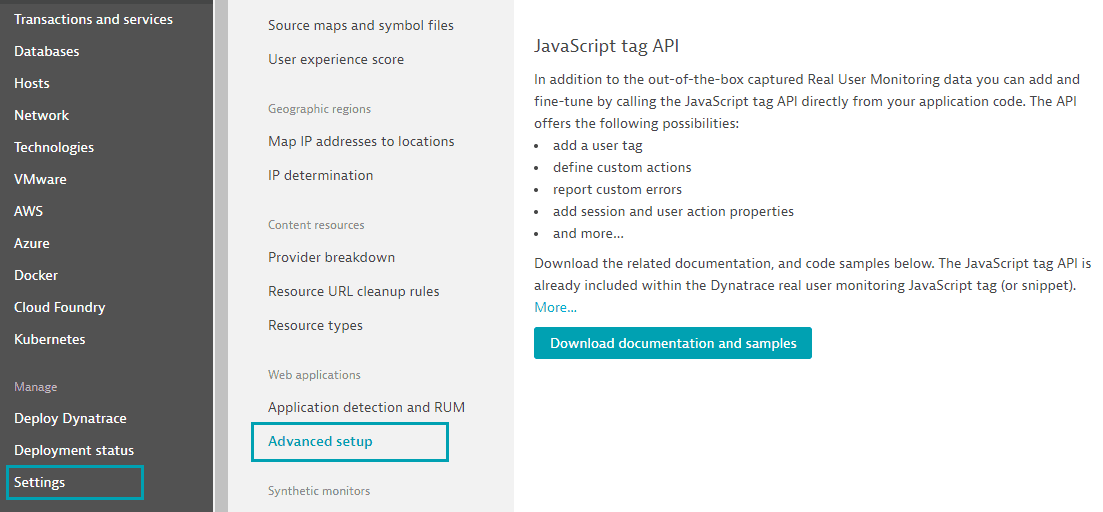
The above functionalities are only a small part of how you can use the API. If you want to know more you can visit the Settings in the WebUI.
[]()
### Typings file for JavaScript Agent API
If you are using typescript and want to use the manual instrumentation of the JSAgent you should install the typings. The typings are available under the package name `@dynatrace/dtrum-api-types`. External typings have the advantage that you can apply the version that is actually needed.
After installing the typings, they can be used by inserting the following line at the top of the file:
```ts
/// <reference types="@dynatrace/dtrum-api-types" />
```
or including the typings in your tsconfig.json file:
```json
"files": [
"node_modules/@dynatrace/dtrum-api-types/dtrum.d.ts"
]
```
Be aware if you are using typescript you need to prefix your dtrum calls with `window.` as the typings file is made for all web applications.
This means a call to enterAction might look like this:
```ts
window.dtrum.enterAction(...)
or
let dtrum = window.dtrum;
dtrum.enterAction(...);
```
## Manual instrumentation - Mobile Agent
The Mobile Agent interface will be provided by the Mobile Agent, so it can be used everywhere in your application by simply calling `dynatraceMobile`.
### End session
In a hybrid scenario it is only possible for the mobile agent to end a session/visit. That's why we expose the endVisit function of the Mobile Agent.
The interface is available with the name `dynatraceMobile` (TypeScript definitions included). Calling `dynatraceMobile.endVisit(successCallback, errorCallback)` will end the session/visit. Example how this call looks like:
```js
dynatraceMobile.endVisit(() => {
// Success
console.log("Visit was ended!");
}, () => {
// Error
console.log("Visit wasn't ended!");
});
```
You can also use the dtrum API directly to end the session:
```js
dtrum.endSession(...);
```
*Note: This API is not available in the typings file as we add it for convenience at runtime. If you are using typescript you might want to use dynatraceMobile.endSession(...).*
### User Privacy Options
Specifies if the user has to opt-in for being monitored. When enabled, you must specify the privacy setting. The following in configuration is needed to be able to use the API.
### Android
```js
android: {
config: `
dynatrace {
configurations {
defaultConfig {
autoStart{
...
}
userOptIn true
}
}
}
`
}
```
### iOS
```js
ios: {
config: `
<key>DTXUserOptIn</key>
</true>
`
}
```
The privacy API methods allow you to dynamically change the data-collection level based on the individual preferences of your end users. Each end user can select from three data-privacy levels:
```js
const enum DataCollectionLevel {
Off, Performance, UserBehavior
}
```
1. Off: Native Agent doesn't capture any monitoring data.
2. Performance: Native Agent captures only anonymous performance data. Monitoring data that can be used to identify individual users, such as user tags and custom values, aren't captured.
3. UserBehavior: Native Agent captures both performance and user data. In this mode, Native Agent recognizes and reports users who re-visit in future sessions.
Here are some examples of how to use the API:
To check the current privacy options that are set:
```js
dynatraceMobile.getUserPrivacyOptions((result) => {
// Successfully retrieve UserPrivacyOptions Object (i.e. result):
if(result) {
console.log(`Current Data Collection Level: ${result.dataCollectionLevel}`);
console.log(`Current Crash Reporting Value: ${result.crashReportingOptedIn}`);
}
}, (error) => {
// Error
console.log(`Error: ${error}`);
});
```
If you want to change the `UserPrivacyOptions`:
```js
dynatraceMobile.applyUserPrivacyOptions(DataCollectionLevel.UserBehavior, true, () => {
console.log("Success");
}, () => {
console.log("Error");
});
```
### Typings file for Mobile Agent API
To use the interface of the Mobile Agent directly you must specify the typing definition file in the *tsconfig.json*. Add the following block to the *tsconfig.json*:
```
"files": [
"node_modules/@dynatrace/cordova-plugin/typings/main.d.ts"
]
```
If "files" is already defined, just add the path to the already defined ones.
If you still don't get types in your .ts file, please insert the following snippet at the top of your .ts file:
```
/// <reference types="@dynatrace/cordova-plugin" />
```
## Native Webrequests
**Attention:** This feature requires a instrumented webserver with version 1.211.x
Within Cordova it is also possible to use libraries that are executing native web requests. Some examples are: cordova-plugin-advanced-http, @ionic-native/http, cordova-plugin-okhttp or Mobile First by IBM.
Those libraries are not executing the request within the JS scope but will rather call a JavaScript<->Native interface and will trigger the request natively. This means that our JavaScript OneAgent will not be able to detect the request. Additionally a resulting user action can be dropped as well. To prevent this behaviour you need to manually apply headers to your request.
Before using this feature you need to turn off web request instrumentation on iOS. You can do this by adding the following configuration to the dynatrace.config.js:
```js
ios: {
config: `
<key>DTXInstrumentWebRequestTiming</key>
<false/>
`
}
```
The following code will create a user action and a linked web request for you:
```js
// Creation of your request. This might depend on the library you are using
MyTestRequest request = new MyTestRequest("MY_URL");
let interceptorUtils = dynatraceMobile.getNativeNetworkInterceptorUtils();
// Creation of a user action with automated detection of the user action - e.g. click on
let actionId = interceptorUtils.enterNativeRequestAction("MY_URL", "Name of HTTP Framework", "Optional Action Fallbackname");
// Adding headers to your request - Take a look into typings.d.ts for the format of DynatraceNativeRequestHeaders
request.addHeaders(interceptorUtils.getHeadersForNativeRequest(actionId));
// Sending the request and afterwards close the XhrAction
request.send();
interceptorUtils.leaveNativeRequestAction(actionId);
```
## IBM Mobile First
**Attention:** This feature requires a instrumented webserver with version 1.211.x running at your Mobile First server. Also, only version >= 8.x.x is supported.
If you are using IBM Mobile First you might take a look at our `dynatraceMobile.getMobileFirstNetworkInterceptor()`. This interceptor gives you the option to make the request going to Mobile First more visible. The Mobile First library is doing native mobile web requests, that's why those requests can't be linked with user actions happening in the web part.
This interceptor is creating wrapping actions according to the user input that happened right before the request. By this modification you will be able to see the request in the user session linked with user actions.
Before using this feature you need to turn off web request instrumentation on iOS. You can do this by adding the following configuration to the dynatrace.config.js:
After Mobile First has been initialized make the following call:
```js
dynatraceMobile.getMobileFirstNetworkInterceptor().enableInterceptor("https://serverurl.com");
if(dynatraceMobile.getMobileFirstNetworkInterceptor().isInterceptorEnabled()){
// Everything is setup correctly
}
```
It is also possible to deactivate the interceptor again. This will reset the modifications to the WLResourceRequest:
```js
dynatraceMobile.getMobileFirstNetworkInterceptor().disableInterceptor();
if(!dynatraceMobile.getMobileFirstNetworkInterceptor().isInterceptorEnabled()){
// Interceptor was disabled
}
```
## Ionic WebView for Cordova
The Mobile agent usually sets cookies on the correct domain but the [cordova-plugin-ionic-webview](https://github.com/ionic-team/cordova-plugin-ionic-webview) uses different domains. Those domains need to be added in the configuration. If you defined a custom [hostname](https://github.com/ionic-team/cordova-plugin-ionic-webview#hostname) you need to take this into account as well for choosing the correct domain. A sample configuration which takes care about the default domain for cordova-plugin-ionic-webview looks like the following:
```js
module.exports = {
android : {
config : `
dynatrace{
configurations {
defaultConfig{
autoStart{
...
}
hybridWebView{
enabled true
domains 'http://localhost', '.other-domain-you-want-to-specify.com'
}
}
}
}
`
},
ios : {
config : `
<DTXHybridApplication>true</DTXHybridApplication>
<DTXSetCookiesForDomain>ionic://localhost,.other-domain-you-want-to-specify.com</DTXSetCookiesForDomain>
`
}
}
```
## Download older plugin version
The version can be used like in any other npm package. You just have to use the @ sign if you want to specify a certain version:
```
cordova plugin add @dynatrace/cordova-plugin@1.191.1 --save
```
This will download the version `1.191.1` of our plugin. In general we recommend you to always use the latest version.
## Custom arguments for instrumentation script
**Notes:**
* If both custom CLI arguments and [custom configuration arguments](#cordova-configuration) are used, custom CLI arguments will be used.
* Custom arguments will only work with Capacitor based projects if you directly modify the "capacitor:sync:after" command. (See example below)
Our script assumes that the usual cordova project structure is given. The following arguments can be specified for our instrumentation script if the project structure is different.
* `--gradle=C:\MyCordovaAndroidProject\platforms\android\build.gradle` - the location of the root build.gradle file. We will assume that the other gradle file resides in `/app/build.gradle`. This will add all agent dependencies automatically for you and will update the configuration.
* `--plist=C:\MyCordovaIOSProject\platforms\ios\projectName\projectName-Info.plist` - Tell the script where your Info.plist file is. The plist file is used for updating the configuration for the agent.
* `--config=C:\SpecialFolderForDynatrace\dynatrace.config.js` - Used for if you have not added your config file in the root folder of the Cordova project but somewhere else.
* `--jsagent=C:\MyCordovaProject\scripts\jsSnippet.txt` - If you want to use a local script/text file that includes the JS Agent snippet downloaded from the WebUI or retrieved from using the Dynatrace API. Note that you can name the file whatever you want but the file and directory that you use needs to exist. The file downloaded from the WebUI will be named `jsSnippet.txt` by default.
Example:
```
cordova build android --config=C:\SpecialFolderForDynatrace\dynatrace.config.js
```
If you use Ionic make sure to use -- :
```
ionic cordova build android -- --config=C:\SpecialFolderForDynatrace\dynatrace.config.js
```
If you use Capacitor make sure to directly modify the sync command in `package.json`:
```
"scripts": {
"capacitor:sync:after": "node node_modules\\@dynatrace\\cordova-plugin\\scripts\\InstrumentCap.js --config=\".\\custom.config.js\""
}
```
When reinstalling our plugin, your custom command will be replaced with our default command unless the [opt out](#opt-out) feature is used. Be sure to [opt out](#opt-out) when using a custom command. If you are using a relative path like in the example above, the path will be appended by process.cwd(), which is the current working directory while executing the capacitor sync.
**Additional Note:**
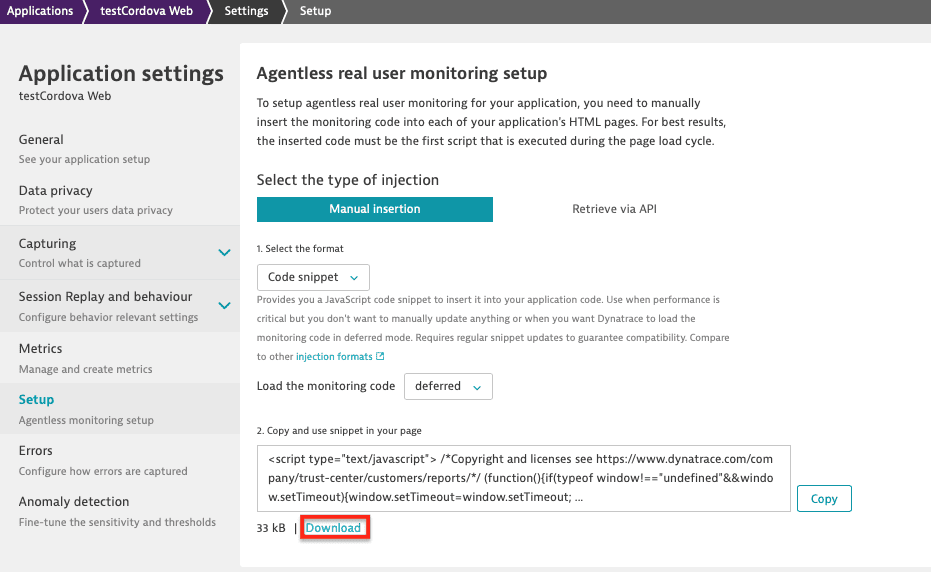
For the local script file, we copy the specified file 1:1. It is best to download the JS agent snippet from the WebUI after selecting the desired JS agent format and clicking the **Download** link below the shown code snippet. To get to this page, go to your **Web Application** settings and then select **Setup**. The contents of the file will be copied 1:1 inside of the `<head>` tag of your Cordova applications platform based html files.
[]()
## Migration from major version 1 to 2
The id has now changed for the plugin from `dynatrace-cordova-plugin` to `@dynatrace/cordova-plugin`. Because of this, there can be some issues with the upgrading of the plugin from major version `1.xxx.x` to `2.xxx.x`. You will likely see the following error if you are just trying to install the newest version of the plugin:
```
Error during processing of action! Attempting to revert...
Failed to install '@dynatrace/cordova-plugin': CordovaError: Uh oh!
"/path/DynatraceCordovaPlugin.java" already exists!
at copyNewFile (/projectPath/node_modules/cordova-android/lib/pluginHandlers.js:231:45)
at install (/projectPath/node_modules/cordova-android/lib/pluginHandlers.js:34:17)
at ActionStack.process (/projectPath/node_modules/cordova-common/src/ActionStack.js:55:25)
at PluginManager.doOperation (/projectPath/node_modules/cordova-common/src/PluginManager.js:111:24)
at PluginManager.addPlugin (/projectPath/node_modules/cordova-common/src/PluginManager.js:141:21)
at /Users/nicholas.mcwherter/projectPath/node_modules/cordova-android/lib/Api.js:155:78
Uh oh!
"/projectPath/platforms/android/app/src/main/java/com/dynatrace/cordova/plugin/DynatraceCordovaPlugin.java" already exists!
```
It will be necessary to follow the steps mentioned [here](#upgrading-major-versions) to resolve this issue.
## Updating to Gradle 7
Updating Gradle only affects your Android build. To Update your project to Gradle 7 you have to modify one file in your Android folder.
- `ProjectFolder\android\cordova\lib\builders\ProjectBuilder.js` Contains the following line:
```
var distributionUrl = process.env['CORDOVA_ANDROID_GRADLE_DISTRIBUTION_URL'] || 'https\\://services.gradle.org/distributions/gradle-4.3.10-all.zip';
```
make sure you insert some other version like `7.6.4` here:
```
var distributionUrl = process.env['CORDOVA_ANDROID_GRADLE_DISTRIBUTION_URL'] || 'https\\://services.gradle.org/distributions/gradle-7.6.4-all.zip';
```
If you are having trouble with this option you can always set the global process property `CORDOVA_ANDROID_GRADLE_DISTRIBUTION_URL` :
```
process.env['CORDOVA_ANDROID_GRADLE_DISTRIBUTION_URL'] = 'https\\://services.gradle.org/distributions/gradle-7.6.4-all.zip';
```
## MavenCentral in top level gradle file
Because the Dynatrace Android agent now requires the MavenCentral repository, if either `jcenter()` or `mavenCentral()` is not added inside of **ALL** the repositories blocks via the [top-level build.gradle](https://dt-url.net/jm610pso), the build will fail.
Below is an example of what a basic [top-level build.gradle](https://dt-url.net/jm610pso) file should look like after adding `mavenCentral()` to all repository blocks:
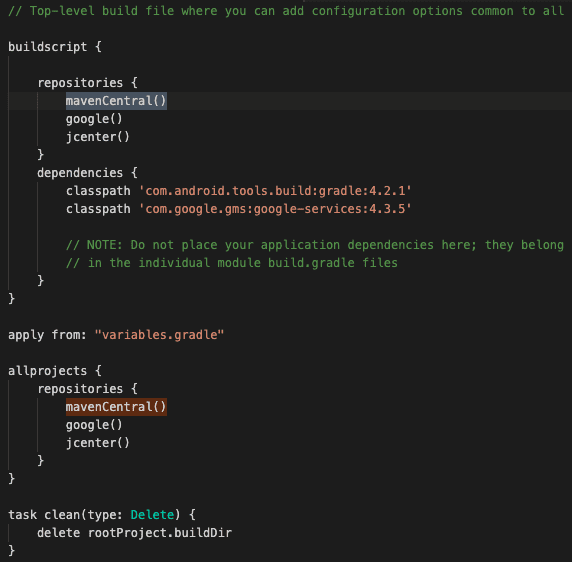
The location of the [top-level build.gradle](https://dt-url.net/jm610pso) should be:
* Cordova/Ionic:
* `<rootOfProject>\platforms\android\build.gradle`
* Ionic/Capacitor:
* `<rootOfProject>\android\build.gradle`
**Note:**
JCenter has noted its [sunset](https://jfrog.com/blog/into-the-sunset-bintray-jcenter-gocenter-and-chartcenter/) on May 1st. Though, JCenter is still syncing with Maven Central so having`jcenter()` in your **build.gradle** file without the use of `mavenCentral()` will retrieve the Dynatrace Android Gradle Plugin no problem.
## Native OneAgent debug logs
If your application starts but you see no data (or the session is not merged), you probably need to dig deeper to find out why the OneAgents aren't sending any data. Opening up a support ticket is a great idea, but gathering logs first is even better. Please attach the mobile agent logs and the [doctor dynatrace](#doctor-dynatrace) logs when opening a support ticket.
### Android
Add the following configuration snippet to your other configuration in dynatrace.config.js right under the autoStart block (the whole structure is visible, so you know where the config belongs):
```js
android: {
config: `
dynatrace {
configurations {
defaultConfig {
autoStart{
...
}
debug.agentLogging true
}
}
}
`
}
```
### iOS
Add the following configuration snippet to your other configuration in dynatrace.config.js (the whole structure is visible, so you know where the config belongs):
```js
ios: {
config: `
<key>DTXLogLevel</key>
<string>ALL</string>
`
}
```
## Compose Compatibility Note
Our Android Agent currently supports **Jetpack Compose 1.4 - 1.10**. If you are using an incompatible version of Jetpack Compose, you may encounter the following error message during build:
```
Could not resolve all dependencies for configuration ':app:debugCompileClasspath'.
Version '1.0.0' of artifact 'androidx.compose.material:material' is not supported.
Please use the latest version of the Dynatrace Android Gradle plugin.
```
If you encounter compatibility issues or want to disable Jetpack Compose instrumentation, you can configure this in your `dynatrace.config.js` file. **Note: Disabling Jetpack Compose instrumentation will skip the compatibility check, allowing you to build with any version of Jetpack Compose without triggering version validation errors.**
**Important**: The configuration example below shows **only the Compose-specific setting**. You must ensure that your complete `dynatrace.config.js` file includes all other required configuration settings (such as `beaconUrl`, `applicationId`, etc.) as described in the [Android block](#mobile-agent-configuration) section of this documentation.
```js
module.exports = {
// ...
android: {
config: `
dynatrace {
configurations {
defaultConfig {
userActions {
composeEnabled false
}
}
}
}
`,
}
};
```
For more information about Jetpack Compose instrumentation and monitoring capabilities, please refer to the [official Dynatrace documentation for Android OneAgent](https://docs.dynatrace.com/docs/observe/digital-experience/mobile-applications/instrument-android-app/instrumentation-via-plugin/monitoring-capabilities#compose-enable).
## Official documentation
* Android Agent: https://www.dynatrace.com/support/help/technology-support/operating-systems/android/
* iOS Agent: https://www.dynatrace.com/support/help/technology-support/operating-systems/ios/
## Doctor Dynatrace
Doctor dynatrace is a tool that will analyze your project and determine if there is something wrong with your current configuration and will also provide information and requirements based on features that are available when using our plugin.
To run this tool, open terminal in the root directory of your project and run the following command: `npx doctorDynatrace`
The results will be generated in the terminal window as well as stored in log folder located in the following directory:
* `C:\CurrentProject\node_modules\@dynatrace\cordova-plugin\logs\currentDoctorDynatrace.txt`
The log file will also include a list of your `package.json` *dependencies* and *devDependencies* which will be helpful when investigating possible issues that arise. Please add this doctor dynatrace log and [mobile agent debug logs](#native-oneagent-debug-logs) when opening a support ticket.
## Instrumentation Overhead
When using auto-instrumentation through our plugin, here are some examples of the size differences before and after instrumentation for release builds:
| Built with | App template | Version | Size Before | Size After | Difference |
|----------------------|-------------------------|-------------|-----------------|----------------|----------------|
| Cordova - Android | cordova-app-hello-world | 13.0.0 | 2.4 MB | 2.6 MB | 0.2 MB |
| Cordova - iOS | cordova-app-hello-world | 7.1.0 | 749 KB | 9.1 MB | 8.35 MB |
| Ionic - Android | Tabs | 13.0.0 | 3.4 MB | 3.5 MB | 0.1 MB |
| Ionic - iOS | Tabs | 7.1.0 | 3.8 MB | 12.2 MB | 8.4 MB |
| Capacitor - Android | ionic-conference-app | 4.6.3 | 16.2 MB | 16.3 MB | 0.1 MB |
| Capacitor - iOS | ionic-conference-app | 4.6.3 | 33.2 MB | 37.4 MB | 4.2 MB |
## Troubleshooting and current restrictions
**Note:**
The Dynatrace Android Gradle plugin is hosted on [Maven Central](https://search.maven.org/#search%7Cgav%7C1%7Cg%3A%22com.dynatrace.tools.android%22%20AND%20a%3A%22gradle-plugin%22). JCenter has noted it's [sunset](https://jfrog.com/blog/into-the-sunset-bintray-jcenter-gocenter-and-chartcenter/) on May 1st so Maven Central is the primary source of the Dynatrace Android Gradle plugin.
Basically if you have problems with the plugin please have a look into the logs. They will tell you what went wrong. The logs can be found in the plugins folder of your Cordova project. There is a directory called "Logs".
* If you see a message like "Error: Could not retrieve the JSAgent! Error: self signed certificate in certificate chain" try to switch the JavaScript Agent configuration from HTTPS to HTTP.
* If you use live reload (e.g. ionic cordova run android -l) be aware that Ionic/Cordova doesn't use files from the platform folder, so the JavaScript Agent injection will not take place, as we only instrument the temporary platform folder. You are still able to add the copied JS Agent code snippet from the WebUI manually to your index.html (in the source directory). To get to this page, go to your **Web Application** settings and then select **Setup**. Auto-Instrumentation with the Mobile Agent still takes place.
* If you have problems retrieving the JavaScript Agent and you get error messages that the JavaScript Agent can not be retrieved, you probably don't have access to the API or there is a certificate issue. If this is the certificate use the [allow any certificate](#allow-any-certificate) feature. In any other case a workaround is possible to use the cli and add the `--jsagent=` custom parameter and download the full Javascript Agent and add the path to the downloaded JS Agent file to the custom parameter value - With this the plugin will not retrieve the JS agent and will use the one that is specified.
* If you are not seeing data when using Capacitor 3+, please make sure you follow the steps in the [Capacitor Instrumentation](#capacitor-instrumentation) section (more specifically step 4 for the proper commands). Please read the note at the bottom of that section for more information.
* For Android, if you see an error like "Gradle sync failed: Could not find com.dynatrace.tools.android:gradle-plugin:8.221.1.1005.", please see the [MavenCentral](#mavencentral-in-top-level-gradle-file) section for an example and more information.
* If you see a message like "Error: Could not retrieve JS Agent optionsForbidden", this means that the internal axios library is too old for processing the request correctly. The solution is to update the Cordova Plugin version, which internally uses a newer axios version to retrieve the JavaScript agent.
### iOS Session Correlation Issues
iOS apps using ionic/capacitor have issues with passing cookies from the native layer to WkWebView layer. This issue is due to ionic and capacitor using their own default custom schemes (i.e. *ionic://* or *capacitor://*) and the strict policy of Apple's WebKit not allowing cookies to be set in WkWebView with these custom schemes.
To resolve this issue and allow the Mobile and Web sessions to correlate properly, we inject the session information into local storage so that the JavaScript agent can use this info for the Web session it creates.
**Requirements**
* iOS agent version 8.219.1.1004+ (already included in our plugin)
* JavaScript agent version 1.219+
* Any version lower will not check local storage and correlation of the mobile and web sessions will not occur.
### Using Apple Pay with WebKit/WKWebView
When using Apple Pay with WKWebView, there are specific checks that WebKit (Apple) uses when loading the Apple Pay SDK. The Apple Pay SDK does not work when using script injection APIs which is what our iOS agent uses to properly communicate with the JS agent and to correlate the Mobile and Web User Sessions.
**Solution:** Set the `DTXHybridApplicationMode` flag to `useragent` that will allow our plugin to work properly with Apple Pay. For more information, see [iOS only configuration.](#ios-only-configuration)
**Other Workaround:** You can set the `DTXHybridApplication` flag to false which will remove the injection of our script. This will also remove the correlation of the Mobile and Web Sessions.
## Changelog
2.333.1
* Updated Android (8.333.1.1006) & iOS Agent (8.333.1.1005)
* Dropped support for Capacitor 5 and lower as they are no longer supported [per Capacitor Support Status](https://capacitorjs.com/docs/main/reference/support-policy#capacitor-maintenance-and-support-status)
2.331.1
* Updated Android (8.331.1.1004) & iOS Agent (8.331.1.1008)
* Added Swift Package Manager (SPM) support for Capacitor iOS projects
* Added [Compose Compatibility Note](#compose-compatibility-note)
2.329.1
* Updated Android (8.329.1.1014) & iOS Agent (8.329.1.1017)
* Updated logic for dynatraceMobile API for iOS to use messageHandler if there is no script injection in WKWebView (see [iOS only configuration](#ios-only-configuration))
2.327.1
* Updated Android (8.327.2.1004) & iOS Agent (8.327.1.1020)
2.325.1
* Updated Android (8.325.1.1007) & iOS Agent (8.325.1.1012)
2.323.1
* Deprecation of Node 18
* Updated Android (8.323.2.1002) & iOS Agent (8.323.1.1009)
2.321.1
* Updated Android (8.321.2.1009) & iOS Agent (8.321.1.1007)
2.319.1
* Updated Android (8.319.2.1011) & iOS Agent (8.319.1.1005)
2.317.1
* Updated Android (8.317.1.1007) & iOS Agent (8.317.1.1003)
2.315.1
* Updated Android (8.315.1.1005) & iOS Agent (8.315.1.1002)
2.313.1
* Native web requests utils no longer set and need x-dynatrace header
* Updated Android (8.313.1.1004) & iOS Agent (8.313.1.1016)
2.311.1
* Updated Android (8.311.1.1007) & iOS Agent (8.311.1.1013)
2.309.1
* Updated Android (8.309.2.1011) & iOS Agent (8.309.1.1009)
2.307.1
* Updated Android (8.307.1.1005) & iOS Agent (8.307.1.1014)
* Deprecation of Node 16
2.305.1
* Updated Android (8.305.1.1005) & iOS Agent (8.305.3.1016)
2.303.1
* Updated Android (8.303.2.1014) & iOS Agent (8.303.1.1004)
* Android Gradle Plugin version requirement raised to 7.0+
* Gradle version requirement raised to 7.0+
2.301.1
* Updated Android (8.301.1.1004) & iOS Agent (8.301.1.1008)
2.299.1
* Updated Android (8.299.1.1004) & iOS Agent (8.299.1.1003)
2.297.1
* Updated Android (8.297.1.1003) & iOS Agent (8.297.1.1004)
* Added [Instrumentation Overhead](#instrumentation-overhead) section
* Added [Capacitor Cookie Proxy](#capacitor-cookie-proxy) option for when `CapacitorCookies` is needed
2.295.1
* Updated Android (8.295.1.1006) & iOS Agent (8.295.1.1020)
* Using cookie postfix of JavaScript agent when enabled
* Updated [HTML Instrumentation Requirements](#html-instrumentation-requirements) for when injecting the JS agent into html
2.293.1
* Updated Android (8.293.1.1003) & iOS Agent (8.293.1.1003)
2.291.1
* Updated Android (8.291.1.1002) & iOS Agent (8.291.1.1004)
2.289