@directus-labs/video-player-interface
Version:
An interface to select and display a video from YouTube, Vimeo or a local file from Directus
38 lines (24 loc) • 1.9 kB
Markdown
# Video Player Interface
Select and display a video from YouTube, Vimeo or a local file from Directus within the item editor
## Installation & Setup
To install the extension, take a look at the [Official Guide](https://docs.directus.io/extensions/installing-extensions.html).
To make external video sources work, update your **CSP directives** as follows:
```env
CONTENT_SECURITY_POLICY_DIRECTIVES__FRAME_SRC=https://www.youtube-nocookie.com,https://player.vimeo.com
CONTENT_SECURITY_POLICY_DIRECTIVES__SCRIPT_SRC=array:'self', player.vimeo.com 'unsafe-eval', www.youtube.com 'unsafe-eval', www.youtube.com/iframe_api 'unsafe-eval'
CONTENT_SECURITY_POLICY_DIRECTIVES__IMG_SRC=array:'self' data:, i.ytimg.com 'unsafe-eval'
CONTENT_SECURITY_POLICY_DIRECTIVES__MEDIA_SRC=array:'self', cdn.plyr.io
```
Once installed, go to your data model settings, create a new field or update an existing field of the type `json`, and select `Video` as the interface.
## Usage
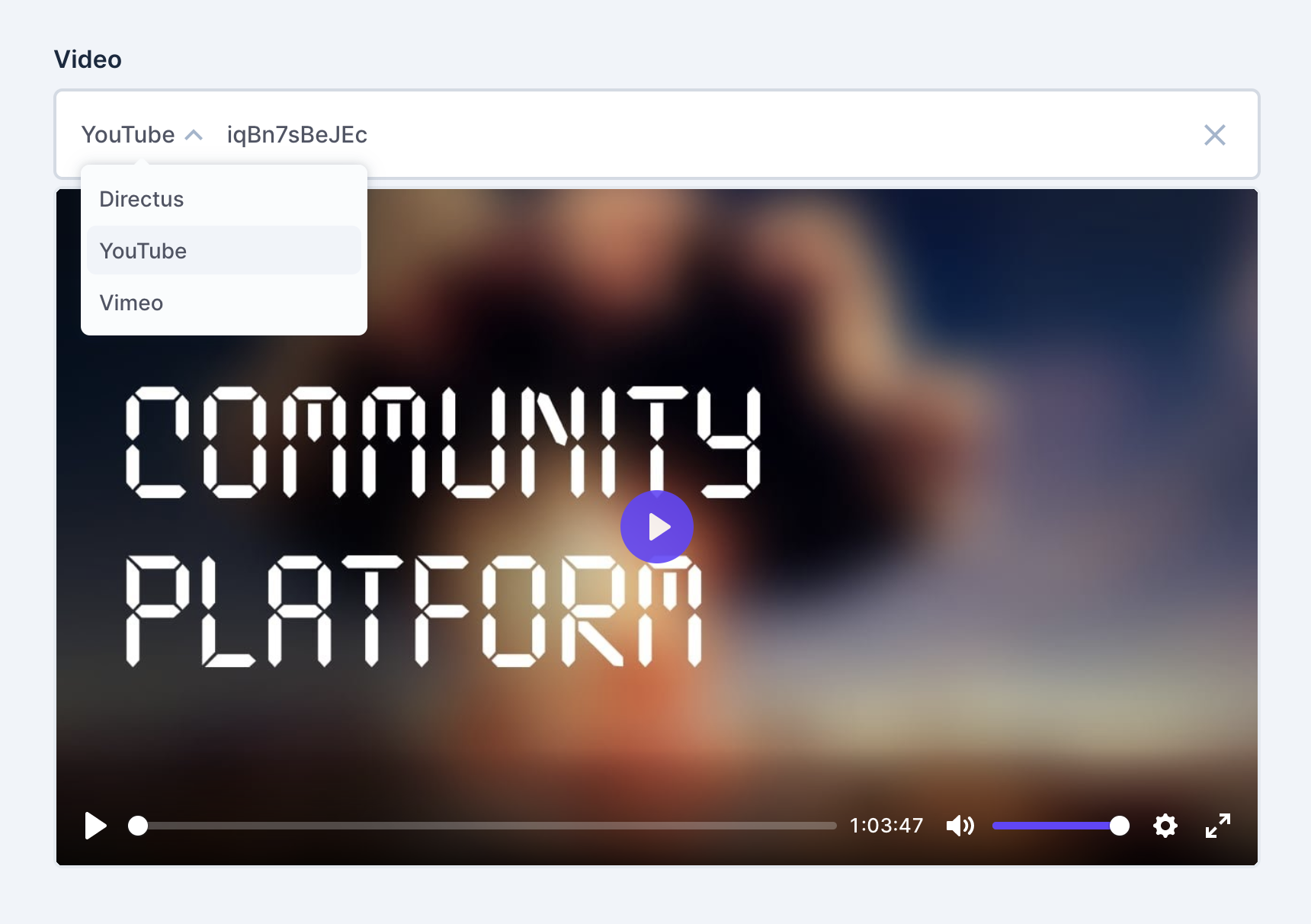
Locate the video field on your item page and select a video source: Directus, YouTube or Vimeo. If you choose Directus, select an existing video from the file library. If you are using an external video service, paste in the Video ID. The video will now appear, and if it exists, you can play it directly from the item page.
## Output
```js
// Example output for YouTube videos
{ service: 'youtube', id: 'iqBn7sBeJEc' }
// Example output for Vimeo videos
{ service: 'vimeo', id: '37293500' }
// Example output for local videos from Directus
{ service: 'directus', id: '09fe994b-01b5-4dea-9535-e7a14cfc0398' }
```