@cicciosgamino/qr-code-element
Version:
QR-Code WebComponent based on Project Nayuki Qr Code Library
273 lines (201 loc) • 7.8 kB
Markdown

[](https://www.npmjs.com/package/@cicciosgamino/qr-code-element)
[](https://www.webcomponents.org/element/cicciosgamino/qr-code-element)
# 🦓 \<qr-code-element\>
v0.1.0 - 22-02-2023
QR-Code WebComponent based on Project Nayuki Qr Code Library. Nayuki project aims to be the best, clearest library for generating QR Codes. Get more info at official page:
https://www.nayuki.io/page/qr-code-generator-library
Nayuki Qr Code Library v1.8.0 - Javascript
**SVG**
SVG is the default graphic format the Qr Code is build-up in the \<qr-code-element\> . Define the size of the WebComponent with a CSS custom properties:
```css
/* size the qr code if svg */
qr-code-element {
--size: 7rem;
}
```
Keep in mind that you can style the background and tile colors of the Qr Code with the attribute *bkColor* and *tileColor* as you can see in attributes table.
When the QrCode is render in SVG format the *scale* attribute can be use to set a ratio between the Qr Code dimension and the *border*.
**Canvas**
Set the attribute *graphic-element* to canvas and the qr code will be render in a HTMLCanvasElement. The size of the canvas is managed mainly from the *scale* attribute, so try to change the scale attribute until you find the right size. When you have the *scale* you want to use you can adjust the pixel size of the qr code with the CSS applied to the \<qr-code-element\> , do NOT use only the CSS to get a big size of the qr code, penalty loss in graphic definition.
```html
<qr-code-element
text="Hello World"
graphic-element="canvas"
scale="10"
error-correction="medium">
<qr-code-element>
```
```css
qr-code-element {
--size: 11rem;
}
```
<p align="center">
<a href="#examples">examples</a> •
<a href="#usage">usage</a> •
<a href="#api">api</a> •
<a href="#accessibility">accessibility</a> •
<a href="#todo">TODO</a> •
</p>
## Examples
```html
<qr-code-element
text="Hello World"
error-correction="medium">
</qr-code-element>
```
## 🚀 Usage
1. Install package
```bash
npm install --save @cicciosgamino/qr-code-element
```
2. Import
```html
<!-- Import Js Module -->
<script type="module">
// Importing this module registers <qr-code-element> as an HTMLElement
//
// Note this import is a bare module specifier, so it must be converted
// to a path using a server such as @web/dev-server or vite
import '@cicciosgamino/qr-code-element'
</script>
```
3. Place in your HTML
```html
<qr-code-element
text="Hello World"
error-correction="medium"
mask-pattern="-1">
</qr-code-element>
```
4. Use the component with LitElement
```javascript
import * from '@cicciosgamino/qr-code-element'
render () {
return html`
<qr-code-element
text="Hello World"
graphic-element="canvas"
error-correction="medium"
mask-pattern="-1">
</qr-code-element>
`
}
```
5. Set the url attribute with
```javascript
// plain html
document.querySelector('qr-code-element')
.setAttribute('text','@NEW TEXT >TO ENCODE!')
// in lit element
this.renderRoot.querySelector('qr-code-element')
.setAttribute('text','@HELLO >> New new World!')
```
## 🐝 API
### 📒 Properties/Attributes
| Name | Type | Default | Description
| ------------- | ------------- | ---------- | -------------------------------
| text | String | `'@cicciosgamino'`| The Unicode Text string to Encode
| graphic-element | String | `'svg'` | Render Qr Code in SVG or Canvas element [svg | canvas]
| scale | Number | `10` | Scale of Qr - Number greather than 1
| border | Number | `1` | Border of Qr - Number greather or equal to 0
| bk-color | String | `#fff` | Background Color
| tile-color | String | `#000` | Tile Color
| error-correction | String | `'MEDIUM'` | Error Correction level - LOW | MEDIUM | QARTILE | HIGH
### Methods
| Name | Description
| ------------ | -------------
| `getStatistics() => {}` | Get Statistics about the Qr Code generated
### Events
No Events
### 🧁 CSS Custom Properties
| Name | Default | Description
| --------------- | ------- | --------------------------------
| `--size` | `11rem` | SIZExSIZE when graphic-element=svg
| `--icon-size` | `15% of --size` | SIZExSIZE of centered icon | slotted svg icon
### 🤖 Write HTML and JavaScript
Import the component's JavaScript module, use the component in your HTML, and control it with JavaScript, just like you would with a built-in element such as `<button>`:
```html
<html>
<head>
<meta charset="utf-8">
<title>My Example App</title>
<!-- Add support for Web Components to older browsers. -->
<script src="./node_modules/@webcomponents/webcomponentsjs/webcomponents-loader.js"></script>
</head>
<body>
<!-- Use Web Components in your HTML like regular built-in elements. -->
<qr-code-element
error-correction="medium"
mask-pattern="-1">
</qr-code-element>
<!-- The Material Web Components use standard JavaScript modules. -->
<script type="module">
// Importing this module registers <progress-ring> as an element that you
// can use in this page.
//
// Note this import is a bare module specifier, so it must be converted
// to a path using a server such as @web/dev-server or vite.
import '@cicciosgamino/qr-code-element'
// Standard DOM APIs work with Web Components just like they do for
// built-in elements.
const qrCodeElement = document.querySelector('qr-code-element')
</script>
</body>
</html>
```
### 🚀 Serve
Serve your HTML with any server or build process that supports bare module specifier resolution (see next section):
```bash
# use globally instelled
npm install -g @web/dev-server
# install the project dev-dependencies and npm run
npm install
npm run dev
```
### Examples
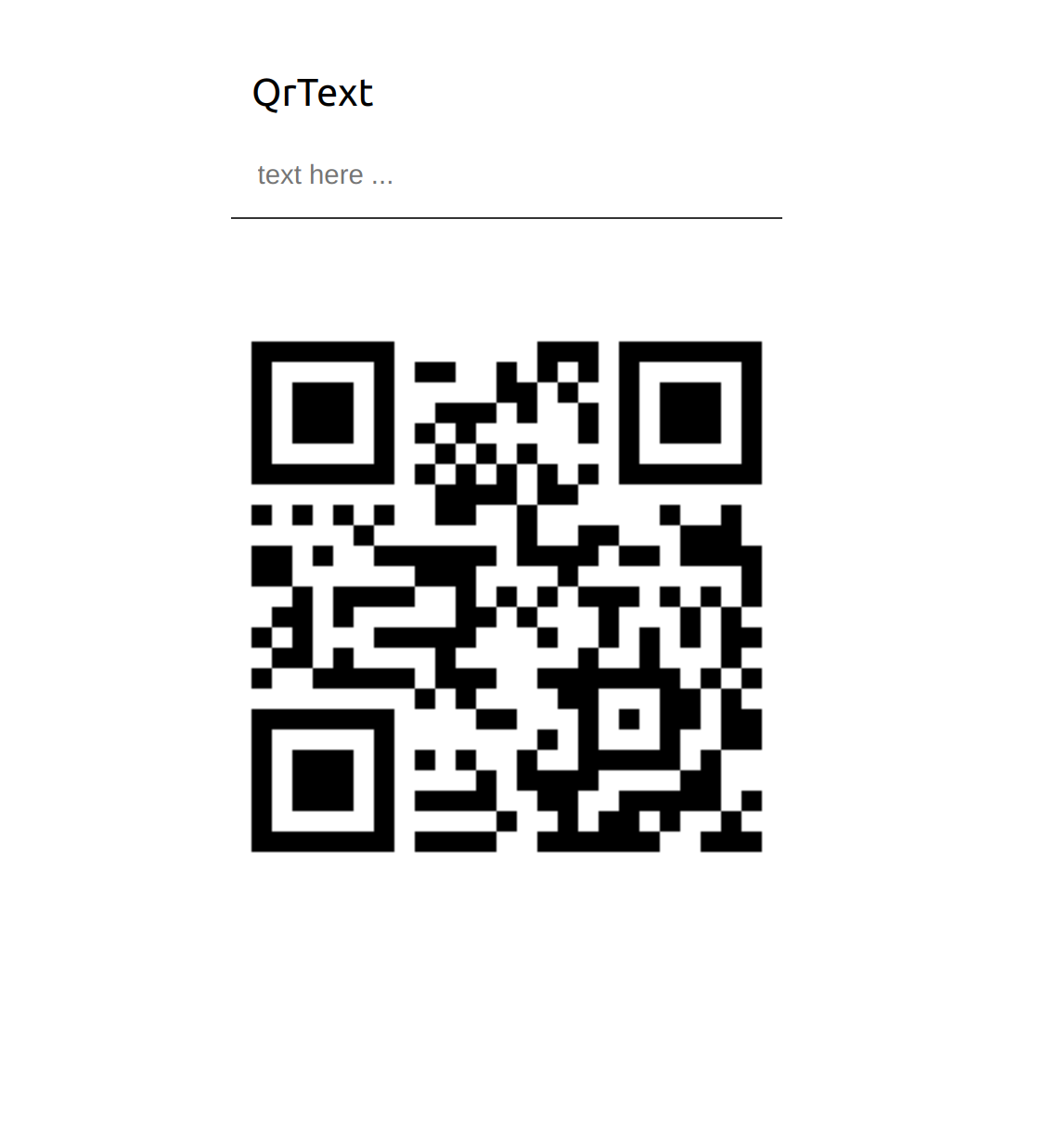
In this example will use the component with an input field, so you can insert the text you want to transform into the Qr Code.
```html
<body>
<div class="text">
<input
id="qrtext"
type="text"
name="qrtext"
placeholder="text here ...">
<label for="qrtext">QrText</label>
</div>
<qr-code-element
error-correction="medium"
mask-pattern="-1">
</qr-code-element>
<noscript>
Please enable JavaScript to view this website.
</noscript>
<!-- Import Js Module from local file -->
<script type="module" src="../qr-code-element.js"></script>
<script>
window.addEventListener('DOMContentLoaded', (e) => {
const qrText = document.getElementById('qrtext')
qrText.addEventListener('input', (e) => {
const qrCodeElement = document.querySelector('qr-code-element')
qrCodeElement.setAttribute('text', event.target.value)
})
})
</script>
</body>
```
Check the examples folder if you need to copy some styles.
## Contributing
Got **something interesting** you'd like to **share**? Learn about [contributing](https://github.com/CICCIOSGAMINO/init/blob/master/CONTRIBUTING.md).
# Accessibility
# 🔧 TODO
- [ ] Slot the SVG image for center - Working on (1/2 functionality already in place)
- [ ] Basic Unit testing
- [ ] A11y compatible ?
# License
[GNU General Public License v3.0](https://github.com/CICCIOSGAMINO/init/blob/master/LICENSE)
Made 🧑💻 by [@cicciosgamino](https://cicciosgamino.web.app)