@blessmesanta/strapi-google-maps
Version:
A Google Maps custom field for Strapi, allowing you to pick a location.
157 lines (126 loc) • 3.84 kB
Markdown
# 🚀🗺️ Strapi Google Maps
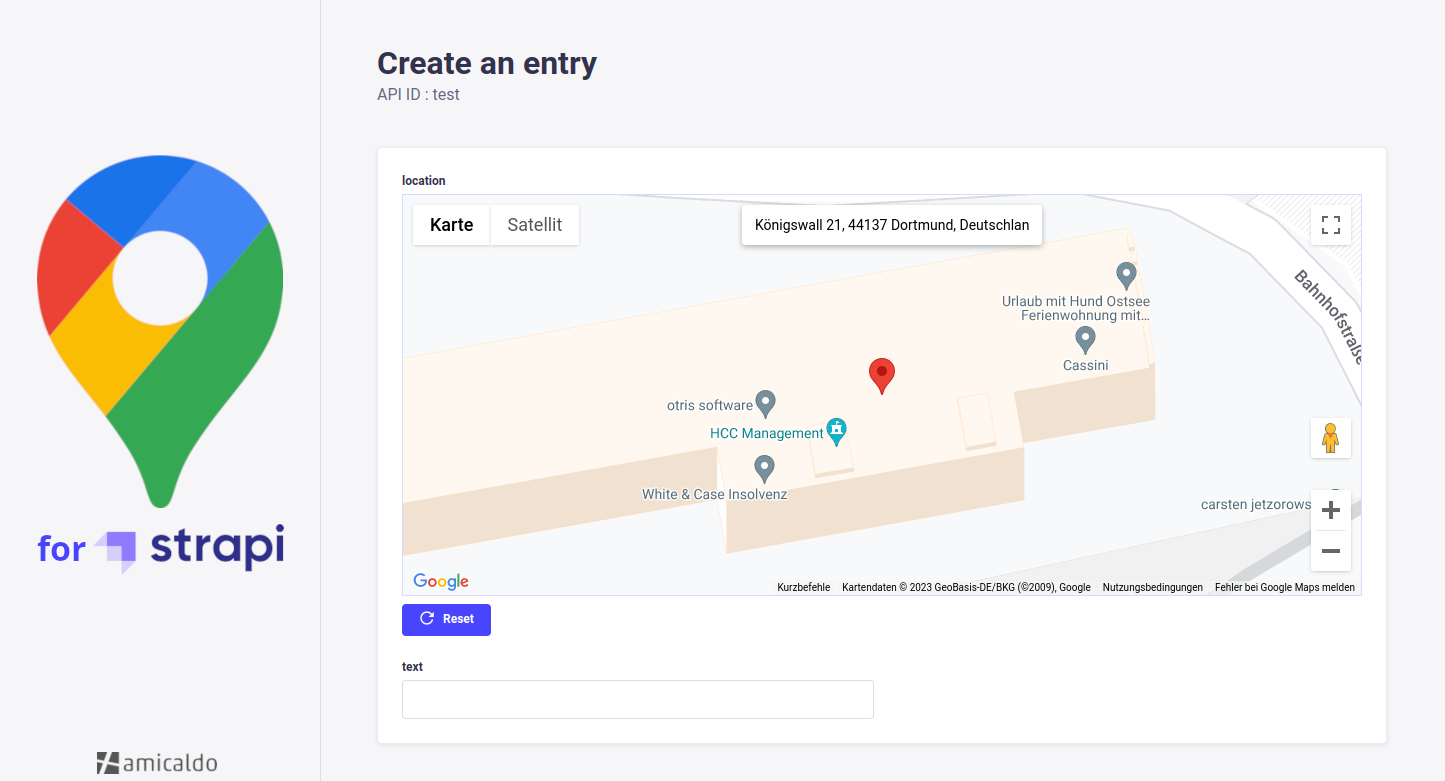
A Strapi plugin allowing you to implement a Google Maps custom field into your content-types, which can be used to pick and retrieve locations.
## ✨ Usage
The API response of a Strapi content-type implementing this google-maps custom field could look as follows:
```json
{
"data": {
"id": 16,
"attributes": {
"location": {
"coordinates": {
"lat": 51.5164315,
"lng": 7.455616999999997
},
"geohash": "u1jm1dm0bqyu"
}
}
},
"meta": {}
}
```
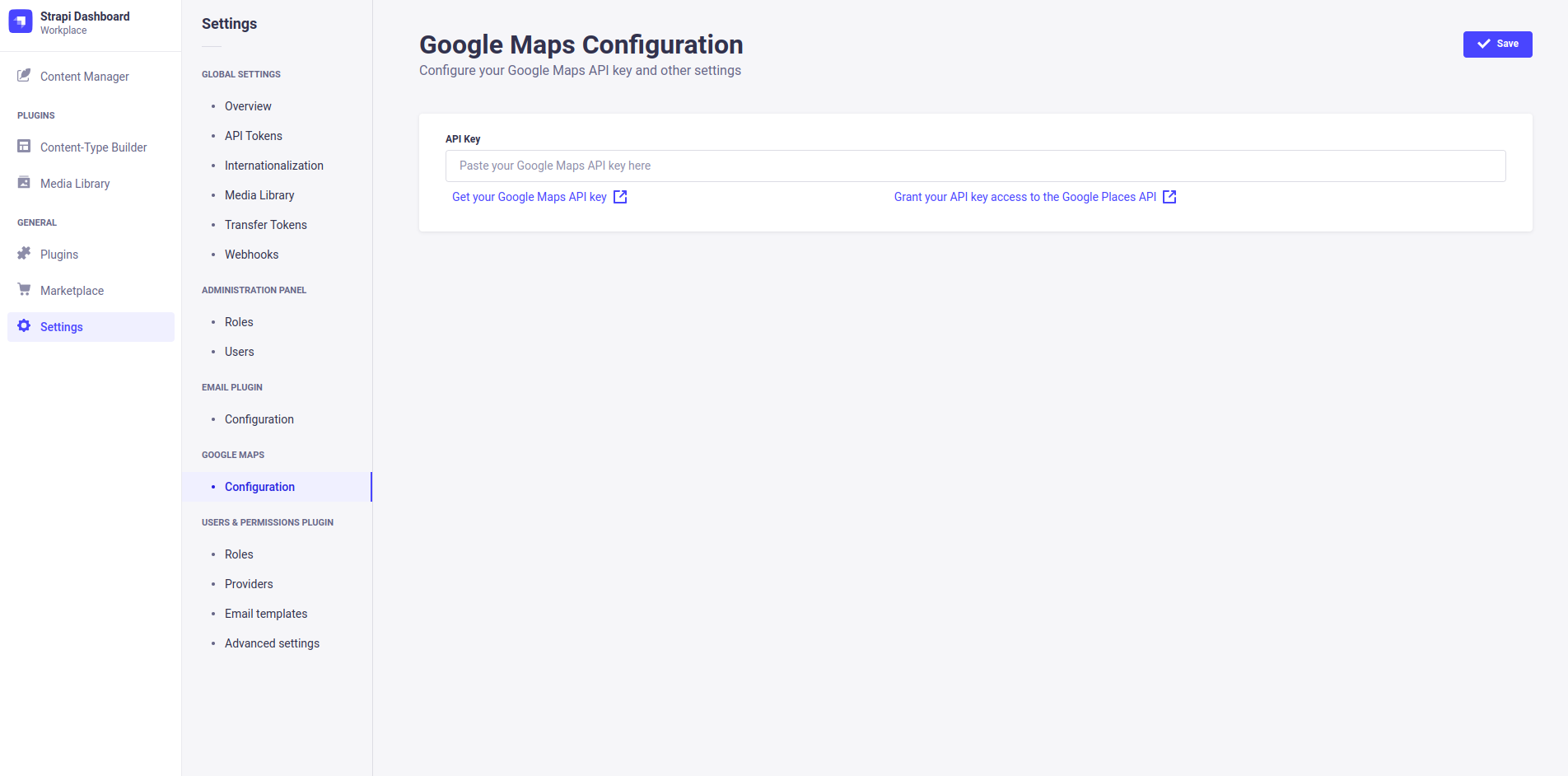
You can configure this plugin inside your Strapi dashboard's settings tab (e.g. to enter your API key).
## ❗ Requirements
- Strapi v4
- To use the plugin without restrictions, you should consider getting an API key for the Google Maps Platform, with additional access to the Places API.
## 🔧 Installation
You just need to install the `strapi-google-maps` package via npm, at the root of your strapi project.
```bash
npm i @amicaldo/strapi-google-maps
```
**To make Google Maps work, you should take a look at the next section.**
After restarting your Strapi app, Google Maps should be listed as one of your plugins.
## 🚀 Strapi Configuration (required)
Allow all Google Maps assets to be loaded correctly by customizing the **strapi::security** middleware inside `./config/middlewares.js`.
Instead of:
```js
export default [
// ...
'strapi::security',
// ...
];
```
Write:
```js
export default [
// ...
{
name: 'strapi::security',
config: {
contentSecurityPolicy: {
useDefaults: true,
directives: {
'connect-src': ["'self'", 'https:'],
'script-src': ["'self'", 'https://maps.googleapis.com'],
'media-src': [
"'self'",
'blob:',
'data:',
'https://maps.gstatic.com',
'https://maps.googleapis.com',
],
'img-src': [
"'self'",
'blob:',
'data:',
'https://maps.gstatic.com',
'https://maps.googleapis.com',
'khmdb0.google.com',
'khmdb0.googleapis.com',
'khmdb1.google.com',
'khmdb1.googleapis.com',
'khm.google.com',
'khm.googleapis.com',
'khm0.google.com',
'khm0.googleapis.com',
'khm1.google.com',
'khm1.googleapis.com',
'khms0.google.com',
'khms0.googleapis.com',
'khms1.google.com',
'khms1.googleapis.com',
'khms2.google.com',
'khms2.googleapis.com',
'khms3.google.com',
'khms3.googleapis.com',
'streetviewpixels-pa.googleapis.com',
'market-assets.strapi.io',
],
},
},
},
},
// ...
];
```
## 👨💻 Manual Installation (not recommended)
Navigate into your Strapi's plugins folder and clone this repository.
Then navigate into this plugin's directory.
```bash
cd ./src/plugins
git clone https://github.com/amicaldo/strapi-google-maps.git
cd ./strapi-google-maps
```
Install the dependencies using npm and compile the server side part.
```bash
npm install
npm run build
```
From your project's root directory, enable the plugin inside `./config/plugins.js`.
```js
module.exports = {
// ...
'google-maps': {
enabled: true,
resolve: './src/plugins/strapi-google-maps',
},
// ...
};
```
**To make Google Maps work, you should take a look at the previous section.**
Lastly, recompile the admin panel of your Strapi project.
```bash
npm run build
```