@arcgis/core
Version:
ArcGIS Maps SDK for JavaScript: A complete 2D and 3D mapping and data visualization API
629 lines (625 loc) • 26.1 kB
TypeScript
import type WebScene from "../../WebScene.js";
import type WebMap from "../../WebMap.js";
import type Collection from "../../core/Collection.js";
import type TimeExtent from "../../time/TimeExtent.js";
import type { EventedAccessor } from "../../core/Evented.js";
import type { MapViewOrSceneView } from "../../views/MapViewOrSceneView.js";
import type { Action, Stops, TimeSliderMode, TimeSliderState } from "./types.js";
import type { ReadonlyArrayOrCollection } from "../../core/Collection.js";
import type { TimeExtentProperties } from "../../time/TimeExtent.js";
export interface TimeSliderViewModelProperties extends Partial<Pick<TimeSliderViewModel, "loop" | "mode" | "playRate" | "stops" | "view">> {
/**
* Defines actions that will appear in a menu when the user clicks the ellipsis button
*  in the widget. The
* ellipsis button will not display if this property is `null` or if the collection is empty.
* Each [Action](https://developers.arcgis.com/javascript/latest/references/core/widgets/TimeSlider/types/#Action) is defined with a unique id, a title,
* and an icon.
*
* The [@trigger-action](https://developers.arcgis.com/javascript/latest/references/core/widgets/TimeSlider/TimeSliderViewModel/#event-trigger-action) event fires each time an action in the menu is clicked. This event
* can be used to execute custom code such as setting the [timeExtent](https://developers.arcgis.com/javascript/latest/references/core/widgets/TimeSlider/TimeSliderViewModel/#timeExtent) to a specific date or copying the
* timeExtent to the browser's clipboard.
*
* [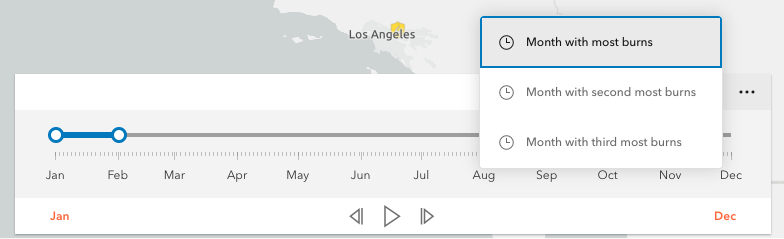](https://developers.arcgis.com/javascript/latest/sample-code/sandbox/?sample=widgets-timeslider-offset)
*
* @since 4.21
* @example
* // Create a TimeSlider with two actions to snap the thumb to two specific time extents.
* const timeSlider = new TimeSlider({
* container: "timeSliderDiv",
* viewModel: {
* fullTimeExtent: {
* start: new Date(2011, 0, 1),
* end: new Date(2012, 0, 1)
* },
* mode: "instant",
* actions: [
* {
* id: "quake",
* icon: "exclamation-mark-triangle",
* title: "Jump to Earthquake"
* },
* {
* id: "quake-plus-one-month",
* icon: "organization",
* title: "One month later"
* }
* ]
* }
* });
* timeSlider1.on("trigger-action", (event) => {
* const quake = new Date(Date.UTC(2011, 3, 11, 8, 16, 12));
* const oneMonthLater = new Date(quake.getTime()).setMonth(quake.getMonth() + 1);
* switch(event.action.id) {
* case "quake":
* timeSlider1.timeExtent = {
* start: quake,
* end: quake
* };
* break;
* case "quake-plus-one-month":
* timeSlider1.timeExtent = {
* start: oneMonthLater,
* end: oneMonthLater
* };
* break;
* }
* });
*/
actions?: ReadonlyArrayOrCollection<Action>;
/**
* The temporal extent of the entire slider.
* It defines the entire time period within which you can visualize
* your time aware data using the time slider widget.
*
* @example
* // Create a new TimeSlider
* let timeSlider = new TimeSlider({
* container: "timeSliderDiv",
* viewModel: {
* view: view
* }
* });
*
* // wait for the time-aware layer to load
* layer.when(() => {
* // set up time slider properties based on layer timeInfo
* timeSlider.fullTimeExtent = layer.timeInfo.fullTimeExtent;
* timeSlider.stops = {
* interval: layer.timeInfo.interval
* timeExtent: timeSlider.fullTimeExtent
* };
* });
*/
fullTimeExtent?: TimeExtentProperties | null;
/**
* The current time extent of the time slider. This property can be watched for
* updates and used to update the time extent property in queries and/or the layer filters and effects.
* The following table shows the `timeExtent` values returned for each [mode](https://developers.arcgis.com/javascript/latest/references/core/widgets/TimeSlider/TimeSliderViewModel/#mode).
*
* | Mode | The timeExtent value |
* | ------- | -------------------- |
* | `time-window` | `{start: startDate, end: endDate}` |
* | `instant` | `{start: sameDate, end: sameDate}` |
* | `cumulative-from-start` | `{start: null, end: endDate}` |
* | `cumulative-from-end` | `{start: startDate, end: null}` |
*
* @example
* // Display the time extent to the console whenever it changes.
* const timeSlider = new TimeSlider({
* container: "timeSliderDiv",
* mode: "time-window",
* fullTimeExtent: {
* start: new Date(2019, 2, 3),
* end: new Date(2019, 2, 5)
* },
* timeExtent: {
* start: new Date(2019, 2, 1),
* end: new Date(2019, 2, 28)
* }
* });
*
* reactiveUtils.watch(
* () => timeSlider.timeExtent,
* (timeExtent) => {
* console.log("Time extent now starts at", timeExtent.start, "and finishes at:", timeExtent.end);
* }
* );
*/
timeExtent?: TimeExtentProperties | null;
}
export interface TimeSliderViewModelEvents {
/**
* Fires when a user clicks on an action in the actions menu.
*
* @since 4.21
* @see [TimeSlider.actions](https://developers.arcgis.com/javascript/latest/references/core/widgets/TimeSlider/#actions)
* @example
* // Add an action to reset the time extent to the full time extent.
* timeSlider.actions.add({
* id: "full-extent",
* icon: "content-full",
* title: "Full Extent"
* });
* timeSlider.on("trigger-action", (event) => {
* if (event.action.id === "full-extent") {
* timeSlider.timeExtent = timeSlider.fullTimeExtent;
* }
* });
*/
"trigger-action": TimeSliderViewModelTriggerActionEvent;
}
/** Event payload for the [@trigger-action](https://developers.arcgis.com/javascript/latest/references/core/widgets/TimeSlider/TimeSliderViewModel/#event-trigger-action) event. */
export interface TimeSliderViewModelTriggerActionEvent {
/** The action that was clicked. */
action: Action;
}
/**
* Provides the logic for the [TimeSlider](https://developers.arcgis.com/javascript/latest/references/core/widgets/TimeSlider/) widget and [component](https://developers.arcgis.com/javascript/latest/references/map-components/components/arcgis-time-slider/).
*
* @since 4.12
* @see [TimeSlider](https://developers.arcgis.com/javascript/latest/references/core/widgets/TimeSlider/) widget
* @see [Time Slider component](https://developers.arcgis.com/javascript/latest/references/map-components/components/arcgis-time-slider/)
* @see [Sample - Time Slider component](https://developers.arcgis.com/javascript/latest/sample-code/timeslider/)
* @see [Sample - SceneLayer with time filter](https://developers.arcgis.com/javascript/latest/sample-code/layers-scenelayer-time/)
* @see [Sample - Filter features with TimeSlider component](https://developers.arcgis.com/javascript/latest/sample-code/timeslider-component-filter/)
* @see [Sample - TimeSlider with offset](https://developers.arcgis.com/javascript/latest/sample-code/widgets-timeslider-offset/)
* @see [Sample - Visualizing wind data with VectorFieldRenderer](https://developers.arcgis.com/javascript/latest/sample-code/layers-imagery-vfrenderer/)
* @see [Temporal data (ArcGIS Pro)](https://pro.arcgis.com/en/pro-app/latest/help/mapping/time/temporal-data.htm)
* @see [Set time properties on data (ArcGIS Pro)](https://pro.arcgis.com/en/pro-app/latest/help/mapping/time/set-the-time-properties-on-data.htm)
* @see [Configure time settings on a layer](https://doc.arcgis.com/en/arcgis-online/create-maps/configure-time-mv.htm)
* @see [Set GeoJSONLayer timeInfo](https://developers.arcgis.com/javascript/latest/references/core/layers/GeoJSONLayer/#timeInfo)
* @see [Set CSVLayer timeInfo](https://developers.arcgis.com/javascript/latest/references/core/layers/CSVLayer/#timeInfo)
* @example
* // Add a TimeSlider widget to the top left corner of the view.
* const timeSlider = new TimeSlider({
* container: "timeSliderDiv",
* viewModel: {
* view: view,
* mode: "instant",
* fullTimeExtent: {
* start: new Date(2000, 0, 1),
* end: new Date(2010, 0, 1)
* },
* timeExtent: {
* start: new Date(2000, 0, 1),
* end: new Date(2000, 0, 1)
* }
* }
* });
* view.ui.add(timeSlider, "top-left");
*/
export default class TimeSliderViewModel extends EventedAccessor {
/**
* @deprecated
* Do not directly reference this property.
* Use EventNames and EventTypes helpers from \@arcgis/core/Evented
*/
"@eventTypes": TimeSliderViewModelEvents;
constructor(properties?: TimeSliderViewModelProperties);
/**
* Defines actions that will appear in a menu when the user clicks the ellipsis button
*  in the widget. The
* ellipsis button will not display if this property is `null` or if the collection is empty.
* Each [Action](https://developers.arcgis.com/javascript/latest/references/core/widgets/TimeSlider/types/#Action) is defined with a unique id, a title,
* and an icon.
*
* The [@trigger-action](https://developers.arcgis.com/javascript/latest/references/core/widgets/TimeSlider/TimeSliderViewModel/#event-trigger-action) event fires each time an action in the menu is clicked. This event
* can be used to execute custom code such as setting the [timeExtent](https://developers.arcgis.com/javascript/latest/references/core/widgets/TimeSlider/TimeSliderViewModel/#timeExtent) to a specific date or copying the
* timeExtent to the browser's clipboard.
*
* [](https://developers.arcgis.com/javascript/latest/sample-code/sandbox/?sample=widgets-timeslider-offset)
*
* @since 4.21
* @example
* // Create a TimeSlider with two actions to snap the thumb to two specific time extents.
* const timeSlider = new TimeSlider({
* container: "timeSliderDiv",
* viewModel: {
* fullTimeExtent: {
* start: new Date(2011, 0, 1),
* end: new Date(2012, 0, 1)
* },
* mode: "instant",
* actions: [
* {
* id: "quake",
* icon: "exclamation-mark-triangle",
* title: "Jump to Earthquake"
* },
* {
* id: "quake-plus-one-month",
* icon: "organization",
* title: "One month later"
* }
* ]
* }
* });
* timeSlider1.on("trigger-action", (event) => {
* const quake = new Date(Date.UTC(2011, 3, 11, 8, 16, 12));
* const oneMonthLater = new Date(quake.getTime()).setMonth(quake.getMonth() + 1);
* switch(event.action.id) {
* case "quake":
* timeSlider1.timeExtent = {
* start: quake,
* end: quake
* };
* break;
* case "quake-plus-one-month":
* timeSlider1.timeExtent = {
* start: oneMonthLater,
* end: oneMonthLater
* };
* break;
* }
* });
*/
get actions(): Collection<Action>;
set actions(value: ReadonlyArrayOrCollection<Action>);
/**
* Defined specific locations on the timeline that the handles will snap to when manipulated.
*
* @example
* // Add yearly stops starting from the beginning of 2001.
* let timeSlider = new TimeSlider({
* container: "timeSliderDiv",
* viewModel: {
* fullTimeExtent: {
* start: new Date(2000, 5, 1),
* end: new Date(2010, 0, 1)
* },
* stops: {
* interval: {
* value: 1,
* unit: "years"
* }
* },
* timeExtent: {
* start: new Date(2001, 0, 1),
* end: new Date(2010, 0, 1)
* }
* }
* });
* timeSlider.viewModel.effectiveStops.forEach((stop) => {
* console.log(stop);
* });
*/
get effectiveStops(): Date[] | null | undefined;
/**
* The temporal extent of the entire slider.
* It defines the entire time period within which you can visualize
* your time aware data using the time slider widget.
*
* @example
* // Create a new TimeSlider
* let timeSlider = new TimeSlider({
* container: "timeSliderDiv",
* viewModel: {
* view: view
* }
* });
*
* // wait for the time-aware layer to load
* layer.when(() => {
* // set up time slider properties based on layer timeInfo
* timeSlider.fullTimeExtent = layer.timeInfo.fullTimeExtent;
* timeSlider.stops = {
* interval: layer.timeInfo.interval
* timeExtent: timeSlider.fullTimeExtent
* };
* });
*/
get fullTimeExtent(): TimeExtent | null | undefined;
set fullTimeExtent(value: TimeExtentProperties | null | undefined);
/**
* If animating, the time indicator(s) will restart if they reach the edge.
*
* @default false
* @example
* // Start a time slider animation that advances every second and restarts when it reaches the end.
* let timeSlider = new TimeSlider({
* container: "timeSliderDiv",
* viewModel: {
* loop: true,
* playRate: 1000
* }
* });
* timeSlider.viewModel.play();
*/
accessor loop: boolean;
/**
* The time slider mode. This property is used for defining if the temporal data will be displayed
* cumulatively up to a point in time, a single instant in time, or within a time range. See
* the following table for possible values.
*
* Possible Values | Description | Example |
* ----------------------|-------------- | ------- |
* instant | The slider will show temporal data that falls on a single instance in time. Set the [timeExtent](https://developers.arcgis.com/javascript/latest/references/core/widgets/TimeSlider/TimeSliderViewModel/#timeExtent) property's `start` and `end` dates to same date: `{start: sameDate, end: sameDate}` | <img alt="mode-instance" src="https://developers.arcgis.com/javascript/latest/assets/references/core/widgets/timeslider/mode-instance.png"> |
* time-window | The slider will show temporal data that falls within a given time range. This is the default. Set [timeExtent](https://developers.arcgis.com/javascript/latest/references/core/widgets/TimeSlider/TimeSliderViewModel/#timeExtent) property's `start` and `date` properties to desired dates. | <img alt="mode-instance" src="https://developers.arcgis.com/javascript/latest/assets/references/core/widgets/timeslider/mode-time-window.png"> |
* cumulative-from-start | Similar to `time-window` with the start time is always pinned to the start of the slider. Set the [timeExtent](https://developers.arcgis.com/javascript/latest/references/core/widgets/TimeSlider/TimeSliderViewModel/#timeExtent) property's `start` date to `null` and set `end` date to a desired date: `{start: null, end: date}` | <img alt="mode-instance" src="https://developers.arcgis.com/javascript/latest/assets/references/core/widgets/timeslider/mode-from-start.png"> |
* cumulative-from-end | Also, similar to the `time-window` with the end time pinned to the end of the slider. Set the [timeExtent](https://developers.arcgis.com/javascript/latest/references/core/widgets/TimeSlider/TimeSliderViewModel/#timeExtent) property's `start` date to a desired date and set `end` date to `null`: `{start: date, end: null}` | <img alt="mode-instance" src="https://developers.arcgis.com/javascript/latest/assets/references/core/widgets/timeslider/mode-from-end.png"> |
*
* @default "time-window"
* @example
* // Create a single thumbed time slider that includes all historic content.
* let timeSlider = new TimeSlider({
* container: "timeSliderDiv",
* viewModel: {
* view: view,
* mode: "cumulative-from-start",
* fullTimeExtent: {
* start: new Date(2000, 0, 1),
* end: new Date(2010, 0, 1)
* },
* timeExtent: {
* start: null,
* end: new Date(2001, 0, 1)
* }
* }
* });
*/
accessor mode: TimeSliderMode;
/**
* The time (in milliseconds) between animation steps.
*
* > [!WARNING]
* >
* > When a [View](https://developers.arcgis.com/javascript/latest/references/core/views/View/) is associated with a TimeSlider and the TimeSlider is playing, the playback will pause before advancing if the View is still updating.
* > For example, if the `playRate` is set to 1,000 (one second) and the `View` takes 1.5 seconds to render then the TimeSlider thumb(s) will advance every
* > 1.5 seconds rather than every second.
*
* @default 1000
* @example
* // Start a time slider animation that advances
* // ten times a second and stops when it reaches the end.
* timeSlider.set({
* loop: false,
* playRate: 100
* });
* timeSlider.play();
*/
accessor playRate: number;
/**
* The view model's state.
*
* Value | Description
* ------------|-------------
* disabled | Widget is not ready yet.
* ready | Ready for time navigation.
* playing | Time is playing in the navigator.
*
* @default "disabled"
* @example
* // Display the current state of the view model.
* switch (timeSlider.viewModel.state) {
* case "disabled":
* console.log("The view is not ready or some property are not set.");
* break;
* case "ready":
* console.log("The time slider is ready for use.");
* break;
* case "playing":
* console.log("The time slider is currently animating.");
* break;
* }
*/
get state(): TimeSliderState;
/**
* Defines specific locations on the time slider where thumbs will snap to when manipulated.
* If unspecified, ten evenly spaced stops will be added.
*
* For continuous sliding set `stops` to null.
* ```js
* timeSlider.viewModel.stops = null;
* ```
*
* To define regularly spaced stops, parse an object with `interval` and `timeExtent` properties
* with types [TimeInterval](https://developers.arcgis.com/javascript/latest/references/core/time/TimeInterval/) and [TimeExtent](https://developers.arcgis.com/javascript/latest/references/core/time/TimeExtent/) respectively.
* The [timeExtent](https://developers.arcgis.com/javascript/latest/references/core/widgets/TimeSlider/TimeSliderViewModel/#timeExtent) property is optional and used to confine stops to a certain date range.
* This property is useful to commence stops on a specific day or the week or month.
* If a stop definition by interval results in excess of 10,000 stops then the view model
* will default to ten evenly spaced stops.
*
* ```js
* // Add yearly intervals starting from the beginning of the TimeSlider.
* timeSlider.viewModel.stops = {
* interval: {
* value: 1,
* unit: "years"
* }
* };
* ```
* Rather than regular time intervals the TimeSlider can be divided into evenly spaced
* stops. As with the previous method, divisions can be confined to a specific date range
* using the optional timeExtent property.
* ```js
* // Add stops at 15 evenly spaced intervals.
* timeSlider.viewModel.stops = {
* count: 15
* };
* ```
* For irregular spaced stops simply assign an array of dates as demonstrated below.
* ```js
* // Add nine irregular stops.
* timeSlider.viewModel.stops = {
* dates: [
* new Date(2000, 0, 1), new Date(2001, 3, 8), new Date(2002, 0, 10),
* new Date(2003, 12, 8), new Date(2004, 2, 19), new Date(2005, 7, 5),
* new Date(2006, 9, 11), new Date(2007, 11, 21), new Date(2008, 1, 10)
* ]
* };
* ```
* Lastly, to constrain or offset division by count or interval use the optional timeExtent property.
* ```js
* // Add yearly stops from Christmas 2019 to Christmas 2029 only
* timeSlider.viewModel.stops = {
* interval: {
* value: 1,
* unit: "years"
* },
* timeExtent: {
* start: new Date(2019, 11, 25),
* end: new Date(2029, 11, 25)
* }
* };
*
* // Likewise, add stops that represent quarters of 2019 only.
* timeSlider.viewModel.stops = {
* count: 4,
* timeExtent: {
* start: new Date(2019, 0, 1),
* end: new Date(2020, 0, 1)
* }
* };
* ```
*
* @default { count : 10 }
*/
accessor stops: Stops | null | undefined;
/**
* The current time extent of the time slider. This property can be watched for
* updates and used to update the time extent property in queries and/or the layer filters and effects.
* The following table shows the `timeExtent` values returned for each [mode](https://developers.arcgis.com/javascript/latest/references/core/widgets/TimeSlider/TimeSliderViewModel/#mode).
*
* | Mode | The timeExtent value |
* | ------- | -------------------- |
* | `time-window` | `{start: startDate, end: endDate}` |
* | `instant` | `{start: sameDate, end: sameDate}` |
* | `cumulative-from-start` | `{start: null, end: endDate}` |
* | `cumulative-from-end` | `{start: startDate, end: null}` |
*
* @example
* // Display the time extent to the console whenever it changes.
* const timeSlider = new TimeSlider({
* container: "timeSliderDiv",
* mode: "time-window",
* fullTimeExtent: {
* start: new Date(2019, 2, 3),
* end: new Date(2019, 2, 5)
* },
* timeExtent: {
* start: new Date(2019, 2, 1),
* end: new Date(2019, 2, 28)
* }
* });
*
* reactiveUtils.watch(
* () => timeSlider.timeExtent,
* (timeExtent) => {
* console.log("Time extent now starts at", timeExtent.start, "and finishes at:", timeExtent.end);
* }
* );
*/
get timeExtent(): TimeExtent | null | undefined;
set timeExtent(value: TimeExtentProperties | null | undefined);
/**
* A reference to the [MapView](https://developers.arcgis.com/javascript/latest/references/core/views/MapView/) or [SceneView](https://developers.arcgis.com/javascript/latest/references/core/views/SceneView/).
* If this property is set, the TimeSlider widget will update the view's [MapView.timeExtent](https://developers.arcgis.com/javascript/latest/references/core/views/MapView/#timeExtent)
* property whenever the time slider is manipulated or updated programmatically. This property will affect
* any time-aware layer in the view.
*
* @example
* // Create and then add a TimeSlider widget and then listen to changes in the View's time extent.
* const timeSlider = new TimeSlider({
* container: "timeSliderDiv",
* viewModel: {
* view: view,
* mode: "instant",
* fullTimeExtent: {
* start: new Date(2000, 0, 1),
* end: new Date(2010, 0, 1)
* },
* timeExtent: {
* start: null,
* end: new Date(2000, 0, 1)
* }
* }
* });
* view.ui.add(timeSlider, "top-left");
*
* reactiveUtils.watch(
* () => view.timeExtent,
* (timeExtent) => {
* console.log("New view time is: " + timeExtent.start);
* }
* );
*/
accessor view: MapViewOrSceneView | null | undefined;
/**
* Incrementally moves the time extent forward one stop
*
* @example
* // Advance the slider's time extent.
* const timeSlider = new TimeSlider({
* container: "timeSliderDiv",
* viewModel: {
* mode: "instant",
* fullTimeExtent: {
* start: new Date(2000, 0, 1),
* end: new Date(2010, 0, 1)
* },
* timeExtent: {
* start: new Date(2000, 0, 1),
* end: new Date(2000, 0, 1)
* }
* }
* });
* timeSlider.viewModel.next();
*/
next(): void;
/**
* Initiates the time slider's temporal playback.
*
* @example
* // Start a TimeSlider animation if not already playing.
* if (timeSlider.viewModel.state === "ready") {
* timeSlider.viewModel.play();
* }
*/
play(): void;
/**
* Incrementally moves the time extent back one stop.
*
* @example timeSlider.viewModel.previous();
*/
previous(): void;
/**
* Stops the time slider's temporal playback.
*
* @example
* // Stop the current TimeSlider animation.
* if (timeSlider.viewModel.state === "playing") {
* timeSlider.viewModel.stop();
* }
*/
stop(): void;
/**
* Updates the [time slider](https://developers.arcgis.com/javascript/latest/references/core/webdoc/Widgets/#timeSlider) widget definition in the provided [WebMap](https://developers.arcgis.com/javascript/latest/references/core/WebMap/) or [WebScene](https://developers.arcgis.com/javascript/latest/references/core/WebScene/).
*
* @param document - The webmap or webscene to be updated.
* @since 4.18
* @example
* // Load a webmap containing a timeslider widget into a MapView. Once loaded, advance the current time
* // extent by one stop and then update the original webmap.
*
* const webmap = new WebMap({
* portalItem: {
* id: "acea555a4b6f412dae98994bcfdbc002"
* }
* });
*
* const view = new MapView({
* container: "viewDiv",
* map: webmap
* });
* await view.when();
*
* const timeSlider = new TimeSlider({
* view
* });
* // Advance to thumb to next time extent
* timeSlider.next();
* timeSlider.updateWebDocument(webmap);
* webmap.save();
*/
updateWebDocument(document: WebMap | WebScene): void;
}