@arcgis/core
Version:
ArcGIS Maps SDK for JavaScript: A complete 2D and 3D mapping and data visualization API
444 lines (441 loc) • 24.9 kB
TypeScript
import type Color from "../Color.js";
import type Widget from "./Widget.js";
import type HistogramRangeSliderViewModel from "./HistogramRangeSlider/HistogramRangeSliderViewModel.js";
import type { Icon } from "@esri/calcite-components/components/calcite-icon";
import type { HistogramBin } from "../smartMapping/statistics/types.js";
import type { CommonSliderEvents } from "./Slider.js";
import type { LabelFormatFunction } from "./types.js";
import type { WidgetProperties } from "./Widget.js";
import type { BarCreatedFunction, DataLineInfos, DataLineCreatedFunction } from "./Histogram/types.js";
import type { RangeType } from "./HistogramRangeSlider/types.js";
import type { ColorLike } from "../Color.js";
import type { HistogramRangeSliderViewModelProperties } from "./HistogramRangeSlider/HistogramRangeSliderViewModel.js";
export interface HistogramRangeSliderProperties extends WidgetProperties, Partial<Pick<HistogramRangeSlider, "average" | "barCreatedFunction" | "bins" | "dataLineCreatedFunction" | "dataLines" | "labelFormatFunction" | "max" | "min" | "precision" | "rangeType" | "standardDeviation" | "standardDeviationCount" | "values">> {
/**
* Sets the color of the histogram bars that are excluded based on the specified
* [rangeType](https://developers.arcgis.com/javascript/latest/references/core/widgets/HistogramRangeSlider/#rangeType). For example, when a rangeType of `between` is used,
* all bars **not** between the slider thumbs will be rendered with the color set here.
*
* To change the style of histogram bars representing included data based on the
* [rangeType](https://developers.arcgis.com/javascript/latest/references/core/widgets/HistogramRangeSlider/#rangeType), use the [includedBarColor](https://developers.arcgis.com/javascript/latest/references/core/widgets/HistogramRangeSlider/#includedBarColor) property.
*
* @default "#d7e5f0"
* @see [includedBarColor](https://developers.arcgis.com/javascript/latest/references/core/widgets/HistogramRangeSlider/#includedBarColor)
* @see [rangeType](https://developers.arcgis.com/javascript/latest/references/core/widgets/HistogramRangeSlider/#rangeType)
* @example slider.excludedBarColor = "black";
*/
excludedBarColor?: ColorLike;
/**
* Icon displayed in the widget's button.
*
* @default "arrow-double-horizontal"
* @since 4.27
* @see [Calcite Icon Search](https://developers.arcgis.com/calcite-design-system/icons/)
* @see [Calcite Icon Search](https://developers.arcgis.com/calcite-design-system/icons/)
*/
icon?: Icon["icon"] | null;
/**
* Sets the color of the histogram bars that are included in the specified
* [rangeType](https://developers.arcgis.com/javascript/latest/references/core/widgets/HistogramRangeSlider/#rangeType). For example, when a rangeType of `between` is used,
* all bars between the slider thumbs will be rendered with the color set here.
*
* To change the style of histogram bars representing excluded data based on the
* [rangeType](https://developers.arcgis.com/javascript/latest/references/core/widgets/HistogramRangeSlider/#rangeType), use the [excludedBarColor](https://developers.arcgis.com/javascript/latest/references/core/widgets/HistogramRangeSlider/#excludedBarColor) property.
*
* @default "#599dd4"
* @see [excludedBarColor](https://developers.arcgis.com/javascript/latest/references/core/widgets/HistogramRangeSlider/#excludedBarColor)
* @see [rangeType](https://developers.arcgis.com/javascript/latest/references/core/widgets/HistogramRangeSlider/#rangeType)
* @example slider.includedBarColor = "green";
*/
includedBarColor?: ColorLike;
/**
* The widget's default label. This label displays when it is
* used within another widget, such as the [Expand](https://developers.arcgis.com/javascript/latest/references/core/widgets/Expand/)
* or [LayerList](https://developers.arcgis.com/javascript/latest/references/core/widgets/LayerList/) widgets.
*
* @since 4.11
*/
label?: string | null;
/**
* The view model for the widget. This is a class that contains all the logic
* (properties and methods) that controls this widget's behavior. See the
* [HistogramRangeSliderViewModel](https://developers.arcgis.com/javascript/latest/references/core/widgets/HistogramRangeSlider/HistogramRangeSliderViewModel/)
* class to access all properties and methods on the Slider widget.
*/
viewModel?: HistogramRangeSliderViewModelProperties;
}
export interface HistogramRangeSliderEvents extends CommonSliderEvents {}
/**
* A slider widget that can be used for filtering data or gathering
* numeric input from a user for a range of data. When [bins](https://developers.arcgis.com/javascript/latest/references/core/widgets/HistogramRangeSlider/#bins) are provided,
* a histogram will render on the slider showing where data is distributed along
* the range. Use the [rangeType](https://developers.arcgis.com/javascript/latest/references/core/widgets/HistogramRangeSlider/#rangeType) property
* to indicate how the histogram should be styled as the user interacts with slider
* handles.
*
* <span id="image-annotations"></span>
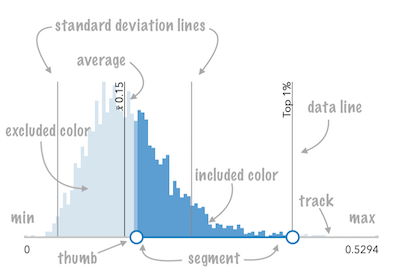
* See the image below for a summary of the configurable options available on this slider.
*
* 
*
* At a minimum, the slider's [container](https://developers.arcgis.com/javascript/latest/references/core/widgets/HistogramRangeSlider/#container) or parent container must have a `width` set in css for it to render.
*
* @deprecated since version 5.0. Use the [Histogram](https://developers.arcgis.com/javascript/latest/references/common-components/components/arcgis-histogram/) and [Slider](https://developers.arcgis.com/javascript/latest/references/common-components/components/arcgis-slider/) components instead. For information on widget deprecation, read about [Esri's move to web components](https://developers.arcgis.com/javascript/latest/components-transition-plan/).
* @since 4.12
* @see [Histogram](https://developers.arcgis.com/javascript/latest/references/core/widgets/Histogram/)
* @see [Slider](https://developers.arcgis.com/javascript/latest/references/core/widgets/Slider/)
* @see [HistogramRangeSliderViewModel](https://developers.arcgis.com/javascript/latest/references/core/widgets/HistogramRangeSlider/HistogramRangeSliderViewModel/)
*/
export default class HistogramRangeSlider extends Widget {
/**
* @deprecated
* Do not directly reference this property.
* Use EventNames and EventTypes helpers from \@arcgis/core/Evented
*/
"@eventTypes": HistogramRangeSliderEvents;
/**
* @example
* // Typical usage
* const slider = new HistogramRangeSlider({
* container: "sliderDiv",
* min: 0,
* max: 100,
* values: [ 50, 150 ]
* });
*/
constructor(properties?: HistogramRangeSliderProperties);
/**
* The statistical average of the data in the histogram. You would typically
* get this value from the `avg` property of
* [SummaryStatisticsResult](https://developers.arcgis.com/javascript/latest/references/core/smartMapping/statistics/types/#SummaryStatisticsResult),
* which is the result of the
* [summaryStatistics](https://developers.arcgis.com/javascript/latest/references/core/smartMapping/statistics/summaryStatistics/) function.
*
* When set, this value will render on the histogram with a line and an average symbol.
*
* @example
* // sets result returned from a smart mapping method
* // to the histogram
* slider.average = response.statistics.avg;
* @example slider.average = 34.5;
*/
accessor average: number | null | undefined;
/**
* Function for styling bars representing histogram bins.
* This can be used to color bins with the same color of features in the
* view that fall into bins representing the same range of data.
*
* @example
* slider.barCreatedFunction = function(index, element){
* const bin = slider.bins[index];
* element.addEventListener("focus", function(){
* layerView.filter = {
* where: `POPULATION >= ${bin.minValue} AND POPULATION < ${bin.maxValue}`
* };
* });
* element.addEventListener("blur", function(){
* layerView.filter = null;
* });
* };
*/
accessor barCreatedFunction: BarCreatedFunction | null | undefined;
/**
* An array of objects representing each bin in the histogram. This
* information is typically returned from the
* [histogram](https://developers.arcgis.com/javascript/latest/references/core/smartMapping/statistics/histogram/) function.
*
* @example
* // sets the bins of the histogram from the bins in the histogram() result
* histogram.bins = histogramResult.bins;
* @example
* // Creates a histogram with 7 bins.
* histogram.bins = [
* { minValue: 0, maxValue: 10, count: 4 },
* { minValue: 10.1, maxValue: 20, count: 14 },
* { minValue: 20.1, maxValue: 30, count: 9 },
* { minValue: 30.1, maxValue: 40, count: 34 },
* { minValue: 40.1, maxValue: 50, count: 351 },
* { minValue: 50.1, maxValue: 60, count: 100 },
* { minValue: 60.1, maxValue: 70, count: 1 }
* ];
*/
accessor bins: HistogramBin[] | null | undefined;
/**
* Function that fires each time a data line is created.
* You can use this to style individual [dataLines](https://developers.arcgis.com/javascript/latest/references/core/widgets/HistogramRangeSlider/#dataLines) on the data axis.
*
* @example
* histogram.dataLineCreatedFunction = function (lineElement, labelElement) {
* lineElement.setAttribute("y2", "25%");
* lineElement.classList.add("line-style");
* };
*/
accessor dataLineCreatedFunction: DataLineCreatedFunction | null | undefined;
/**
* When set, renders lines on the histogram that indicate important or
* meaningful values to the end user.
*
* @example
* // will render lines at the 25th, 50th, 75th, and 99th percentiles
* histogram.dataLines = [{
* value: 30,
* label: "25 pctl"
* }, {
* value: 45,
* label: "50 pctl"
* }, {
* value: 65,
* label: "75 pctl"
* }, {
* value: 89,
* label: "99 pctl"
* }];
* @example
* // calculate standard deviations from mean using stats
* // returned from smart mapping statistic methods
* const stddevs = smartMappingUtils.getDeviationValues(stats.stddev, stats.avg, 2);
* histogram.dataLines = stddevs.map(function(stddev){
* return {
* value: stddev
* };
* });
*/
accessor dataLines: DataLineInfos[] | null | undefined;
/**
* Sets the color of the histogram bars that are excluded based on the specified
* [rangeType](https://developers.arcgis.com/javascript/latest/references/core/widgets/HistogramRangeSlider/#rangeType). For example, when a rangeType of `between` is used,
* all bars **not** between the slider thumbs will be rendered with the color set here.
*
* To change the style of histogram bars representing included data based on the
* [rangeType](https://developers.arcgis.com/javascript/latest/references/core/widgets/HistogramRangeSlider/#rangeType), use the [includedBarColor](https://developers.arcgis.com/javascript/latest/references/core/widgets/HistogramRangeSlider/#includedBarColor) property.
*
* @default "#d7e5f0"
* @see [includedBarColor](https://developers.arcgis.com/javascript/latest/references/core/widgets/HistogramRangeSlider/#includedBarColor)
* @see [rangeType](https://developers.arcgis.com/javascript/latest/references/core/widgets/HistogramRangeSlider/#rangeType)
* @example slider.excludedBarColor = "black";
*/
get excludedBarColor(): Color;
set excludedBarColor(value: ColorLike);
/**
* Icon displayed in the widget's button.
*
* @default "arrow-double-horizontal"
* @since 4.27
* @see [Calcite Icon Search](https://developers.arcgis.com/calcite-design-system/icons/)
* @see [Calcite Icon Search](https://developers.arcgis.com/calcite-design-system/icons/)
*/
get icon(): Icon["icon"];
set icon(value: Icon["icon"] | null | undefined);
/**
* Sets the color of the histogram bars that are included in the specified
* [rangeType](https://developers.arcgis.com/javascript/latest/references/core/widgets/HistogramRangeSlider/#rangeType). For example, when a rangeType of `between` is used,
* all bars between the slider thumbs will be rendered with the color set here.
*
* To change the style of histogram bars representing excluded data based on the
* [rangeType](https://developers.arcgis.com/javascript/latest/references/core/widgets/HistogramRangeSlider/#rangeType), use the [excludedBarColor](https://developers.arcgis.com/javascript/latest/references/core/widgets/HistogramRangeSlider/#excludedBarColor) property.
*
* @default "#599dd4"
* @see [excludedBarColor](https://developers.arcgis.com/javascript/latest/references/core/widgets/HistogramRangeSlider/#excludedBarColor)
* @see [rangeType](https://developers.arcgis.com/javascript/latest/references/core/widgets/HistogramRangeSlider/#rangeType)
* @example slider.includedBarColor = "green";
*/
get includedBarColor(): Color;
set includedBarColor(value: ColorLike);
/**
* The widget's default label. This label displays when it is
* used within another widget, such as the [Expand](https://developers.arcgis.com/javascript/latest/references/core/widgets/Expand/)
* or [LayerList](https://developers.arcgis.com/javascript/latest/references/core/widgets/LayerList/) widgets.
*
* @since 4.11
*/
get label(): string;
set label(value: string | null | undefined);
/**
* A function used to format labels. Overrides the default label formatter.
*
* By default labels are formatted in the following way:
*
* - When the data range is less than `10` (`(max - min) < 10`), labels
* are rounded based on the value set in the [precision](https://developers.arcgis.com/javascript/latest/references/core/widgets/HistogramRangeSlider/#precision) property.
* - When the data range is larger than `10`, [HistogramRangeSliderViewModel.labels](https://developers.arcgis.com/javascript/latest/references/core/widgets/HistogramRangeSlider/HistogramRangeSliderViewModel/#labels) display with a precision of
* no more than two decimal places, though actual slider thumb values will maintain the
* precision specified in [precision](https://developers.arcgis.com/javascript/latest/references/core/widgets/HistogramRangeSlider/#precision).
*
* Use this property to override the behavior defined above.
*
* @example
* // For thumb values, rounds each label to whole numbers.
* // Note the actual value of the thumb continues to be stored
* // based on the indicated data `precision` despite this formatting
* slider.labelFormatFunction = function(value, type) {
* return (type === "value") ? value.toFixed(0) : value;
* }
* @example
* // Format thumb values as dates
* slider.labelFormatFunction = function(value, type) {
* return new Date(value).toLocaleDateString();
* }
*/
accessor labelFormatFunction: LabelFormatFunction;
/**
* The maximum value or upper bound of the slider. If the largest
* slider [value](https://developers.arcgis.com/javascript/latest/references/core/widgets/HistogramRangeSlider/#values) _in the constructor_ is greater than the `maxValue` set in
* this property, then the `maxValue` will update to match the largest
* slider [value](https://developers.arcgis.com/javascript/latest/references/core/widgets/HistogramRangeSlider/#values).
*
* @example slider.max = 150;
*/
accessor max: number | null | undefined;
/**
* The minimum value or lower bound of the slider. If the smallest
* slider [value](https://developers.arcgis.com/javascript/latest/references/core/widgets/HistogramRangeSlider/#values) _in the constructor_ is greater than the `minValue` set in
* this property, then the `minValue` will update to match the smallest
* slider [value](https://developers.arcgis.com/javascript/latest/references/core/widgets/HistogramRangeSlider/#values).
*
* @example slider.min = -150;
*/
accessor min: number | null | undefined;
/**
* Defines how slider thumb values should be rounded. This number indicates the number
* of decimal places slider thumb values should round to when they have been moved.
*
* This value also indicates the precision of thumb [HistogramRangeSliderViewModel.labels](https://developers.arcgis.com/javascript/latest/references/core/widgets/HistogramRangeSlider/HistogramRangeSliderViewModel/#labels) when the data range
* ([max](https://developers.arcgis.com/javascript/latest/references/core/widgets/HistogramRangeSlider/#max) - [min](https://developers.arcgis.com/javascript/latest/references/core/widgets/HistogramRangeSlider/#min)) is less than `10`.
*
* When the data range is larger than `10`, [HistogramRangeSliderViewModel.labels](https://developers.arcgis.com/javascript/latest/references/core/widgets/HistogramRangeSlider/HistogramRangeSliderViewModel/#labels) display with a precision of
* no more than two decimal places, though actual slider thumb values will maintain the
* precision specified in this property.
*
* For example, given the default precision of `4`, and the following slider configuration,
* The label of the thumb will display two decimal places, but the precision of the actual
* thumb value will not be lost even when the user slides or moves the thumb.
*
* ```js
* const slider = new HistogramRangeSliderViewModel({
* min: 20,
* max: 100, // data range of 80
* values: [50.4331],
* // thumb label will display 50.43
* // thumb value will maintain precision, so
* // value will remain at 50.4331
* });
* ```
*
* If the user manually enters a value that has a higher precision than what's indicated by
* this property, the precision of that thumb value will be maintained until the thumb
* is moved by the user. At that point, the value will be rounded according to the indicated precision.
*
* Keep in mind this property rounds thumb [values](https://developers.arcgis.com/javascript/latest/references/core/widgets/HistogramRangeSlider/#values) and shouldn't be used exclusively
* for formatting purposes. To format thumb `labels`, use the [labelFormatFunction](https://developers.arcgis.com/javascript/latest/references/core/widgets/HistogramRangeSlider/#labelFormatFunction)
* property.
*
* @default 4
* @example histogramRangeSlider.precision = 7;
*/
accessor precision: number;
/**
* Indicates how the histogram bins should be rendered as the user slides the thumbs. By default,
* blue bars indicate data bins included in the range. Gray bars indicate data bins excluded from
* the range. These colors can be customized with the [includedBarColor](https://developers.arcgis.com/javascript/latest/references/core/widgets/HistogramRangeSlider/#includedBarColor) and
* [excludedBarColor](https://developers.arcgis.com/javascript/latest/references/core/widgets/HistogramRangeSlider/#includedBarColor) properties.
*
* This property also determines the SQL where clause generated in [generateWhereClause()](https://developers.arcgis.com/javascript/latest/references/core/widgets/HistogramRangeSlider/#generateWhereClause)
* for filtering purposes. The value set here determines the number of [values](https://developers.arcgis.com/javascript/latest/references/core/widgets/HistogramRangeSlider/#values)
* allowed on the slider.
*
* See the table below for a description and requirements of all possible values. `value1` refers to
* the value of the first thumb position. `value2` refers to the value of the final thumb position, if applicable.
*
* Possible Value | Number of [values](https://developers.arcgis.com/javascript/latest/references/core/widgets/HistogramRangeSlider/#values) | [Where clause](https://developers.arcgis.com/javascript/latest/references/core/widgets/HistogramRangeSlider/#generateWhereClause)
* ---------------|----------------------------|----------------------
* equal | 1 | `${field} = ${value1}`
* not-equal | 1 | `${field} <> ${value1}`
* less-than | 1 | `${field} < ${value1}`
* greater-than | 1 | `${field} > ${value1}`
* at-most | 1 | `${field} <= ${value1}`
* at-least | 1 | `${field} >= ${value1}`
* between | 2 | `${field} BETWEEN ${value1} AND ${value2}`
* not-between | 2 | `${field} NOT BETWEEN ${value1} AND ${value2}`
*
* @see [values](https://developers.arcgis.com/javascript/latest/references/core/widgets/HistogramRangeSlider/#values)
* @see [generateWhereClause()](https://developers.arcgis.com/javascript/latest/references/core/widgets/HistogramRangeSlider/#generateWhereClause)
* @example
* // renders the histogram so that all bins between
* // the two handles are shaded with a blue color
* slider.rangeType = "between";
*
* // filters the layer view based on the configuration
* // of the slider
* layerView.filter = {
* where: slider.generateWhereClause("POPULATION")
* }
*/
accessor rangeType: RangeType;
/**
* Indicates the standard deviation of the dataset.
* When set, computed [dataLines](https://developers.arcgis.com/javascript/latest/references/core/widgets/HistogramRangeSlider/#dataLines) will render on the histogram
* at the location of the given standard deviation
* above and below the `average`.
*
* @example
* // stddev returned from summaryStatistics
* slider.standardDeviation = stats.stddev;
*/
accessor standardDeviation: number | null | undefined;
/**
* Indicates the number of standard deviation lines to render on the histogram
* from the [average].
*
* @default 1
* @example slider.standardDeviationCount = 2;
*/
accessor standardDeviationCount: number;
/**
* An array of either one or two numbers representing thumb positions on the slider.
* The number of values that should be indicated here depends on the associated [rangeType](https://developers.arcgis.com/javascript/latest/references/core/widgets/HistogramRangeSlider/#rangeType).
*
* @see [rangeType](https://developers.arcgis.com/javascript/latest/references/core/widgets/HistogramRangeSlider/#rangeType)
* @example
* const slider = new HistogramRangeSlider({
* min: 20,
* max: 100, // data range of 80
* values: [50.4331],
* rangeType: "at-least"
* container: "sliderDiv"
* });
*/
accessor values: number[] | null | undefined;
/**
* The view model for the widget. This is a class that contains all the logic
* (properties and methods) that controls this widget's behavior. See the
* [HistogramRangeSliderViewModel](https://developers.arcgis.com/javascript/latest/references/core/widgets/HistogramRangeSlider/HistogramRangeSliderViewModel/)
* class to access all properties and methods on the Slider widget.
*/
get viewModel(): HistogramRangeSliderViewModel;
set viewModel(value: HistogramRangeSliderViewModelProperties);
/**
* Generates a SQL where clause based on a given field and the slider's
* [rangeType](https://developers.arcgis.com/javascript/latest/references/core/widgets/HistogramRangeSlider/#rangeType). This is a convenience function for data filtering
* or data queries.
*
* @param field - Name of the field used in the where clause. This
* field should correspond to the data used to generate the histogram
* associated with the slider.
* @returns The SQL where clause to apply to a filter or query.
* @see [rangeType](https://developers.arcgis.com/javascript/latest/references/core/widgets/HistogramRangeSlider/#rangeType)
* @see [FeatureLayerView.filter](https://developers.arcgis.com/javascript/latest/references/core/views/layers/FeatureLayerView/#filter)
* @see [FeatureEffect.filter](https://developers.arcgis.com/javascript/latest/references/core/layers/support/FeatureEffect/#filter)
* @see [FeatureLayerView.queryFeatures()](https://developers.arcgis.com/javascript/latest/references/core/views/layers/FeatureLayerView/#queryFeatures)
* @example
* // renders the histogram so that all bins between
* // the two handles are shaded with a blue color by default
* slider.rangeType = "between";
*
* // filters the layerview based on the configuration
* // of the slider
* layerView.filter = {
* where: slider.generateWhereClause("POPULATION")
* }
*/
generateWhereClause(field: string): string | null | undefined;
}