@arcgis/core
Version:
ArcGIS Maps SDK for JavaScript: A complete 2D and 3D mapping and data visualization API
435 lines (433 loc) • 21.7 kB
TypeScript
import type RouteLayer from "../layers/RouteLayer.js";
import type PortalItem from "../portal/PortalItem.js";
import type Widget from "./Widget.js";
import type DirectionsViewModel from "./Directions/DirectionsViewModel.js";
import type DirectionsVisibleElements from "./Directions/DirectionsVisibleElements.js";
import type { Icon } from "@esri/calcite-components/components/calcite-icon";
import type { SystemOrLengthUnit } from "../core/units.js";
import type { RouteLayerSolveResult, LayerSaveAsOptions } from "../layers/types.js";
import type { MapViewOrSceneView } from "../views/MapViewOrSceneView.js";
import type { SearchProperties } from "./Search.js";
import type { HeadingLevel, GoToOverride } from "./support/types.js";
import type { DirectionsViewModelProperties } from "./Directions/DirectionsViewModel.js";
import type { DirectionsVisibleElementsProperties } from "./Directions/DirectionsVisibleElements.js";
import type { WidgetProperties } from "./Widget.js";
export interface DirectionsProperties extends WidgetProperties, Partial<Pick<Directions, "apiKey" | "goToOverride" | "headingLevel" | "layer" | "maxStops" | "searchProperties" | "view">> {
/**
* Icon which represents the widget. It is typically used when the widget is controlled by another
* one (e.g. in the Expand widget).
*
* @default "right"
* @since 4.27
* @see [Calcite Icon Search](https://developers.arcgis.com/calcite-design-system/icons/)
* @see [Calcite Icon Search](https://developers.arcgis.com/calcite-design-system/icons/)
*/
icon?: Icon["icon"] | null;
/**
* The widget's default label.
*
* @since 4.7
*/
label?: string | null;
/**
* Unit system (imperial, metric) or specific unit used for displaying the distance values.
* If not set, the widget will attempt to pick "imperial" or "metric" based on the user's portal settings.
*
* This property will affect the summary distance as well as distance for each turn-by-turn maneuver.
*
* @since 4.25
* @example
* // Display distances in nautical miles.
* const directions = new Directions({
* unit: "nautical-miles",
* layer: routeLayer,
* view: view
* });
*/
unit?: SystemOrLengthUnit | null;
/**
* The view model for this widget. This is a class that contains all the logic
* (properties and methods) that controls this widget's behavior. See the
* [DirectionsViewModel](https://developers.arcgis.com/javascript/latest/references/core/widgets/Directions/DirectionsViewModel/) class to access
* all properties and methods on the widget.
*/
viewModel?: DirectionsViewModelProperties;
/**
* The visible elements that are displayed within the widget.
* This property provides the ability to turn individual elements of the widget's display on/off.
*
* @since 4.24
* @example
* // Hide the save button, save-as button and layer details link.
* const directions = new Directions({
* view: view,
* layer: routeLayer,
* visibleElements: {
* layerDetailsLink: false,
* saveAsButton: false,
* saveButton: false
* }
* });
*/
visibleElements?: DirectionsVisibleElementsProperties;
}
/**
* The Directions widget provides a way to calculate directions, between two or more input locations with a [RouteLayer](https://developers.arcgis.com/javascript/latest/references/core/layers/RouteLayer/),
* using ArcGIS Online and custom Network Analysis Route services. Similar to how [route](https://developers.arcgis.com/javascript/latest/references/core/rest/route/) works,
* this widget generates a route finding a least-cost path between multiple points using the routing service associated with the assigned [route layer](https://developers.arcgis.com/javascript/latest/references/core/widgets/Directions/#layer)
* The resulting directions are displayed with detailed turn-by-turn instructions.
*
* Directions widget uses [Search](https://developers.arcgis.com/javascript/latest/references/core/widgets/Search/) to locate each stop, either by selecting a point on the map,
* or by entering a search term into the textbox. Search uses settings defined in
* [Search properties](https://developers.arcgis.com/javascript/latest/references/core/widgets/Search/#SearchProperties). This includes the `locationType`, which defines the type of geocoding result
* that is returned, and defaults to "street".
*
* The Directions widget requires a RouteLayer to be associated with the [layer](https://developers.arcgis.com/javascript/latest/references/core/widgets/Directions/#layer) property.
* A RouteLayer can be programmatically created or derived from an external source like a portal item or webmap.
* Please note that in order to view or interact with routing inputs and results, the RouteLayer must be added to the map.
* Routing service and symbology is configured in the layer, specifically the [RouteLayer.url](https://developers.arcgis.com/javascript/latest/references/core/layers/RouteLayer/#url) and [RouteLayer.defaultSymbols](https://developers.arcgis.com/javascript/latest/references/core/layers/RouteLayer/#defaultSymbols) properties respectively.
*
* It is important to note that the Directions widget will automatically assign two empty stops if the assigned RouteLayer
* does not have any stops defined. An empty stop is a stop without a name or location. In the UI, these empty stops will
* appear as a placeholder for the user to either enter a search term, or digitize a location on the map. This behavior
* existed in legacy mode (no RouteLayer explicitly passed to the Directions widget constructor) as well, in which the
* Directions widget would assign a temporary RouteLayer if one was not assigned.
* Additionally, there is different default symbology created for a Directions widget instantiated with and without a RouteLayer:
*
* | Directions with RouteLayer |
* |------|
* | 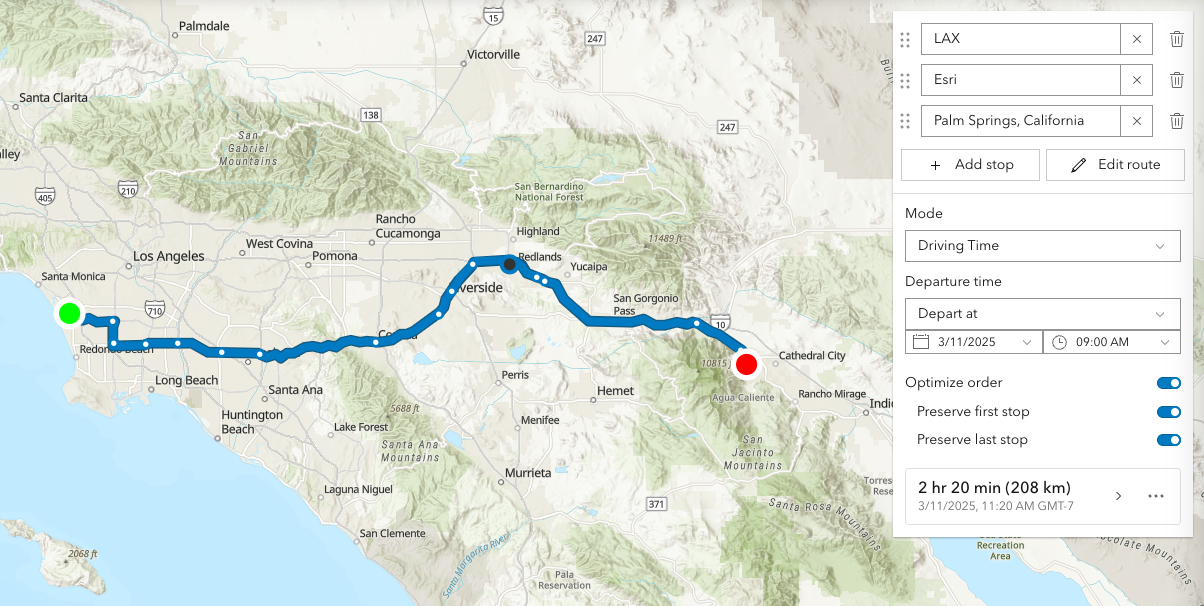 |
*
* This routing service requires authentication.
* If an API key is specified at the app level (see [Config](https://developers.arcgis.com/javascript/latest/references/core/config/#Config-apiKey)) or widget level (see [apiKey](https://developers.arcgis.com/javascript/latest/references/core/widgets/Directions/#apiKey)) then this key will accompany requests to both the routing service and geocoder/reverse-geocoder.
* Please refer to the [Search](https://developers.arcgis.com/javascript/latest/references/core/widgets/Search/) widget for more information on geocoding.
*
* | Pick a location on the map |
* |------|
* |  |
*
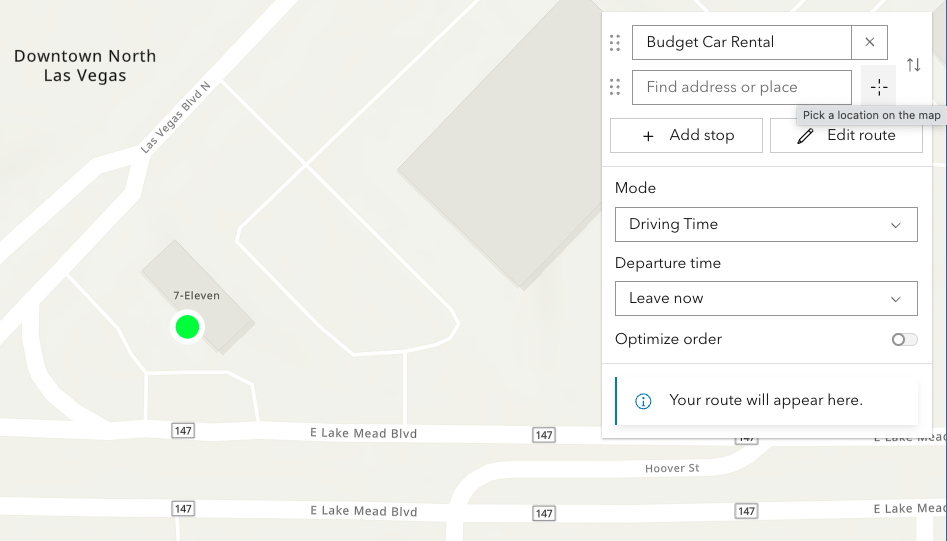
* Locations on the map can be reverse geocoded and used as stops in the route.
* Click the button with a crosshairs icon to associate a location with a new or existing stop. After clicking the button, click the map once. To cancel this process, press the `escape` key.
*
* | Route options | Route options |
* |------|------|
* |  |  |
*
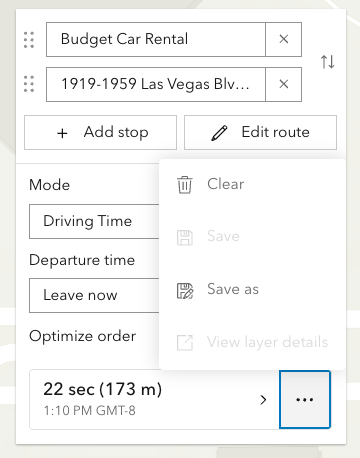
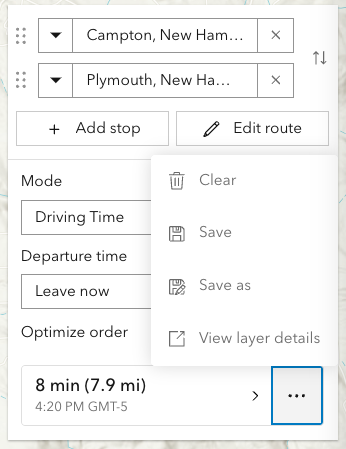
* The resulting driving directions are automatically collapsed and can be optionally saved to a new or existing portal item. This can be achieved programically with [save()](https://developers.arcgis.com/javascript/latest/references/core/widgets/Directions/#save) and [saveAs()](https://developers.arcgis.com/javascript/latest/references/core/widgets/Directions/#saveAs).
* The `Clear` button calls the [DirectionsViewModel.reset()](https://developers.arcgis.com/javascript/latest/references/core/widgets/Directions/DirectionsViewModel/#reset)
* method, which removes all stops, directions, and the solved route.
*
* | Editing | Editing |
* |------|------|
* |  |  |
*
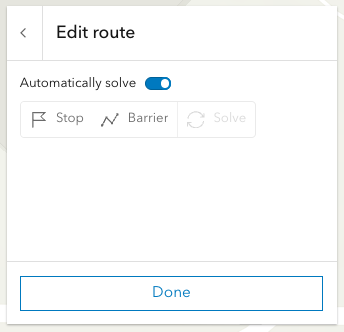
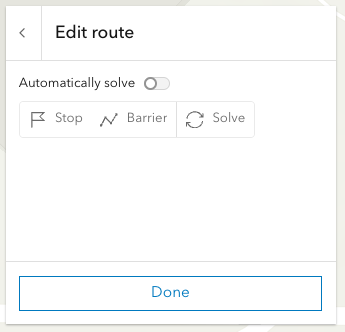
* Selecting the `Edit route` button allows you to add/move/remove stops, add/move/remove/reshape polyline barriers.
* By default the route will be automatically resolve at the completion of any editing operation. For more complex routes, it may be advantageous to disable auto-solving and solve as and when needed with the dedicated solve button.
* Currently, this is only supported in 2D MapViews.
*
* > [!WARNING]
* >
* > **Note:** Printing in Directions is in beta and considered experimental.
* > The print preview dialog, in some scenarios, may not display as aniticipated.
* > Please consider hiding the print button by setting [visibleElements.printButton](https://developers.arcgis.com/javascript/latest/references/core/widgets/Directions/#visibleElements) to `false` in these situations.
*
* @deprecated since version 5.0. Use the [Directions](https://developers.arcgis.com/javascript/latest/references/map-components/components/arcgis-directions/) component instead. For information on widget deprecation, read about [Esri's move to web components](https://developers.arcgis.com/javascript/latest/components-transition-plan/).
* @since 4.6
* @see [DirectionsViewModel](https://developers.arcgis.com/javascript/latest/references/core/widgets/Directions/DirectionsViewModel/)
* @see [RouteLayer](https://developers.arcgis.com/javascript/latest/references/core/layers/RouteLayer/)
* @see [Guide topic - Access secure resources](https://developers.arcgis.com/javascript/latest/secure-resources/)
* @see [Sample - Directions widget](https://developers.arcgis.com/javascript/latest/sample-code/widgets-directions/)
* @example
* // 1. Add empty RouteLayer to Directions widget
*
* // create a new empty RouteLayer
* const routeLayer = new RouteLayer();
*
* // new RouteLayer must be added to the map
* // for route visualization
* const map = new Map({
* basemap: "topo-vector",
* layers: [routeLayer]
* });
*
* // new RouteLayer must be added to Directions widget
* const directionsWidget = new Directions({
* view: view,
* layer: routeLayer
* });
*
* // adds the Directions widget to the
* // top right corner of the view
* view.ui.add(directionsWidget, {
* position: "top-right"
* });
* @example
* // 2. Add RouteLayer from portal to Directions widget
*
* // create a new RouteLayer from a portal item
* const routeLayer = new RouteLayer({
* portalItem: { // autocasts as new PortalItem()
* id: "fd4188722f3e4e14986abca86cad80c6"
* }
* });
*
* // new RouteLayer must be added to the map
* // for route visualization
* const map = new Map({
* basemap: "topo-vector",
* layers: [routeLayer]
* });
*
* // new RouteLayer must be added to Directions widget
* const directionsWidget = new Directions({
* view: view,
* layer: routeLayer
* });
*
* // adds the Directions widget to the
* // bottom right corner of the view
* view.ui.add(directionsWidget, {
* position: "bottom-right"
* });
* @example
* // 3. Create a Directions widget with 2 pre-set stops
*
* // create a new RouteLayer with 2 stops
* const routeLayer = new RouteLayer({
* stops: [
* { name: "Redlands, CA", geometry: { x: -117.1825, y: 34.0547 } },
* { name: "Palm Springs, CA", geometry: { x: -116.5452, y: 33.8302 } }
* ]
* });
*
* // new RouteLayer must be added to the map
* // for route visualization
* const map = new Map({
* basemap: "topo-vector",
* layers: [routeLayer]
* });
*
* // new RouteLayer must be added to Directions widget
* const directionsWidget = new Directions({
* view: view,
* layer: routeLayer
* });
* @example
* // 4. Update the empty stops that are automatically added by the Directions widget
*
* // create a new empty RouteLayer
* const routeLayer = new RouteLayer();
*
* // new RouteLayer must be added to the map
* // for route visualization
* const map = new Map({
* basemap: "topo-vector",
* layers: [routeLayer]
* });
*
* // new RouteLayer must be added to Directions widget
* const directionsWidget = new Directions({
* view: view,
* layer: routeLayer
* });
*
* // call the asynchronous function
* directionsReady();
*
* // asynchronous function to seed the Directions widget
* // with two initials stops (Campton to Plymouth)
* // instead of the empty stops
* async function directionsReady(){
* await directionsWidget.when();
* directionsWidget.layer.stops.at(0).name = "Campton, NH";
* directionsWidget.layer.stops.at(0).geometry = new Point({ x: -71.64133, y: 43.85191 });
* directionsWidget.layer.stops.at(1).name = "Plymouth, NH";
* directionsWidget.layer.stops.at(1).geometry = new Point({ x: -71.68808, y: 43.75792 });
* }
*/
export default class Directions extends Widget {
constructor(properties?: DirectionsProperties);
/**
* An authorization string used to access a resource or service.
* [API keys](https://developers.arcgis.com/documentation/security-and-authentication/api-key-authentication/) are generated
* and managed in the portal. An API key is tied
* explicitly to an ArcGIS account; it is also used to monitor service usage.
* Setting a fine-grained API key on a specific class overrides the [global API key](https://developers.arcgis.com/javascript/latest/references/core/config/#Config-apiKey).
*
* By default, the following URLs will be used (unless overwritten in the app, or if using different defaults from a portal):
*
* Geocoding URL: `https://geocode-api.arcgis.com/arcgis/rest/services/World/GeocodeServer`
*
* Routing URL: `https://route-api.arcgis.com/arcgis/rest/services/World/Route/NAServer/Route_World`
*
* @since 4.19
* @example
* const directionsWidget = new Directions({
* view: view,
* layer: routeLayer,
* apiKey: "YOUR_API_KEY"
* });
* // Add the Directions widget to the top right corner of the view
* view.ui.add(directionsWidget, {
* position: "top-right"
* });
*/
accessor apiKey: string | null | undefined;
/**
* This function provides the ability to override either the
* [MapView goTo()](https://developers.arcgis.com/javascript/latest/references/core/views/MapView/#goTo) or
* [SceneView goTo()](https://developers.arcgis.com/javascript/latest/references/core/views/SceneView/#goTo) methods.
*
* @since 4.8
* @see [MapView.goTo()](https://developers.arcgis.com/javascript/latest/references/core/views/MapView/#goTo)
* @see [SceneView.goTo()](https://developers.arcgis.com/javascript/latest/references/core/views/SceneView/#goTo)
* @example
* // The following snippet uses Search but can be applied to any
* // widgets that support the goToOverride property.
* search.goToOverride = function(view, goToParams) {
* goToParams.options = {
* duration: updatedDuration
* };
* return view.goTo(goToParams.target, goToParams.options);
* };
*/
accessor goToOverride: GoToOverride | null | undefined;
/**
* Indicates the heading level to use for the origin and destination addresses (i.e. "380 New York Street").
* By default, this is rendered
* as a level 2 heading (e.g. `<h2>380 New York Street</h2>`). Depending on the widget's placement
* in your app, you may need to adjust this heading for proper semantics. This is
* important for meeting accessibility standards.
*
* @default 2
* @since 4.20
* @see [Heading Elements](https://developer.mozilla.org/en-US/docs/Web/HTML/Element/Heading_Elements)
* @example
* // address text will render as an <h3>
* directions.headingLevel = 3;
*/
accessor headingLevel: HeadingLevel;
/**
* Icon which represents the widget. It is typically used when the widget is controlled by another
* one (e.g. in the Expand widget).
*
* @default "right"
* @since 4.27
* @see [Calcite Icon Search](https://developers.arcgis.com/calcite-design-system/icons/)
* @see [Calcite Icon Search](https://developers.arcgis.com/calcite-design-system/icons/)
*/
get icon(): Icon["icon"];
set icon(value: Icon["icon"] | null | undefined);
/**
* The widget's default label.
*
* @since 4.7
*/
get label(): string;
set label(value: string | null | undefined);
/**
* The most recent route result. Returns a [RouteLayerSolveResult](https://developers.arcgis.com/javascript/latest/references/core/layers/types/#RouteLayerSolveResult)
* object containing properties for barriers (if any), stops, and directions.
*
* @see [RouteLayer.solve()](https://developers.arcgis.com/javascript/latest/references/core/layers/RouteLayer/#solve)
*/
get lastRoute(): RouteLayerSolveResult | null | undefined;
/**
* The [RouteLayer](https://developers.arcgis.com/javascript/latest/references/core/layers/RouteLayer/) associated with the Directions widget.
* This property is required.
* The RouteLayer contains stops and barriers and will be used to display and solve routes.
*
* @since 4.24
*/
accessor layer: RouteLayer | null | undefined;
/**
* The maximum number of stops allowed for routing.
*
* @default 50
*/
accessor maxStops: number;
/**
* Controls the default properties used when searching.
* Note that the default `searchProperties` differ slightly from
* the [Search component](https://developers.arcgis.com/javascript/latest/references/map-components/components/arcgis-search/).
*
* @default { popupEnabled: false, resultGraphicEnabled: false }
*/
accessor searchProperties: SearchProperties | null | undefined;
/**
* Unit system (imperial, metric) or specific unit used for displaying the distance values.
* If not set, the widget will attempt to pick "imperial" or "metric" based on the user's portal settings.
*
* This property will affect the summary distance as well as distance for each turn-by-turn maneuver.
*
* @since 4.25
* @example
* // Display distances in nautical miles.
* const directions = new Directions({
* unit: "nautical-miles",
* layer: routeLayer,
* view: view
* });
*/
get unit(): SystemOrLengthUnit;
set unit(value: SystemOrLengthUnit | null | undefined);
/** The view from which the widget will operate. */
accessor view: MapViewOrSceneView | null | undefined;
/**
* The view model for this widget. This is a class that contains all the logic
* (properties and methods) that controls this widget's behavior. See the
* [DirectionsViewModel](https://developers.arcgis.com/javascript/latest/references/core/widgets/Directions/DirectionsViewModel/) class to access
* all properties and methods on the widget.
*/
get viewModel(): DirectionsViewModel;
set viewModel(value: DirectionsViewModelProperties);
/**
* The visible elements that are displayed within the widget.
* This property provides the ability to turn individual elements of the widget's display on/off.
*
* @since 4.24
* @example
* // Hide the save button, save-as button and layer details link.
* const directions = new Directions({
* view: view,
* layer: routeLayer,
* visibleElements: {
* layerDetailsLink: false,
* saveAsButton: false,
* saveButton: false
* }
* });
*/
get visibleElements(): DirectionsVisibleElements;
set visibleElements(value: DirectionsVisibleElementsProperties);
/**
* Computes a route and directions. If successfully computed, results will be assigned to [lastRoute](https://developers.arcgis.com/javascript/latest/references/core/widgets/Directions/#lastRoute)
* returned. If a view is assigned, it will zoom to the extent of the route.
*
* @returns When resolved, returns a [RouteLayerSolveResult](https://developers.arcgis.com/javascript/latest/references/core/layers/types/#RouteLayerSolveResult).
*/
getDirections(): Promise<RouteLayerSolveResult>;
/**
* Saves the RouteLayer associated with the view model. This method will update the portal-item associated with
* layer.
*
* @returns When resolved, returns a [PortalItem](https://developers.arcgis.com/javascript/latest/references/core/portal/PortalItem/).
* @since 4.24
* @see [RouteLayer.save()](https://developers.arcgis.com/javascript/latest/references/core/layers/RouteLayer/#save)
* @see [RouteLayer.saveAs()](https://developers.arcgis.com/javascript/latest/references/core/layers/RouteLayer/#saveAs)
*/
save(): Promise<PortalItem>;
/**
* Saves the RouteLayer associated with the view model as a new portal item.
*
* @param portalItem - The new [portal item](https://developers.arcgis.com/javascript/latest/references/core/portal/PortalItem/) to which the layer will be saved.
* @param options - Save options. Currently, there is only one property that can be set, which is `folder`.
* @returns Saved portal item.
* @since 4.24
* @see [RouteLayer.save()](https://developers.arcgis.com/javascript/latest/references/core/layers/RouteLayer/#save)
* @see [RouteLayer.saveAs()](https://developers.arcgis.com/javascript/latest/references/core/layers/RouteLayer/#saveAs)
*/
saveAs(portalItem: PortalItem, options?: LayerSaveAsOptions): Promise<PortalItem>;
/** Zoom so that the full route is displayed within the current map extent. */
zoomToRoute(): void;
}