@arcgis/core
Version:
ArcGIS Maps SDK for JavaScript: A complete 2D and 3D mapping and data visualization API
275 lines (272 loc) • 14 kB
TypeScript
import type SceneView from "../views/SceneView.js";
import type Widget from "./Widget.js";
import type DaylightViewModel from "./Daylight/DaylightViewModel.js";
import type VisibleElements from "./Daylight/VisibleElements.js";
import type { Icon } from "@esri/calcite-components/components/calcite-icon";
import type { WidgetProperties } from "./Widget.js";
import type { DaylightViewModelEvents, DaylightViewModelProperties } from "./Daylight/DaylightViewModel.js";
import type { DateOrSeason } from "./Daylight/types.js";
import type { HeadingLevel } from "./support/types.js";
import type { VisibleElementsProperties } from "./Daylight/VisibleElements.js";
/** @deprecated since version 4.34. Use the [Daylight component](https://developers.arcgis.com/javascript/latest/references/map-components/components/arcgis-daylight/) instead. For information on widget deprecation, read about [Esri's move to web components](https://developers.arcgis.com/javascript/latest/components-transition-plan/). */
export interface DaylightProperties extends WidgetProperties, Partial<Pick<Daylight, "dateOrSeason" | "headingLevel" | "playSpeedMultiplier" | "timeSliderSteps" | "view">> {
/**
* Icon which represents the widget. It is typically used when the widget is controlled by another
* one (e.g. in the Expand widget).
*
* @default "brightness"
* @since 4.27
* @see [Calcite Icon Search](https://developers.arcgis.com/calcite-design-system/icons/)
* @see [Calcite Icon Search](https://developers.arcgis.com/calcite-design-system/icons/)
*/
icon?: Icon["icon"] | null;
/**
* The widget's default label. This label displays when it is
* used within another widget, such as the [Expand](https://developers.arcgis.com/javascript/latest/references/core/widgets/Expand/)
* or [LayerList](https://developers.arcgis.com/javascript/latest/references/core/widgets/LayerList/) widgets.
*
* @since 4.11
*/
label?: string | null;
/**
* The view model for the Daylight widget. This is a class that contains all the logic
* (properties and methods) that controls this widget's behavior. See the
* [DaylightViewModel](https://developers.arcgis.com/javascript/latest/references/core/widgets/Daylight/DaylightViewModel/) class.
*/
viewModel?: DaylightViewModelProperties;
/**
* This property provides the ability to display or hide the individual elements of the widget.
* Play buttons, sun lighting toggle, shadow toggle button, date picker, and timezone selector can be displayed or hidden by setting their
* corresponding properties to `true` or `false`. By default, all the elements are displayed.
*
* @example
* // display all elements, except the shadow toggle button
* daylightWidget.visibleElements.shadowsToggle = false;
*
* // disable all elements
* daylightWidget.visibleElements = {
* header: false,
* playButtons: false,
* datePicker: false,
* timezone: false,
* sunLightingToggle: false,
* shadowsToggle: false
* };
*/
visibleElements?: VisibleElementsProperties;
}
/** @deprecated since version 4.34. Use the [Daylight component](https://developers.arcgis.com/javascript/latest/references/map-components/components/arcgis-daylight/) instead. For information on widget deprecation, read about [Esri's move to web components](https://developers.arcgis.com/javascript/latest/components-transition-plan/). */
export interface DaylightEvents extends DaylightViewModelEvents {}
/**
* The Daylight widget can be used to manipulate the lighting conditions
* of a [SceneView](https://developers.arcgis.com/javascript/latest/references/core/views/SceneView/). For this, the widget modifies the `lighting` property of
* [SceneView.environment](https://developers.arcgis.com/javascript/latest/references/core/views/SceneView/#environment). To illuminate the
* scene, one can either use a configuration of date and time to position the [sun](https://developers.arcgis.com/javascript/latest/references/core/views/3d/environment/SunLighting/) or switch to the
* [virtual mode](https://developers.arcgis.com/javascript/latest/references/core/views/3d/environment/VirtualLighting/), where the light source is relative to the camera.
*
* When **lighting the scene with the sun** and adjusting the time and date, the position of the sun
* and the stars get updated accordingly, changing the light and the shadows in the scene. This sets the `date` and `directShadowsEnabled` properties of
* [SceneView.environment.lighting](https://developers.arcgis.com/javascript/latest/references/core/views/SceneView/#environment).
*
* [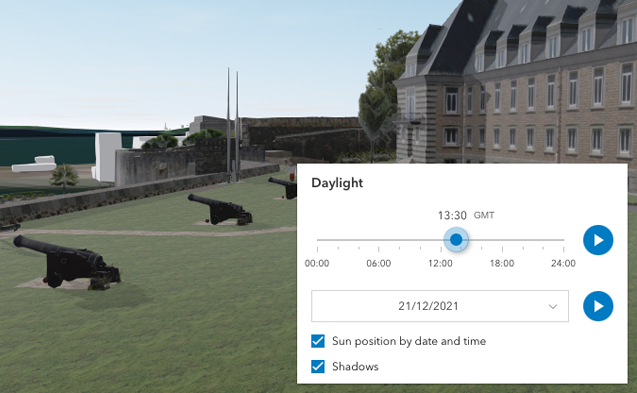](https://developers.arcgis.com/javascript/latest/sample-code/widgets-daylight/)
*
* The daytime slider has an option to select the timezone. When the user makes any adjustments here, a new time
* in the chosen timezone is calculated and displayed in the slider. The timezone selector can be disabled
* by setting `timezone` to `false` in the [visibleElements](https://developers.arcgis.com/javascript/latest/references/core/widgets/Daylight/#visibleElements) property.
*
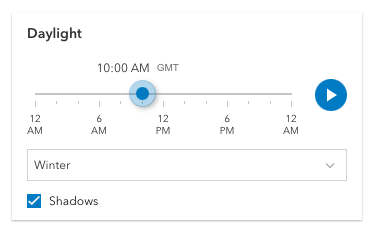
* By default a calendar is displayed where the user can select the day, month and year.
* With the [dateOrSeason](https://developers.arcgis.com/javascript/latest/references/core/widgets/Daylight/#dateOrSeason) property, the calendar can be replaced with
* a dropdown menu where a season can be selected instead:
*
* ```js
* const daylight = new Daylight({
* view: view,
* dateOrSeason: "season"
* });
* ```
*
* 
*
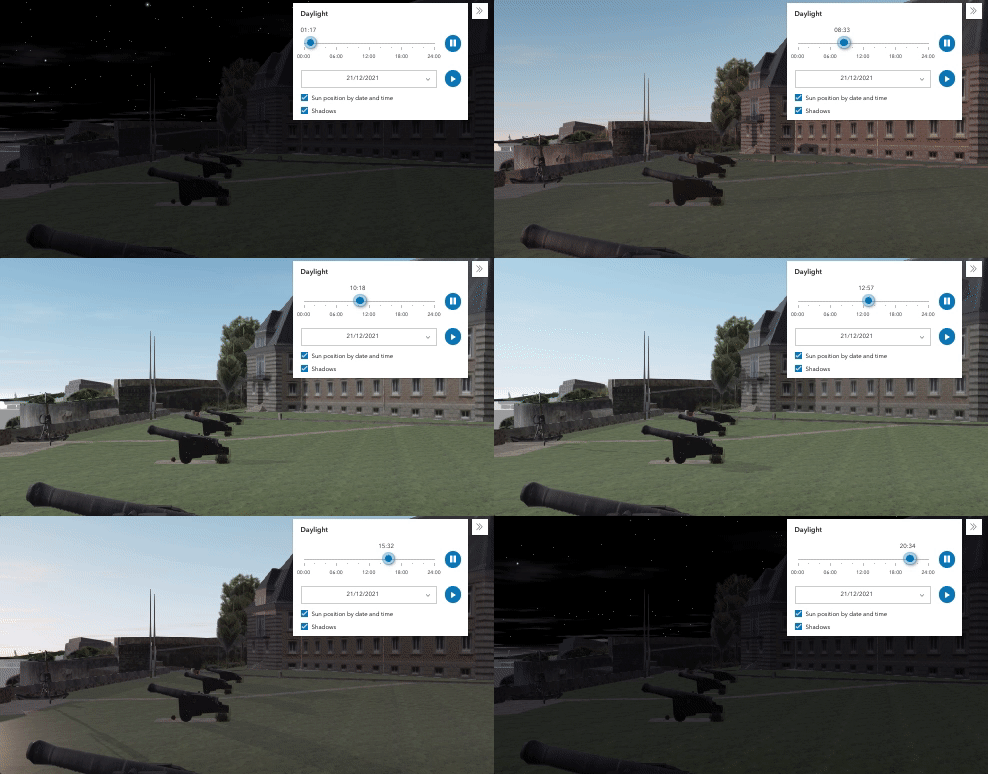
* There are two play buttons, one corresponds to the daytime slider and it animates the time as
* it cycles through the minutes of the day. The second button corresponds to the date picker
* and it animates the time as it cycles through the months of the year. The speed of the animation can
* be set using the [playSpeedMultiplier](https://developers.arcgis.com/javascript/latest/references/core/widgets/Daylight/#playSpeedMultiplier) property.
*
* ```js
* const daylight = new Daylight({
* view: view,
* playSpeedMultiplier: 2
* });
* ```
*
* 
*
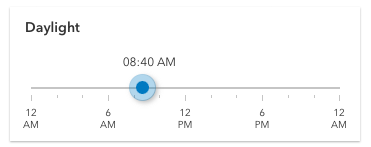
* Except for the daytime slider, all the elements in the daylight widget can be hidden by using the
* [visibleElements](https://developers.arcgis.com/javascript/latest/references/core/widgets/Daylight/#visibleElements) property:
*
* ```js
* const daylight = new Daylight({
* view: view,
* visibleElements: {
* timezone: false,
* datePicker: false,
* playButtons: false,
* sunLightingToggle: false,
* shadowsToggle: false
* }
* });
* ```
*
* With these settings, the widget looks like this:
*
* 
*
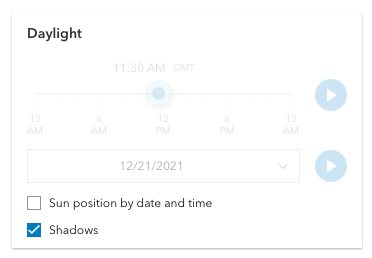
* Whenever the sun position option is unchecked, the scene applies the **virtual light source** relative to the camera. With this, the widget's time slider and date picker get automatically disabled:
*
* 
*
* > [!WARNING]
* >
* > **Known limitations:**
* >
* > The Daylight widget uses UTC time and does not account for the daylight savings times in different countries and regions of the world.
* >
* > When the [SceneView.environment.lighting](https://developers.arcgis.com/javascript/latest/references/core/views/SceneView/#environment) is of the type `virtual`, setting the time and date does not have an influence on the lighting conditions of the scene.
*
* @deprecated since version 4.34. Use the [Daylight component](https://developers.arcgis.com/javascript/latest/references/map-components/components/arcgis-daylight/) instead. For information on widget deprecation, read about [Esri's move to web components](https://developers.arcgis.com/javascript/latest/components-transition-plan/).
* @since 4.14
* @see [Sample - Daylight widget](https://developers.arcgis.com/javascript/latest/sample-code/widgets-daylight/)
* @see [DaylightViewModel](https://developers.arcgis.com/javascript/latest/references/core/widgets/Daylight/DaylightViewModel/)
* @see [SceneView.environment](https://developers.arcgis.com/javascript/latest/references/core/views/SceneView/#environment)
* @example
* // basic usage of the daylight widget using the default settings
* const daylight = new Daylight({
* view: view
* });
* view.ui.add(daylight, "top-right");
*/
export default class Daylight extends Widget<DaylightProperties> {
/**
* @deprecated
* Do not directly reference this property.
* Use EventNames and EventTypes helpers from \@arcgis/core/Evented
*/
"@eventTypes": DaylightEvents;
/**
* @example
* // Typical usage
* const daylightWidget = new Daylight({
* view: view
* });
*
* view.ui.add(daylightWidget, "top-right");
*/
constructor(properties?: DaylightProperties);
/**
* Controls whether the widget displays a date or a season picker. When the date picker
* is set, the user selects the date from a calendar. The season picker allows the user
* to choose a season from a drop-down list. Each season uses a fixed date corresponding to
* the equinoxes and solstices of 2014.
*
* @default "date"
* @example
* // set the season picker
* daylightWidget.dateOrSeason = "season";
*/
accessor dateOrSeason: DateOrSeason;
/**
* Indicates the heading level to use for the widget title. By default, the title is rendered
* as a level 3 heading (e.g. `<h3>Daylight</h3>`). Depending on the widget's placement
* in your app, you may need to adjust this heading for proper semantics. This is
* important for meeting accessibility standards.
*
* @default 3
* @since 4.20
* @see [Heading Elements](https://developer.mozilla.org/en-US/docs/Web/HTML/Element/Heading_Elements)
* @example daylight.headingLevel = 2;
*/
accessor headingLevel: HeadingLevel;
/**
* Icon which represents the widget. It is typically used when the widget is controlled by another
* one (e.g. in the Expand widget).
*
* @default "brightness"
* @since 4.27
* @see [Calcite Icon Search](https://developers.arcgis.com/calcite-design-system/icons/)
* @see [Calcite Icon Search](https://developers.arcgis.com/calcite-design-system/icons/)
*/
get icon(): Icon["icon"];
set icon(value: Icon["icon"] | null | undefined);
/**
* The widget's default label. This label displays when it is
* used within another widget, such as the [Expand](https://developers.arcgis.com/javascript/latest/references/core/widgets/Expand/)
* or [LayerList](https://developers.arcgis.com/javascript/latest/references/core/widgets/LayerList/) widgets.
*
* @since 4.11
*/
get label(): string;
set label(value: string | null | undefined);
/**
* Controls the speed of the daytime animation.
*
* @default 1.0
* @example
* // Plays the daylight animation at half of the default speed
* daylightWidget.playSpeedMultiplier = 0.5;
*/
accessor playSpeedMultiplier: number;
/**
* Sets steps, or intervals, on the time slider to restrict the times
* of the day that can be selected when dragging the thumb. All values are in
* minutes, where `0` is midnight and `23 * 60 + 59` is just before midnight
* the following day.
*
* If an array of numbers is passed to this property, the slider thumbs may
* only be moved to the times specified in the array.
*
* If a single number is set, then steps are set for the entire day at an
* interval of `timeSliderSteps` minutes. For example, if a value of `60` is
* set here, dragging the slider will allow selecting each of 24 hours of the day.
*
* @default 5
* @since 4.16
* @example
* // set steps at an interval of 60. So the
* // slider thumb snaps at each hour of the day.
* daylightWidget.timeSliderSteps = 60;
* @example
* // Set steps at specific times.
* daylightWidget.timeSliderSteps = [60, 100, 120, 160];
*/
accessor timeSliderSteps: number | number[];
/** A reference to the [SceneView](https://developers.arcgis.com/javascript/latest/references/core/views/SceneView/). Set this to link the widget to a specific view. */
accessor view: SceneView | null | undefined;
/**
* The view model for the Daylight widget. This is a class that contains all the logic
* (properties and methods) that controls this widget's behavior. See the
* [DaylightViewModel](https://developers.arcgis.com/javascript/latest/references/core/widgets/Daylight/DaylightViewModel/) class.
*/
get viewModel(): DaylightViewModel;
set viewModel(value: DaylightViewModelProperties);
/**
* This property provides the ability to display or hide the individual elements of the widget.
* Play buttons, sun lighting toggle, shadow toggle button, date picker, and timezone selector can be displayed or hidden by setting their
* corresponding properties to `true` or `false`. By default, all the elements are displayed.
*
* @example
* // display all elements, except the shadow toggle button
* daylightWidget.visibleElements.shadowsToggle = false;
*
* // disable all elements
* daylightWidget.visibleElements = {
* header: false,
* playButtons: false,
* datePicker: false,
* timezone: false,
* sunLightingToggle: false,
* shadowsToggle: false
* };
*/
get visibleElements(): VisibleElements;
set visibleElements(value: VisibleElementsProperties);
}