@arcgis/core
Version:
ArcGIS Maps SDK for JavaScript: A complete 2D and 3D mapping and data visualization API
796 lines (793 loc) • 43.1 kB
TypeScript
import type Graphic from "../Graphic.js";
import type Layer from "../layers/Layer.js";
import type EsriMap from "../Map.js";
import type Collection from "../core/Collection.js";
import type EsriError from "../core/Error.js";
import type SpatialReference from "../geometry/SpatialReference.js";
import type TimeExtent from "../time/TimeExtent.js";
import type BasemapView from "./BasemapView.js";
import type Magnifier from "./Magnifier.js";
import type SelectionManager from "./SelectionManager.js";
import type Theme from "./Theme.js";
import type ViewAnimation from "./ViewAnimation.js";
import type Input from "./input/Input.js";
import type LayerView from "./layers/LayerView.js";
import type Navigation from "./navigation/Navigation.js";
import type AttributionItem from "./support/AttributionItem.js";
import type HighlightOptions from "./support/HighlightOptions.js";
import type { ReadonlyArrayOrCollection, ReadonlyCollection } from "../core/Collection.js";
import type { EventedMixin } from "../core/Evented.js";
import type { EsriPromise } from "../core/Promise.js";
import type { SpatialReferenceProperties } from "../geometry/SpatialReference.js";
import type { SceneViewEventTypes } from "./types.js";
import type { ViewPadding } from "./ui/types.js";
import type { GraphicProperties } from "../Graphic.js";
import type { HighlightOptionsProperties } from "./support/HighlightOptions.js";
import type { MapProperties } from "../Map.js";
import type { TimeExtentProperties } from "../time/TimeExtent.js";
import type { NavigationProperties } from "./navigation/Navigation.js";
import type { ThemeProperties } from "./Theme.js";
export interface ViewProperties<TLayerView extends LayerView = LayerView> extends Partial<Pick<View<TLayerView>, "animation" | "animationsEnabled" | "attributionVisible" | "basemapView" | "displayFilterEnabled" | "fatalError" | "padding">> {
/**
* Allows for adding [graphics](https://developers.arcgis.com/javascript/latest/references/core/Graphic/) directly to the default graphics in the View.
*
* @see [Graphic](https://developers.arcgis.com/javascript/latest/references/core/Graphic/)
* @see [GraphicsLayer](https://developers.arcgis.com/javascript/latest/references/core/layers/GraphicsLayer/)
* @see [Intro to graphics](https://developers.arcgis.com/javascript/latest/sample-code/intro-graphics/)
* @example
* // Adds a graphic to the View
* view.graphics.add(pointGraphic);
* @example
* // Removes a graphic from the View
* view.graphics.remove(pointGraphic);
*/
graphics?: ReadonlyArrayOrCollection<GraphicProperties>;
/**
* Represents a collection of [HighlightOptions](https://developers.arcgis.com/javascript/latest/references/core/views/support/HighlightOptions/) objects which can be used to
* highlight features throughout an application. Highlighting works by applying highlight options to one or
* more features. You can configure these options (such as color or opacity) to define how a feature will be visually
* emphasized.
*
* A maximum of six [HighlightOptions](https://developers.arcgis.com/javascript/latest/references/core/views/support/HighlightOptions/) objects are supported in the collection, and
* they can be added, removed, and reordered freely. Their order in the collection determines priority, with the last
* object having the highest priority. If you apply more than one highlight to a feature, the one that is last within
* the collection will be applied. The [HighlightOptions](https://developers.arcgis.com/javascript/latest/references/core/views/support/HighlightOptions/) object must be part of this
* collection in order to be applied to features.
*
* To highlight a feature, use the [highlight](https://developers.arcgis.com/javascript/latest/references/core/views/layers/FeatureLayerView/#highlight) method on
* the relevant [LayerView](https://developers.arcgis.com/javascript/latest/references/core/views/layers/LayerView/) instance. To apply specific
* [HighlightOptions](https://developers.arcgis.com/javascript/latest/references/core/views/support/HighlightOptions/), include the
* [name](https://developers.arcgis.com/javascript/latest/references/core/views/support/HighlightOptions/#name) in the `highlight()` method's `options` parameter. If
* no `name` is provided, the feature will use the `default` highlight options.
*
* The table below shows the default highlight options in the View's highlights collection if the collection has not
* been modified:
*
* | Highlight options name | Description | Default settings |
* | ---------------------- | ----------- | ---------------- |
* | default | The default highlight options. Used when `layerView.highlight()` is called without specifying any particular highlight options. | ` { name: "default", color: "cyan", haloOpacity: 1, fillOpacity: 0.25, shadowColor: "black", shadowOpacity: 0.4, shadowDifference: 0.2}` |
* | temporary | The temporary highlight options, pre-configured for common use cases such as hovering over a feature in the view. | `{ name: "temporary", color: "yellow", haloOpacity: 1, fillOpacity: 0.25, shadowColor: "black", shadowOpacity: 0.4, shadowDifference: 0.2 }` |
*
* @since 4.32
* @see [Sample: Highlight features by geometry](https://developers.arcgis.com/javascript/latest/sample-code/highlight-features-by-geometry/)
* @see [Sample: Highlight SceneLayer](https://developers.arcgis.com/javascript/latest/sample-code/highlight-scenelayer/)
* @example
* // Use the default highlights collection to apply a highlight to features when you hover over them
*
* // A handler can be used to remove any previous highlight when applying a new one
* let hoverHighlight;
*
* view.on("pointer-move", (event) => {
* // Search for the first feature in the featureLayer at the hovered location
* view.hitTest(event, { include: featureLayer }).then((response) => {
* if (response.results[0]) {
* const graphic = response.results[0].graphic;
* view.whenLayerView(graphic.layer).then((layerView) => {
* // Remove any previous highlight, if it exists
* hoverHighlight?.remove();
* // Highlight the hit features with the temporary highlight options, which are pre-configured for this use case
* hoverHighlight = layerView.highlight(graphic, { name: "temporary"});
* });
* }
* });
* });
* @example
* // Override the default highlights collection
*
* const view = new MapView({
* map: map,
* container: "viewDiv",
*
* // Set the highlight options to be used in the view
* highlights: [
* { name: "default", color: "orange" },
* { name: "temporary", color: "magenta" },
* { name: "table", color: "cyan", fillOpacity: 0.5, haloOpacity: 0}
* ]
* });
* @example
* // Add highlight options to the collection after initialization
*
* const selectionHighlightOptions = {
* name: "selection",
* color: "#ff00ff", // bright fuchsia
* haloOpacity: 0.8,
* fillOpacity: 0.2
* };
*
* // Add the options to the highlights collection at the first position
* view.highlights.add(selectionGroup, 0);
*/
highlights?: ReadonlyArrayOrCollection<HighlightOptionsProperties> | null;
/**
* An instance of a [Map](https://developers.arcgis.com/javascript/latest/references/core/Map/) object to display in the view. A view may only display one map at a time.
* On the other hand, one [Map](https://developers.arcgis.com/javascript/latest/references/core/Map/) may be viewed by multiple [MapViews](https://developers.arcgis.com/javascript/latest/references/core/views/MapView/) and/or
* [SceneViews](https://developers.arcgis.com/javascript/latest/references/core/views/SceneView/) simultaneously.
*
* This property is typically set in the constructor of the
* [MapView](https://developers.arcgis.com/javascript/latest/references/core/views/MapView/) or
* [SceneView](https://developers.arcgis.com/javascript/latest/references/core/views/SceneView/). See the [class description](https://developers.arcgis.com/javascript/latest/references/core/views/View/)
* for examples demonstrating the relationship between the map and the view.
*/
map?: MapProperties | null;
/**
* Options to configure the navigation behavior of the View.
*
* @since 4.9
* @example
* // Disable the gamepad usage, single touch panning, panning momentum and mouse wheel zooming.
* const view = new MapView({
* container: "viewDiv",
* map: new Map({
* basemap: "satellite"
* }),
* center: [176.185, -37.643],
* zoom: 13,
* navigation: {
* gamepad: {
* enabled: false
* },
* actionMap: {
* dragSecondary: "none", // Disable rotating the view with the right mouse button
* mouseWheel: "none" // Disable zooming with the mouse wheel
* },
* browserTouchPanEnabled: false,
* momentumEnabled: false,
* }
* });
*/
navigation?: NavigationProperties;
/**
* The spatial reference of the view.
* This indicates the projected or geographic coordinate system used to locate geographic features in the map.
*/
spatialReference?: SpatialReferenceProperties;
/**
* This property specifies the base colors used by some widgets and components to render graphics and labels.
* This only affects those components that would otherwise use the default orange pattern.
*
* @since 4.28
* @see [Theme](https://developers.arcgis.com/javascript/latest/references/core/views/Theme/)
* @see [Sample - Color theming for interactive tools](https://developers.arcgis.com/javascript/latest/sample-code/view-theme/)
* @example
* // Update the theme to use purple graphics
* // and slightly transparent green text
* view.theme = new Theme({
* accentColor: "purple",
* textColor: [125, 255, 13, 0.9]
* });
*/
theme?: ThemeProperties | null;
/**
* The view's time extent. Time-aware layers display their temporal data that falls within
* the view's time extent. Setting the view's time extent is similar to setting the spatial
* [extent](https://developers.arcgis.com/javascript/latest/references/core/views/MapView/#extent) because once the time extent is set, the
* view updates automatically to conform to the change.
*
* @since 4.12
* @example
* // Create a csv layer from an online spreadsheet.
* let csvLayer = new CSVLayer({
* url: "http://test.com/daily-magazines-sold-in-new-york.csv",
* timeInfo: {
* startField: "SaleDate" // The csv field contains date information.
* }
* });
*
* // Create a mapview showing sales for the last week of March 2019 only.
* const view = new MapView({
* map: map,
* container: "viewDiv",
* timeExtent: {
* start: new Date("2019, 2, 24"),
* end: new Date("2019, 2, 31")
* }
* });
*/
timeExtent?: TimeExtentProperties | null;
}
export type ViewEvents = SceneViewEventTypes;
/**
* A view provides the means of viewing and interacting with the components of a [Map](https://developers.arcgis.com/javascript/latest/references/core/Map/).
* The [Map](https://developers.arcgis.com/javascript/latest/references/core/Map/) is merely a container, storing the geographic information contained in base layers and operational layers.
* The View renders the [Map](https://developers.arcgis.com/javascript/latest/references/core/Map/) and its various [Map.layers](https://developers.arcgis.com/javascript/latest/references/core/Map/#layers), making them visible to the user.
*
* There are two types of views: [MapView](https://developers.arcgis.com/javascript/latest/references/core/views/MapView/) and [SceneView](https://developers.arcgis.com/javascript/latest/references/core/views/SceneView/).
* The MapView renders a Map and its layers in 2D. The SceneView renders these elements in 3D. View is the base class of MapView
* and SceneView and has no constructor. To create a view, you must do so by directly creating an instance of either
* [MapView](https://developers.arcgis.com/javascript/latest/references/core/views/MapView/) or [SceneView](https://developers.arcgis.com/javascript/latest/references/core/views/SceneView/).
*
* | MapView (2D) | SceneView (3D) |
* |--------------|----------------|
* | [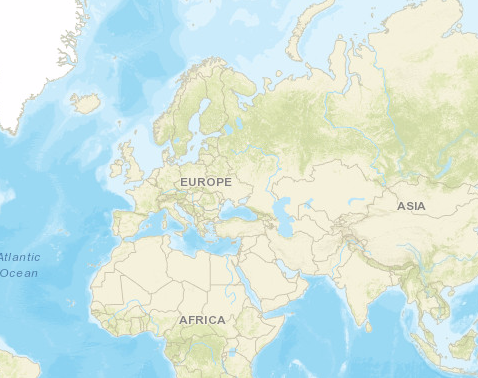](https://developers.arcgis.com/javascript/latest/sample-code/intro-mapview/) | [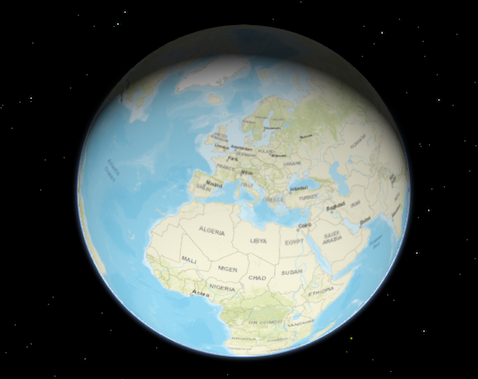](https://developers.arcgis.com/javascript/latest/sample-code/intro-sceneview/) |
*
* To associate a view with a map, you must set the [map](https://developers.arcgis.com/javascript/latest/references/core/views/View/#map) property to an instance of [Map](https://developers.arcgis.com/javascript/latest/references/core/Map/).
*
* ```js
* // Load the Map and MapView modules
* const [Map, MapView] = await $arcgis.import(["@arcgis/core/Map.js", "@arcgis/core/views/MapView.js"]);
* // Create a Map instance
* const map = new Map({
* basemap: "topo-vector"
* });
*
* // Create a MapView instance (for 2D viewing) and set its map property to
* // the map instance we just created
* const view = new MapView({
* map: map,
* container: "viewDiv"
* });
* ```
*
* In the snippet above, you'll notice a `container` property set on the view. The [container](https://developers.arcgis.com/javascript/latest/references/core/views/DOMContainer/#container)
* property is the reference to the DOM node that contains the view. This is commonly a `<div>` element. The container
* referenced in the example above might look something like:
*
* ```html
* <body>
* <div id="viewDiv"></div>
* </body>
* ```
*
* You can observe the view's relationship to the HTML container in the [Create a 2D map tutorial](https://developers.arcgis.com/javascript/latest/sample-code/intro-mapview/)
* and any of the available [samples](https://developers.arcgis.com/javascript/latest/sample-code/).
*
* Other properties may be set on the view, such as the rotation, scale, popup, and padding.
* See [MapView](https://developers.arcgis.com/javascript/latest/references/core/views/MapView/) and [SceneView](https://developers.arcgis.com/javascript/latest/references/core/views/SceneView/) for
* additional properties specific to creating views in 2D and 3D.
*
* A [Map](https://developers.arcgis.com/javascript/latest/references/core/Map/) may have multiple views associated with it, including a combination of MapViews and SceneViews. See the
* [Geodesic buffers](https://developers.arcgis.com/javascript/latest/sample-code/ge-geodesicbuffer/) and [2D overview map in SceneView](https://developers.arcgis.com/javascript/latest/sample-code/overview-map/)
* samples to learn how a MapView and a SceneView can display the same map in a single application. While multiple views can
* reference the same map, a view may not associate itself with more than one Map instance.
*
* The View also allows users to interact with components of the map. For example, when a user clicks or touches the location of a
* feature in a map, they are not touching the feature nor the map; the event is actually handled with the View that references the map and
* the [LayerView](https://developers.arcgis.com/javascript/latest/references/core/views/layers/LayerView/) that references the layer. Therefore, events such as `click` are not
* handled on the Map or the Layer, but rather on the View. See [MapView](https://developers.arcgis.com/javascript/latest/references/core/views/MapView/) and
* [SceneView](https://developers.arcgis.com/javascript/latest/references/core/views/SceneView/) for additional details.
*
* @since 4.0
* @see [SceneView](https://developers.arcgis.com/javascript/latest/references/core/views/SceneView/)
* @see [MapView](https://developers.arcgis.com/javascript/latest/references/core/views/MapView/)
* @see [Intro to MapView](https://developers.arcgis.com/javascript/latest/sample-code/intro-mapview/)
* @see [Intro to SceneView](https://developers.arcgis.com/javascript/latest/sample-code/intro-sceneview/)
*/
export default abstract class View<TLayerView extends LayerView = LayerView> extends ViewSuperclass {
/**
* @deprecated
* Do not directly reference this property.
* Use EventNames and EventTypes helpers from \@arcgis/core/Evented
*/
"@eventTypes": ViewEvents;
/**
* Contains the collection of active views on the page. Only views that are [ready](https://developers.arcgis.com/javascript/latest/references/core/views/View/#ready)
* appear in the collection.
*
* @since 4.11
*/
static readonly views: Collection<View<any>>;
constructor(properties?: ViewProperties);
/**
* Collection containing a flat list of all the created [LayerViews](https://developers.arcgis.com/javascript/latest/references/core/views/layers/LayerView/)
* related to the basemap, operational layers, and group layers in this view.
*
* @see [LayerView](https://developers.arcgis.com/javascript/latest/references/core/views/layers/LayerView/)
*/
get allLayerViews(): ReadonlyCollection<TLayerView>;
/**
* Represents an ongoing view animation initialized by [View2D.goTo()](https://developers.arcgis.com/javascript/latest/references/core/views/View2D/#goTo).
* You may [watch](https://developers.arcgis.com/javascript/latest/references/core/core/reactiveUtils/#watch) this property to be notified when the view's extent changes .
*
* @see [View2D.goTo()](https://developers.arcgis.com/javascript/latest/references/core/views/View2D/#goTo)
*/
accessor animation: ViewAnimation | null | undefined;
/**
* Indicates whether animations are enabled in the view. This includes animated symbols (animated
* [CIMSymbol](https://developers.arcgis.com/javascript/latest/references/core/symbols/CIMSymbol/), [PictureMarkerSymbol](https://developers.arcgis.com/javascript/latest/references/core/symbols/PictureMarkerSymbol/) from a GIF/animated PNG),
* animated renderers ([FlowRenderer](https://developers.arcgis.com/javascript/latest/references/core/renderers/FlowRenderer/)), animated layers
* ([MediaLayer](https://developers.arcgis.com/javascript/latest/references/core/layers/MediaLayer/), [VideoLayer](https://developers.arcgis.com/javascript/latest/references/core/layers/VideoLayer/)), and animations triggered by view
* navigation (for example, [MapView.goTo()](https://developers.arcgis.com/javascript/latest/references/core/views/MapView/#goTo)). Setting this property to `false` disables
* all animations in the view.
*
* @default true
* @since 4.34
*/
accessor animationsEnabled: boolean;
/**
* The array of attribution items to be displayed in the view's attribution. This property is populated once the view has finished updating. Items are ordered based on descending [score](https://developers.arcgis.com/javascript/latest/references/core/views/support/AttributionItem/#score) with higher scored items appearing first in the attribution.
*
* 
*
* @since 5.0
* @example
* // Access the attributionItems property after the view is finished updating to get the array of attribution items to be displayed in the view's attribution
* reactiveUtils.when(
* () => !view.updating,
* () => {
* const attributionText = view.attributionItems
* .map((item) => item.text)
* .join(" | ");
* console.log(attributionText);
* }
* );
*/
get attributionItems(): ReadonlyArray<AttributionItem>;
/**
* Indicates whether the attribution is visible in the view.
*
* > [!WARNING]
* >
* > Esri requires that when you use an ArcGIS Online basemap in your app, the map must include Esri attribution and you must be licensed to use the content.
* > For detailed guidelines on working with attribution, please visit the official [attribution in your app](https://developers.arcgis.com/terms/attribution/) documentation.
* > For information, see the [Terms of Use documentation](https://developers.arcgis.com/documentation/terms-of-use/).
*
* @default true
* @since 5.0
*/
accessor attributionVisible: boolean;
/** Represents the view for a single basemap after it has been added to the map. */
accessor basemapView: BasemapView<TLayerView>;
/**
* Indicates if the view can zoom in.
*
* @since 5.0
*/
get canZoomIn(): boolean;
/**
* Indicates if the view can zoom out.
*
* @since 5.0
*/
get canZoomOut(): boolean;
/**
* Indicates whether [displayFilters](https://developers.arcgis.com/javascript/latest/references/core/layers/FeatureLayer/#displayFilterInfo) are honored across all layers
* in the view. If `false`, display filters are ignored on all layers and all features are rendered. To ignore display
* filters on a per-layer basis, set the layer's [displayFilterEnabled](https://developers.arcgis.com/javascript/latest/references/core/layers/FeatureLayer/#displayFilterEnabled) property to `false`.
*
* @default true
* @since 4.32
*/
accessor displayFilterEnabled: boolean;
/**
* A fatal [Error](https://developers.arcgis.com/javascript/latest/references/core/core/Error/) returned
* when the view loses its WebGL context. [watch()](https://developers.arcgis.com/javascript/latest/references/core/core/reactiveUtils/#watch)
* this property to properly handle the error and attempt to recover the WebGL context.
*
* @since 4.12
* @see [tryFatalErrorRecovery()](https://developers.arcgis.com/javascript/latest/references/core/views/View/#tryFatalErrorRecovery)
* @example
* reactiveUtils.when(
* () => view.fatalError,
* () => {
* console.error("Fatal Error! View has lost its WebGL context. Attempting to recover...");
* view.tryFatalErrorRecovery();
* }
* );
*/
accessor fatalError: EsriError | null | undefined;
/**
* Allows for adding [graphics](https://developers.arcgis.com/javascript/latest/references/core/Graphic/) directly to the default graphics in the View.
*
* @see [Graphic](https://developers.arcgis.com/javascript/latest/references/core/Graphic/)
* @see [GraphicsLayer](https://developers.arcgis.com/javascript/latest/references/core/layers/GraphicsLayer/)
* @see [Intro to graphics](https://developers.arcgis.com/javascript/latest/sample-code/intro-graphics/)
* @example
* // Adds a graphic to the View
* view.graphics.add(pointGraphic);
* @example
* // Removes a graphic from the View
* view.graphics.remove(pointGraphic);
*/
get graphics(): Collection<Graphic>;
set graphics(value: ReadonlyArrayOrCollection<GraphicProperties>);
/**
* Represents a collection of [HighlightOptions](https://developers.arcgis.com/javascript/latest/references/core/views/support/HighlightOptions/) objects which can be used to
* highlight features throughout an application. Highlighting works by applying highlight options to one or
* more features. You can configure these options (such as color or opacity) to define how a feature will be visually
* emphasized.
*
* A maximum of six [HighlightOptions](https://developers.arcgis.com/javascript/latest/references/core/views/support/HighlightOptions/) objects are supported in the collection, and
* they can be added, removed, and reordered freely. Their order in the collection determines priority, with the last
* object having the highest priority. If you apply more than one highlight to a feature, the one that is last within
* the collection will be applied. The [HighlightOptions](https://developers.arcgis.com/javascript/latest/references/core/views/support/HighlightOptions/) object must be part of this
* collection in order to be applied to features.
*
* To highlight a feature, use the [highlight](https://developers.arcgis.com/javascript/latest/references/core/views/layers/FeatureLayerView/#highlight) method on
* the relevant [LayerView](https://developers.arcgis.com/javascript/latest/references/core/views/layers/LayerView/) instance. To apply specific
* [HighlightOptions](https://developers.arcgis.com/javascript/latest/references/core/views/support/HighlightOptions/), include the
* [name](https://developers.arcgis.com/javascript/latest/references/core/views/support/HighlightOptions/#name) in the `highlight()` method's `options` parameter. If
* no `name` is provided, the feature will use the `default` highlight options.
*
* The table below shows the default highlight options in the View's highlights collection if the collection has not
* been modified:
*
* | Highlight options name | Description | Default settings |
* | ---------------------- | ----------- | ---------------- |
* | default | The default highlight options. Used when `layerView.highlight()` is called without specifying any particular highlight options. | ` { name: "default", color: "cyan", haloOpacity: 1, fillOpacity: 0.25, shadowColor: "black", shadowOpacity: 0.4, shadowDifference: 0.2}` |
* | temporary | The temporary highlight options, pre-configured for common use cases such as hovering over a feature in the view. | `{ name: "temporary", color: "yellow", haloOpacity: 1, fillOpacity: 0.25, shadowColor: "black", shadowOpacity: 0.4, shadowDifference: 0.2 }` |
*
* @since 4.32
* @see [Sample: Highlight features by geometry](https://developers.arcgis.com/javascript/latest/sample-code/highlight-features-by-geometry/)
* @see [Sample: Highlight SceneLayer](https://developers.arcgis.com/javascript/latest/sample-code/highlight-scenelayer/)
* @example
* // Use the default highlights collection to apply a highlight to features when you hover over them
*
* // A handler can be used to remove any previous highlight when applying a new one
* let hoverHighlight;
*
* view.on("pointer-move", (event) => {
* // Search for the first feature in the featureLayer at the hovered location
* view.hitTest(event, { include: featureLayer }).then((response) => {
* if (response.results[0]) {
* const graphic = response.results[0].graphic;
* view.whenLayerView(graphic.layer).then((layerView) => {
* // Remove any previous highlight, if it exists
* hoverHighlight?.remove();
* // Highlight the hit features with the temporary highlight options, which are pre-configured for this use case
* hoverHighlight = layerView.highlight(graphic, { name: "temporary"});
* });
* }
* });
* });
* @example
* // Override the default highlights collection
*
* const view = new MapView({
* map: map,
* container: "viewDiv",
*
* // Set the highlight options to be used in the view
* highlights: [
* { name: "default", color: "orange" },
* { name: "temporary", color: "magenta" },
* { name: "table", color: "cyan", fillOpacity: 0.5, haloOpacity: 0}
* ]
* });
* @example
* // Add highlight options to the collection after initialization
*
* const selectionHighlightOptions = {
* name: "selection",
* color: "#ff00ff", // bright fuchsia
* haloOpacity: 0.8,
* fillOpacity: 0.2
* };
*
* // Add the options to the highlights collection at the first position
* view.highlights.add(selectionGroup, 0);
*/
get highlights(): Collection<HighlightOptions>;
set highlights(value: ReadonlyArrayOrCollection<HighlightOptionsProperties> | null | undefined);
/**
* Options to configure input handling of the View.
*
* @since 4.9
* @example
* // Make gamepad events to emit independently of focus.
* view.input.gamepad.enabledFocusMode = "none";
*/
get input(): Input;
/**
* Indication whether the view is being interacted with (for example when panning or by an interactive tool).
*
* @default false
*/
get interacting(): boolean;
/**
* A collection containing a hierarchical list of all the created
* [LayerViews](https://developers.arcgis.com/javascript/latest/references/core/views/layers/LayerView/) of the
* [operational layers](https://developers.arcgis.com/javascript/latest/references/core/Map/#layers) in the map.
*
* @see [LayerView](https://developers.arcgis.com/javascript/latest/references/core/views/layers/LayerView/)
*/
get layerViews(): Collection<TLayerView>;
/**
* The magnifier allows for showing a portion of the view as a magnifier image on top of the view.
*
* @since 4.19
*/
get magnifier(): Magnifier;
/**
* An instance of a [Map](https://developers.arcgis.com/javascript/latest/references/core/Map/) object to display in the view. A view may only display one map at a time.
* On the other hand, one [Map](https://developers.arcgis.com/javascript/latest/references/core/Map/) may be viewed by multiple [MapViews](https://developers.arcgis.com/javascript/latest/references/core/views/MapView/) and/or
* [SceneViews](https://developers.arcgis.com/javascript/latest/references/core/views/SceneView/) simultaneously.
*
* This property is typically set in the constructor of the
* [MapView](https://developers.arcgis.com/javascript/latest/references/core/views/MapView/) or
* [SceneView](https://developers.arcgis.com/javascript/latest/references/core/views/SceneView/). See the [class description](https://developers.arcgis.com/javascript/latest/references/core/views/View/)
* for examples demonstrating the relationship between the map and the view.
*/
get map(): EsriMap | null | undefined;
set map(value: MapProperties | null | undefined);
/**
* Indication whether the view is being navigated (for example when panning).
*
* @default false
*/
get navigating(): boolean;
/**
* Options to configure the navigation behavior of the View.
*
* @since 4.9
* @example
* // Disable the gamepad usage, single touch panning, panning momentum and mouse wheel zooming.
* const view = new MapView({
* container: "viewDiv",
* map: new Map({
* basemap: "satellite"
* }),
* center: [176.185, -37.643],
* zoom: 13,
* navigation: {
* gamepad: {
* enabled: false
* },
* actionMap: {
* dragSecondary: "none", // Disable rotating the view with the right mouse button
* mouseWheel: "none" // Disable zooming with the mouse wheel
* },
* browserTouchPanEnabled: false,
* momentumEnabled: false,
* }
* });
*/
get navigation(): Navigation;
set navigation(value: NavigationProperties);
/**
* Use the padding property to make the [center](https://developers.arcgis.com/javascript/latest/references/core/views/MapView/#center),
* and [extent](https://developers.arcgis.com/javascript/latest/references/core/views/MapView/#extent), etc. work off a
* subsection of the full view. This is particularly useful when layering UI
* elements or semi-transparent content on top of portions of the view.
*
* @default {left: 0, top: 0, right: 0, bottom: 0}
*/
accessor padding: ViewPadding;
/**
* When `true`, this property indicates whether the view successfully satisfied all dependencies,
* signaling that the following conditions are met.
*
* * The view has a [map](https://developers.arcgis.com/javascript/latest/references/core/views/View/#map). If [map](https://developers.arcgis.com/javascript/latest/references/core/views/View/#map)
* is a [WebMap](https://developers.arcgis.com/javascript/latest/references/core/WebMap/) or a [WebScene](https://developers.arcgis.com/javascript/latest/references/core/WebScene/), then the map or scene must be [loaded](https://developers.arcgis.com/javascript/latest/references/core/WebScene/#loaded).
* * The view has a [container](https://developers.arcgis.com/javascript/latest/references/core/views/DOMContainer/#container) with a size greater than `0`.
* * The view has a [spatialReference](https://developers.arcgis.com/javascript/latest/references/core/views/View/#spatialReference), a `center`, and a `scale`.
* These also can be inferred by setting an `extent`.
*
* When a view becomes ready it will resolve itself and invoke
* the callback defined in [when()](https://developers.arcgis.com/javascript/latest/references/core/views/View/#when) where code can execute on a working view. Subsequent
* changes to a view's readiness would typically be handled by watching `view.ready` and providing
* logic for cases where the [map](https://developers.arcgis.com/javascript/latest/references/core/views/View/#map) or [container](https://developers.arcgis.com/javascript/latest/references/core/views/DOMContainer/#container) change.
*
* @default false
* @see [when()](https://developers.arcgis.com/javascript/latest/references/core/views/View/#when)
*/
get ready(): boolean;
/**
* Provides more granular information about the view's process of becoming ready.
* This property helps manage view properties when the view fails to become ready, such as when the basemap fails to load.
*
* The following are the possible expected values and their descriptions:
*
* Value | Description |
* ---------------------|--------------------|
* `loading` | The view is currently loading information from the map.
* `ready` | The view is ready. This is similar to the [ready](https://developers.arcgis.com/javascript/latest/references/core/views/View/#ready) property.
* `missing-map` | The view is missing a map. Set the view's map property.
* `missing-container` | The view is missing a container. Set the view's container property.
* `empty-map` | The view's map has no layers. Add layers to the map.
* `rendering-error` | The view failed to render. This is similar to the [fatalError](https://developers.arcgis.com/javascript/latest/references/core/views/View/#fatalError) property.
* `map-content-error` | The view failed to find information from the map and couldn't derive the [spatialReference](https://developers.arcgis.com/javascript/latest/references/core/views/View/#spatialReference). Verify that the [map](https://developers.arcgis.com/javascript/latest/references/core/views/View/#map) correctly loaded with the [loadError](https://developers.arcgis.com/javascript/latest/references/core/WebMap/#loadError) property, as well as its [basemap](https://developers.arcgis.com/javascript/latest/references/core/Map/#basemap), and the first layer in the map's [layers](https://developers.arcgis.com/javascript/latest/references/core/Map/#layers) collection. Alternatively, set a valid `center`, `scale`, and `spatialReference`.
*
* @default "loading"
* @since 4.32
* @example
* // Watch the view's readyState immediately after its initialization.
* reactiveUtils.watch(
* () => view.readyState,
* (state) => {
* switch (state) {
* case "missing-map":
* // Map is missing. Set a default map.
* view.map = new Map({ basemap: "streets" });
* break;
* }
* },
* {
* initial: true // fire the callback immediately after initialization.
* }
* );
* @example
* const view = new MapView({
* container: "viewDiv",
*
* map: new Map({
* basemap: {
* baseLayers: [
* new TileLayer({
* url: "my-failing-tiled-service"
* })
* ]
* }
* });
*
* reactiveUtils.watch(() => view.readyState, (state) => {
* switch (state) {
* case "map-content-error":
* // Defaults to a different map in case of failure
* view.map = new Map({ basemap: "streets" });
* break;
* case "rendering-error":
* view.tryFatalErrorRecovery();
* break;
* default:
* console.log("View is not ready:", state);
* }
* });
*/
get readyState(): "loading" | "missing-map" | "missing-container" | "empty-map" | "map-content-error" | "rendering-error" | "ready";
/**
* Represents the current value of one pixel in the unit of the view's [spatialReference](https://developers.arcgis.com/javascript/latest/references/core/views/View/#spatialReference).
* The value of resolution is calculated by dividing the view's [extent width](https://developers.arcgis.com/javascript/latest/references/core/geometry/Extent/#width)
* by [its width](https://developers.arcgis.com/javascript/latest/references/core/views/DOMContainer/#width).
*
* @since 4.9
*/
get resolution(): number;
/**
* The default [SelectionManager](https://developers.arcgis.com/javascript/latest/references/core/views/SelectionManager/) for this view. Used to manage selections of features across layers.
*
* @since 5.0
* @beta
*/
get selectionManager(): SelectionManager;
/**
* The spatial reference of the view.
* This indicates the projected or geographic coordinate system used to locate geographic features in the map.
*/
get spatialReference(): SpatialReference;
set spatialReference(value: SpatialReferenceProperties);
/** Indication whether the view is animating, being navigated with or resizing. */
get stationary(): boolean;
/**
* This property specifies the base colors used by some widgets and components to render graphics and labels.
* This only affects those components that would otherwise use the default orange pattern.
*
* @since 4.28
* @see [Theme](https://developers.arcgis.com/javascript/latest/references/core/views/Theme/)
* @see [Sample - Color theming for interactive tools](https://developers.arcgis.com/javascript/latest/sample-code/view-theme/)
* @example
* // Update the theme to use purple graphics
* // and slightly transparent green text
* view.theme = new Theme({
* accentColor: "purple",
* textColor: [125, 255, 13, 0.9]
* });
*/
get theme(): Theme | null | undefined;
set theme(value: ThemeProperties | null | undefined);
/**
* The view's time extent. Time-aware layers display their temporal data that falls within
* the view's time extent. Setting the view's time extent is similar to setting the spatial
* [extent](https://developers.arcgis.com/javascript/latest/references/core/views/MapView/#extent) because once the time extent is set, the
* view updates automatically to conform to the change.
*
* @since 4.12
* @example
* // Create a csv layer from an online spreadsheet.
* let csvLayer = new CSVLayer({
* url: "http://test.com/daily-magazines-sold-in-new-york.csv",
* timeInfo: {
* startField: "SaleDate" // The csv field contains date information.
* }
* });
*
* // Create a mapview showing sales for the last week of March 2019 only.
* const view = new MapView({
* map: map,
* container: "viewDiv",
* timeExtent: {
* start: new Date("2019, 2, 24"),
* end: new Date("2019, 2, 31")
* }
* });
*/
get timeExtent(): TimeExtent | null | undefined;
set timeExtent(value: TimeExtentProperties | null | undefined);
/**
* The type of the view is either `2d` (indicating a
* [MapView](https://developers.arcgis.com/javascript/latest/references/core/views/MapView/)) or `3d`
* (indicating a [SceneView](https://developers.arcgis.com/javascript/latest/references/core/views/SceneView/)).
*/
get type(): "2d" | "3d";
/**
* Indicates whether the view is being updated by additional data requests to the network,
* or by processing received data.
*
* @default false
*/
get updating(): boolean;
/**
* Destroys the view, and any associated resources, including its [map](https://developers.arcgis.com/javascript/latest/references/core/views/View/#map), `popup`, and `ui` elements.
* These can no longer be used once the view has been destroyed. To prevent these components from being destroyed,
* remove them from the view before calling `destroy()`.
*
* ```
* // remove popup and legend from the view so that they are not destroyed
* const popup = view.popup;
* view.popup = null;
* view.ui.remove(legend);
*
* // unset map from the view so that it is not destroyed
* const map = view.map;
* view.map = null;
*
* // destroy the view and any remaining associated resources
* view.destroy();
* ```
*
* @since 4.17
* @see [Map.destroy()](https://developers.arcgis.com/javascript/latest/references/core/Map/#destroy)
* @see [WebMap.destroy()](https://developers.arcgis.com/javascript/latest/references/core/WebMap/#destroy)
* @see [WebScene.destroy()](https://developers.arcgis.com/javascript/latest/references/core/WebScene/#destroy)
*/
destroy(): void;
/**
* Call this method to clear any [fatal errors](https://developers.arcgis.com/javascript/latest/references/core/views/View/#fatalError) resulting from a lost WebGL context.
*
* @since 4.12
* @see [fatalError](https://developers.arcgis.com/javascript/latest/references/core/views/View/#fatalError)
* @example
* reactiveUtils.when(
* () => view.fatalError,
* () => view.tryFatalErrorRecovery()
* );
*/
tryFatalErrorRecovery(): void;
/**
* Gets the [LayerView](https://developers.arcgis.com/javascript/latest/references/core/views/layers/LayerView/) created
* on the view for the given layer. The returned promise resolves when
* the layer view for the given layer has been created, or rejects with
* an error (for example if the layer is not part of the view, or if the
* layer type is not supported in this view).
*
* @param layer - The layer for which to obtain its LayerView.
* @returns Resolves to an instance of
* [LayerView](https://developers.arcgis.com/javascript/latest/references/core/views/layers/LayerView/) for the specified layer.
* @see [Sample - StreamLayer](https://developers.arcgis.com/javascript/latest/sample-code/layers-streamlayer/)
* @example
* // Create a feature layer from a url pointing to a Feature Service
* let layer = new FeatureLayer(url);
*
* map.add(layer);
*
* view.whenLayerView(layer)
* .then(function(layerView) {
* // The layerview for the layer
* })
* .catch(function(error) {
* // An error occurred during the layerview creation
* });
*/
whenLayerView(layer: Layer): Promise<TLayerView>;
}
declare const ViewSuperclass: typeof EsriPromise & typeof EventedMixin