@arcgis/core
Version:
ArcGIS Maps SDK for JavaScript: A complete 2D and 3D mapping and data visualization API
809 lines (806 loc) • 96 kB
TypeScript
import type Camera from "../Camera.js";
import type Viewpoint from "../Viewpoint.js";
import type Analysis from "../analysis/Analysis.js";
import type Collection from "../core/Collection.js";
import type Extent from "../geometry/Extent.js";
import type Point from "../geometry/Point.js";
import type Polygon from "../geometry/Polygon.js";
import type SpatialReference from "../geometry/SpatialReference.js";
import type Layer from "../layers/Layer.js";
import type TileInfo from "../layers/support/TileInfo.js";
import type GroundView from "./GroundView.js";
import type View from "./View.js";
import type ViewAnimation from "./ViewAnimation.js";
import type Constraints from "./3d/constraints/Constraints.js";
import type Environment from "./3d/environment/Environment.js";
import type SceneViewPerformanceInfo from "./3d/support/SceneViewPerformanceInfo.js";
import type LayerView from "./layers/LayerView.js";
import type { CameraProperties } from "../Camera.js";
import type { ReadonlyArrayOrCollection } from "../core/Collection.js";
import type { EventNames } from "../core/Evented.js";
import type { ResourceHandle } from "../core/Handles.js";
import type { ScreenPoint } from "../core/types.js";
import type { BreakpointsOwner, BreakpointsOwnerProperties } from "./BreakpointsOwner.js";
import type { DOMContainer, DOMContainerProperties } from "./DOMContainer.js";
import type { PopupView, PopupViewProperties } from "./PopupView.js";
import type { HitTestOptions3D, SceneViewHitTestResult, GoToTarget3D, GoToOptions3D, UserSettings as ScreenshotUserSettings, Screenshot } from "./types.js";
import type { LayerView3DFor } from "./3d/types.js";
import type { AnalysisView3DFor } from "./3d/analysis/types.js";
import type { EnvironmentProperties } from "./3d/environment/Environment.js";
import type { PointProperties } from "../geometry/Point.js";
import type { ExtentProperties } from "../geometry/Extent.js";
import type { ConstraintsProperties } from "./3d/constraints/Constraints.js";
import type { SpatialReferenceProperties } from "../geometry/SpatialReference.js";
import type { ViewpointProperties } from "../Viewpoint.js";
import type { ViewProperties } from "./View.js";
export interface SceneViewProperties extends ViewProperties, DOMContainerProperties, PopupViewProperties, BreakpointsOwnerProperties, Partial<Pick<SceneView, "alphaCompositingEnabled" | "qualityProfile" | "scale" | "zoom">> {
/**
* A collection of analyses associated with the view.
*
* @example
* // Adds an analysis to the View
* view.analyses.add(lineOfSightAnalysis);
* @example
* // Removes an analysis from the View
* view.analyses.remove(lineOfSightAnalysis);
*/
analyses?: ReadonlyArrayOrCollection<Analysis>;
/**
* The observation point from which the visible portion (or perspective) of the SceneView is determined.
* Contains properties including the elevation, tilt, and heading (in degrees) of the current view.
* Setting the camera immediately changes the current view. For animating the
* view, see [goTo()](https://developers.arcgis.com/javascript/latest/references/core/views/SceneView/#goTo).
*
* When set in the constructor, this property overrides the [viewpoint](https://developers.arcgis.com/javascript/latest/references/core/views/SceneView/#viewpoint), [extent](https://developers.arcgis.com/javascript/latest/references/core/views/SceneView/#extent),
* [center](https://developers.arcgis.com/javascript/latest/references/core/views/SceneView/#center), [scale](https://developers.arcgis.com/javascript/latest/references/core/views/SceneView/#scale), and [zoom](https://developers.arcgis.com/javascript/latest/references/core/views/SceneView/#zoom) properties.
*
* The camera property contains an internal reference which may be
* modified in the future. To persist or modify the camera,
* create a clone using [Camera.clone()](https://developers.arcgis.com/javascript/latest/references/core/Camera/#clone).
*
* > [!WARNING]
* >
* > **Z-values** defined in a geographic or metric coordinate system are
* > expressed in meters. However, in local scenes that use a
* > projected coordinate system, vertical units are assumed to be the same as the
* > horizontal units specified by the service.
*
* @see [goTo()](https://developers.arcgis.com/javascript/latest/references/core/views/SceneView/#goTo)
* @example
* // Initializes the view at the given (x, y, z) position with a heading of 95 degrees.
* // The position of the camera is a Point which will autocast in the sample
* // below. Note that the default Point spatial reference is WGS84 which
* // will only work if the SceneView has a Web Mercator or WGS84 spatial
* // reference. For other spatial references, create a new position Point
* // with an explicit spatial reference.
* const view = new SceneView({
* camera: {
* position: [
* -122, // lon
* 38, // lat
* 50000 // elevation in meters
* ],
*
* heading: 95
* }
* });
* @example
* // Initializes the view at the given position with a tilt of 65 degrees
* const view = new SceneView({
* camera: {
* position: {
* x: -100, // lon
* y: 45, // lat
* z: 10654 // elevation in meters
* },
*
* tilt: 65
* }
* });
* @example
* // Clone the camera to modify its properties
* const camera = view.camera.clone();
*
* // Set new values for heading and tilt
* camera.heading = 180;
* camera.tilt = 45;
*
* // Set the new properties on the view's camera
* view.camera = camera;
* @example
* // Set the view's camera to a new position, heading and tilt with the goTo() method
* view.goTo({
* target: [-122, 38, 50000],
* heading: 180,
* tilt: 45
* });
*/
camera?: CameraProperties;
/**
* Represents the view's center point; when setting the center you may pass a
* [Point](https://developers.arcgis.com/javascript/latest/references/core/geometry/Point/) instance or an array of numbers representing
* a longitude/latitude pair (`[-100.4593, 36.9014]`).
* Setting the center immediately changes the current view. For animating
* the view, see [goTo()](https://developers.arcgis.com/javascript/latest/references/core/views/SceneView/#goTo).
*
* If set in the constructor, this
* property will be ignored if the [viewpoint](https://developers.arcgis.com/javascript/latest/references/core/views/SceneView/#viewpoint),
* [camera](https://developers.arcgis.com/javascript/latest/references/core/views/SceneView/#camera), or [extent](https://developers.arcgis.com/javascript/latest/references/core/views/SceneView/#extent) properties are also set in the constructor.
*
* The center property contains an internal reference which may be
* modified in the future. To persist or modify the center,
* create a clone using [center.clone()](https://developers.arcgis.com/javascript/latest/references/core/geometry/Point/#clone).
*
* > [!WARNING]
* >
* > **Z-values** defined in a geographic or metric coordinate system are
* > expressed in meters. However, in local scenes that use a
* > projected coordinate system, vertical units are assumed to be the same as the
* > horizontal units specified by the service.
*
* @see [goTo()](https://developers.arcgis.com/javascript/latest/references/core/views/SceneView/#goTo)
* @example
* // Sets the initial center point of the view to long/lat coordinates
* let view = new SceneView({
* center: [-112, 38]
* });
* @example
* // Updates the view's center point to a pre-determined Point object
* view.center = new Point({
* x: 12804.24,
* y: -1894032.09,
* z: 12000,
*
* spatialReference: 2027
* });
* @example
* // view.center needs to be set (not modified in place) to have an effect.
* // To modify only the center.x, first clone the current center, modify
* // the .x property and then set it on the view.
* let center = view.center.clone();
*
* // Offset the center 1km to the east
* center.x += 1000;
*
* view.center = center;
*/
center?: PointProperties | [
number,
number
];
/**
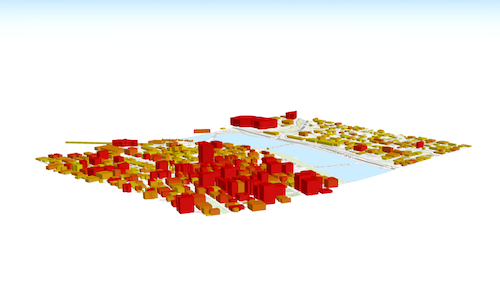
* Represents an optional clipping area used to define the visible [Extent](https://developers.arcgis.com/javascript/latest/references/core/geometry/Extent/) of
* a local scene. The clipping area cannot have z-values.
*
* If defined, only features that intersect the area will be displayed. The clipping area applies
* to all layer types, including the ground and the basemap. The clipping area will not increase the area beyond
* the union of the extents of all layers, including the ground and the basemap. To do so, add a GraphicsLayer
* with a custom fullExtent to the scene.
*
* The `clippingArea` property only applies to [local](https://developers.arcgis.com/javascript/latest/references/core/views/SceneView/#viewingMode) scenes.
*
* 
*
* The clippingArea property contains an internal reference which may be modified in the future. To persist or
* modify the clippingArea, create a clone using [clippingArea.clone()](https://developers.arcgis.com/javascript/latest/references/core/geometry/Extent/#clone).
*
* @see [viewingMode](https://developers.arcgis.com/javascript/latest/references/core/views/SceneView/#viewingMode)
* @see [Sample - Create a local scene](https://developers.arcgis.com/javascript/latest/sample-code/scene-local/)
* @example
* let extent = view.extent.clone();
*
* // Expand the extent in place, reducing it to 50% of its original size and set it as the clippingArea
* view.clippingArea = extent.expand(0.5);
*/
clippingArea?: ExtentProperties | null;
/**
* Specifies constraints for [Camera tilt](https://developers.arcgis.com/javascript/latest/references/core/Camera/#tilt) and altitude that may be applied to the SceneView. See the object specification table below for details.
*
* @see [Sample - Custom background for SceneView (altitude)](https://developers.arcgis.com/javascript/latest/sample-code/sceneview-background/)
*/
constraints?: ConstraintsProperties;
/**
* Specifies various properties of the environment's visualization in the view.
* The SceneView will redraw automatically when any property of the environment changes.
*
* Modifying the lighting:
* ```js
* let view = new SceneView({
* map: map,
* container: "viewDiv"
* });
*
* // Set the light source position to reflect the current sun position at that time
* view.environment.lighting = {
* type: "sun",
* date: new Date("January 1, 2022 12:00:00 UTC")
* };
*
* // Change the lighting to virtual, so that everything in the scene is nicely lit:
* view.environment.lighting = {
* type: "virtual"
* };
*
* // Enable displaying shadows cast by the light source
* view.environment.lighting.directShadowsEnabled = true;
* ```
*
* Setting the background:
* ```js
* // Set a background color
* let view = new SceneView({
* container: "viewDiv",
* map: map,
* environment: {
* background: {
* type: "color",
* color: [255, 252, 244, 1]
* },
* starsEnabled: false,
* atmosphereEnabled: false
* }
* });
* ```
*
* Changing the weather in the scene:
* ```js
* let view = new SceneView({
* container: "viewDiv",
*
* map: new Map({
* basemap: "satellite",
* ground: "world-elevation"
* }),
* environment: {
* weather: {
* type: "cloudy" // autocasts as new CloudyWeather()
* }
* }
* });
* ```
*/
environment?: EnvironmentProperties;
/**
* The extent represents the visible portion of a [Map](https://developers.arcgis.com/javascript/latest/references/core/Map/) within the view as
* an instance of an [Extent](https://developers.arcgis.com/javascript/latest/references/core/geometry/Extent/).
* Setting the extent immediately changes the view without animation. To animate
* the view, see [goTo()](https://developers.arcgis.com/javascript/latest/references/core/views/SceneView/#goTo).
*
* Rather than using extent to change the visible portion of the [Map](https://developers.arcgis.com/javascript/latest/references/core/Map/)
* in a SceneView, you should use [camera](https://developers.arcgis.com/javascript/latest/references/core/views/SceneView/#camera) since it easily allows you to define the
* heading, elevation and tilt of the observation point from which the view's perspective is created.
*
* When set in the constructor, this property overrides the
* [center](https://developers.arcgis.com/javascript/latest/references/core/views/SceneView/#center), [scale](https://developers.arcgis.com/javascript/latest/references/core/views/SceneView/#scale), and [zoom](https://developers.arcgis.com/javascript/latest/references/core/views/SceneView/#zoom) properties. This
* property will be ignored if the [viewpoint](https://developers.arcgis.com/javascript/latest/references/core/views/SceneView/#viewpoint) or
* [camera](https://developers.arcgis.com/javascript/latest/references/core/views/SceneView/#camera) are also set in the constructor.
*
* The extent property contains an internal reference which may be modified
* in the future. To persist or modify the extent, create a clone using
* [Extent.clone()](https://developers.arcgis.com/javascript/latest/references/core/geometry/Extent/#clone).
*
* > [!WARNING]
* >
* > **Z-values** defined in a geographic or metric coordinate system are
* > expressed in meters. However, in local scenes that use a
* > projected coordinate system, vertical units are assumed to be the same as the
* > horizontal units specified by the service.
*
* @see [camera](https://developers.arcgis.com/javascript/latest/references/core/views/SceneView/#camera)
* @see [goTo()](https://developers.arcgis.com/javascript/latest/references/core/views/SceneView/#goTo)
*/
extent?: ExtentProperties;
/**
* Applies a display filter on the view for a specific set of floor levels. It filters the scene display on floor-aware layers by zero or more level IDs.
*
* @since 4.19
*/
floors?: ReadonlyArrayOrCollection<string>;
/**
* The spatial reference of the view.
*
* This indicates the projected or geographic coordinate system used to locate geographic features in the map. In a
* [SceneView](https://developers.arcgis.com/javascript/latest/references/core/views/SceneView/) the following
* [coordinate systems](https://developers.arcgis.com/javascript/latest/references/core/views/SceneView/#supported-coordinate-systems) are available.
*
* The spatial reference can either be set explicitly or automatically derived from the following:
*
* * If the [map](https://developers.arcgis.com/javascript/latest/references/core/views/SceneView/#map) is a [WebScene](https://developers.arcgis.com/javascript/latest/references/core/WebScene/) instance, the
* [WebScene.initialViewProperties.spatialReference](https://developers.arcgis.com/javascript/latest/references/core/WebScene/#initialViewProperties) is used.
* * Otherwise, the spatial reference is derived from the first layer that loads in this order:
* * [map.basemap.baseLayer](https://developers.arcgis.com/javascript/latest/references/core/Basemap/#baseLayers)
* * [Map.layers](https://developers.arcgis.com/javascript/latest/references/core/Map/#layers)
* * [map.ground.layers](https://developers.arcgis.com/javascript/latest/references/core/Ground/#layers)
*
* In case the spatial reference is determined from the map layers or the ground layers and they are in WGS84 or Web
* Mercator, the following rule also applies: the first layer that does not support server side reprojection (tiled
* layers) determines the spatial reference of the view and all the other layers are reprojected.
*
* If no spatial reference can be derived, then the view does not resolve and the [ready](https://developers.arcgis.com/javascript/latest/references/core/views/SceneView/#ready) property is `false`.
*/
spatialReference?: SpatialReferenceProperties;
/**
* The viewing mode (`local` or `global`). Global scenes render the earth as a sphere.
* Local scenes render the earth on a flat plane and allow for navigation and feature
* display in a localized or [clipped](https://developers.arcgis.com/javascript/latest/references/core/views/SceneView/#clippingArea) area. Users may also navigate
* the camera of a local scene below the surface of a basemap.
*
* Value | Example | Description
* ------|-------|------------
* global | 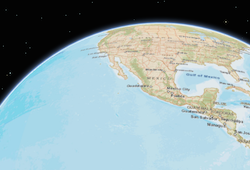 | Global scenes allow the entire globe to render in the view, showing the curvature of the earth.
* local | 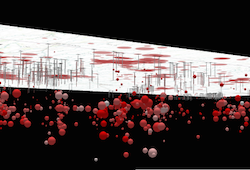 | Local scenes render the earth on a flat surface. They can be constrained to only show a "local" area by setting the [clippingArea](https://developers.arcgis.com/javascript/latest/references/core/views/SceneView/#clippingArea) property. Local scenes also allow for displaying and exploring data that would otherwise be hidden by the surface of the earth.
*
* Depending on the viewing mode different [supported coordinate systems](https://developers.arcgis.com/javascript/latest/references/core/views/SceneView/#supported-coordinate-systems) are available.
*
* @default "global"
* @see [clippingArea](https://developers.arcgis.com/javascript/latest/references/core/views/SceneView/#clippingArea)
* @see [Sample - Create a local scene](https://developers.arcgis.com/javascript/latest/sample-code/scene-local/)
*/
viewingMode?: "global" | "local" | null;
/**
* Represents the current view as a [Viewpoint](https://developers.arcgis.com/javascript/latest/references/core/Viewpoint/)
* or point of observation on the view. In SceneViews, [camera](https://developers.arcgis.com/javascript/latest/references/core/views/SceneView/#camera)
* should be used in favor of viewpoint for watching or changing the point of view.
* Setting the viewpoint immediately changes the current view. For animating
* the view, see [goTo()](https://developers.arcgis.com/javascript/latest/references/core/views/SceneView/#goTo).
*
* When set in the constructor, this property overrides the [extent](https://developers.arcgis.com/javascript/latest/references/core/views/SceneView/#extent),
* [center](https://developers.arcgis.com/javascript/latest/references/core/views/SceneView/#center), [scale](https://developers.arcgis.com/javascript/latest/references/core/views/SceneView/#scale), and [zoom](https://developers.arcgis.com/javascript/latest/references/core/views/SceneView/#zoom) properties.
* This property will be ignored if [camera](https://developers.arcgis.com/javascript/latest/references/core/views/SceneView/#camera) is also set in the constructor.
*
* The viewpoint property contains an internal reference which may be
* modified in the future. To persist or modify the viewpoint,
* create a clone using [Viewpoint.clone()](https://developers.arcgis.com/javascript/latest/references/core/Viewpoint/#clone).
*
* @see [goTo()](https://developers.arcgis.com/javascript/latest/references/core/views/SceneView/#goTo)
*/
viewpoint?: ViewpointProperties;
}
/**
* * [Overview](https://developers.arcgis.com/javascript/latest/references/core/views/SceneView/#overview)
* * [Using the view](https://developers.arcgis.com/javascript/latest/references/core/views/SceneView/#using)
* * [SceneView navigation](https://developers.arcgis.com/javascript/latest/references/core/views/SceneView/#sceneview-navigation)
* * [SceneView navigation with gamepad and 3DConnexion devices](https://developers.arcgis.com/javascript/latest/references/core/views/SceneView/#gamepad-navigation)
* * [Programmatic navigation](https://developers.arcgis.com/javascript/latest/references/core/views/SceneView/#programmatic-navigation)
* * [Viewing modes](https://developers.arcgis.com/javascript/latest/references/core/views/SceneView/#viewing-modes)
* * [Supported Coordinate Systems](https://developers.arcgis.com/javascript/latest/references/core/views/SceneView/#supported-coordinate-systems)
* * [Using elevation data](https://developers.arcgis.com/javascript/latest/references/core/views/SceneView/#elevation)
* * [Handling events](https://developers.arcgis.com/javascript/latest/references/core/views/SceneView/#events)
*
* <span id="overview"></span>
* ## Overview
*
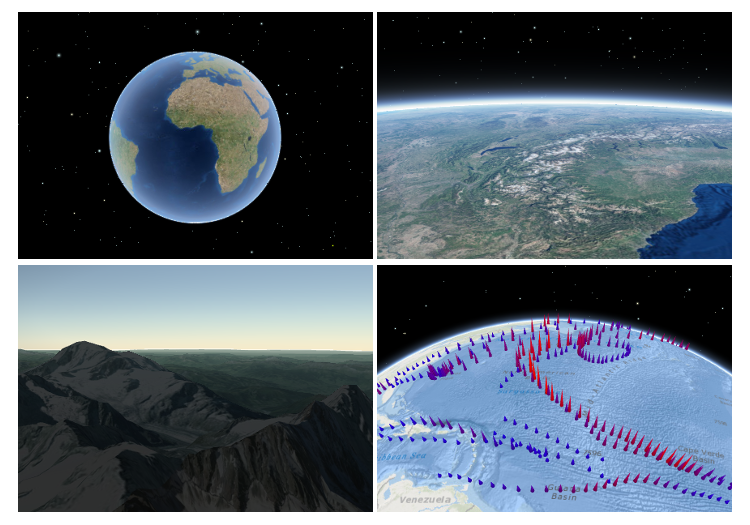
* A SceneView displays a 3D view of a [Map](https://developers.arcgis.com/javascript/latest/references/core/Map/) or [WebScene](https://developers.arcgis.com/javascript/latest/references/core/WebScene/)
* instance. To render a map and its layers in 2D, see the documentation
* for [MapView](https://developers.arcgis.com/javascript/latest/references/core/views/MapView/). For a general overview of views,
* see [View](https://developers.arcgis.com/javascript/latest/references/core/views/View/).
*
* 
*
* For a map to be visible to the user in the DOM, a SceneView must have both a
* valid [Map instance](https://developers.arcgis.com/javascript/latest/references/core/views/SceneView/#map) and a [DOM element](https://developers.arcgis.com/javascript/latest/references/core/views/SceneView/#container) with a non-zero
* height and width in which to render. Note that there must be valid data in the
* [map](https://developers.arcgis.com/javascript/latest/references/core/views/SceneView/#map), such as [operational layers](https://developers.arcgis.com/javascript/latest/references/core/layers/Layer/) or a
* [Basemap](https://developers.arcgis.com/javascript/latest/references/core/Basemap/) with base layers, before the view will
* begin rendering the map.
*
* ```js
* // Create a basic SceneView instance with a basemap and world elevation
* const view = new SceneView({
* // An instance of Map or WebScene
* map: new Map({
* basemap: "hybrid"
* }),
*
* // The id of a DOM element (may also be an actual DOM element)
* container: "viewDiv"
* });
* ```
*
* > [!WARNING]
* >
* > **Known Limitations**
* >
* > The number of features that can be rendered in a SceneView varies depending on the
* > [qualityProfile](https://developers.arcgis.com/javascript/latest/references/core/views/SceneView/#qualityProfile) of the view and the complexity of each feature's geometry and
* > symbol. Layers with a large number of features are dynamically loaded and displayed as you navigate the scene.
* > For optimal performance, the number of displayed features is adjusted based on the
* > complexity of the symbol and device capability. As a result, some features may not be visible in the view.
* >
* > SceneView does not support rendering of [Multipoint](https://developers.arcgis.com/javascript/latest/references/core/geometry/Multipoint/) geometry.
*
* <span id="using"></span>
* ## Using the view
*
* A SceneView may not be immediately ready for display after it has been constructed.
* For example, map data may need to be loaded first to determine the [spatialReference](https://developers.arcgis.com/javascript/latest/references/core/views/SceneView/#spatialReference) of the
* view, or the DOM container may not yet have a non-zero size. Many of the view methods (such as [hitTest()](https://developers.arcgis.com/javascript/latest/references/core/views/SceneView/#hitTest)
* or [goTo()](https://developers.arcgis.com/javascript/latest/references/core/views/SceneView/#goTo)) need the view to be ready before they can be used.
*
* <details>
* <summary>Read More</summary>
*
* ```js
* // create a SceneView instance (for 3D viewing)
* const view = new SceneView({
* map: new Map({
* basemap: "topo-vector"
* }),
* container: "viewDiv"
* });
*
* view.when(function() {
* // SceneView is now ready for display and can be used. Here we will
* // use goTo to view a particular location at a given zoom level, camera
* // heading and tilt.
* view.goTo({
* center: [-112, 38],
* zoom: 13,
* heading: 30,
* tilt: 60
* })
* })
* .catch(function(err) {
* // A rejected view indicates a fatal error making it unable to display,
* // this usually means that WebGL is not available, or too old.
* console.error("SceneView rejected:", err);
* });
* ```
*
* For live examples of `view.when()`, see the [2D overview map in SceneView](https://developers.arcgis.com/javascript/latest/sample-code/overview-map/)
* and [Toggle elevation layer](https://developers.arcgis.com/javascript/latest/sample-code/scene-toggle-elevation/) samples.
*
* </details>
*
* <span id="sceneview-navigation"></span>
* ## SceneView navigation
*
* The view can be navigated programmatically via [goTo()](https://developers.arcgis.com/javascript/latest/references/core/views/SceneView/#goTo) and the view properties or interactively with mouse, keyboard or touch inputs.
* SceneView navigation is enabled by default, and includes the mouse, keyboard and touch interactions as described in the table below. Touch
* interactions work on any touch-enabled monitor or laptop screen.
*
* <details>
* <summary>Read More</summary>
*
* Action | SceneView behavior
* ------|------------
* Drag | Pan
* Double-click | Zoom in at the cursor
* Scroll Wheel or Middle-click+Drag | Zoom in or out at the cursor
* Shift + Scroll Wheel or Shift + Middle-click+Drag | Change the camera field of view (focal length)
* Right-click+Drag | 3D-rotate around the center of the view
* Arrow Keys | Nudge the view left, right, up, or down (only supported in global scene)
* B + Left-click+Drag | 3D-rotate around the camera's position
* P | Move the camera to look perpendicular to the data displayed in the view
* N | Adjust the SceneView to point north
* W | Tilt camera up
* A | Rotate camera counterclockwise
* S | Tilt camera down
* D | Rotate camera clockwise
* J | Move down, closer to the view (only supported in global scene)
* U | Move up, higher from the view (only supported in global scene)
* Drag with one finger | Pan
* Double-tap with one finger | Zoom in at the finger position
* Two finger pinch in/out | Zoom out/in
* Move two fingers in clockwise or counterclockwise direction | Rotate
* Drag two fingers up or down the screen | Tilt the scene
*
* To disable SceneView navigation, you must call the `stopPropagation()`
* method on the event objects of the pointer or gesture events that trigger the navigation.
*
* See our [Disable view navigation](https://developers.arcgis.com/javascript/latest/sample-code/view-disable-navigation/) sample.
*
* </details>
*
* <span id="gamepad-navigation"></span>
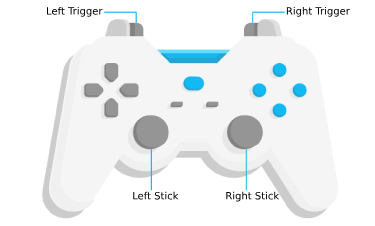
* ## SceneView navigation with Gamepad and 3DConnexion devices
* Gamepad and 3Dconnexion devices, like the SpaceMouse, can be used for navigation when `view.navigation.gamepad.enabled`
* is set to `true` (default). Please see [GamepadInputDevice](https://developers.arcgis.com/javascript/latest/references/core/views/input/gamepad/GamepadInputDevice/) for supported devices.
*
* <details>
* <summary>Read More</summary>
*
* 
*
* Gamepad Action | SceneView behavior
* ------|------------
* Left Trigger | Descend
* Right Trigger | Ascend
* Left Stick | Pan
* Right Stick | 3D-rotate around the center of the view
*
* Action Image | SpaceMouse Action | SceneView behavior
* -------|------|------------
*  | Push (left/right/forward/backward)| Pan
*  | Pull up | Ascend
*  | Push down | Descend
*  | Rotate clockwise | Rotate the view clockwise
*  | Rotate counterclockwise | Rotate the view counterclockwise
*  | Tilt | Tilt the scene
*
* To disable gamepad navigation, you can set `view.navigation.gamepad.enabled` to `false`.
*
* > [!WARNING]
* >
* > **Note:**
* > Per [W3C Working Draft 29 October 2020](https://www.w3.org/TR/2020/WD-gamepad-20201029/),
* > gamepad functionality may not be available on some or all browsers if the web application is hosted on a
* > [non-secure context](https://developer.mozilla.org/en-US/docs/Web/Security/Secure_Contexts) (e.g. http rather than https).
* > Future versions of the ArcGIS Maps SDK for JavaScript may explicitly disable gamepad capabilities on non-secure contexts.
*
* </details>
*
* <span id="programmatic-navigation"></span>
* ## Programmatic navigation
*
* Traditional 2D mapping properties, such as [scale](https://developers.arcgis.com/javascript/latest/references/core/views/SceneView/#scale), [zoom](https://developers.arcgis.com/javascript/latest/references/core/views/SceneView/#zoom),
* [center](https://developers.arcgis.com/javascript/latest/references/core/views/SceneView/#center) and [extent](https://developers.arcgis.com/javascript/latest/references/core/views/SceneView/#extent) do not always work well in 3D. For example,
* a map's [scale](https://developers.arcgis.com/javascript/latest/references/core/views/SceneView/#scale) is not clear when viewed in the context of a globe.
* The SceneView therefore supports these properties on a best
* effort basis, with certain limitations (see the documentation of individual properties
* for more information).
*
* <details>
* <summary>Read More</summary>
*
* ```js
* // Compatibility with 2D viewing properties, such as center and zoom, allows
* // convenient transitioning from the familiar use of the 2D MapView to the
* // use of the SceneView for 3D viewing.
* let view = new SceneView({
* map: new Map({
* basemap: "satellite"
* }),
*
* container: "viewDiv",
*
* // Sets the center point of the view at a specified lon/lat
* center: [-112, 38],
*
* // Sets the zoom LOD to 13
* zoom: 13
* });
* ```
*
* The nature of 3D viewing includes oblique views, z-values, and rotation, all
* of which add complexity to defining what is visible in the view.
* In contrast to 2D [MapView](https://developers.arcgis.com/javascript/latest/references/core/views/MapView/), which are primarily defined by an [extent](https://developers.arcgis.com/javascript/latest/references/core/views/SceneView/#extent),
* or [center](https://developers.arcgis.com/javascript/latest/references/core/views/SceneView/#center) and [scale](https://developers.arcgis.com/javascript/latest/references/core/views/SceneView/#scale), the primary view specification of
* the SceneView is a [Camera](https://developers.arcgis.com/javascript/latest/references/core/Camera/) instance. The [camera](https://developers.arcgis.com/javascript/latest/references/core/views/SceneView/#camera)
* is defined by a 3D [Camera.position](https://developers.arcgis.com/javascript/latest/references/core/Camera/#position),
* [Camera.heading](https://developers.arcgis.com/javascript/latest/references/core/Camera/#heading) and [Camera.tilt](https://developers.arcgis.com/javascript/latest/references/core/Camera/#tilt).
* See the documentation of [Camera](https://developers.arcgis.com/javascript/latest/references/core/Camera/) for more details.
*
* Because some view properties overlap (e.g. [center](https://developers.arcgis.com/javascript/latest/references/core/views/SceneView/#center) and [camera](https://developers.arcgis.com/javascript/latest/references/core/views/SceneView/#camera)),
* there is a set priority in which these properties are applied during construction
* of the view (until the view becomes ready). The following table describes which
* properties have priority during view construction
* (properties that are overridden will have no effect during construction).
*
* Property | Overrides
* ------------------------|----------
* [camera](https://developers.arcgis.com/javascript/latest/references/core/views/SceneView/#camera) | [viewpoint](https://developers.arcgis.com/javascript/latest/references/core/views/SceneView/#viewpoint), [extent](https://developers.arcgis.com/javascript/latest/references/core/views/SceneView/#extent), [center](https://developers.arcgis.com/javascript/latest/references/core/views/SceneView/#center), [scale](https://developers.arcgis.com/javascript/latest/references/core/views/SceneView/#scale), [zoom](https://developers.arcgis.com/javascript/latest/references/core/views/SceneView/#zoom)
* [viewpoint](https://developers.arcgis.com/javascript/latest/references/core/views/SceneView/#viewpoint) | [extent](https://developers.arcgis.com/javascript/latest/references/core/views/SceneView/#extent), [center](https://developers.arcgis.com/javascript/latest/references/core/views/SceneView/#center), [scale](https://developers.arcgis.com/javascript/latest/references/core/views/SceneView/#scale), [zoom](https://developers.arcgis.com/javascript/latest/references/core/views/SceneView/#zoom)
* [extent](https://developers.arcgis.com/javascript/latest/references/core/views/SceneView/#extent) | [center](https://developers.arcgis.com/javascript/latest/references/core/views/SceneView/#center), [scale](https://developers.arcgis.com/javascript/latest/references/core/views/SceneView/#scale), [zoom](https://developers.arcgis.com/javascript/latest/references/core/views/SceneView/#zoom)
* [scale](https://developers.arcgis.com/javascript/latest/references/core/views/SceneView/#scale) | [zoom](https://developers.arcgis.com/javascript/latest/references/core/views/SceneView/#zoom)
*
* It can be difficult to define the [camera](https://developers.arcgis.com/javascript/latest/references/core/views/SceneView/#camera) for viewing data
* at a particular location. The [goTo()](https://developers.arcgis.com/javascript/latest/references/core/views/SceneView/#goTo) method
* provides a convenient way to set the view's camera based on
* data (geometries, graphics) you want to view and from any perspective
* using heading, tilt, scale or zoom. Additionally,
* [goTo()](https://developers.arcgis.com/javascript/latest/references/core/views/SceneView/#goTo) will provide a smooth transition to the new location of the
* view by default.
*
* ```js
* // go to a location specified in geographic coordinates,
* // from a 45 degree angle.
* view.goTo({
* center: [-112, 38],
* heading: 45
* });
*
* // go to view all the graphics in view.graphics, while northing the
* // the camera and tilting it to 60 degrees
* view.goTo({
* target: view.graphics,
* heading: 0,
* tilt: 60
* });
*
* // Set the view to show an extent at a -20 degree heading, disabling the
* // animated transition
* view.goTo({
* target: new Extent(694942, 5596444, 1284090, 6163926, SpatialReference.WebMercator),
* heading: -20
* }, {
* animate: false
* });
* ```
*
* </details>
*
* <span id="viewing-modes"></span>
* ## Viewing modes
*
* 
*
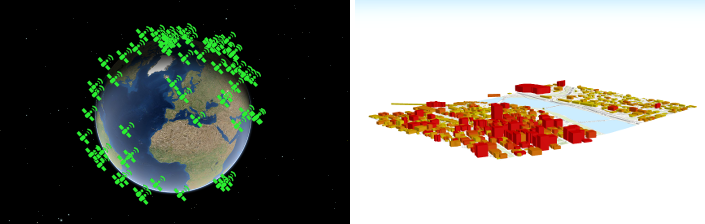
* The SceneView supports two different viewing modes, `global` (left picture above) and `local` (right picture above),
* specified by the [viewingMode](https://developers.arcgis.com/javascript/latest/references/core/views/SceneView/#viewingMode) property. Global scenes render the
* earth as a globe, while local scenes render the surface on a flat plane.
* Local mode allows for navigation and feature display in a localized or
* [clipped](https://developers.arcgis.com/javascript/latest/references/core/views/SceneView/#clippingArea) area. In both viewing modes the users may navigate
* the camera below the ground surface by setting the [Ground.navigationConstraint.type](https://developers.arcgis.com/javascript/latest/references/core/Ground/#navigationConstraint) to `none`.
*
* The viewing mode (if not explicitly set by the user) is determined
* based on the spatial reference of the view. If the spatial reference is either
* Web Mercator, WGS84, CGCS2000, Mars_2000_(Sphere), GCS_Mars_2000 or GCS_Moon_2000 then the
* [viewingMode](https://developers.arcgis.com/javascript/latest/references/core/views/SceneView/#viewingMode) will default to `global`. For any other spatial reference the
* [viewingMode](https://developers.arcgis.com/javascript/latest/references/core/views/SceneView/#viewingMode) will default to `local`.
*
* <span id="supported-coordinate-systems"></span>
* ## Supported coordinate systems
*
* The SceneView supports following coordinate systems in a global scene:
* - [SpatialReference.WGS84](https://developers.arcgis.com/javascript/latest/references/core/geometry/SpatialReference/#WGS84), [SpatialReference.WebMercator](https://developers.arcgis.com/javascript/latest/references/core/geometry/SpatialReference/#WebMercator) and [CGCS2000](https://epsg.io/4490)
* - Support for Mars_2000_(Sphere), GCS_Mars_2000 and GCS_Moon_2000 is experimental
* (see [Visualize data on Mars](https://developers.arcgis.com/javascript/latest/sample-code/mars/) sample). Scenes with these coordinate systems have the following limitations:
* - No support for dynamic layers, vector tile layers and scene layers
* - Daylight is currently not displayed correctly
* - Unable to be saved to a portal item
*
* In a local scene the following coordinate systems are supported:
* - Any [Projected Coordinate System](https://developers.arcgis.com/rest/services-reference/enterprise/using-spatial-references.htm)
* - [SpatialReference.WGS84](https://developers.arcgis.com/javascript/latest/references/core/geometry/SpatialReference/#WGS84) and [CGCS2000](https://epsg.io/4490)
*
* Noncached layers can be added to scenes with any spatial reference since they will be reprojected to the scene spatial reference.
*
* Cached tiled layers and scene layers can generally only be added to scenes with the same spatial reference. There is limited support for reprojecting cached layers
* in WebMercator and WGS84 scenes. The following table lists supported spatial references for each viewing mode and spatial reference combination:
*
* [viewing mode](https://developers.arcgis.com/javascript/latest/references/core/views/SceneView/#viewingMode) | [spatial reference](https://developers.arcgis.com/javascript/latest/references/core/views/SceneView/#spatialReference) | tiled layer spatial reference | scene layer spatial reference
* -----------------------------|----------------------------------------|-------------------------------|------------------------------
* global | WebMercator | WebMercator | **WGS84** [*1*], WebMercator, CGCS2000
* global | WGS84 | WGS84 | **WGS84** [*1*], WebMercator, CGCS2000
* local | WebMercator | WebMercator | **WebMercator** [*1*], WGS84
* local | WGS84 | WGS84, WebMercator [*2*] | WGS84, WebMercator
* local | Projected CS | same as view | **same as view** [*1*]
* global | CGCS2000 | CGCS2000 | **CGCS2000** [*1*], WGS84, WebMercator
*
* * [*1*] the scene layer cache is optimized for this case.
* * [*2*] the tiling scheme of all tiled layers in a scene has to match, so mixing WGS84 and WebMercator tiled layers is not possible.
*
* See [spatialReference](https://developers.arcgis.com/javascript/latest/references/core/views/SceneView/#spatialReference) to learn how the spatial reference of a SceneView is derived.
*
* <span id="elevation"></span>
* ## Using elevation data
*
* The SceneView will use [elevation layers](https://developers.arcgis.com/javascript/latest/references/core/layers/ElevationLayer/)
* from the [Map.ground](https://developers.arcgis.com/javascript/latest/references/core/Map/#ground) as sources for elevation
* when rendering the ground surface. Similar to the
* [Map.basemap](https://developers.arcgis.com/javascript/latest/references/core/Map/#basemap), the
* [Map.ground](https://developers.arcgis.com/javascript/latest/references/core/Map/#ground) can be initialized with a well-known
* name, which creates it with a known set of elevation layers.
*
* ```js
* let view = new SceneView({
* map: new Map({
* basemap: "satellite",
*
* // A ground preset containing a single elevation layer, sourced from
* // https://elevation3d.arcgis.com/arcgis/rest/services/WorldElevation3D/Terrain3D/ImageServer
* ground: "world-elevation"
* },
*
* container: "viewDiv"
* });
* ```
*
* Local elevation layers can be added to the
* [Ground.layers](https://developers.arcgis.com/javascript/latest/references/core/Ground/#layers) to merge multiple elevation
* sources into a single surface. See [3D Map With Elevation Services](https://developers.arcgis.com/javascript/latest/sample-code/scene-elevationlayer/)
* for an example.
*
* <span id="events"></span>
* ## Handling events
*
* When users interact with the SceneView, their actions trigger events that you can listen and respond to.
* For example, you can listen when a user moves the mouse over the map and display the coordinates at the mouse
* location. This is called a [@pointer-move](https://developers.arcgis.com/javascript/latest/references/core/views/SceneView/#event-pointer-move) event. See the [SceneView events](https://developers.arcgis.com/javascript/latest/references/core/views/SceneView/#events-summary)
* section for a list of all the events.
*
* <details>
* <summary>Read More</summary>
*
* It is important to note that some events are dependent on each other and the timing of the user interaction
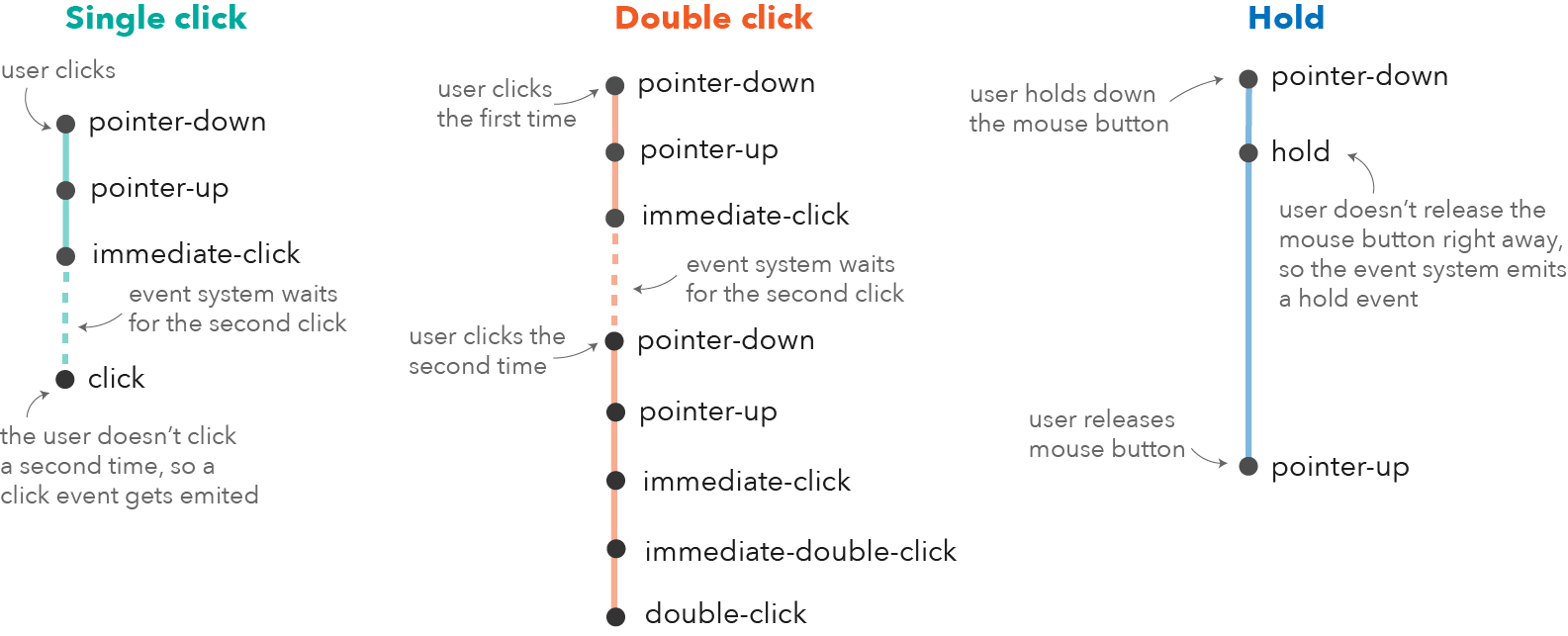
* can influence the type of event that gets triggered. For example, a single click triggers a series of events:
* [@pointer-down](https://developers.arcgis.com/javascript/latest/references/core/views/SceneView/#event-pointer-down) when the user presses the mouse button, [@pointer-up](https://developers.arcgis.com/javascript/latest/references/core/views/SceneView/#event-pointer-up) when
* they release the mouse button. An [@immediate-click](https://developers.arcgis.com/javascript/latest/references/core/views/SceneView/#event-immediate-click) event gets triggered right after
* the [@pointer-up](https://developers.arcgis.com/javascript/latest/references/core/views/SceneView/#event-pointer-up) event. [@immediate-click](https://developers.arcgis.com/javascript/latest/references/core/views/SceneView/#event-immediate-click) should be used for responding
* to user interaction without delay. The [@click](https://developers.arcgis.com/javascript/latest/references/core/views/SceneView/#event-click) event is only triggered after making sure that the
* user doesn't click a second time (in which case it would trigger a [@double-click](https://developers.arcgis.com/javascript/latest/references/core/views/SceneView/#event-double-click) event).
*
* 
*
* In the case of a double-click, the same event chain is repeated after the first click. However, if the user clicks
* a second time within a close time range, then the [@click](https://developers.arcgis.com/javascript/latest/references/core/views/SceneView/#event-click) event is not emitted anymore, but the
* [@pointer-down](https://developers.arcgis.com/javascript/latest/references/core/views/SceneView/#event-pointer-down), [@pointer-up](https://developers.arcgis.com/javascript/latest/references/core/views/SceneView/#event-pointer-up) and [@immediate-click](https://developers.arcgis.com/javascript/latest/references/core/views/SceneView/#event-immediate-click)
* events are triggered again. After two [@immediate-click](https://developers.arcgis.com/javascript/latest/references/core/views/SceneView/#event-immediate-click) events, a [@double-click](https://developers.arcgis.com/javascript/latest/references/core/views/SceneView/#event-double-click)
* event gets triggered along with an [@immediate-double-click](https://developers.arcgis.com/javascript/latest/references/core/views/SceneView/#event-immediate-double-click) event.
* The difference between the two is that an [@immediate-double-click](https://developers.arcgis.com/javascript/latest/references/core/views/SceneView/#event-immediate-double-click) cannot be prevented
* by the use of `stopPropagation` on the [@immediate-click](https://developers.arcgis.com/javascript/latest/references/core/views/SceneView/#event-immediate-click) event and can therefore be used to
* react to double-clicking independently of usage of the [@immediate-click](https://developers.arcgis.com/javascript/latest/references/core/views/SceneView/#event-immediate-click) event.
*
* These events are also used internally for navigation, popups or different interactive tools like measurement or
* sketch. In some use cases, adding additional event listeners might interfere with the default event listeners.
* For example, adding an `immediate-click` event to open up a popup, will interfere with the default `click` event
* that also opens up a popup.
*
* See the [Event explorer](https://developers.arcgis.com/javascript/latest/sample-code/event-explorer/) sample, to visualize the different events that
* get triggered when you interact with the view.
*
* </details>
*
* @since 4.0
* @see [Intro to SceneView](https://developers.arcgis.com/javascript/latest/sample-code/intro-sceneview/)
* @see [Sample - SceneLayer](https://developers.arcgis.com/javascript/latest/sample-code/layers-scenelayer/)
* @see [Sample - Create a local scene](https://developers.arcgis.com/javascript/latest/sample-code/scene-local/)
* @see [Sample - Easy navigation](https://developers.arcgis.com/javascript/latest/sample-code/scene-easy-navigate/)
* @see [Sample - Elevation Info](https://developers.arcgis.com/javascript/latest/sample-code/scene-elevationinfo/)
* @see [Sample - Toggle basemap elevation](https://developers.arcgis.com/javascript/latest/sample-code/scene-toggle-elevation/)
* @see [Sample - Custom background for Scene](https://developers.arcgis.com/javascript/latest/sample-code/scene-background/)
* @see [Sample - Event explorer / watch properties](https://developers.arcgis.com/javascript/latest/sample-code/event-explorer/)
* @see [Sample - Weather visualization](https://developers.arcgis.com/javascript/latest/sample-code/scene-weather/)
* @see [Sample - Weather component](https://developers.arcgis.com/javascript/latest/sample-code/weather/)
* @see [MapView](https://developers.arcgis.com/javascript/latest/references/core/views/MapView/)
* @see [Map](https://developers.arcgis.com/javascript/latest/references/core/Map/)
*/
export default class SceneView extends SceneViewSuperclass {
/**
* @example
* // Typical usage
* let view = new SceneView({
* // ID of DOM element containing the view
* container: "viewDiv",
* // Map/WebScene object
* map: new Map()
* });
*/
constructor(properties?: SceneViewProperties);
/**
* Allows the view to be partially or fully transparent when composited with the webpage elements behind it.
*
* This property can only be set once at construction time. When alpha compositing is enabled, web scenes are less
* performant. It is important to set this property to `true` only when you need to apply transparency on the view.
*
* @default false
* @since 4.8
* @example
* // create a view with a fully transparent background
* let view = new SceneView({
* map: map,
* alphaCompositingEnabled: true,
* environment: {
* background: {
* type: "color",
* color: [0, 0, 0, 0]
* },
* starsEnabled: false,
* atmosphereEnabled: false
* }
* })
*/
accessor alphaCompositingEnabled: boolean;
/**
* A collection of analyses associated with the view.
*
* @example
* // Adds an analysis to the View
* view.analyses.add(lineOfSightAnalysis);
* @example
* // Removes an analysis from the View
* view.analyses.remove(lineOfSightAnalysis);
*/
get analyses(): Collection<Analysis>;
set analyses(value: ReadonlyArrayOrCollection<Analysis>);
/**