@arcgis/core
Version:
ArcGIS Maps SDK for JavaScript: A complete 2D and 3D mapping and data visualization API
481 lines (479 loc) • 35.5 kB
TypeScript
import type View2D from "./View2D.js";
import type { ScreenPoint } from "../core/types.js";
import type { HitTestOptions, ViewHitTestResult, Screenshot, UserSettings } from "./types.js";
import type { View2DProperties } from "./View2D.js";
export interface MapViewProperties extends View2DProperties {}
/**
* * [Overview](https://developers.arcgis.com/javascript/latest/references/core/views/MapView/#overview)
* * [Using the view](https://developers.arcgis.com/javascript/latest/references/core/views/MapView/#using)
* * [Programmatic navigation](https://developers.arcgis.com/javascript/latest/references/core/views/MapView/#programmatic-navigation)
* * [MapView navigation](https://developers.arcgis.com/javascript/latest/references/core/views/MapView/#mapview-navigation)
* * [MapView navigation with Gamepad and 3DConnexion Devices](https://developers.arcgis.com/javascript/latest/references/core/views/MapView/#gamepad-navigation)
* * [Handling events](https://developers.arcgis.com/javascript/latest/references/core/views/MapView/#handling-events)
*
* <span id="overview"></span>
* ## Overview
*
* A MapView displays a 2D view of a [Map](https://developers.arcgis.com/javascript/latest/references/core/Map/) instance. An instance of MapView must be created to render
* a [Map](https://developers.arcgis.com/javascript/latest/references/core/Map/) (along with its operational and base layers) in 2D. To render a map and its layers in 3D,
* see the documentation for [SceneView](https://developers.arcgis.com/javascript/latest/references/core/views/SceneView/). For a general
* overview of views, see [View](https://developers.arcgis.com/javascript/latest/references/core/views/View/).
*
* For a map to be visible to the user in the DOM, a MapView must be created and reference a minimum of
* two objects: a [Map instance](https://developers.arcgis.com/javascript/latest/references/core/views/MapView/#map) and a [DOM element](https://developers.arcgis.com/javascript/latest/references/core/views/MapView/#container). Each is set in the [map](https://developers.arcgis.com/javascript/latest/references/core/views/MapView/#map) and
* [container](https://developers.arcgis.com/javascript/latest/references/core/views/MapView/#container) properties respectively.
*
* ```js
* // Create a MapView instance (for 2D viewing)
* const view = new MapView({
* map: myMap, // References a Map instance
* container: "viewDiv", // References the ID of a DOM element
* center: [-100, 35], // Sets the center point of the view at a specified lon/lat
* });
* ```
*
* <span id="using"></span>
* ## Using the view
*
* In addition to being responsible for the rendering of the [Map](https://developers.arcgis.com/javascript/latest/references/core/Map/) and its elements, the MapView handles the interaction between the user and the map.
* For example, the traditional map scale isn't set on the [Map](https://developers.arcgis.com/javascript/latest/references/core/Map/); it's set on the MapView.
*
* ```js
* view.scale = 24000; // Sets a 1:24,000 scale on the view
* ```
*
* A MapView may not be immediately ready for display after it has been constructed.
* For example, map data may need to be loaded first to determine the
* [spatialReference](https://developers.arcgis.com/javascript/latest/references/core/views/MapView/#spatialReference) of the view, or the DOM container may
* not yet have a non-zero size. Many of the view methods (such as
* [hitTest()](https://developers.arcgis.com/javascript/latest/references/core/views/MapView/#hitTest) or [goTo()](https://developers.arcgis.com/javascript/latest/references/core/views/MapView/#goTo)) need the view to be ready before they
* can be used.
*
* The `.when()` method on the MapView instance can be called to execute processes that may only run after
* the map has loaded.
*
* ```js
* view.when(function() {
* // MapView is now ready for display and can be used. Here we will
* // use goTo to view a particular location at a given zoom level and center
* view.goTo({
* center: [-112, 38],
* zoom: 12
* });
* })
* .catch(function(err) {
* // A rejected view indicates a fatal error making it unable to display.
* // Use the errback function to handle when the view doesn't load properly
* console.error("MapView rejected:", err);
* });
* ```
*
* For live examples of `view.when()`, see the [Add 2D overview map in SceneView](https://developers.arcgis.com/javascript/latest/sample-code/overview-map/) sample.
*
* <span id="programmatic-navigation"></span>
* ## Programmatic navigation
*
* You can set the initial extent (or visible portion of the map) by using either a combination of
* [center](https://developers.arcgis.com/javascript/latest/references/core/views/MapView/#center) and [scale](https://developers.arcgis.com/javascript/latest/references/core/views/MapView/#scale) or [zoom](https://developers.arcgis.com/javascript/latest/references/core/views/MapView/#zoom), or by setting the [extent](https://developers.arcgis.com/javascript/latest/references/core/views/MapView/#extent) or [viewpoint](https://developers.arcgis.com/javascript/latest/references/core/views/MapView/#viewpoint) property in the MapView's constructor.
*
* Because some view properties override one another, there is a set priority in which these properties are applied during construction
* of the view. When initialized, the MapView requires a [center](https://developers.arcgis.com/javascript/latest/references/core/views/MapView/#center) and [scale](https://developers.arcgis.com/javascript/latest/references/core/views/MapView/#scale), and optionally a [rotation](https://developers.arcgis.com/javascript/latest/references/core/views/MapView/#rotation). Center and scale are derived from several properties:
* [center](https://developers.arcgis.com/javascript/latest/references/core/views/MapView/#center), [zoom](https://developers.arcgis.com/javascript/latest/references/core/views/MapView/#zoom), [scale](https://developers.arcgis.com/javascript/latest/references/core/views/MapView/#scale), [extent](https://developers.arcgis.com/javascript/latest/references/core/views/MapView/#extent) or a [viewpoint](https://developers.arcgis.com/javascript/latest/references/core/views/MapView/#viewpoint). Both `center` and `scale` can be derived from `extent` and `viewpoint`.
* If all properties are set in the constructor, they will be applied in the order they are defined.
* For example, a scale is derived from an extent, so setting scale after the extent overrides the derived value, while the center derived from the extent's center remains the same.
* The following table describes which properties have priority during view construction (properties that are overridden will have no effect during construction).
*
* Property | Overrides
* ------------------------|----------
* [viewpoint](https://developers.arcgis.com/javascript/latest/references/core/views/MapView/#viewpoint) | [extent](https://developers.arcgis.com/javascript/latest/references/core/views/MapView/#extent), [center](https://developers.arcgis.com/javascript/latest/references/core/views/MapView/#center), [scale](https://developers.arcgis.com/javascript/latest/references/core/views/MapView/#scale), [zoom](https://developers.arcgis.com/javascript/latest/references/core/views/MapView/#zoom)
* [extent](https://developers.arcgis.com/javascript/latest/references/core/views/MapView/#extent) | [center](https://developers.arcgis.com/javascript/latest/references/core/views/MapView/#center), [scale](https://developers.arcgis.com/javascript/latest/references/core/views/MapView/#scale), [zoom](https://developers.arcgis.com/javascript/latest/references/core/views/MapView/#zoom)
*
* ```js
* const view = new MapView({
* map: map,
* container: "viewDiv",
* zoom: 10,
* extent: initialExtent, // will override zoom
* // map will be centered at [0,0], but the scale from initialExtent will be used
* center: [0,0]
* });
* ```
*
* > [!WARNING]
* >
* > **Notes**
* >
* > - If the spatial reference of the [center](https://developers.arcgis.com/javascript/latest/references/core/views/MapView/#center), [extent](https://developers.arcgis.com/javascript/latest/references/core/views/MapView/#extent) or [viewpoint.targetGeometry](https://developers.arcgis.com/javascript/latest/references/core/views/MapView/#viewpoint) set in the constructor does not match the
* > [spatialReference](https://developers.arcgis.com/javascript/latest/references/core/views/MapView/#spatialReference) of the view, then [projectOperator](https://developers.arcgis.com/javascript/latest/references/core/geometry/operators/projectOperator/) will be loaded dynamically.
* > - At runtime, the [projectOperator](https://developers.arcgis.com/javascript/latest/references/core/geometry/operators/projectOperator/) must be [loaded](https://developers.arcgis.com/javascript/latest/references/core/geometry/operators/projectOperator/#load) when
* > setting the [center](https://developers.arcgis.com/javascript/latest/references/core/views/MapView/#center), [extent](https://developers.arcgis.com/javascript/latest/references/core/views/MapView/#extent) or [viewpoint](https://developers.arcgis.com/javascript/latest/references/core/views/MapView/#viewpoint) to a spatial reference that doesn't match the view
* > [spatial reference](https://developers.arcgis.com/javascript/latest/references/core/views/MapView/#spatialReference). You can check if the projectOperator is
* > loaded prior to setting these properties by calling [isLoaded()](https://developers.arcgis.com/javascript/latest/references/core/geometry/operators/projectOperator/#isLoaded).
* > If it is not yet loaded, you can call [load()](https://developers.arcgis.com/javascript/latest/references/core/geometry/operators/projectOperator/#load).
*
* ```js
* // Create a map with Antarctic imagery basemap
* const map = new Map({
* basemap: new Basemap({
* portalItem: {
* id: "6553466517dd4d5e8b0c518b8d6b64cb" // Antarctic Imagery
* }
* });
* });
*
* // Set the center and zoom level on the view.
* // In this case, the view's spatial reference wkid is 3031
* // center is lat/long. The projectOperator will be loaded dynamically
* // to project the center to match the spatial reference of the view
* const view = new MapView({
* map: map, // References a Map instance
* container: "viewDiv", // References the ID of a DOM element
* center: [-100, 35], // Sets the center point of the view at a specified lon/lat
* zoom: 3 // MapView converts this to its corresponding scale which is 112823780.660964
* });
* ```
*
* ```js
* // Sets the center point of the view at a specified lon/lat
* view.center = [-112, 38];
* view.zoom = 13; // Sets the zoom LOD to 13
*
* // new extent for the mapview where the spatialReference.wkid is 4326
* const extent = new Extent({
* xmin: -9177882,
* ymin: 4246761,
* xmax: -9176720,
* ymax: 4247967,
* spatialReference: {
* wkid: 102100
* }
* });
*
* if (!projectOperator.isLoaded()) {
* await projectOperator.load();
* }
* view.extent = extent;
* ```
*
* Because the View handles user interaction, events such as [@click](https://developers.arcgis.com/javascript/latest/references/core/views/MapView/#event-click) are handled on the MapView.
* [Animations](https://developers.arcgis.com/javascript/latest/references/core/views/MapView/#goTo) are also possible with the [goTo()](https://developers.arcgis.com/javascript/latest/references/core/views/MapView/#goTo) method, which allows you to change or move
* the MapView from one extent to another.
*
* <span id="mapview-lods"></span>
* ### Zoom and LODs
*
* Why doesn't setting [zoom](https://developers.arcgis.com/javascript/latest/references/core/views/MapView/#zoom) always work and why is its value `-1`? This section explains how MapView zoom and LODs work.
* The map's [Map.basemap](https://developers.arcgis.com/javascript/latest/references/core/Map/#basemap) defines the MapView's [effectiveLODs](https://developers.arcgis.com/javascript/latest/references/core/views/MapView/#constraints) when the view is loaded. A [LOD](https://developers.arcgis.com/javascript/latest/references/core/layers/support/LOD/) has
* a [scale](https://developers.arcgis.com/javascript/latest/references/core/layers/support/LOD/#scale) and corresponding [zoom](https://developers.arcgis.com/javascript/latest/references/core/layers/support/LOD/#level) value which can be used to navigate the map.
* If the MapView has valid effectiveLODs, the zoom value can be set on the MapView. In this case, the view converts it the corresponding scale, or interpolates it if the zoom is a fractional number.
*
* The MapView's [constraints.effectiveLODs](https://developers.arcgis.com/javascript/latest/references/core/views/MapView/#constraints) will be `null` if the following statements are true:
* * The map doesn't have a [basemap](https://developers.arcgis.com/javascript/latest/references/core/Map/#basemap), or
* * the basemap does not have a [TileInfo](https://developers.arcgis.com/javascript/latest/references/core/layers/support/TileInfo/),
* * AND the first layer added to the map does not have a [TileInfo](https://developers.arcgis.com/javascript/latest/references/core/layers/support/TileInfo/).
*
* If the effectiveLODs are `null`, it is not possible to set `zoom` on the MapView because the conversion is not possible. The zoom value will be `-1` in this case. Setting scale will work.
* To address this, the MapView's [constraints.lods](https://developers.arcgis.com/javascript/latest/references/core/views/MapView/#constraints) can be defined at the time of its initialization by calling [TileInfo.create().lods](https://developers.arcgis.com/javascript/latest/references/core/layers/support/TileInfo/#create).
*
* ```js
* const layer = new FeatureLayer({
* url: "https://services.arcgis.com/P3ePLMYs2RVChkJx/ArcGIS/rest/services/World_Countries_(Generalized)/FeatureServer/0"
* });
*
* // initialize the map without basemap, just add the feature layer to the map
* // feature layer does not have tileInfo to derive effectiveLODs from
* const map = new Map({
* layers: [layer]
* });
*
* // Create a tileInfo instance using the default settings and pass its
* // resulting LODs to a MapView's constraints.lods.
* const view = new MapView({
* container: "viewDiv",
* map: map,
* zoom: 3, // this will work because we are creating LODs. Otherwise, it will not work
* constraints: {
* lods: TileInfo.create({
* // create the LODs to match the spatial reference of the view
* spatialReference: viewSpatialReference
* }).lods
* },
* spatialReference: viewSpatialReference
* });
* ```
*
* <span id="mapview-navigation"></span>
* ## MapView navigation
*
* MapView navigation is enabled by default and includes mouse interaction as described in the table below.
*
* <details>
* <summary>Read More</summary>
*
* | Action | MapView behavior |
* | ------|------------ |
* | Drag | Pan |
* | Double-click | Zoom in at the cursor |
* | Ctrl+Double-click | Zoom out at the cursor |
* | Scroll forward | Zoom in at the cursor |
* | Scroll backward | Zoom out at the cursor |
* | Right-click+Drag | 2D-rotate |
* | Shift+Left-click+Drag | Zoom to the extent of the drawn graphic |
* | Arrow Keys | Nudge the view to left, right, up or down |
* | N | Adjust the view to point north |
* | A | Rotate the view counterclockwise |
* | D | Rotate the view clockwise |
* | + | Incrementally zoom in at the center of the map |
* | - | Incrementally zoom out at the center of the map |
* | Drag with one or multiple fingers | Pan |
* | Double-tap with one finger Zoom | Pan at the finger position |
* | Two finger pinch in/out | Zoom out/in |
* | Move two fingers in clockwise or counterclockwise direction | Rotate |
*
* VoiceOver users may want to turn off quick nav mode to get the full experience by pressing the left arrow and right arrow keys at the same time.
*
* To disable MapView navigation, you must call the `stopPropagation()` method on the event objects of
* the pointer or gesture events that trigger the navigation.
*
* See our [Disable view navigation](https://developers.arcgis.com/javascript/latest/sample-code/view-disable-navigation/) sample.
*
* </details>
*
* <span id="gamepad-navigation"></span>
* ## MapView navigation with Gamepad and 3DConnexion devices
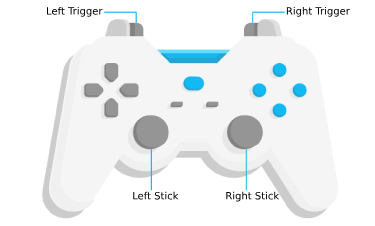
* Gamepads and 3Dconnexion devices, like the SpaceMouse, can be used for navigation when `view.navigation.gamepad.enabled`
* is set to `true` (default). To enable zooming in MapView, `view.constraints.snapToZoom` must be set to `false` (default is `true`).
* Please see [GamepadInputDevice](https://developers.arcgis.com/javascript/latest/references/core/views/input/gamepad/GamepadInputDevice/) for supported devices.
*
* 
*
* Gamepad Action | MapView behavior
* ------|------------
* Left Trigger | Zoom in
* Right Trigger | Zoom out
* Left Stick | Pan the view
* Right Stick | Rotate the view
*
* Action Image | SpaceMouse Action | MapView behavior
* ------|------|------------
*  | Push (left/right/forward/backward) | Pan the view
*  | Pull up | Zoom out
* 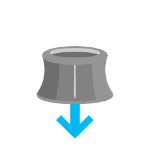 | Push down | Zoom in
*  | Rotate clockwise | Rotate the view clockwise
*  | Rotate counterclockwise | Rotate the view counterclockwise
*
* To disable gamepad navigation, you can set `view.navigation.gamepad.enabled` to `false`.
*
* > [!WARNING]
* >
* > **Notes:**
* >
* > - [Zoom snapping](https://developers.arcgis.com/javascript/latest/references/core/views/MapView/#constraints) must be disabled for continuous zooming. In MapView, `snapToZoom` is `true` by default.
* > - Per [W3C Working Draft 29 October 2020](https://www.w3.org/TR/2020/WD-gamepad-20201029/),
* > gamepad functionality may not be available on some or all browsers if the web application is hosted on a
* > [non-secure context](https://developer.mozilla.org/en-US/docs/Web/Security/Secure_Contexts) (e.g. http rather than https).
* > Future versions of the ArcGIS Maps SDK for JavaScript may explicitly disable gamepad capabilities on non-secure contexts.
*
* <span id="handling-events"></span>
* ## Handling events
*
* When users interact with the MapView, their actions trigger events that you can listen and respond to.
* For example, you can listen when a user moves the mouse over the map and display the coordinates at the mouse
* location. This is called a [@pointer-move](https://developers.arcgis.com/javascript/latest/references/core/views/MapView/#event-pointer-move) event. See the [MapView events](https://developers.arcgis.com/javascript/latest/references/core/views/MapView/#events-summary)
* section for a list of all the events.
*
* <details>
* <summary>Read More</summary>
*
* It is important to note that some events are dependent on each other and the timing of the user interaction
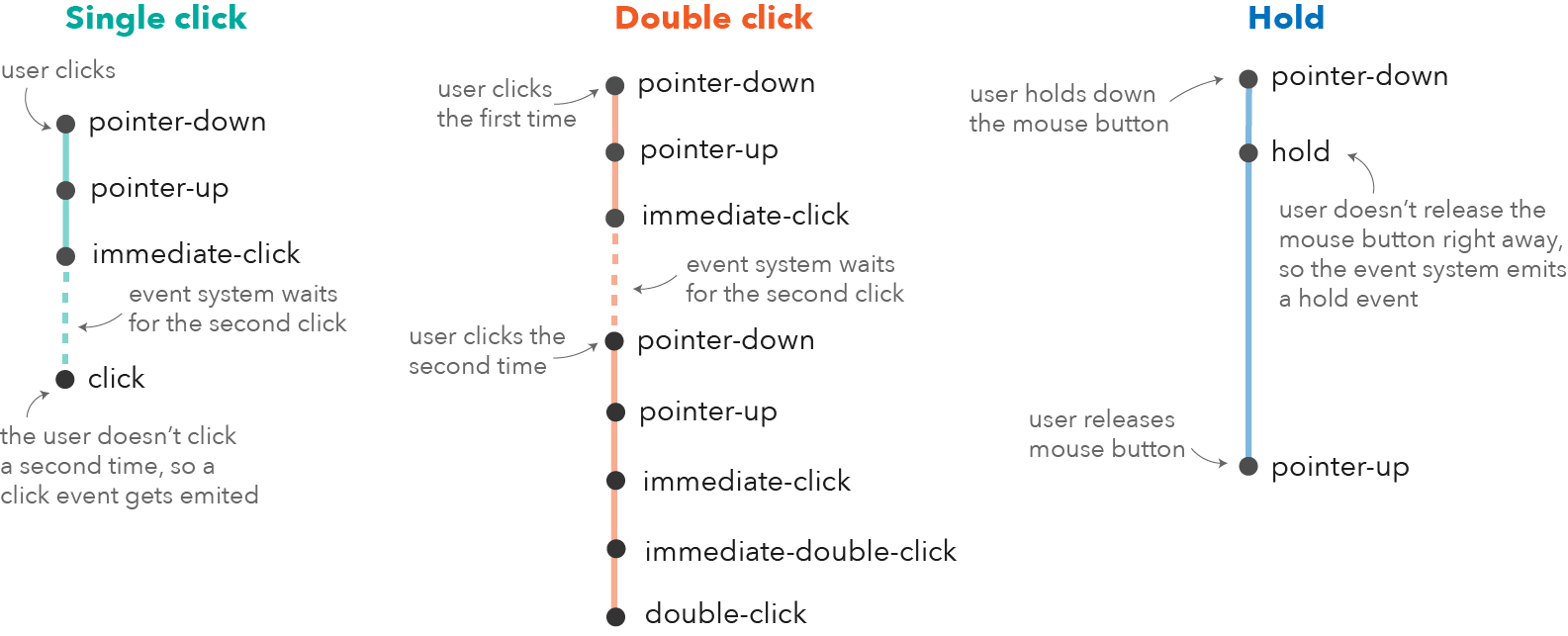
* can influence the type of event that gets triggered. For example, a single click triggers a series of events:
* [@pointer-down](https://developers.arcgis.com/javascript/latest/references/core/views/MapView/#event-pointer-down) when the user presses the mouse button, [@pointer-up](https://developers.arcgis.com/javascript/latest/references/core/views/MapView/#event-pointer-up) when
* they release the mouse button. An [@immediate-click](https://developers.arcgis.com/javascript/latest/references/core/views/MapView/#event-immediate-click) event gets triggered right after
* the [@pointer-up](https://developers.arcgis.com/javascript/latest/references/core/views/MapView/#event-pointer-up) event. [@immediate-click](https://developers.arcgis.com/javascript/latest/references/core/views/MapView/#event-immediate-click) should be used for responding
* to user interaction without delay. The [@click](https://developers.arcgis.com/javascript/latest/references/core/views/MapView/#event-click) event is only triggered after making sure that the
* user doesn't click a second time (in which case it would trigger a [@double-click](https://developers.arcgis.com/javascript/latest/references/core/views/MapView/#event-double-click) event).
*
* 
*
* In the case of a double-click, the same event chain is repeated after the first click. However, if the user clicks
* a second time within a close time range, then the [@click](https://developers.arcgis.com/javascript/latest/references/core/views/MapView/#event-click) event is not emitted anymore, but the
* [@pointer-down](https://developers.arcgis.com/javascript/latest/references/core/views/MapView/#event-pointer-down), [@pointer-up](https://developers.arcgis.com/javascript/latest/references/core/views/MapView/#event-pointer-up) and [@immediate-click](https://developers.arcgis.com/javascript/latest/references/core/views/MapView/#event-immediate-click)
* events are triggered again. After two [@immediate-click](https://developers.arcgis.com/javascript/latest/references/core/views/MapView/#event-immediate-click) events, a [@double-click](https://developers.arcgis.com/javascript/latest/references/core/views/MapView/#event-double-click)
* event gets triggered along with an [@immediate-double-click](https://developers.arcgis.com/javascript/latest/references/core/views/MapView/#event-immediate-double-click) event.
* The difference between the two is that an [@immediate-double-click](https://developers.arcgis.com/javascript/latest/references/core/views/MapView/#event-immediate-double-click) cannot be prevented
* by the use of `stopPropagation` on the [@immediate-click](https://developers.arcgis.com/javascript/latest/references/core/views/MapView/#event-immediate-click) event and can therefore be used to
* react to double-clicking independently of usage of the [@immediate-click](https://developers.arcgis.com/javascript/latest/references/core/views/MapView/#event-immediate-click) event.
*
* These events are also used internally for navigation, popups or different interactive tools like measurement or
* sketch. In some use cases, adding additional event listeners might interfere with the default event listeners.
* For example, adding an `immediate-click` event to open up a popup, will interfere with the default `click` event
* that also opens up a popup.
*
* See the [Event explorer](https://developers.arcgis.com/javascript/latest/sample-code/event-explorer/) sample, to visualize the different events that
* get triggered when you interact with the view.
*
* </details>
*
* @since 4.0
* @see [Intro to MapView](https://developers.arcgis.com/javascript/latest/sample-code/intro-mapview/)
* @see [Sample - Geodesic Buffers (2D & 3D)](https://developers.arcgis.com/javascript/latest/sample-code/ge-geodesicbuffer/)
* @see [Sample - Event explorer / watch properties](https://developers.arcgis.com/javascript/latest/sample-code/event-explorer/)
* @see [SceneView](https://developers.arcgis.com/javascript/latest/references/core/views/SceneView/)
* @see [Map](https://developers.arcgis.com/javascript/latest/references/core/Map/)
* @see [ViewAnimation](https://developers.arcgis.com/javascript/latest/references/core/views/ViewAnimation/)
*/
export default class MapView extends View2D {
/**
* @example
* // Typical usage
* let view = new MapView({
* // ID of DOM element containing the view
* container: "viewDiv",
* // Map/WebMap object
* map: new Map()
* });
*/
constructor(properties?: MapViewProperties);
/**
* Returns [hit test results](https://developers.arcgis.com/javascript/latest/references/core/views/types/#ViewHitTestResult) from each layer that intersects the specified screen coordinates. The results are
* organized as an array of objects containing different [result types](https://developers.arcgis.com/javascript/latest/references/core/views/types/#ViewHit).
*
* The following layer types will return all [features](https://developers.arcgis.com/javascript/latest/references/core/views/types/#GraphicHit) if a hit is made on intersecting features:
* [FeatureLayer](https://developers.arcgis.com/javascript/latest/references/core/layers/FeatureLayer/), [CSVLayer](https://developers.arcgis.com/javascript/latest/references/core/layers/CSVLayer/), [GeoJSONLayer](https://developers.arcgis.com/javascript/latest/references/core/layers/GeoJSONLayer/), [GeoRSSLayer](https://developers.arcgis.com/javascript/latest/references/core/layers/GeoRSSLayer/),
* [GraphicsLayer](https://developers.arcgis.com/javascript/latest/references/core/layers/GraphicsLayer/), [KMLLayer](https://developers.arcgis.com/javascript/latest/references/core/layers/KMLLayer/), [MapNotesLayer](https://developers.arcgis.com/javascript/latest/references/core/layers/MapNotesLayer/), [OGCFeatureLayer](https://developers.arcgis.com/javascript/latest/references/core/layers/OGCFeatureLayer/),
* [StreamLayer](https://developers.arcgis.com/javascript/latest/references/core/layers/StreamLayer/), [SubtypeSublayer](https://developers.arcgis.com/javascript/latest/references/core/layers/support/SubtypeSublayer/), [VectorTileLayer](https://developers.arcgis.com/javascript/latest/references/core/layers/VectorTileLayer/), and [WFSLayer](https://developers.arcgis.com/javascript/latest/references/core/layers/WFSLayer/).
*
* The [VectorTileLayer](https://developers.arcgis.com/javascript/latest/references/core/layers/VectorTileLayer/) hit test result contains an array of objects containing a [graphic](https://developers.arcgis.com/javascript/latest/references/core/views/types/#GraphicHit).
* The graphic returns attributes of a style layer. In addition, the graphic's [origin](https://developers.arcgis.com/javascript/latest/references/core/Graphic/#origin) contains the style layer's
* [id](https://maplibre.org/maplibre-style-spec/layers/#id) and layer index within the [vector tile style](https://doc.arcgis.com/en/arcgis-online/reference/tile-layers.htm#ESRI_SECTION1_8F68399EB47B48FF9EF46719FCC96978).
* Spatial information about the actual feature represented in the style layer is returned only if the style layer is a [symbol layer](https://maplibre.org/maplibre-style-spec/layers/#symbol).
* Otherwise, the graphic's geometry is `null`.
*
* The [MediaLayer](https://developers.arcgis.com/javascript/latest/references/core/layers/MediaLayer/) hit test [result](https://developers.arcgis.com/javascript/latest/references/core/views/types/#MediaHit) contains all media elements if the hit is made on intersecting elements.
* The [RouteLayer](https://developers.arcgis.com/javascript/latest/references/core/layers/RouteLayer/) hit test [result](https://developers.arcgis.com/javascript/latest/references/core/views/types/#RouteHit) contains all route elements if the hit is made on intersecting elements.
*
* If the [Polygon](https://developers.arcgis.com/javascript/latest/references/core/geometry/Polygon/) feature's symbol [style](https://developers.arcgis.com/javascript/latest/references/core/symbols/SimpleFillSymbol/#style) is set to "none", the hitTest method will not
* return results when the fill is clicked. However, it will return results when the outline is clicked. To get results when clicking the fill, set the
* [SimpleFillSymbol.color](https://developers.arcgis.com/javascript/latest/references/core/symbols/SimpleFillSymbol/#color) to a transparent color instead.
*
* Release-specific changes:
* * At version 4.34, the [ParquetLayer](https://developers.arcgis.com/javascript/latest/references/core/layers/ParquetLayer/) hit result returns only the topmost feature when the hit occurs on overlapping features in a ParquetLayer.
* * At version 4.29, [ViewHitTestResult](https://developers.arcgis.com/javascript/latest/references/core/views/types/#ViewHitTestResult) returns a result for all style layers from [VectorTileLayers](https://developers.arcgis.com/javascript/latest/references/core/layers/VectorTileLayer/) that intersect the hit location.
* In prior releases, only the top most style layer result was returned.
* The hit test result returns attributes of style layers. The `layerId` and `layerIndex` information of the style layer is now returned in the graphic's [origin](https://developers.arcgis.com/javascript/latest/references/core/Graphic/#origin) property.
* * At version 4.24, [ViewHitTestResult](https://developers.arcgis.com/javascript/latest/references/core/views/types/#ViewHitTestResult) returns an array of objects containing [graphic](https://developers.arcgis.com/javascript/latest/references/core/views/types/#GraphicHit), [media element](https://developers.arcgis.com/javascript/latest/references/core/views/types/#MediaHit), and [route](https://developers.arcgis.com/javascript/latest/references/core/views/types/#RouteHit).
* * At version 4.23, all hit test features from feature layers are returned in the result. In prior releases, only the top most feature was returned.
* * At version 4.6, support for [VectorTileLayer](https://developers.arcgis.com/javascript/latest/references/core/layers/VectorTileLayer/) was added.
*
* @param screenPoint - The screen coordinates (or native mouse event) of the click on the view.
* @param options - Options to specify what is included in or excluded from the hitTest. Supported since 4.16.
* @returns When resolved, returns an array of objects containing different [result types](https://developers.arcgis.com/javascript/latest/references/core/views/types/#ViewHit).
* @see [Sample: Access features with hitTest](https://developers.arcgis.com/javascript/latest/sample-code/map-component-hittest/)
* @example
* // Get the screen point from the view's click event
* view.on("click", (event) => {
* // Search for all features only on included layers at the clicked location
* view.hitTest(event, { include: [csvLayer, featureLayer] }).then((response) => {
* // if features are returned from the featureLayer, do something with results
* if (response.results.length) {
* response.results.forEach((result) => {
* if (result.graphic) {
* if (isFeatureGraphicOrigin(result.graphic.origin)) {
* console.log(result.graphic.origin.layer.title);
* } else if (isCSVGraphicOrigin(result.graphic.origin)) {
* console.log(result.graphic.origin.layer.longitudeField);
* }
* }
* });
* }
* });
* });
* @example
* // Get the screen point from the view's pointer-move event
* view.on("pointer-move", (event) => {
* // Search for graphics on layers at the hovered location
* // Exclude view.graphics from the hitTest
* view.hitTest(event, { exclude: view.graphics }).then((response) => {
* // if graphics are returned, do something with results
* const graphicHits = response.results?.filter(
* (hitResult) => hitResult.type === "graphic"
* );
* if (graphicHits?.length > 0) {
* // do something
* }
* });
* });
* @example
* // Get the screen point from the view's click event
* view.on("click", (event) => {
* // Search for all media elements only on included mediaLayer at the clicked location
* view.hitTest(event, { include: mediaLayer }).then((response) => {
* // if media elements are returned from the mediaLayer, do something with results
* if (response.results.length) {
* // do something
* console.log(response.results.length, "elements returned");
* }
* })
* });
*/
hitTest(screenPoint: ScreenPoint | MouseEvent, options?: HitTestOptions): Promise<ViewHitTestResult>;
/**
* Create a screenshot of the current view. Screenshots include only elements
* that are rendered on the canvas (all geographical elements), but excludes overlaid
* DOM elements (UI, popups, measurement labels, etc.). By default, a screenshot of the whole view
* is created. Different options allow for creating different types of screenshots,
* including taking screenshots at different aspect ratios, different resolutions
* and creating thumbnails.
*
* Screenshots are always taken inside the padded area of the view (see
* [padding](https://developers.arcgis.com/javascript/latest/references/core/views/MapView/#padding)).
*
* @param options - Screenshot options.
* @returns When resolved, returns an object
* containing an encoded dataUrl and raw image data.
* @since 4.10
* @see [Sample - Take a screenshot of a SceneView](https://developers.arcgis.com/javascript/latest/sample-code/sceneview-screenshot/)
* @example
* // Take a screenshot once view is ready (and data is displaying)
* reactiveUtils.whenOnce(() => !view.updating).then(() => {
* // Take a screenshot at the same resolution of the current view
* view.takeScreenshot().then(function(screenshot) {
* let imageElement = document.getElementById("screenshotImage");
* imageElement.src = screenshot.dataUrl;
* });
* });
* @example
* // Create a square thumbnail from the current view
* let options = {
* width: 200,
* height: 200
* };
*
* view.takeScreenshot(options).then(function(screenshot) {
* let imageElement = document.getElementById("screenshotImage");
* imageElement.src = screenshot.dataUrl;
* });
* @example
* // Take a high resolution, square screenshot
* let options = {
* width: 2048,
* height: 2048
* };
*
* view.takeScreenshot(options).then(function(screenshot) {
* let imageElement = document.getElementById("screenshotImage");
* imageElement.src = screenshot.dataUrl;
* });
* @example
* // Takes a high-resolution screenshot for display on a HiDPI screen
* // The pixelRatio indicates the display has 2x the pixel density of typical screens
* let pixelRatio = 2;
* view.takeScreenshot({ width: view.width * pixelRatio, height: view.height * pixelRatio });
* @example
* // Takes a high-resolution screenshot for display on a HiDPI screen
* // The pixelRatio is the resolution of the display capturing the image
* let pixelRatio = window.devicePixelRatio;
* view.takeScreenshot({ width: view.width * pixelRatio, height: view.height * pixelRatio });
*/
takeScreenshot(options?: Partial<UserSettings>): Promise<Screenshot>;
}