@arcgis/core
Version:
ArcGIS Maps SDK for JavaScript: A complete 2D and 3D mapping and data visualization API
663 lines (659 loc) • 37.8 kB
TypeScript
import type Map from "./Map.js";
import type Version from "./core/Version.js";
import type Extent from "./geometry/Extent.js";
import type HeightModelInfo from "./geometry/HeightModelInfo.js";
import type PortalFolder from "./portal/PortalFolder.js";
import type PortalItem from "./portal/PortalItem.js";
import type MapFloorInfo from "./support/MapFloorInfo.js";
import type SceneView from "./views/SceneView.js";
import type Widgets from "./webdoc/Widgets.js";
import type ApplicationProperties from "./webscene/ApplicationProperties.js";
import type InitialViewProperties from "./webscene/InitialViewProperties.js";
import type Presentation from "./webscene/Presentation.js";
import type { MapProperties } from "./Map.js";
import type { LoadableMixin, LoadableMixinProperties } from "./core/Loadable.js";
import type { MultiOriginJSONSupportMixin } from "./core/MultiOriginJSONSupport.js";
import type { EsriPromiseMixin } from "./core/Promise.js";
import type { AbortOptions } from "./core/promiseUtils.js";
import type { PortalItemProperties } from "./portal/PortalItem.js";
import type { WebSceneUpdateFromOptions, WebSceneUpdateThumbnailOptions } from "./webscene/types.js";
import type { ApplicationPropertiesProperties } from "./webscene/ApplicationProperties.js";
import type { ExtentProperties } from "./geometry/Extent.js";
import type { MapFloorInfoProperties } from "./support/MapFloorInfo.js";
import type { HeightModelInfoProperties } from "./geometry/HeightModelInfo.js";
import type { PresentationProperties } from "./webscene/Presentation.js";
import type { InitialViewPropertiesProperties } from "./webscene/InitialViewProperties.js";
import type { WidgetsProperties } from "./webdoc/Widgets.js";
export interface WebSceneProperties extends MapProperties, LoadableMixinProperties, Partial<Pick<WebScene, "authoringApp" | "authoringAppVersion" | "clippingEnabled" | "thumbnailUrl">> {
/**
* Configuration of application and UI elements.
*
* @since 4.7
*/
applicationProperties?: ApplicationPropertiesProperties | null;
/**
* *This property only applies to local scenes.*
* Represents an optional clipping area used to define the
* bounds or [Extent](https://developers.arcgis.com/javascript/latest/references/core/geometry/Extent/) of a local scene.
* If defined, only data (including the basemap) within the area will be displayed.
*
* Set the [clippingEnabled](https://developers.arcgis.com/javascript/latest/references/core/WebScene/#clippingEnabled) property to `true`
* to apply the specified clippingArea to the view.
*
* @see [clippingEnabled](https://developers.arcgis.com/javascript/latest/references/core/WebScene/#clippingEnabled)
*/
clippingArea?: ExtentProperties | null;
/**
* When a web scene is configured as floor-aware, it has a floorInfo property defined.
* A floor-aware scene is a scene that contains indoor GIS data representing features that can be located on a specific floor of a building.
* The floor info must contain [MapFloorInfo.levelLayer](https://developers.arcgis.com/javascript/latest/references/core/support/MapFloorInfo/#levelLayer) and [MapFloorInfo.facilityLayer](https://developers.arcgis.com/javascript/latest/references/core/support/MapFloorInfo/#facilityLayer) properties at a minimum. A [MapFloorInfo.siteLayer](https://developers.arcgis.com/javascript/latest/references/core/support/MapFloorInfo/#siteLayer) property is optional.
*
* @since 4.19
*/
floorInfo?: MapFloorInfoProperties | null;
/**
* The height model info of the [WebScene](https://developers.arcgis.com/javascript/latest/references/core/WebScene/). This object
* defines the characteristics of the vertical coordinate system used by
* the scene. In a [SceneView](https://developers.arcgis.com/javascript/latest/references/core/views/SceneView/),
* the height model info is used to avoid combining layers that have
* incompatible vertical coordinate systems.
*
* @since 4.5
*/
heightModelInfo?: HeightModelInfoProperties | null;
/**
* The initial view of the WebScene. This object may contain the following properties:
* [InitialViewProperties.environment](https://developers.arcgis.com/javascript/latest/references/core/webscene/InitialViewProperties/#environment),
* [InitialViewProperties.spatialReference](https://developers.arcgis.com/javascript/latest/references/core/webscene/InitialViewProperties/#spatialReference),
* [InitialViewProperties.viewingMode](https://developers.arcgis.com/javascript/latest/references/core/webscene/InitialViewProperties/#viewingMode), and
* [InitialViewProperties.viewpoint](https://developers.arcgis.com/javascript/latest/references/core/webscene/InitialViewProperties/#viewpoint).
*
* These properties will be applied to the [SceneView](https://developers.arcgis.com/javascript/latest/references/core/views/SceneView/) when the scene loads.
*/
initialViewProperties?: InitialViewPropertiesProperties;
/** The portal item from which the WebScene is loaded. */
portalItem?: PortalItemProperties | null;
/**
* Provides a [Collection](https://developers.arcgis.com/javascript/latest/references/core/core/Collection/) of slides
* that act as bookmarks for saving predefined [viewpoints](https://developers.arcgis.com/javascript/latest/references/core/Viewpoint/)
* and visible layers.
*
* @see [Slide](https://developers.arcgis.com/javascript/latest/references/core/webscene/Slide/)
* @see [Sample - WebScene slides](https://developers.arcgis.com/javascript/latest/sample-code/webscene-slides/)
*/
presentation?: PresentationProperties;
/** The widgets object contains widgets that are exposed to the user. */
widgets?: WidgetsProperties | null;
}
/**
* The web scene is the core element of 3D mapping across ArcGIS. It defines the
* content, style, environment, and slides of your scene and it can be shared across multiple ArcGIS web
* and desktop applications. Web scenes can be created, published, and consumed in
* [ArcGIS Pro](https://pro.arcgis.com/en/pro-app/latest/help/mapping/map-authoring/author-a-web-scene.htm)
* and ArcGIS Online with the [Scene Viewer](https://enterprise.arcgis.com/en/portal/latest/use/get-started-with-scenes.htm).
* The web scene is saved as a JSON document that can be consumed by the ArcGIS Maps SDK for JavaScript
* via the WebScene class to easily create compelling 3D applications. The JSON document is written
* according to the [web scene specification](https://developers.arcgis.com/web-scene-specification/).
*
* Although you can easily create your own scenes, there are thousands of publicly available
* [web scenes in ArcGIS Online](https://www.arcgis.com/home/search.html?t=content&focus=scenes)
* that you can use to get started with the API. You may modify or add new content to these scenes.
*
* To load a WebScene into a [SceneView](https://developers.arcgis.com/javascript/latest/references/core/views/SceneView/), you need to simply reference the
* ID of the web scene item in ArcGIS Online via the [portalItem](https://developers.arcgis.com/javascript/latest/references/core/WebScene/#portalItem) property of this class.
*
* ```js
* const scene = new WebScene({
* portalItem: { // autocasts as new PortalItem()
* id: "affa021c51944b5694132b2d61fe1057" // ID of the WebScene on arcgis.com
* }
* });
* ```
*
* To load a WebScene from an on-premise portal, set the portal
* url in [esriConfig.portalurl](https://developers.arcgis.com/javascript/latest/references/core/config/#Config-portalUrl).
*
* ```js
* esriConfig.portalUrl = "https://myHostName.esri.com/arcgis";
*
* const scene = new WebScene({
* portalItem: { // autocasts as new PortalItem()
* id: "0614ea1f9dd043e9ba157b9c20d3c538" // ID of the WebScene on the on-premise portal
* }
* });
* ```
*
* Then you must reference the WebScene instance in the [SceneView.map](https://developers.arcgis.com/javascript/latest/references/core/views/SceneView/#map)
* property of a [SceneView](https://developers.arcgis.com/javascript/latest/references/core/views/SceneView/).
*
* ```js
* const view = new SceneView({
* map: scene, // The WebScene instance created above
* container: "viewDiv"
* });
* ```
*
* This will start loading all layers and scene options into the 3D [SceneView](https://developers.arcgis.com/javascript/latest/references/core/views/SceneView/).
* The [when()](https://developers.arcgis.com/javascript/latest/references/core/WebScene/#when) method on the WebScene instance can be called to execute processes that may only run after the WebScene is [loaded](https://developers.arcgis.com/javascript/latest/references/core/WebScene/#loaded).
*
* ```js
* scene.when(function() {
* // All layers and the basemap have been created
* });
* view.when(function() {
* // All layer and basemap resources have been loaded and are ready to be displayed
* });
* ```
*
* [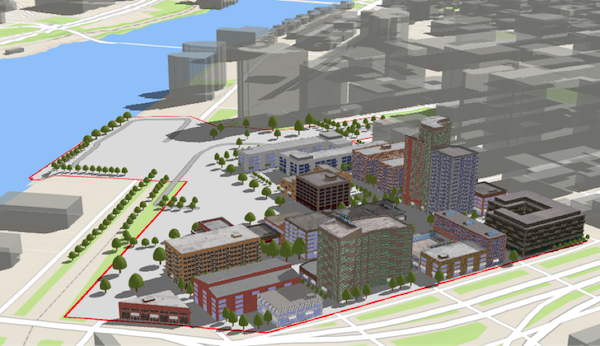](https://developers.arcgis.com/javascript/latest/sample-code/webscene-slides/)
*
* The WebScene defines the content of your scene and how the scene looks when it is [loaded](https://developers.arcgis.com/javascript/latest/references/core/WebScene/#loaded)
* in your application. There are several common properties of a web scene that you will likely interact
* with when using this class:
* * [layers](https://developers.arcgis.com/javascript/latest/references/core/WebScene/#layers): defines the content and styling of the web scene, as well as popups,
* labels, legend and other settings.
* * [basemap](https://developers.arcgis.com/javascript/latest/references/core/WebScene/#basemap): defines the basemap layers of the web scene.
* * [ground](https://developers.arcgis.com/javascript/latest/references/core/WebScene/#ground): defines the elevation layers of the web scene.
* * [presentation](https://developers.arcgis.com/javascript/latest/references/core/WebScene/#presentation): contains the web scene slides.
* * [initialViewProperties](https://developers.arcgis.com/javascript/latest/references/core/WebScene/#initialViewProperties)
* - [InitialViewProperties.environment](https://developers.arcgis.com/javascript/latest/references/core/webscene/InitialViewProperties/#environment): configures lighting,
* shadows and atmosphere of the scene.
* - [InitialViewProperties.viewpoint](https://developers.arcgis.com/javascript/latest/references/core/webscene/InitialViewProperties/#viewpoint): configures the initial viewpoint.
* - [InitialViewProperties.viewingMode](https://developers.arcgis.com/javascript/latest/references/core/webscene/InitialViewProperties/#viewingMode): defines if the web scene is
* global or local.
*
* For more information on properties of a web scene, please consult the
* [web scene specification](https://developers.arcgis.com/web-scene-specification/).
*
* There are two types of web scenes: `global` or `local`. Global scenes render the earth as a sphere
* while Local scenes render the earth on a flat plane. Global web scenes can be created with a WebMercator,
* WGS84, CGCS2000, Mars_2000_(Sphere), GCS_Mars_2000 and GCS_Moon_2000. Local web scenes
* can be created with WGS84, CGCS2000 or any projected coordinate system. Read the ArcGIS Online help to learn more about
* [choosing global or local scenes](https://doc.arcgis.com/en/arcgis-online/create-maps/choose-global-local-scene.htm).
*
* [Slides](https://developers.arcgis.com/javascript/latest/references/core/WebScene/#presentation) store a snapshot of a visualization state of the scene that can be re-applied
* to the scene at a later time. Slides contain properties for viewpoint, layer visibilities, basemap and
* environment (as well as a title and thumbnail) so that users of a 3D application can easily navigate
* the scene and accurately recreate a stored view of that scene.
*
* Web scenes can be saved to ArcGIS Online or Portal using [saveAs()](https://developers.arcgis.com/javascript/latest/references/core/WebScene/#saveAs) or [save()](https://developers.arcgis.com/javascript/latest/references/core/WebScene/#save). Define the portal
* and once it is loaded, save the web scene.
*
* ```js
* const portal = new Portal({
* url: "https://myportal.arcgis.com/", // the url of the portal
* authMode: "immediate" // user authenticates by signing in when the Portal is loaded
* });
* // once the portal is loaded save the web scene to the portal as a new web scene
* portal.load().then(function() {
* webscene.saveAs({
* title: "My Scene",
* portal: portal
* })
* .then(function() {
* console.log("Scene was saved");
* })
* .catch(function(err) {
* console.log(err);
* });
* })
* ```
* It's important to note that [GraphicsLayer](https://developers.arcgis.com/javascript/latest/references/core/layers/GraphicsLayer/), [ImageryLayer](https://developers.arcgis.com/javascript/latest/references/core/layers/ImageryLayer/), [MediaLayer](https://developers.arcgis.com/javascript/latest/references/core/layers/MediaLayer/) and
* [StreamLayer](https://developers.arcgis.com/javascript/latest/references/core/layers/StreamLayer/) can't be saved to a web scene. A cached image service can be saved to a web scene,
* by declaring it as a [TileLayer](https://developers.arcgis.com/javascript/latest/references/core/layers/TileLayer/). An [OpenStreetMapLayer](https://developers.arcgis.com/javascript/latest/references/core/layers/OpenStreetMapLayer/)
* can be saved as a [baseLayer](https://developers.arcgis.com/javascript/latest/references/core/Basemap/#baseLayers).
* For more information on types of layers that can be saved in a web scene, see the
* [web scene specification](https://developers.arcgis.com/web-scene-specification/objects/operationalLayers/).
*
* @since 4.0
* @see [Sample - Load a basic WebScene](https://developers.arcgis.com/javascript/latest/sample-code/webscene-basic/)
* @see [Sample - Save a WebScene](https://developers.arcgis.com/javascript/latest/sample-code/webscene-save/)
* @see [Sample - WebScene slides](https://developers.arcgis.com/javascript/latest/sample-code/webscene-slides/)
* @see [PortalItem](https://developers.arcgis.com/javascript/latest/references/core/portal/PortalItem/)
* @see [Sample - SceneLayer](https://developers.arcgis.com/javascript/latest/sample-code/layers-scenelayer/)
*/
export default class WebScene extends WebSceneSuperclass {
/** The latest supported webscene spec version. */
static readonly version: string;
/**
* Creates a new instance of this class and initializes it with values from a JSON object
* generated from an ArcGIS product. The object passed into the input `json`
* parameter often comes from a response to a query operation in the REST API or a
* [toJSON()](https://pro.arcgis.com/en/pro-app/latest/tool-reference/conversion/features-to-json.htm)
* method from another ArcGIS product. If the [WebScene](https://developers.arcgis.com/javascript/latest/references/core/WebScene/) is used outside of a view, you must call [load()](https://developers.arcgis.com/javascript/latest/references/core/WebScene/#load)
* explicitly to interact with its resources. See the [Using fromJSON()](https://developers.arcgis.com/javascript/latest/using-fromjson)
* topic in the Guide for details and examples of when and how to use this function.
*
* @param json - A JSON representation of the instance in the ArcGIS format. See
* the [web scene specification](https://developers.arcgis.com/web-scene-specification/)
* for more detailed information on serializing web scenes to JSON.
* @returns Returns a new instance of this class.
* @example
* // Retrieve a WebScene JSON by url and deserialize it into a WebScene API instance
* const [esriRequest, WebScene] = await $arcgis.import("@arcgis/core/request.js", "@arcgis/ccore/WebScene.js");
* esriRequest("http://domain/url/to/webscene.json").then(function(json) {
* const scene = WebScene.fromJSON(json);
*
* const view = new SceneView({
* map: scene,
* container: "viewDiv"
* });
* });
*/
static fromJSON(json: any): WebScene;
/**
* @example
* // Typical usage
* const scene = new WebScene({
* portalItem: {
* id: "affa021c51944b5694132b2d61fe1057"
* }
* });
* @example
* // Typical usage
* const map = new Map({
* basemap: "topo-vector"
* });
*/
constructor(properties?: WebSceneProperties);
/**
* Configuration of application and UI elements.
*
* @since 4.7
*/
get applicationProperties(): ApplicationProperties | null | undefined;
set applicationProperties(value: ApplicationPropertiesProperties | null | undefined);
/**
* The name of the application that authored the WebScene.
*
* @since 4.14
*/
accessor authoringApp: string;
/**
* The version of the application that authored the WebScene.
*
* @since 4.14
*/
accessor authoringAppVersion: string;
/**
* *This property only applies to local scenes.*
* Represents an optional clipping area used to define the
* bounds or [Extent](https://developers.arcgis.com/javascript/latest/references/core/geometry/Extent/) of a local scene.
* If defined, only data (including the basemap) within the area will be displayed.
*
* Set the [clippingEnabled](https://developers.arcgis.com/javascript/latest/references/core/WebScene/#clippingEnabled) property to `true`
* to apply the specified clippingArea to the view.
*
* @see [clippingEnabled](https://developers.arcgis.com/javascript/latest/references/core/WebScene/#clippingEnabled)
*/
get clippingArea(): Extent | null | undefined;
set clippingArea(value: ExtentProperties | null | undefined);
/**
* *This property only applies to local scenes.*
* Determines whether clipping using the [clippingArea](https://developers.arcgis.com/javascript/latest/references/core/WebScene/#clippingArea) is
* enabled.
*
* @default false
* @see [clippingArea](https://developers.arcgis.com/javascript/latest/references/core/WebScene/#clippingArea)
*/
accessor clippingEnabled: boolean;
/**
* When a web scene is configured as floor-aware, it has a floorInfo property defined.
* A floor-aware scene is a scene that contains indoor GIS data representing features that can be located on a specific floor of a building.
* The floor info must contain [MapFloorInfo.levelLayer](https://developers.arcgis.com/javascript/latest/references/core/support/MapFloorInfo/#levelLayer) and [MapFloorInfo.facilityLayer](https://developers.arcgis.com/javascript/latest/references/core/support/MapFloorInfo/#facilityLayer) properties at a minimum. A [MapFloorInfo.siteLayer](https://developers.arcgis.com/javascript/latest/references/core/support/MapFloorInfo/#siteLayer) property is optional.
*
* @since 4.19
*/
get floorInfo(): MapFloorInfo | null | undefined;
set floorInfo(value: MapFloorInfoProperties | null | undefined);
/**
* The height model info of the [WebScene](https://developers.arcgis.com/javascript/latest/references/core/WebScene/). This object
* defines the characteristics of the vertical coordinate system used by
* the scene. In a [SceneView](https://developers.arcgis.com/javascript/latest/references/core/views/SceneView/),
* the height model info is used to avoid combining layers that have
* incompatible vertical coordinate systems.
*
* @since 4.5
*/
get heightModelInfo(): HeightModelInfo | null | undefined;
set heightModelInfo(value: HeightModelInfoProperties | null | undefined);
/**
* The initial view of the WebScene. This object may contain the following properties:
* [InitialViewProperties.environment](https://developers.arcgis.com/javascript/latest/references/core/webscene/InitialViewProperties/#environment),
* [InitialViewProperties.spatialReference](https://developers.arcgis.com/javascript/latest/references/core/webscene/InitialViewProperties/#spatialReference),
* [InitialViewProperties.viewingMode](https://developers.arcgis.com/javascript/latest/references/core/webscene/InitialViewProperties/#viewingMode), and
* [InitialViewProperties.viewpoint](https://developers.arcgis.com/javascript/latest/references/core/webscene/InitialViewProperties/#viewpoint).
*
* These properties will be applied to the [SceneView](https://developers.arcgis.com/javascript/latest/references/core/views/SceneView/) when the scene loads.
*/
get initialViewProperties(): InitialViewProperties;
set initialViewProperties(value: InitialViewPropertiesProperties);
/**
* Indicates whether the instance has loaded. When `true`,
* the properties of the object can be accessed. A WebScene is considered loaded
* when its [layers](https://developers.arcgis.com/javascript/latest/references/core/WebScene/#layers) and [basemap](https://developers.arcgis.com/javascript/latest/references/core/WebScene/#basemap) are fully created, but not
* yet loaded.
*
* @default false
*/
get loaded(): boolean;
/** The portal item from which the WebScene is loaded. */
get portalItem(): PortalItem | null | undefined;
set portalItem(value: PortalItemProperties | null | undefined);
/**
* Provides a [Collection](https://developers.arcgis.com/javascript/latest/references/core/core/Collection/) of slides
* that act as bookmarks for saving predefined [viewpoints](https://developers.arcgis.com/javascript/latest/references/core/Viewpoint/)
* and visible layers.
*
* @see [Slide](https://developers.arcgis.com/javascript/latest/references/core/webscene/Slide/)
* @see [Sample - WebScene slides](https://developers.arcgis.com/javascript/latest/sample-code/webscene-slides/)
*/
get presentation(): Presentation;
set presentation(value: PresentationProperties);
/**
* The version of the source document from which the WebScene was read.
* The WebScene must be version 1.x to load into an app.
*
* @since 4.1
*/
get sourceVersion(): Version | null | undefined;
/**
* The URL to the thumbnail used for the web scene. The thumbnail will by default
* be the thumbnail URL from the portal item associated to the web scene. The thumbnail
* of the web scene may be updated by changing the thumbnail URL and saving the
* web scene. Use [updateFrom()](https://developers.arcgis.com/javascript/latest/references/core/WebScene/#updateFrom) to update the thumbnail automatically from a specified
* view.
*
* @since 4.9
* @example
* scene.updateFrom(view)
* .then(function() {
* return scene.save();
* })
* .then(function(portalItem) {
* console.log("Saved to portal", portalItem.id);
* })
* .catch(function(error) {
* console.error("Error saving to portal", error);
* });
*/
accessor thumbnailUrl: string | null;
/** The widgets object contains widgets that are exposed to the user. */
get widgets(): Widgets | null | undefined;
set widgets(value: WidgetsProperties | null | undefined);
/**
* Destroys the webscene, and any associated resources, including its [layers](https://developers.arcgis.com/javascript/latest/references/core/WebScene/#layers), [basemap](https://developers.arcgis.com/javascript/latest/references/core/WebScene/#basemap),
* [ground](https://developers.arcgis.com/javascript/latest/references/core/WebScene/#ground), and [portalItem](https://developers.arcgis.com/javascript/latest/references/core/WebScene/#portalItem).
* These can no longer be used once the map has been destroyed. To prevent these objects from being destroyed,
* remove them from the webscene before calling `destroy()`.
*
* ```
* // prevent the layers from being destroyed by removing them from the webscene
* const layers = webscene.layers.removeAll();
*
* // unset basemap from the webscene so that it is not destroyed
* const basemap = webscene.basemap;
* webscene.basemap = null;
*
* // remove ground layers from the map so that they aren't destroyed
* const groundLayers = map.ground.removeAll();
*
* // unset portalItem from the webscene so that it is not destroyed
* const portalItem = webscene.portalItem;
* webscene.portalItem = null;
*
* // destroy the webscene and any remaining associated resources
* webscene.destroy();
* ```
*
* @since 4.17
* @see [Map.destroy()](https://developers.arcgis.com/javascript/latest/references/core/Map/#destroy)
* @see [WebMap.destroy()](https://developers.arcgis.com/javascript/latest/references/core/WebMap/#destroy)
* @see [Basemap.destroy()](https://developers.arcgis.com/javascript/latest/references/core/Basemap/#destroy)
* @see [Ground.destroy()](https://developers.arcgis.com/javascript/latest/references/core/Ground/#destroy)
* @see [Layer.destroy()](https://developers.arcgis.com/javascript/latest/references/core/layers/Layer/#destroy)
* @see [PortalItem.destroy()](https://developers.arcgis.com/javascript/latest/references/core/portal/PortalItem/#destroy)
* @see [WebMap.destroy()](https://developers.arcgis.com/javascript/latest/references/core/WebMap/#destroy)
* @see [WebScene.destroy()](https://developers.arcgis.com/javascript/latest/references/core/WebScene/#destroy)
* @see [Basemap.destroy()](https://developers.arcgis.com/javascript/latest/references/core/Basemap/#destroy)
* @see [Ground.destroy()](https://developers.arcgis.com/javascript/latest/references/core/Ground/#destroy)
* @see [Layer.destroy()](https://developers.arcgis.com/javascript/latest/references/core/layers/Layer/#destroy)
* @see [PortalItem.destroy()](https://developers.arcgis.com/javascript/latest/references/core/portal/PortalItem/#destroy)
*/
destroy(): void;
/**
* Triggers the loading of the WebScene instance.
*
* A WebScene is considered [loaded](https://developers.arcgis.com/javascript/latest/references/core/WebScene/#loaded) when its [operational layers](https://developers.arcgis.com/javascript/latest/references/core/WebScene/#layers), [basemap](https://developers.arcgis.com/javascript/latest/references/core/WebScene/#basemap) and
* [ground](https://developers.arcgis.com/javascript/latest/references/core/WebScene/#ground) are fully created. When created with a [portalItem](https://developers.arcgis.com/javascript/latest/references/core/WebScene/#portalItem), `load()` will first fetch its
* data to create the content, otherwise it resolves immediately.
*
* The [SceneView](https://developers.arcgis.com/javascript/latest/references/core/views/SceneView/) automatically calls the `load()` method when a WebScene instance is added
* to its [SceneView.map](https://developers.arcgis.com/javascript/latest/references/core/views/SceneView/#map) property so it can display in the view and load each individual
* layer. If the WebScene is used outside of a view, for example to preload it, you must call `load()` explicitly to
* interact with its resources.
*
* @param options - Additional options.
* @returns Resolves when the WebScene is [loaded](https://developers.arcgis.com/javascript/latest/references/core/WebScene/#loaded).
* @see [portalItem](https://developers.arcgis.com/javascript/latest/references/core/WebScene/#portalItem)
* @example
* // programmatically load all the layers
* const WebScene = await $arcgis.import("@arcgis/core/WebScene.js");
* const scene = new WebScene({
* portalItem: {
* id: "affa021c51944b5694132b2d61fe1057"
* }
* });
*
* scene.load()
* .then(function() {
* // load the basemap to get its layers created
* return scene.basemap.load();
* })
* .then(function() {
* // grab all the layers and load them
* const allLayers = scene.allLayers;
* const promises = allLayers.map(function(layer) {
* return layer.load();
* });
* return Promise.all(promises.toArray());
* })
* .then(function(layers) {
* // each layer load promise resolves with the layer
* console.log("all " + layers.length + " layers loaded");
* })
* .catch(function(error) {
* console.error(error);
* });
*/
load(options?: AbortOptions | null | undefined): Promise<this>;
/**
* Loads all the externally loadable resources associated with the webscene.
* For the webscene this will load the ground, basemap, layers and slide basemaps.
*
* @returns Resolves when all the loadable resources have been loaded.
* Rejects if at least one of the loadable resources failed to load.
* @since 4.9
* @see [load()](https://developers.arcgis.com/javascript/latest/references/core/WebScene/#load)
* @example
* // Load all resources but ignore if one or more of them failed to load
* webscene.loadAll()
* .catch(function(error) {
* // Ignore any failed resources
* })
* .then(function() {
* console.log("All loaded");
* });
*/
loadAll(): Promise<this>;
/**
* Saves the webscene to its associated portal item. The portal item to save
* to must already exist and be valid. This is a convenience method that will
* use [PortalItem.update()](https://developers.arcgis.com/javascript/latest/references/core/portal/PortalItem/#update) to store the webscene
* in the item. The web scene is saved according to
* [web scene specification](https://developers.arcgis.com/web-scene-specification/)
* standards.
*
* If the scene is displayed in a view, use [updateFrom()](https://developers.arcgis.com/javascript/latest/references/core/WebScene/#updateFrom) to store the current
* view properties in the webscene before saving it.
*
* ```js
* const scene = new WebScene({
* portalItem: {
* id: "3a9976baef9240ab8645ee25c7e9c096"
* }
* });
*
* const view = new SceneView({
* container: "viewDiv",
* map: scene
* });
*
* scene.updateFrom(view).then(function() {
* scene.save();
* });
* ```
*
* Note that this saves the webscene to its existing item. Depending on how
* the scene is shared, users that do not own the scene may modify it. To save
* an existing scene as a new item owned by the user signed into the portal
* instance, use [saveAs()](https://developers.arcgis.com/javascript/latest/references/core/WebScene/#saveAs).
*
* Wait until each [save()](https://developers.arcgis.com/javascript/latest/references/core/WebScene/#save) operation has resolved before starting a new [save()](https://developers.arcgis.com/javascript/latest/references/core/WebScene/#save) operation to avoid a potential abort-error.
*
* The webscene will be automatically loaded if it is not already before
* saving.
*
* @param options - Additional options.
* @returns A promise that resolves with the [PortalItem](https://developers.arcgis.com/javascript/latest/references/core/portal/PortalItem/)
* instance when the item has successfully been saved, or rejects otherwise.
* @since 4.1
* @see [updateFrom()](https://developers.arcgis.com/javascript/latest/references/core/WebScene/#updateFrom)
* @see [Sample - Save a WebScene](https://developers.arcgis.com/javascript/latest/sample-code/webscene-save/)
*/
save(options?: SaveOptions): Promise<PortalItem>;
/**
* Saves the webscene to a new portal item. If saving has completed
* successfully, then the saved portal item will be set in the portalItem
* property of the WebScene. This is a convenience method that will create a new
* [PortalItem](https://developers.arcgis.com/javascript/latest/references/core/portal/PortalItem/) and use
* [PortalUser.addItem()](https://developers.arcgis.com/javascript/latest/references/core/portal/PortalUser/#addItem) to store
* the webscene in a [Portal](https://developers.arcgis.com/javascript/latest/references/core/portal/Portal/).
*
* Use [updateFrom()](https://developers.arcgis.com/javascript/latest/references/core/WebScene/#updateFrom) to store the current view properties in the
* webscene before saving it.
*
* Note that this always saves the webscene as a new portal item owned by the user
* performing the edits and executing the `saveAs()` method. If you want to modify
* the existing item without changing its ownership use [save()](https://developers.arcgis.com/javascript/latest/references/core/WebScene/#save).
*
* Wait until each [saveAs()](https://developers.arcgis.com/javascript/latest/references/core/WebScene/#saveAs) operation has resolved before starting a new
* [saveAs()](https://developers.arcgis.com/javascript/latest/references/core/WebScene/#saveAs) operation to avoid a potential abort-error.
*
* The webscene will be automatically loaded if it is not already before
* saving.
*
* @param portalItem - The new portal item to which
* the scene will be saved.
*
* Portal item properties such as the title or description
* need to be explicitly set on the item and will not be automatically copied from
* the current associated scene portal item (if any).
* @param options - additional save options.
* @returns a promise that resolves with the [PortalItem](https://developers.arcgis.com/javascript/latest/references/core/portal/PortalItem/)
* instance when the item has successfully been saved, or rejects otherwise.
* @since 4.1
* @see [updateFrom()](https://developers.arcgis.com/javascript/latest/references/core/WebScene/#updateFrom)
* @see [Sample - Save a WebScene](https://developers.arcgis.com/javascript/latest/sample-code/webscene-save/)
* @example
* const scene = new WebScene();
* scene.saveAs({
* // autocasts as new PortalItem()
* title: "New WebScene"
* });
* @example
* const scene = new WebScene({
* basemap: "topo-vector"
* });
*
* const view = new SceneView({
* container: "viewDiv",
* map: scene
* });
*
* // use updateFrom in case the webscene is displayed in a view
* // to store the current view properties in the scene
* scene.updateFrom(view).then(function() {
* scene.saveAs({
* // autocasts as new PortalItem()
* title: "New WebScene"
* });
* });
*/
saveAs(portalItem: PortalItemProperties, options?: SaveAsOptions): Promise<PortalItem>;
/**
* Converts an instance of this class to its ArcGIS portal JSON representation.
* See the [Using fromJSON()](https://developers.arcgis.com/javascript/latest/using-fromjson) topic in the Guide
* and the [web scene specification](https://developers.arcgis.com/web-scene-specification/)
* for more information.
*
* @returns The ArcGIS portal JSON representation of an instance of this class.
*/
toJSON(): Record<string, any> | null | undefined;
/**
* Update properties of the WebScene related to the view.
*
* This should usually be called just before saving a scene. The following properties are updated from the view:
*
* 1. `initialViewProperties.spatialReference`
* 2. `initialViewProperties.viewingMode`
* 3. `initialViewProperties.timeExtent`
* 4. `initialViewProperties.analyses`
* 5. `clippingArea`
* 6. `heightModelInfo`
*
* Depending on the provided options, the following properties are also updated:
*
* 1. `initialViewProperties.environment`
* 2. `initialViewProperties.viewpoint`
* 3. `thumbnail`
* 4. `widgets`
*
* @param view - The view to update from.
* @param options - Update options.
* @returns Resolves when the update has completed.
* @see [save()](https://developers.arcgis.com/javascript/latest/references/core/WebScene/#save)
* @see [saveAs()](https://developers.arcgis.com/javascript/latest/references/core/WebScene/#saveAs)
*/
updateFrom(view: SceneView, options?: WebSceneUpdateFromOptions): Promise<void>;
/**
* Update the thumbnail of the WebScene by taking a screenshot of the view. Note that this is automatically called
* from [updateFrom()](https://developers.arcgis.com/javascript/latest/references/core/WebScene/#updateFrom) unless explicitly disabled. Updating the thumbnail separate can be useful if you
* want to show a screenshot from a different viewpoint than what is stored in the webscene initial state.
*
* @param view - The view to update from.
* @param options - Update options.
* @returns Resolves when the update has completed.
* @see [updateFrom()](https://developers.arcgis.com/javascript/latest/references/core/WebScene/#updateFrom)
* @see [save()](https://developers.arcgis.com/javascript/latest/references/core/WebScene/#save)
* @see [saveAs()](https://developers.arcgis.com/javascript/latest/references/core/WebScene/#saveAs)
*/
updateThumbnail(view: SceneView, options?: WebSceneUpdateThumbnailOptions): Promise<void>;
}
declare const WebSceneSuperclass: typeof Map & typeof MultiOriginJSONSupportMixin & typeof EsriPromiseMixin & typeof LoadableMixin
export interface SaveOptions {
/**
* allow the scene to be saved
* even in the case it contains unsupported content (layers, renderers,
* symbols). Any content that is not supported will not be saved and the
* scene may appear different when reloaded from its portal item.
*/
ignoreUnsupported?: boolean;
}
export interface SaveAsOptions extends SaveOptions {
/**
* the folder
* in which to save the item.
*/
folder?: PortalFolder;
}