@adguard/dead-domains-linter
Version:
Simple tool to check adblock filtering rules for dead domains.
173 lines (126 loc) • 6.09 kB
Markdown
# Dead Domains Linter
[![npm-badge]][npm-url] [![license-badge]][license-url]
This is a simple tool that checks adblock filtering rules for dead domains.
In the future, it should be replaced with an [AGLint rule][aglintrule].
[aglintrule]: https://github.com/AdguardTeam/AGLint/issues/194
[npm-badge]: https://img.shields.io/npm/v/@adguard/dead-domains-linter
[npm-url]: https://www.npmjs.com/package/@adguard/dead-domains-linter
[license-badge]: https://img.shields.io/github/license/AdGuardTeam/DeadDomainsLinter
[license-url]: https://github.com/AdguardTeam/DeadDomainsLinter/blob/master/LICENSE
## How to use
### Installation and update
First of all, install the dead-domains-linter:
```shell
npm i -g @adguard/dead-domains-linter
```
> [!NOTE]
> If you have it installed and need to update to a newer version, run this
> command:
>
> ```shell
> npm update -g @adguard/dead-domains-linter
> ```
### Interactive mode
By default it runs in interactive mode, scans the current directory and all its
subdirectories for `*.txt` files, and asks the user to apply suggested changes.
Just run it in the directory with your filter lists to see how it works:
```shell
dead-domains-linter
```
Here's how the interactive mode looks like:
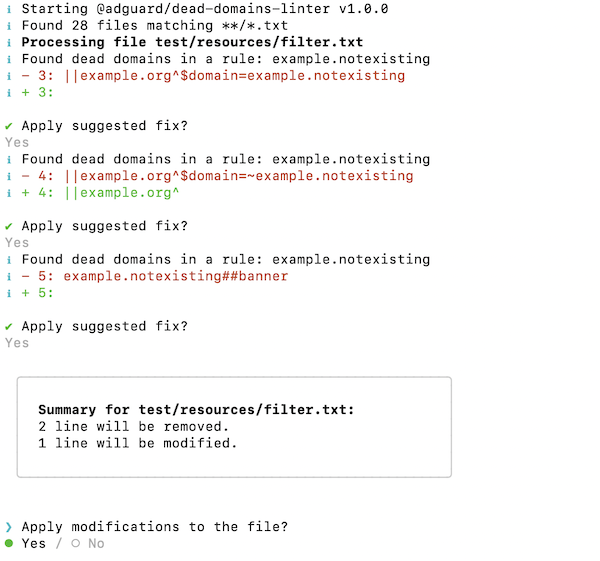
You can specify a custom glob expression to select files that the tool will
scan:
```shell
dead-domains-linter -i filter.txt
```
### Automatic and show-only mode
You can allow it to automatically apply suggestions by passing the `--auto`
flag:
```shell
dead-domains-linter --auto
```
Alternatively, you can run it in the "show only" mode:
```shell
dead-domains-linter --show
```
### Commenting rules out instead of removing them
One more useful feature would be to comment out filter rules that contain dead
domains instead of removing them. You can enable this feature by passing the
`--commentout=true` flag:
```shell
dead-domains-linter --commentout
```
### Ignoring domains
If there are specific domains you want the tool to ignore and treat as valid,
you can use the --ignore flag and provide a file containing a list of domains to be excluded.
### Exporting and using a pre-defined list of domains
Instead of immediately modifying the filter list, you may opt to export the
list of dead domains so that you could carefully review it. For instance, the
command below scans `filter.txt` for dead domains and exports this list to
`domains.txt`.
```shell
dead-domains-linter -i filter.txt --export=domains.txt
```
When you finish the review and clean up the list, you can make the tool use it
exclusively to modify filter lists. For instance, the command below scans
`filter.txt` for all domains that are in `domains.txt` and removes them from
the filter list.
```shell
dead-domains-linter -i filter.txt --import=domains.txt --auto
```
### Disabling DNS check
> [!IMPORTANT]
> Please read this if you maintain a filter list with a large number of users.
The tool relies on AdGuard DNS snapshot of the Internet domains that represents
all domains used by 100M+ AdGuard DNS users for the last 24 hours. Using this
snapshot is a good way to find dead domains, but it alone may not be 100%
accurate and it can produce false positives for really rarely visited domains.
This is why the tool also double-checks dead domains with a DNS query.
If your filter list does not have a large number of dead domains, we recommend
disabling that double-check by running the tool with the `--dnscheck=false`
flag:
```shell
dead-domains-linter --dnscheck=false
```
> [!NOTE]
> Actually, AdGuard [filter policy][filterpolicy] requires that the website
> should be popular enough to be added to the filter list. So there's a great
> chance that even when the tool produced a false positive when running with
> `--dnscheck=false`, this domain anyways does not qualify for the filter list.
[filterpolicy]: https://adguard.com/kb/general/ad-filtering/filter-policy/
### Full usage info
```shell
Usage: dead-domains-linter [options]
Options:
-i, --input glob expression that selects files that the tool will scan.
[string] [default: "**/*.txt"]
--dnscheck Double-check dead domains with a DNS query.
[boolean] [default: true]
--commentout Comment out rules instead of removing them.
[boolean] [default: false]
--export Export dead domains to the specified file instead of
modifying the files. [string]
--import Import dead domains from the specified file and skip other
checks. [string]
--ignore File with domains to ignore. [string]
-a, --auto Automatically apply suggested fixes without asking the user.
[boolean] [default: false]
-s, --show Show suggestions without applying them.
[boolean] [default: false]
-v, --verbose Run with verbose logging [boolean] [default: false]
--version Show version number [boolean]
-h, --help Show help [boolean]
Examples:
dead-domains-linter -i **/*.txt scan all .txt files in the current
directory and subdirectories in the
interactive mode
dead-domains-linter -a -i filter.txt scan filter.txt and automatically apply
suggested fixes
```
## How to develop
First, install [pnpm](https://pnpm.io/): `npm install -g pnpm`.
Then you can use the following commands:
* `pnpm install` - install dependencies.
* `pnpm run lint` - lint the code.
* `pnpm run test` - run the unit-tests.